Shopify product media element allows you to display product images and videos directly from your Shopify store. It ensures that customers can view your product media in an interactive and visually appealing way.
This element connects to your Shopify store’s product media (images, videos, 3D models) and lets you present them in different formats, improving the shopping experience and encouraging conversions.
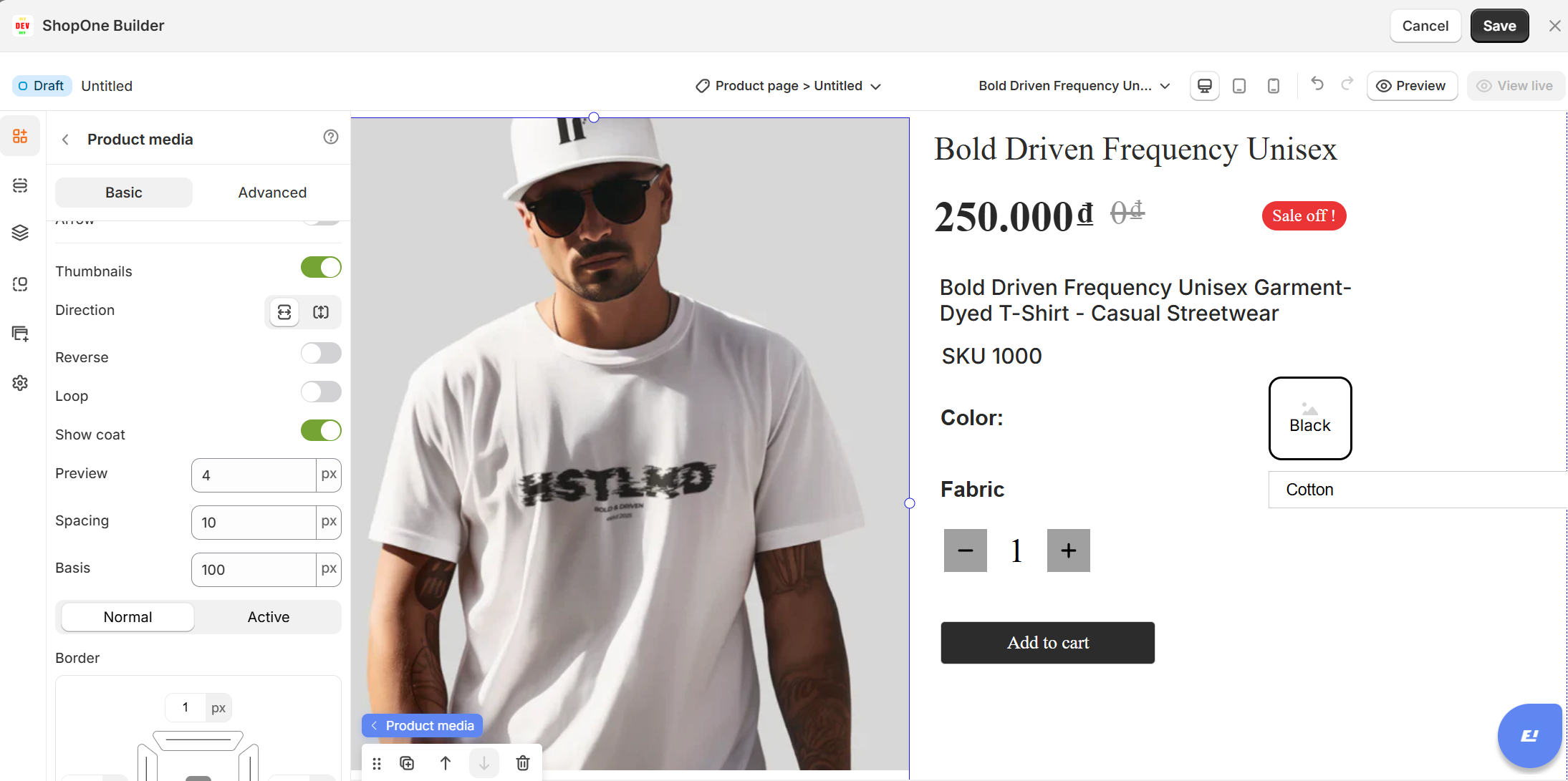
I. Product Media Element - Basic Settings
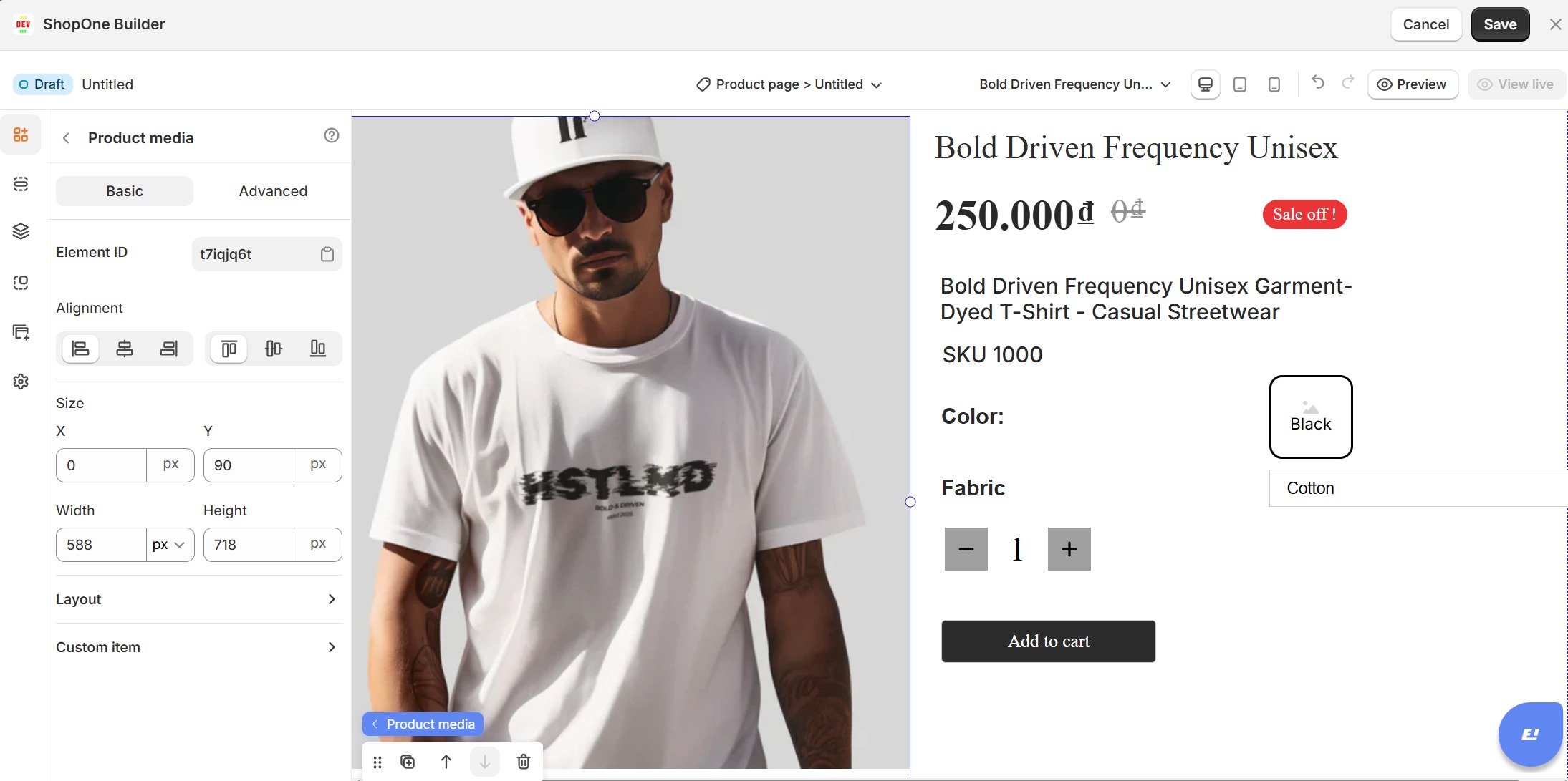
1. Element ID
- Each button has a unique Element ID for easy reference.
- Useful if you want to apply custom code (CSS/JS) to a specific button.
2. Alignment
Align the button within its container:
- Left, Center, Right (horizontal).
- Top, Middle, Bottom (vertical).
3. Size (X, Y, Width, Height)
- X / Y: Defines the button’s position in pixels.
- Width / Height: Set button dimensions in pixels.
4. Layout Options
Slider Layout: Displays media in a sliding carousel format. Customers can browse through images and videos one by one.
Drag: Enable or disable the ability for customers to drag/swipe through slides.
Loop: Allows the slider to loop infinitely.
Autoplay: Automatically cycles through media items after a set interval.
Gap: Adjust spacing between media items.
Arrow: Show/hide navigation arrows for manual control.
Thumbnails: Show/hide a row of thumbnails for quick navigation.
Grid Layout: Displays media in a grid format, great for showing multiple images/videos at once.
Row Gap & Column Gap: Adjust spacing between rows and columns for a clean layout.
Row Quantity & Column Quantity: Set how many media items appear per row and column.
Use Cases:
Display product images in a clean grid gallery for easy browsing.
Create a carousel slider to showcase multiple product angles, lifestyle images, or product videos.
Use autoplay + thumbnails for an engaging, hands-off browsing experience.
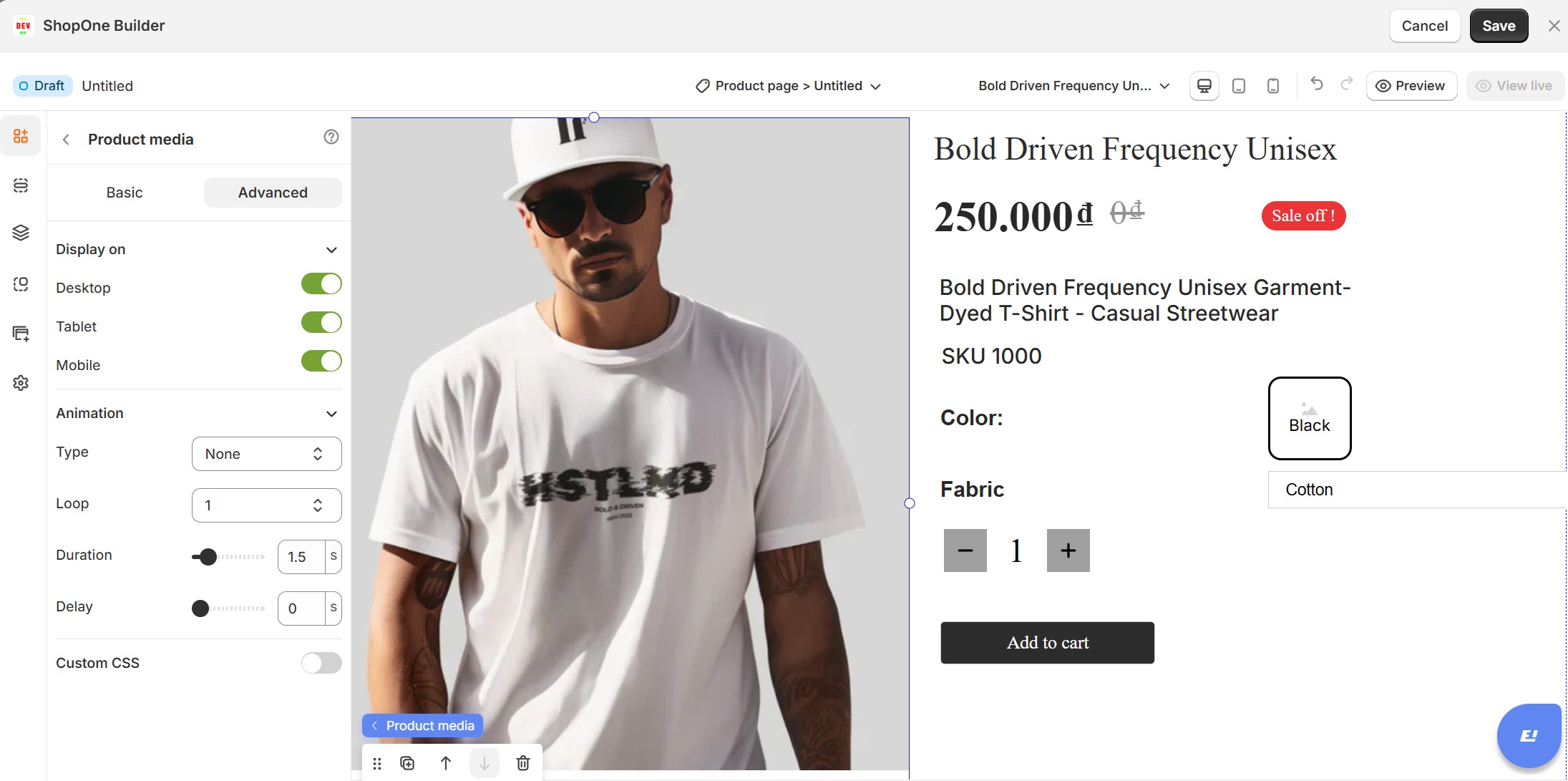
II. Product Media Element - Advanced Settings
The Advanced tab gives users more control, interactivity, and professional effects, making the text stand out and adapt perfectly to any device.
1. Display on
Control where the text will be visible:
Desktop – show/hide text on desktop devices.
Mobile – show/hide text on mobile devices.
This helps you optimize the layout for different screens (responsive design).
2. Animation
Bring your text to life with animation effects.
- Type: Choose an animation style (e.g., fade, slide, bounce).
- Loop: Set how many times the animation repeats.
- Duration: Adjust how long the animation lasts (in seconds).
- Delay: Add a delay before the animation starts.
3. Custom CSS
- Turn this on to apply your own CSS code for advanced styling.
- This is especially useful for developers or advanced users who want unique effects beyond the built-in options.
Thanks for reading! If you have any questions, please contact us via email: support@shopone.io
Was this article helpful?
That’s Great!
Thank you for your feedback
Sorry! We couldn't be helpful
Thank you for your feedback
Feedback sent
We appreciate your effort and will try to fix the article
