Shopify product collection element: Displays a grid or list of products from a selected Shopify collection. Perfect for showcasing featured products, categories, or seasonal picks.
I. Product Collection Element – Content Settings
The Product Collection element lets you display a list of products or a specific collection from your Shopify store. This is ideal for building product category pages, “Featured Products” sections, or seasonal promotions.
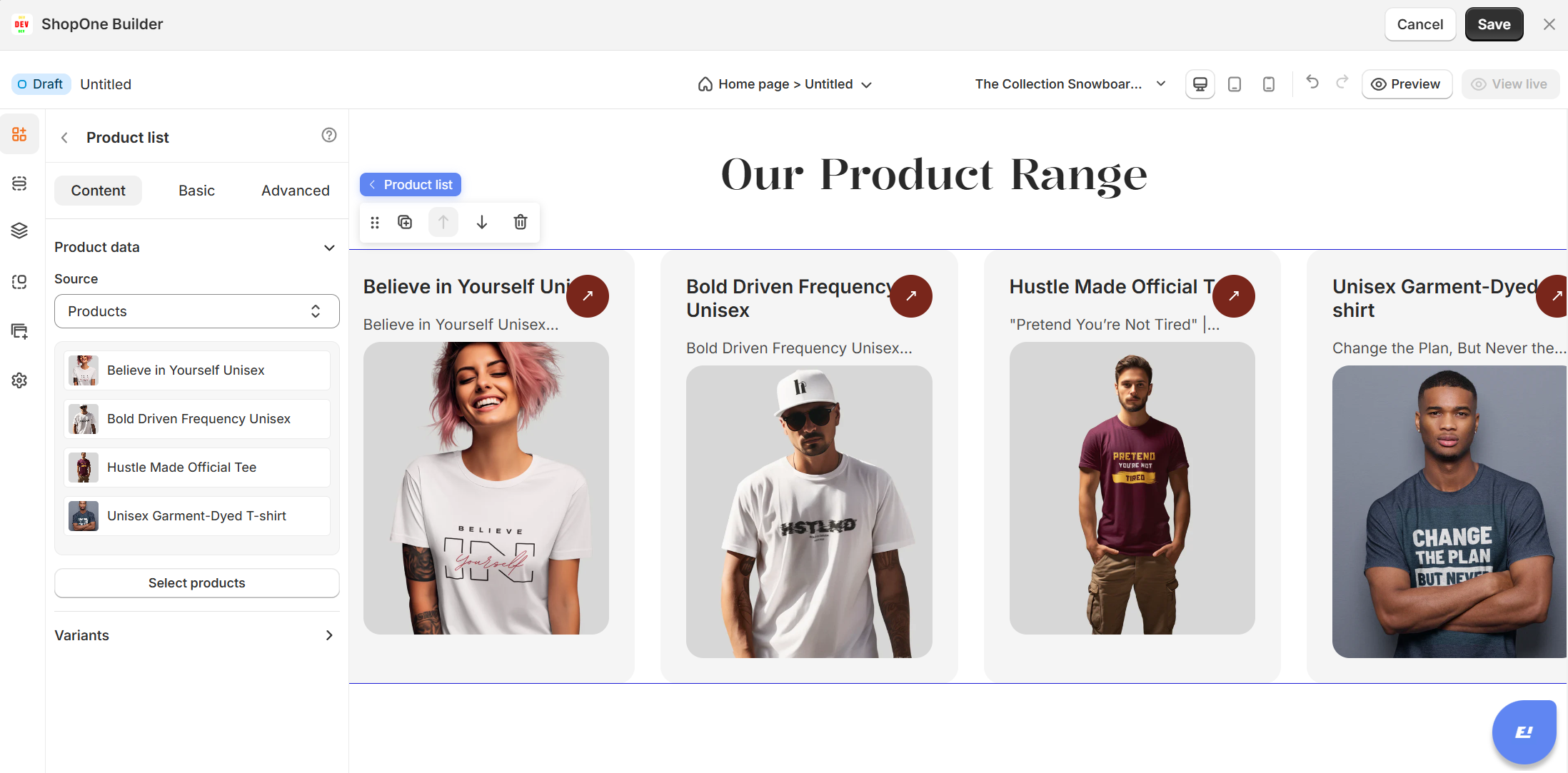
1. Product Data → Source
Choose whether you want to display:
Products – Select individual products manually.
Collections – Select a full collection from your Shopify store to display all products within it.
2. Select Products
Opens a selector where you can pick the products (or collections) you want to showcase.
If you select multiple products, they will be displayed in a grid layout.
Changes here automatically update on your live store if product info (price, availability, title) changes in Shopify.
3. Variants (submenu)
Allows you to configure how product variants (like size, color, etc.) are displayed within the collection grid.
Useful if you want shoppers to pick a variant directly from the product list without opening the product detail page.
II. Product Collection Element – Basic Settings
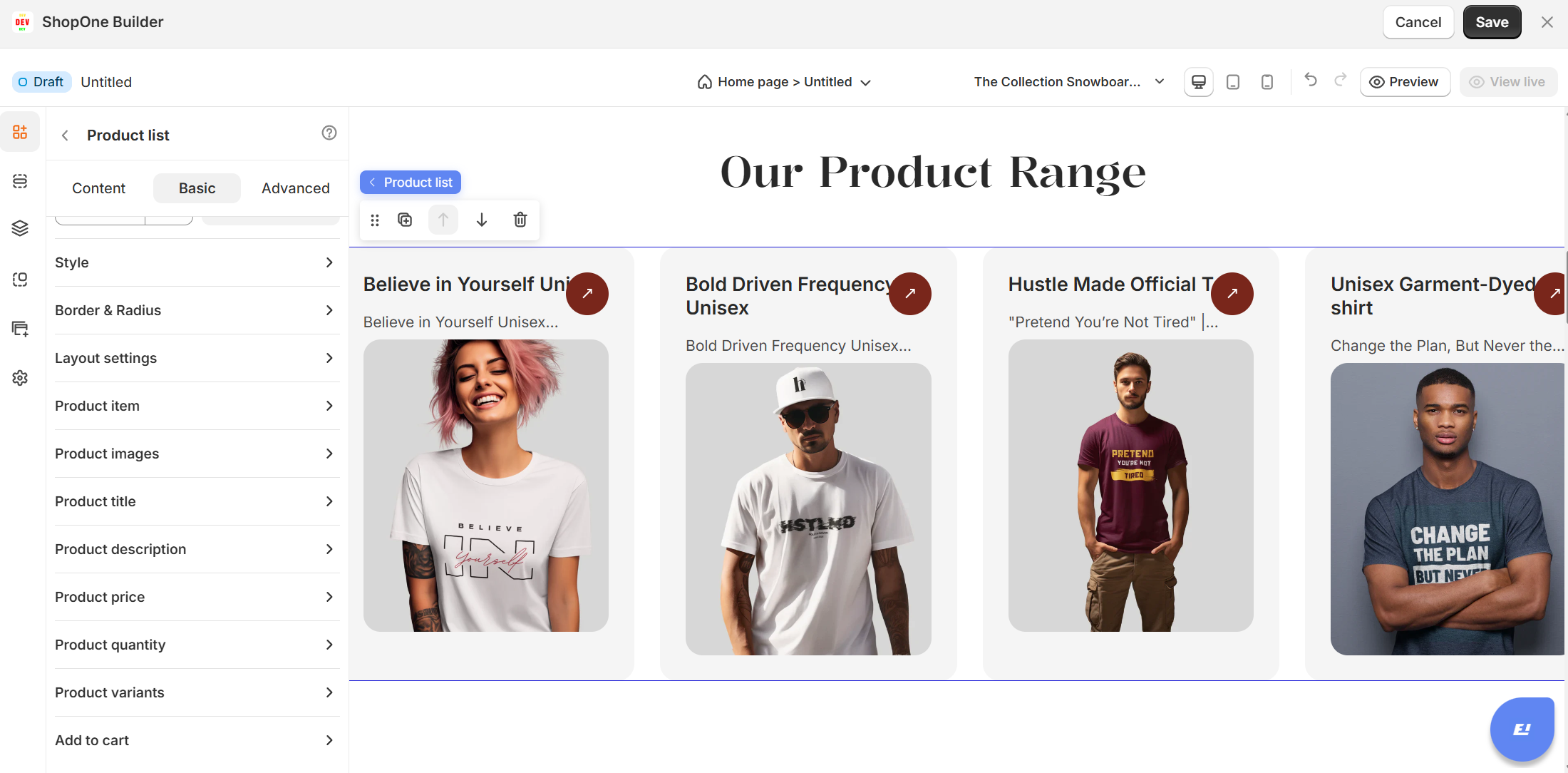
The Basic tab gives you full control over the layout, style, and design of how products are displayed within your Product Collection element. These settings allow you to customize the look and feel so it matches your brand and improves the shopping experience.
Key Options:
Element ID
A unique identifier for this element. Useful for developers or when applying custom CSS or scripts.Alignment
Controls how the entire collection is aligned within its container (left, center, right, or stretched).Size
Adjust the width and height of the collection container. This affects how many products fit per row.Style
Customize background color, borders, and other visual styles.Border & Radius
Set border thickness, style, color, and corner radius for rounded edges.Layout Settings
Manage the number of products per row, grid spacing, and overall layout (grid vs. list view).Product Images
Control how product images appear — size, aspect ratio, hover effects (like zoom or swap image).Product Title
Customize the product title’s font, size, weight, and alignment.Product Description
Show or hide descriptions, adjust length (e.g., short preview), and style the text.Product Price
Choose how prices are displayed — font style, color, and formatting (including currency symbol).Product Compare Price
Show discounted or "compare at" prices (e.g., original price crossed out). Perfect for sales or promotions.Product Quantity
Show or hide quantity selector, and style its appearance.Product Variants
Decide how product variants (size, color, etc.) are displayed — dropdown, buttons, or swatches.Add to Cart
Customize the Add-to-Cart button’s style, size, and text to encourage conversions.
III. Product Collection Element – Advanced Settings
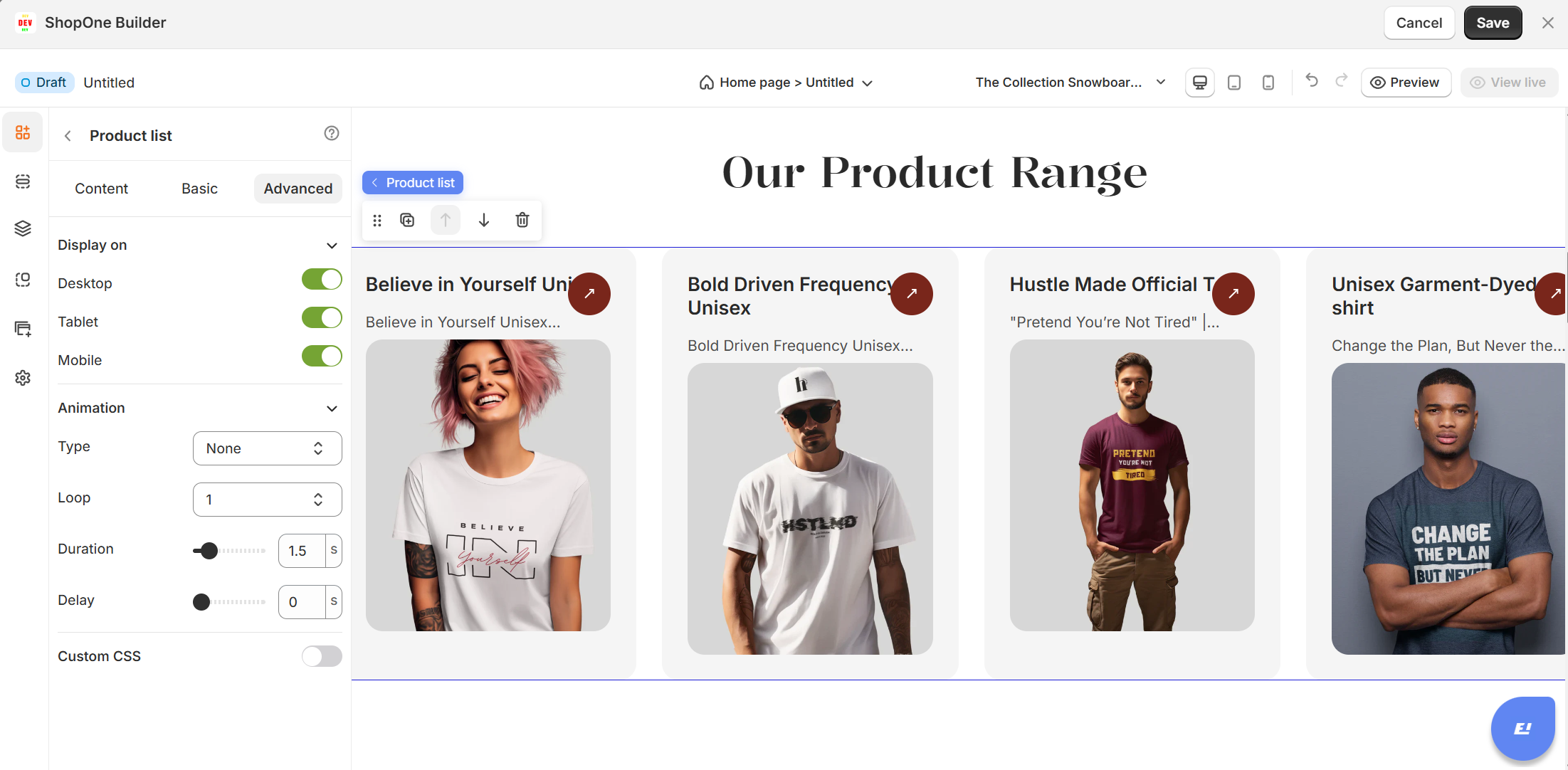
1. Display On
Control where the image is visible:
Desktop: Show or hide the image on desktop devices.
Mobile: Show or hide the image on mobile devices.
2. Animation
Add visual effects when the image appears on the page:
Type: Choose from available animations (fade, slide, zoom, etc.).
Loop: Number of times the animation should repeat.
Duration: How long the animation lasts (in seconds).
Delay: Time before the animation starts (in seconds).
3. Custom CSS
Apply custom styling for advanced design control:
Class Name: Add a CSS class that you can reference in your stylesheet.
Custom Style: Write inline CSS styles that apply only to this image element.
Thanks for reading! If you have any questions, please contact us via email: support@shopone.io
Was this article helpful?
That’s Great!
Thank you for your feedback
Sorry! We couldn't be helpful
Thank you for your feedback
Feedback sent
We appreciate your effort and will try to fix the article
