Product variants element allows shoppers to choose between different product options, such as size, color, or material. It is crucial for stores that sell products with multiple variations, ensuring that customers can easily select their preferred combination before adding to cart.
Purpose
Displays product variants clearly, making it easy for customers to choose.
Prevents order mistakes by visually showing which variants are in stock or sold out.
Improves the buying experience by allowing shoppers to configure products before purchase.
I. Product Variants Element - Content Settings
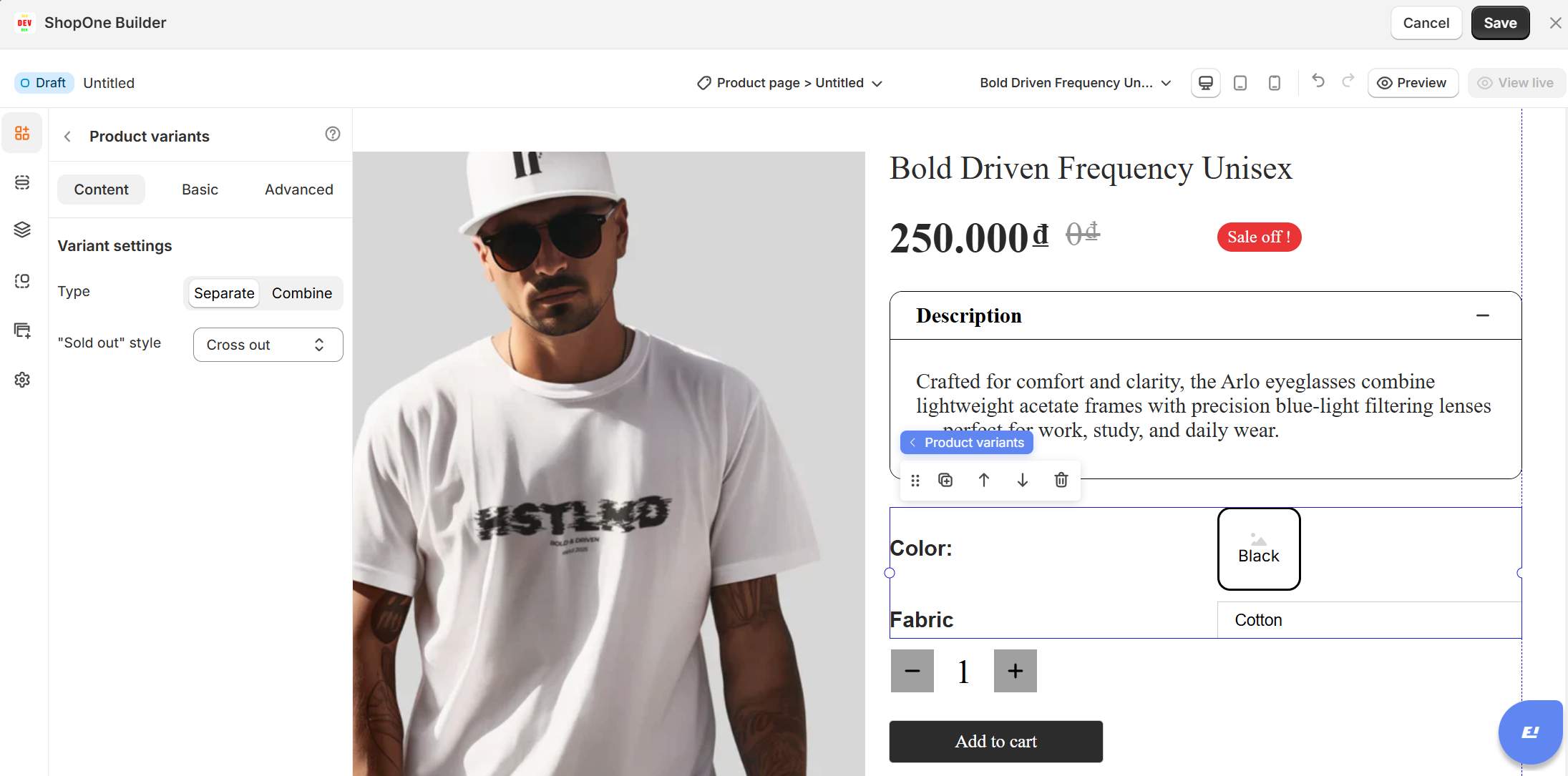
1. Variant Type
Separate: Displays variants as individual options (e.g., separate dropdowns or buttons for size and color).
Combine: Groups multiple variant options together, allowing users to make selections in a combined interface.
2. "Sold Out" Style
Cross Out: Shows unavailable variants with a line through them.
(Other possible styles depending on builder): Could include greying out or hiding sold-out options, if available.
Use Cases
Apparel Stores: Let customers choose size and color combinations quickly.
Customizable Products: Allow buyers to select material, finish, or style.
Limited Stock: Clearly show which variants are sold out, reducing customer frustration.
II. Product Variants Element - Basic Settings
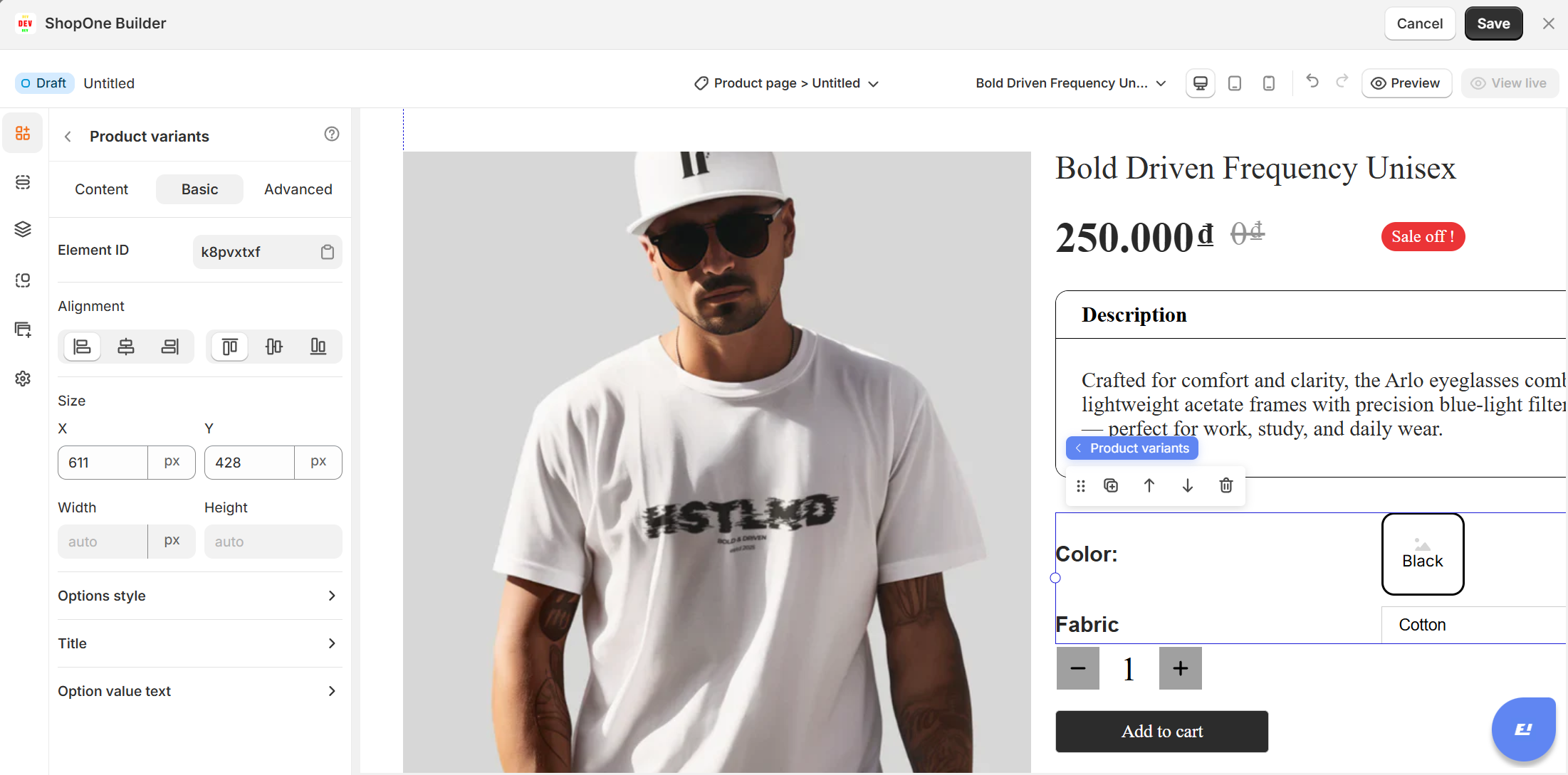
The Basic tab allows you to visually customize how the variants are displayed and positioned.
1. Alignment
Align the entire element to the left, center, right, or make it full width.
2. Size & Position
X / Y: Precisely set the element’s position on the page.
Width / Height: Define exact dimensions. Height can be set to "auto" for flexible sizing.
3. Variants Style
Customize how variant buttons, swatches, or dropdowns are styled (colors, spacing, hover effects, etc.).
4. Show Title
4.1 Text alignment
- Align your text to the left, center, right, or justify it across the container.
- Helps structure your content according to the design layout.
4.2 Type
- Choose the text type: Paragraph, Heading 1, Heading 2, Heading 3, etc.
- This is useful for creating proper content hierarchy and SEO-friendly headings.
4.3 Font family
- Select from different fonts (e.g., Poppins).
- This changes the overall style and feel of your text.
4.4 Font size
- Adjust the text size in pixels (px).
- Example: Larger size for headings, smaller size for body text.
4.5 Text color
- Change the text color using the color picker.
- You can match it with your brand colors or background design.
4.6 Font weight
- Adjust how bold or light your text appears (e.g., 400 = normal, 700 = bold).
4.7 Font style
- Choose between default, italic, or oblique text styling.
4.8 Line height
- Control the spacing between lines of text.
- A higher value increases readability, especially for longer paragraphs.
4.9 Letter spacing
- Adjust the space between individual letters.
- Useful for creating a clean, modern, or dramatic look.
4.10 Text decoration
Add styling such as:
- Underline (U)
- Strikethrough (S)
- Overline (‾)
4.11 Text transform
Change text case automatically:
- Default – keeps original typing
- Uppercase – converts all letters to caps
- Lowercase – converts all letters to lowercase
- Capitalize – capitalizes the first letter of each word
4.12 Text shadow
- Add a shadow effect behind the text.
- Can make text stand out more against the background.
=> With these functions, users can easily control the style, readability, and design impact of their website text.
5. Option Value Text
5.1 Type
- Choose the text type: Paragraph, Heading 1, Heading 2, Heading 3, etc.
- This is useful for creating proper content hierarchy and SEO-friendly headings.
5.2 Font family
- Select from different fonts (e.g., Poppins).
- This changes the overall style and feel of your text.
5.3 Font size
- Adjust the text size in pixels (px).
- Example: Larger size for headings, smaller size for body text.
5.4 Font weight
- Adjust how bold or light your text appears (e.g., 400 = normal, 700 = bold).
5.5 Line height
- Control the spacing between lines of text.
- A higher value increases readability, especially for longer paragraphs.
5.6 Letter spacing
- Adjust the space between individual letters.
- Useful for creating a clean, modern, or dramatic look.
Use Cases
Fashion & Apparel Stores: Allow shoppers to select size and color easily.
Product Configurators: Combine multiple options (e.g., material, finish, add-ons).
Limited Inventory Stores: Show which options are unavailable in real time.
III. Product Variants Element - Advanced Settings
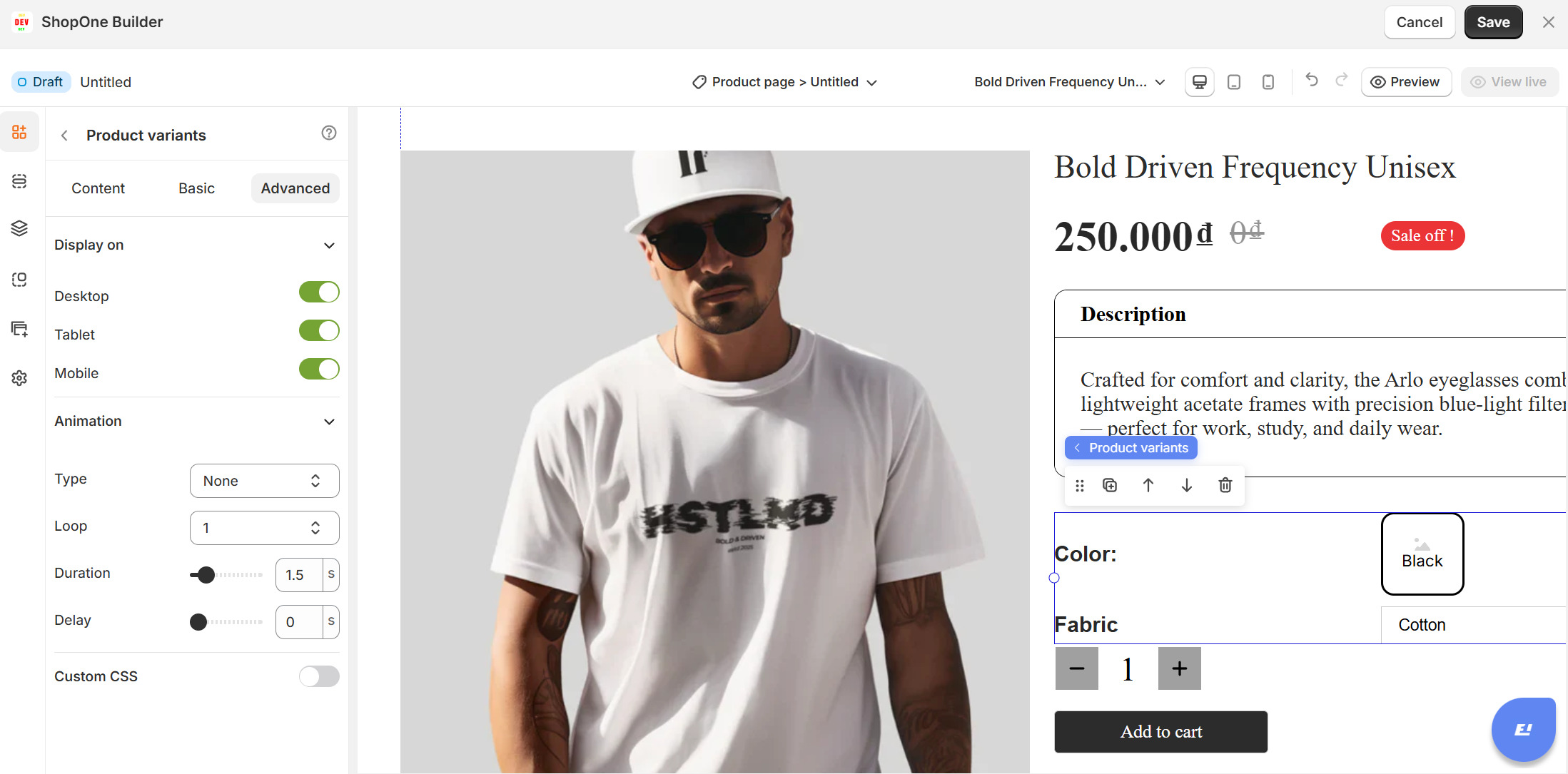
The Advanced tab gives users more control, interactivity, and professional effects, making the text stand out and adapt perfectly to any device.
1. Display on
Control where the text will be visible:
- Desktop – show/hide text on desktop devices.
- Mobile – show/hide text on mobile devices.
- This helps you optimize the layout for different screens (responsive design).
2. Animation
Bring your text to life with animation effects.
- Type: Choose an animation style (e.g., fade, slide, bounce).
- Loop: Set how many times the animation repeats.
- Duration: Adjust how long the animation lasts (in seconds).
- Delay: Add a delay before the animation starts.
3. Custom CSS
- Turn this on to apply your own CSS code for advanced styling.
- This is especially useful for developers or advanced users who want unique effects beyond the built-in options.
Thanks for reading! If you have any questions, please contact us via email: support@shopone.io
Was this article helpful?
That’s Great!
Thank you for your feedback
Sorry! We couldn't be helpful
Thank you for your feedback
Feedback sent
We appreciate your effort and will try to fix the article
