Product add to cart element is a critical call-to-action (CTA) that allows customers to add a product to their Shopify shopping cart directly from the page. This is one of the most important elements for driving conversions on any product page.
Purpose
Enable Purchases: Provides a direct way for users to add selected products (including chosen variants and quantities) to their cart.
Improve User Flow: Reduces friction by allowing instant cart interaction without requiring navigation to another page.
Boost Conversions: Clear, visible CTAs are proven to increase add-to-cart rates.
I. Product Add To Cart Element - Content Settings
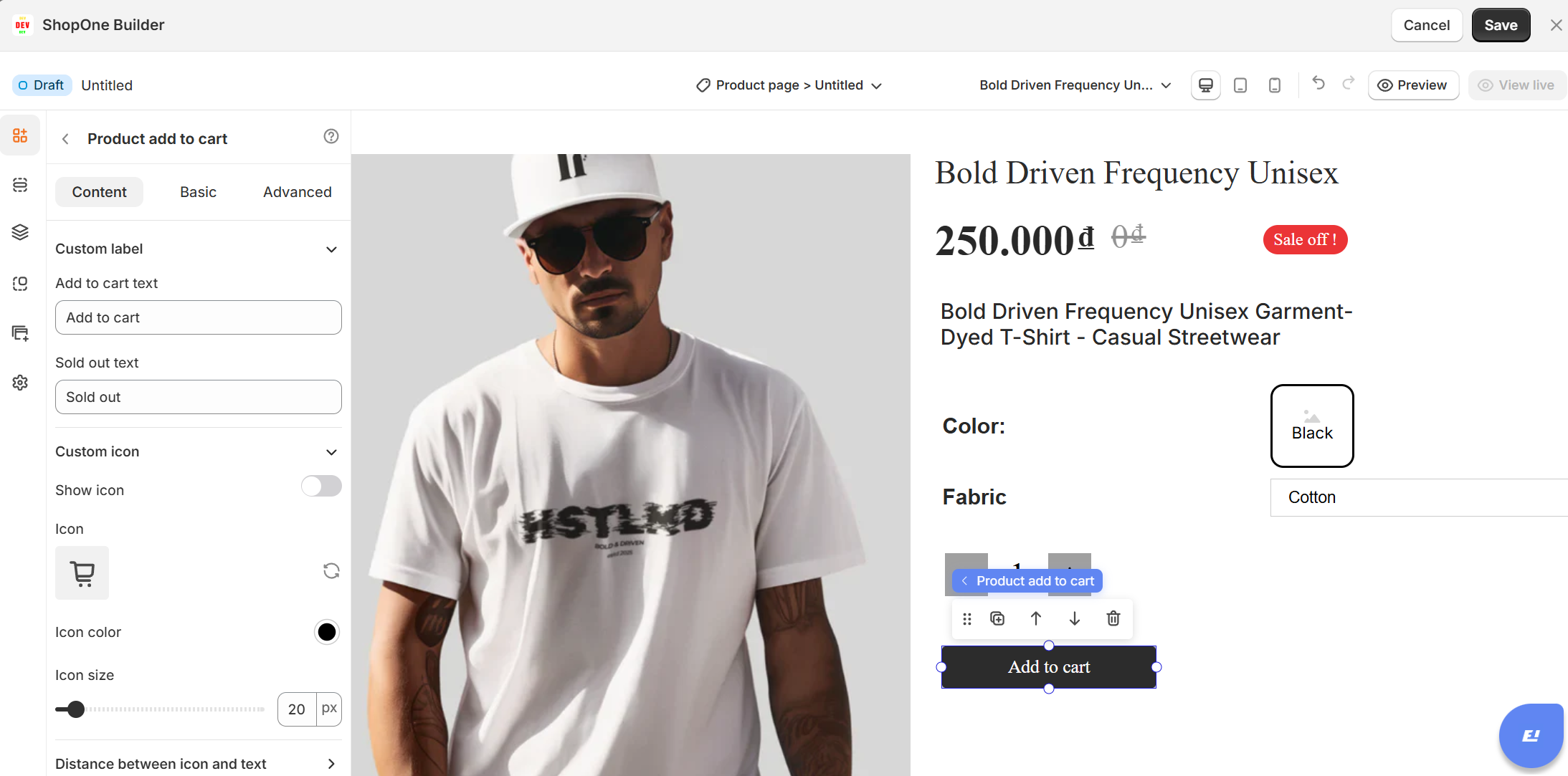
1. Custom Label
Change the default button text (“Add to cart”) to match your brand tone.
Examples: “Buy Now,” “Get Yours,” “Add to Bag,” “Reserve Today.”
Best Practices
Use contrasting colors to make the button stand out visually.
Keep the label action-oriented (e.g., “Buy Now” vs. “Submit”).
Place it above the fold or near the price and variant selectors for visibility.
Ensure mobile responsiveness with adequate touch size.
II. Product Add To Cart Element – Basic Settings
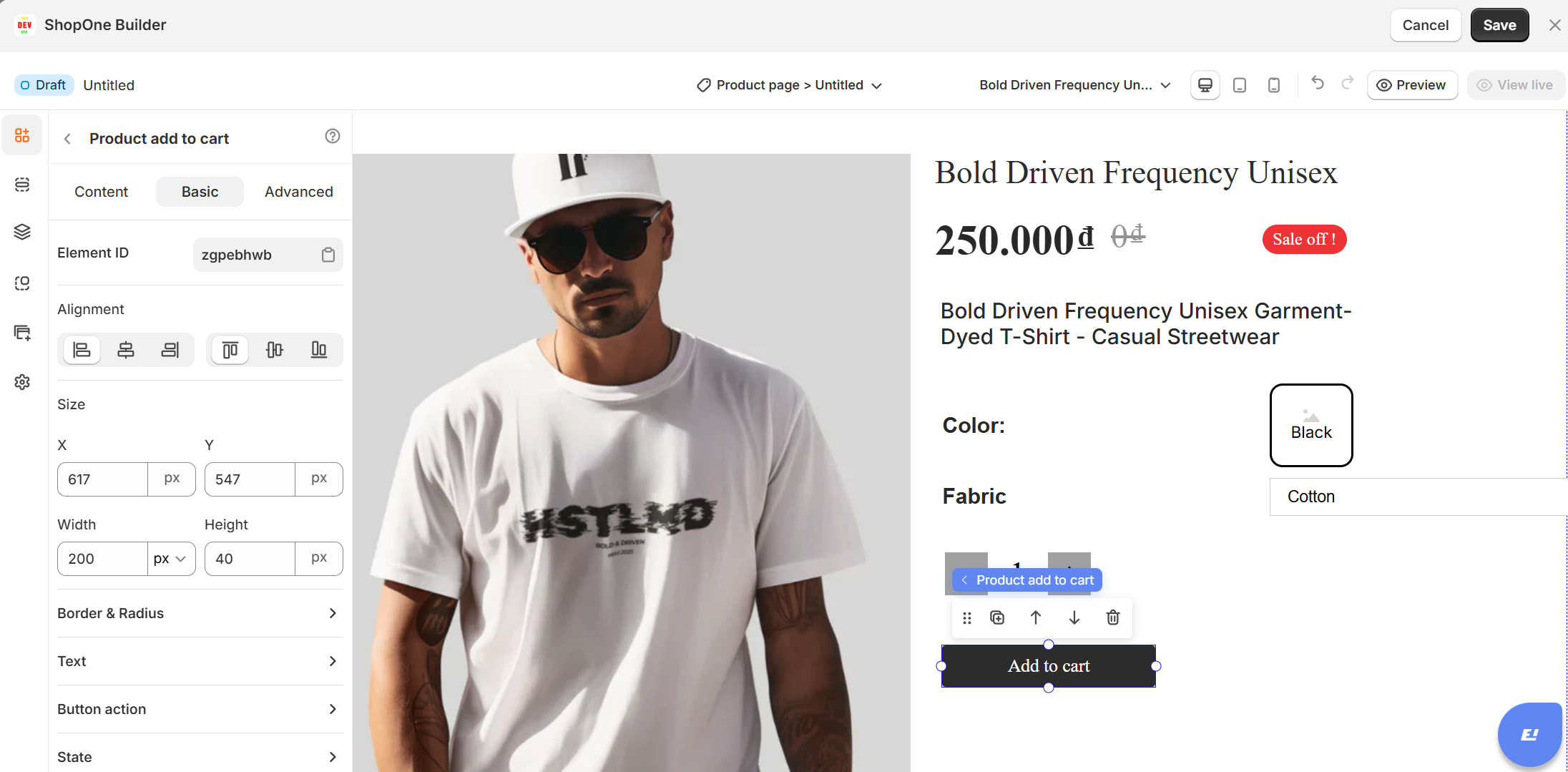
The Basic Tab provides control over the layout, style, and behavior of the "Add to Cart" button. This is where you set up its visual design and define what happens after a user clicks it.
1. Element ID
A unique identifier for the button.
Useful for:
Custom CSS targeting
Tracking click events with Google Analytics, Facebook Pixel, or custom scripts
2. Alignment
Controls how the button is positioned within its container:
Left / Center / Right alignment
Stretch – makes the button full-width for maximum visibility (common on mobile)
3. Size
Adjusts button width and height.
Allows you to:
Make it larger for better touch targets (especially on mobile)
Ensure visual consistency with other buttons on the page
4. Border & Radius
Customize the button shape:
Border – add outlines or change thickness
Radius – round the corners (fully rounded buttons often feel more modern and inviting)
5. Text
Customize the button’s typography:
Font family, size, weight (boldness), and color
Hover effects (optional)
Helps match the button style to the brand identity
6. Button Action
After Clicking:
- Open cart: Opens the cart drawer or mini-cart. Good for a seamless, quick-shopping experience without leaving the page.
Keep shopping: Adds the product to the cart but stays on the same page with no cart pop-up. Ideal for customers who are likely to buy multiple items (e.g., collections or bundles). - Go to checkout: Skips the cart and takes the customer directly to the checkout page. Great for stores with one-product focus or limited-time promotions (reduces friction).
- Open URL: Redirects the customer to a custom URL after adding to cart. Can be used for: Landing pages, Upsell pages, External links (not very common)
7. State
Set styles for different states:
Normal: Default look
Hover: Style when user’s mouse hovers over it (can change color, border, or add animation)
Best Practices
High Visibility: Make the button a contrasting color to draw attention.
Action-Oriented Label: Use “Buy Now,” “Add to Bag,” or other persuasive CTAs.
Good UX Flow: Consider enabling “Open Cart” for fast checkout experience.
Responsive Design: Ensure the button is large enough for mobile users to tap easily.
III. Product Add To Cart Element – Advanced Settings
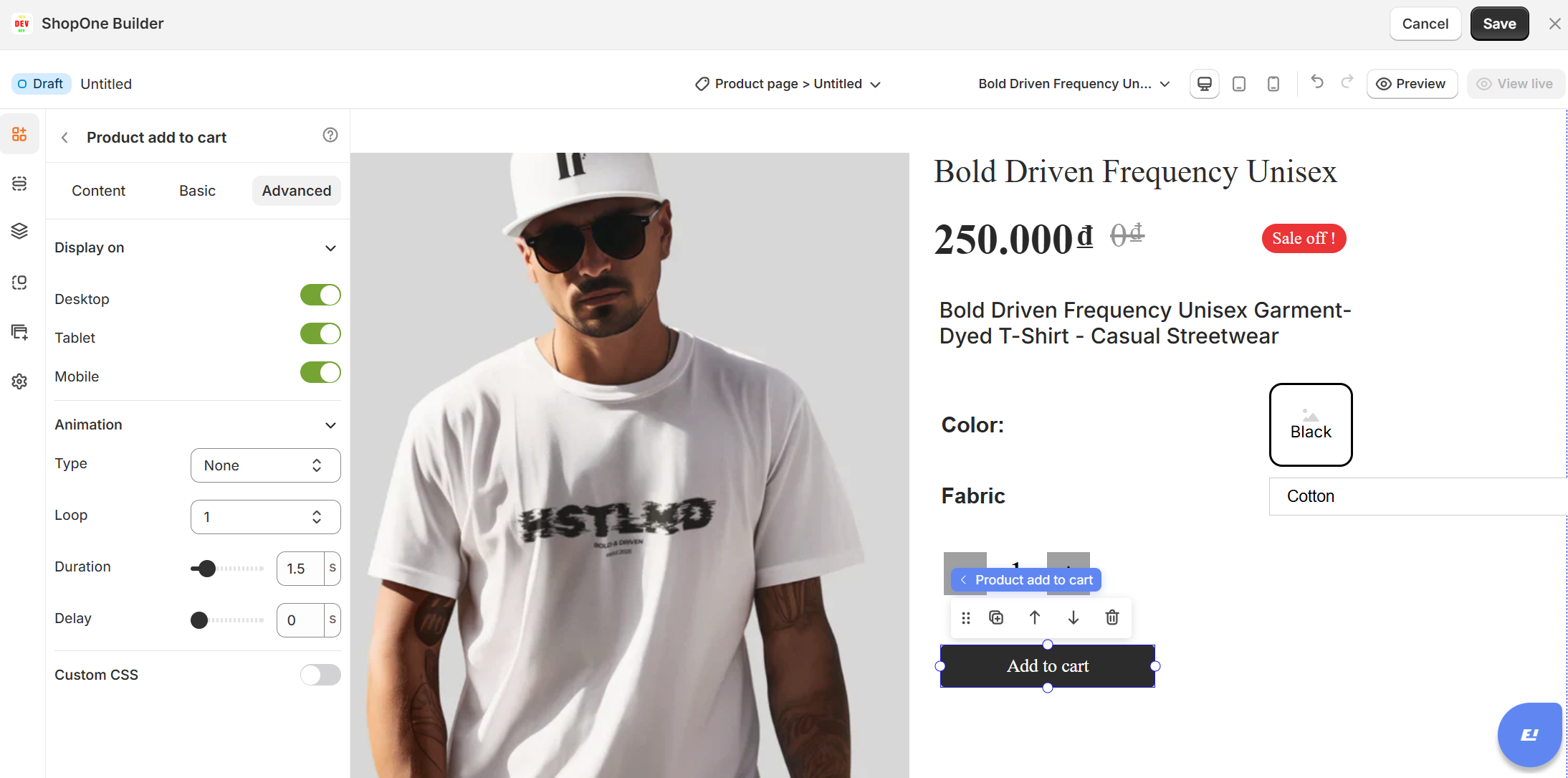
1. Display On
Control where the image is visible:
- Desktop: Show or hide the image on desktop devices.
- Mobile: Show or hide the image on mobile devices.
2. Animation
Add visual effects when the image appears on the page:
- Type: Choose from available animations (fade, slide, zoom, etc.).
- Loop: Number of times the animation should repeat.
- Duration: How long the animation lasts (in seconds).
- Delay: Time before the animation starts (in seconds).
3. Custom CSS
Apply custom styling for advanced design control:
- Class Name: Add a CSS class that you can reference in your stylesheet.
- Custom Style: Write inline CSS styles that apply only to this image element.
Thanks for reading! If you have any questions, please contact us via email: support@shopone.io
Was this article helpful?
That’s Great!
Thank you for your feedback
Sorry! We couldn't be helpful
Thank you for your feedback
Feedback sent
We appreciate your effort and will try to fix the article
