Shopify product quantity element allows customers to choose how many units of a product they want to purchase before adding it to the cart. It’s a simple but essential tool for enabling bulk or multiple-item purchases directly on your product page.
This element gives customers control over the quantity they want to buy, improving the user experience and making it easier to increase order value.
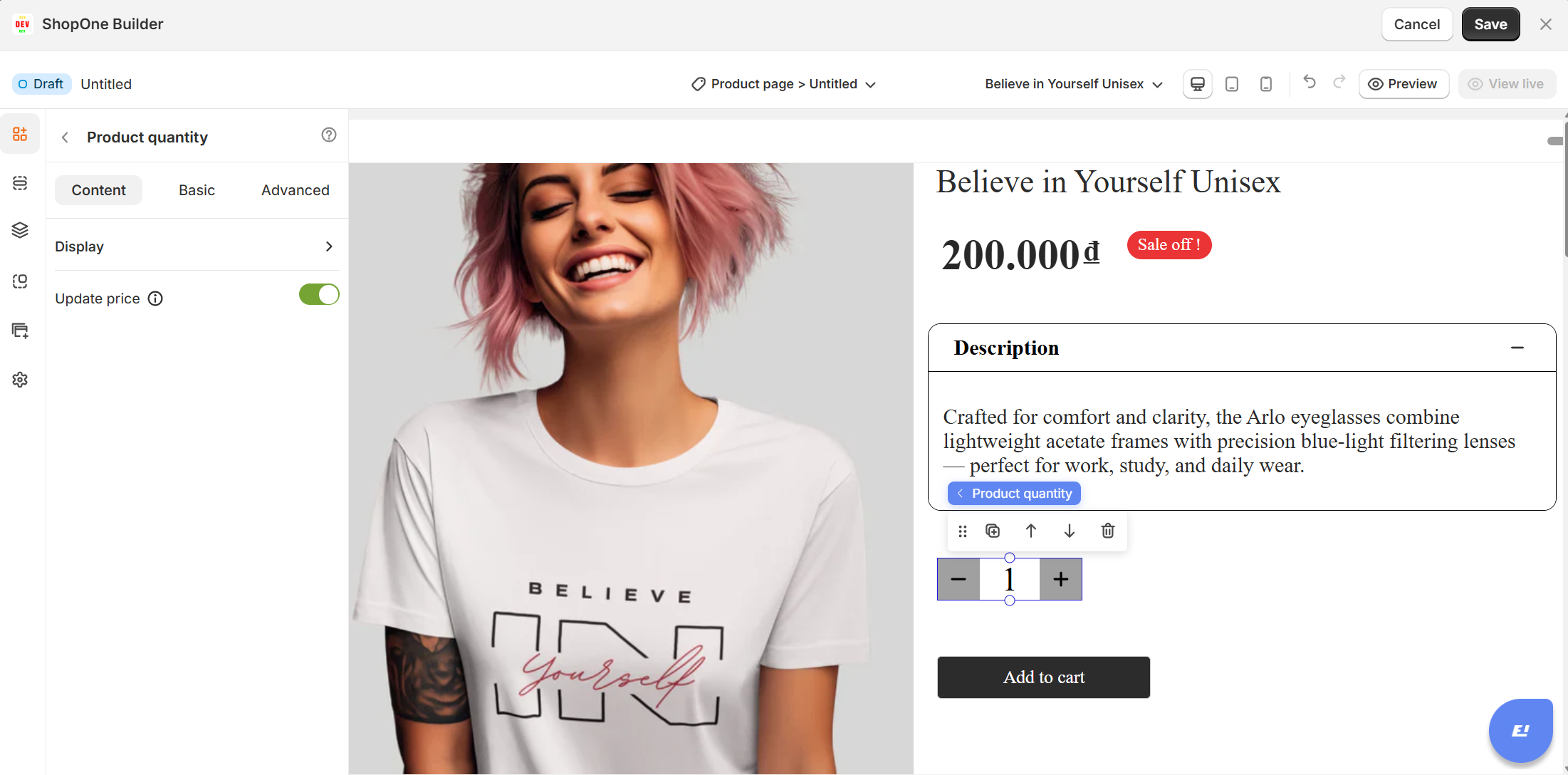
I. Product Quantity Element - Content Settings
1. Style Options
Default: Displays a quantity selector with “-” and “+” buttons on each side of the number field, allowing users to adjust easily.
Simple: Shows only a numeric input field without additional buttons for a minimalistic look.
2. Default Quantity
- You can pre-set the default quantity that will appear when the page loads (e.g., start at 1). This is helpful if you want to encourage multiple purchases (e.g., set default to 2 or more).
3. Show Separator
- Enable or disable a separator line between the quantity selector and other product elements. This helps visually distinguish the quantity section from price or add-to-cart buttons.
2. Update Price
- When enabled, the displayed product price dynamically updates as the quantity changes, showing customers the total cost for their selected amount.
Use Cases:
Single-product pages: Allow customers to select more than one unit before adding to cart.
Wholesale or bundle sales: Pre-set a higher default quantity to promote larger orders.
Dynamic pricing display: Combine with the Update Price feature for real-time cost calculation.
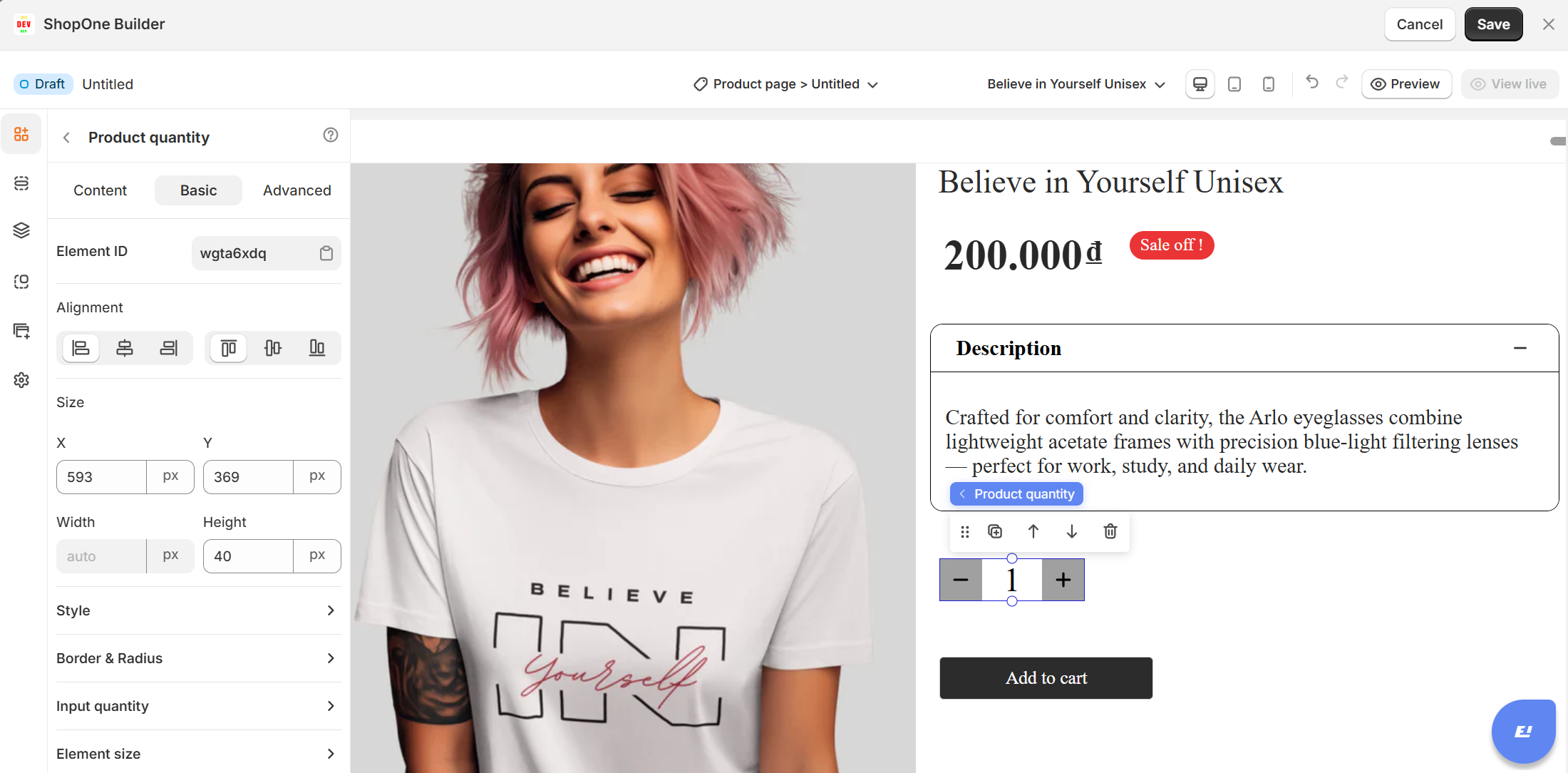
II. Product Quantity Element - Basic Settings
1. Element ID
Unique identifier for this quantity selector (used for custom code or targeting).
2. Alignment
Adjusts the position of the quantity selector relative to other elements (left, center, right).
3. Size
Manually control the width and height of the quantity selector for consistent design.
4. Style
Apply additional styling options like background color, borders, padding, or shadows.
5. Border & Radius
Customize borders and corner rounding for a polished look.
6. Input Quantity
Fine-tune input box properties like minimum/maximum quantity or step size. Customize color, size, spacing...of text or numbers.
7. Element Size
Control the size of individual buttons and text fields for better mobile responsiveness.
Use Cases:
Retail Stores: Standard quantity selector for single products.
Wholesale: Pre-set higher quantities to encourage bulk purchases.
Subscription Products: Make it easy to buy multiple units per subscription cycle.
Bundles & Discounts: Combine with dynamic pricing to show savings for higher quantities.
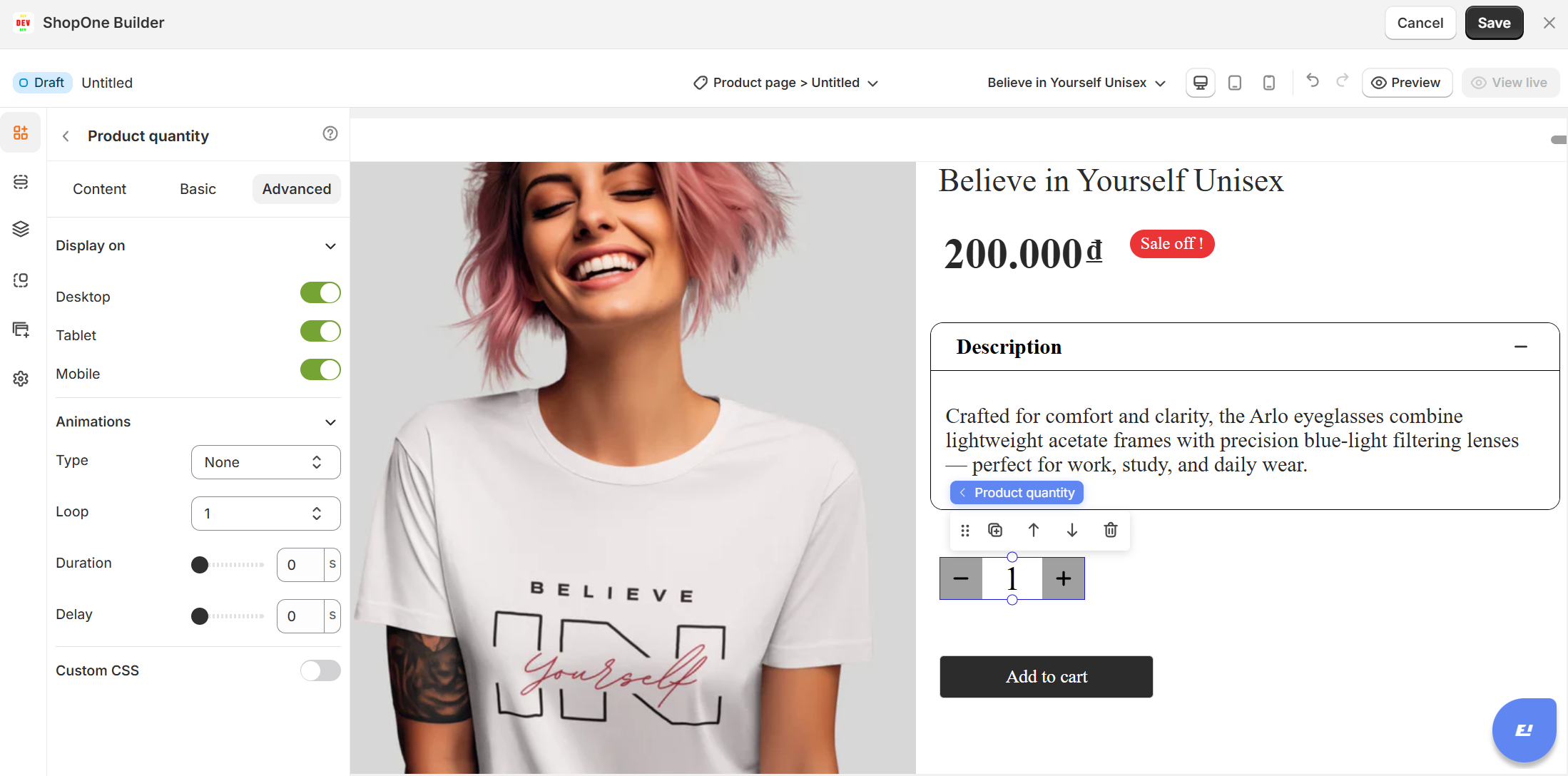
II. Product Quantity Element - Advanced Settings
The Advanced tab gives users more control, interactivity, and professional effects, making the text stand out and adapt perfectly to any device.
1. Display on
Control where the text will be visible:
Desktop – show/hide text on desktop devices.
Mobile – show/hide text on mobile devices.
This helps you optimize the layout for different screens (responsive design).
2. Animation
Bring your text to life with animation effects.
- Type: Choose an animation style (e.g., fade, slide, bounce).
- Loop: Set how many times the animation repeats.
- Duration: Adjust how long the animation lasts (in seconds).
- Delay: Add a delay before the animation starts.
3. Custom CSS
- Turn this on to apply your own CSS code for advanced styling.
- This is especially useful for developers or advanced users who want unique effects beyond the built-in options.
Thanks for reading! If you have any questions, please contact us via email: support@shopone.io
Was this article helpful?
That’s Great!
Thank you for your feedback
Sorry! We couldn't be helpful
Thank you for your feedback
Feedback sent
We appreciate your effort and will try to fix the article
