Shopify product description element dynamically displays the description text for a product from your Shopify store. It is essential for providing customers with details about the product, including features, materials, usage instructions, and benefits.
Purpose
Inform Customers: Present clear, detailed information about the product to help customers make purchase decisions.
Improve SEO: Well-written product descriptions improve search engine visibility.
Flexible Display: Supports collapsing and expanding to save space on the page.
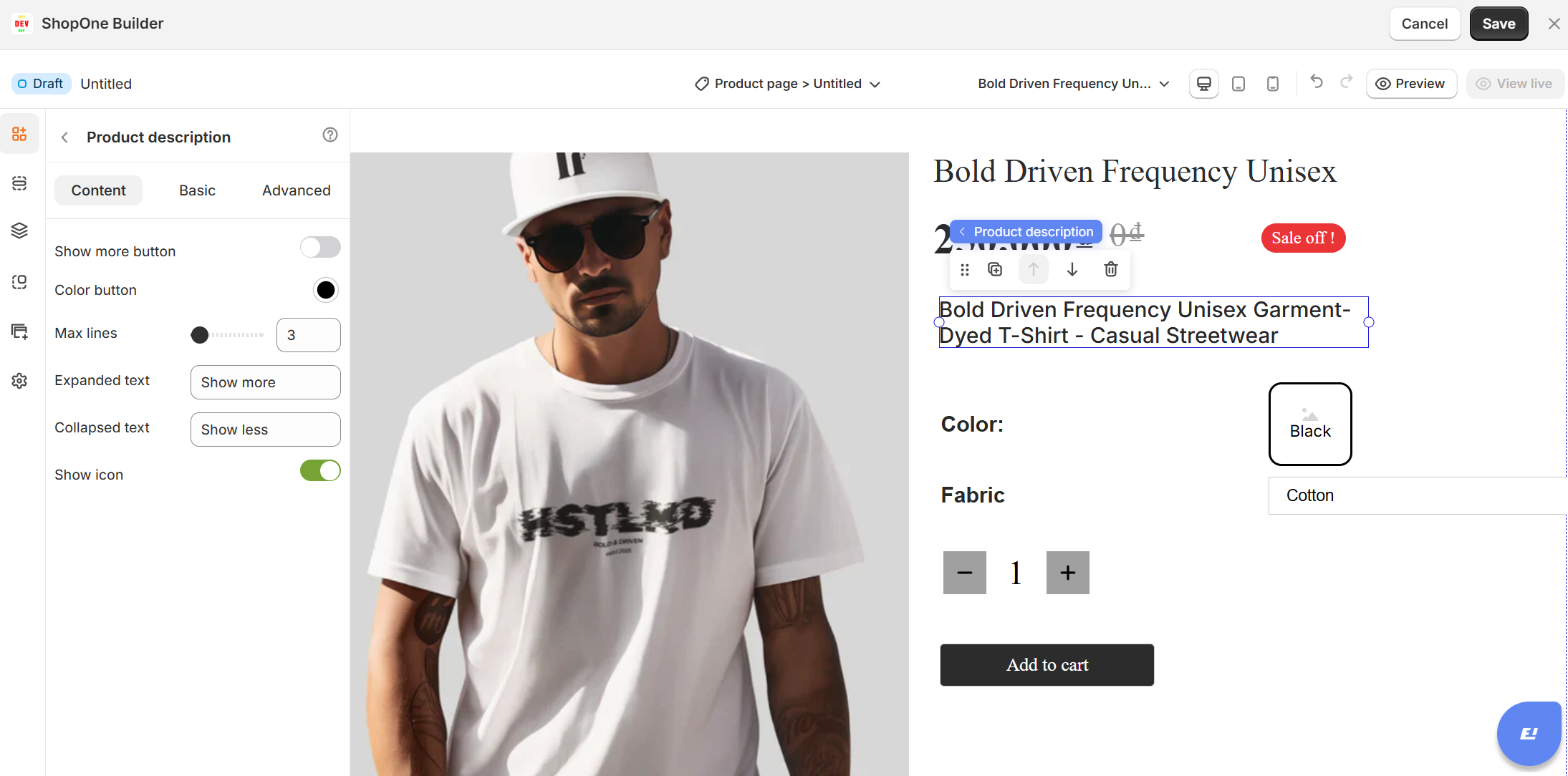
I. Product Description Element - Content Settings
1. Show More Button
Enable/Disable: Toggle whether a "Show More" button appears for long descriptions.
Useful for keeping product pages clean by showing only part of the text initially.
2. Text Color
Change the color of the description text to match your store design.
3. Max Lines
Set how many lines of text are visible before truncation occurs (when Show More is enabled).
4. Expanded Text
Customize the label for the "Show more" button (e.g., “Read more”).
5. Collapsed Text
Customize the label for the "Show less" button (e.g., “Hide details”).
6. Show Icon
Toggle the icon next to the "Show More" button to provide a visual cue.
Use Cases
Detailed Product Pages: Show full product specifications and features.
Clean, Minimal Layouts: Collapse long descriptions to keep pages visually balanced.
Brand Personality: Customize colors, fonts, and button text to reflect your store’s tone and style.
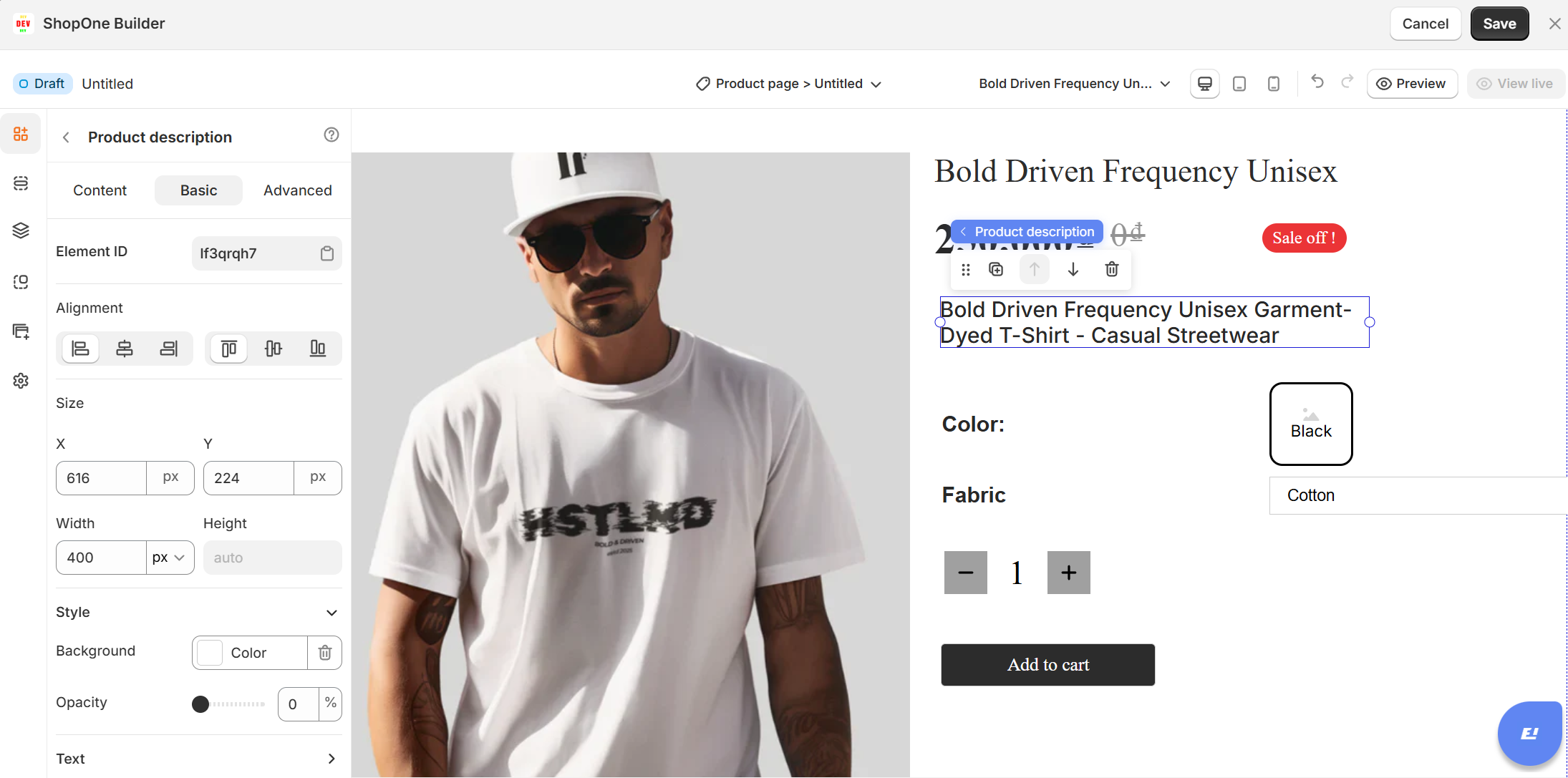
II. Product Description Element - Basic Settings
The Basic tab gives you full control over layout, size, and typography.
1. Element ID: Unique identifier for targeting with custom code or tracking.
2. Alignment: Choose left, center, right, or justified text alignment within the element.
3. Size
X / Y: Position the element on the canvas.
Width / Height: Define element dimensions (set to
autofor dynamic height).
4. Style
Background: Add a background color behind the description.
Opacity: Adjust transparency for visual emphasis or layering effects.
5. Text Settings
Text Alignment: Align text within the element (left, center, right, justify).
Type: Choose HTML tag (paragraph, heading levels) to affect SEO structure.
Font Family: Select the font for branding consistency.
Font Size: Adjust text size for readability.
Text Color: Customize color for contrast and design match.
Font Weight: Adjust thickness (e.g., 400 for regular, 700 for bold).
Font Style: Switch between normal and italic.
Line Height: Control spacing between lines for readability.
Letter Spacing: Adjust space between letters for design precision.
Text Decoration: Apply underline, strikethrough, etc.
Text Transform: Convert text to uppercase, lowercase, or capitalize automatically.
Text Shadow: Add shadow for emphasis or style (with full customization options).
Best Practices
Keep descriptions concise but informative — aim to answer customer questions.
Use Show More/Show Less for long descriptions to avoid overwhelming visitors.
Ensure contrast & readability with proper text color and size.
Use semantic tags (Paragraph, H1, H2) to improve SEO.
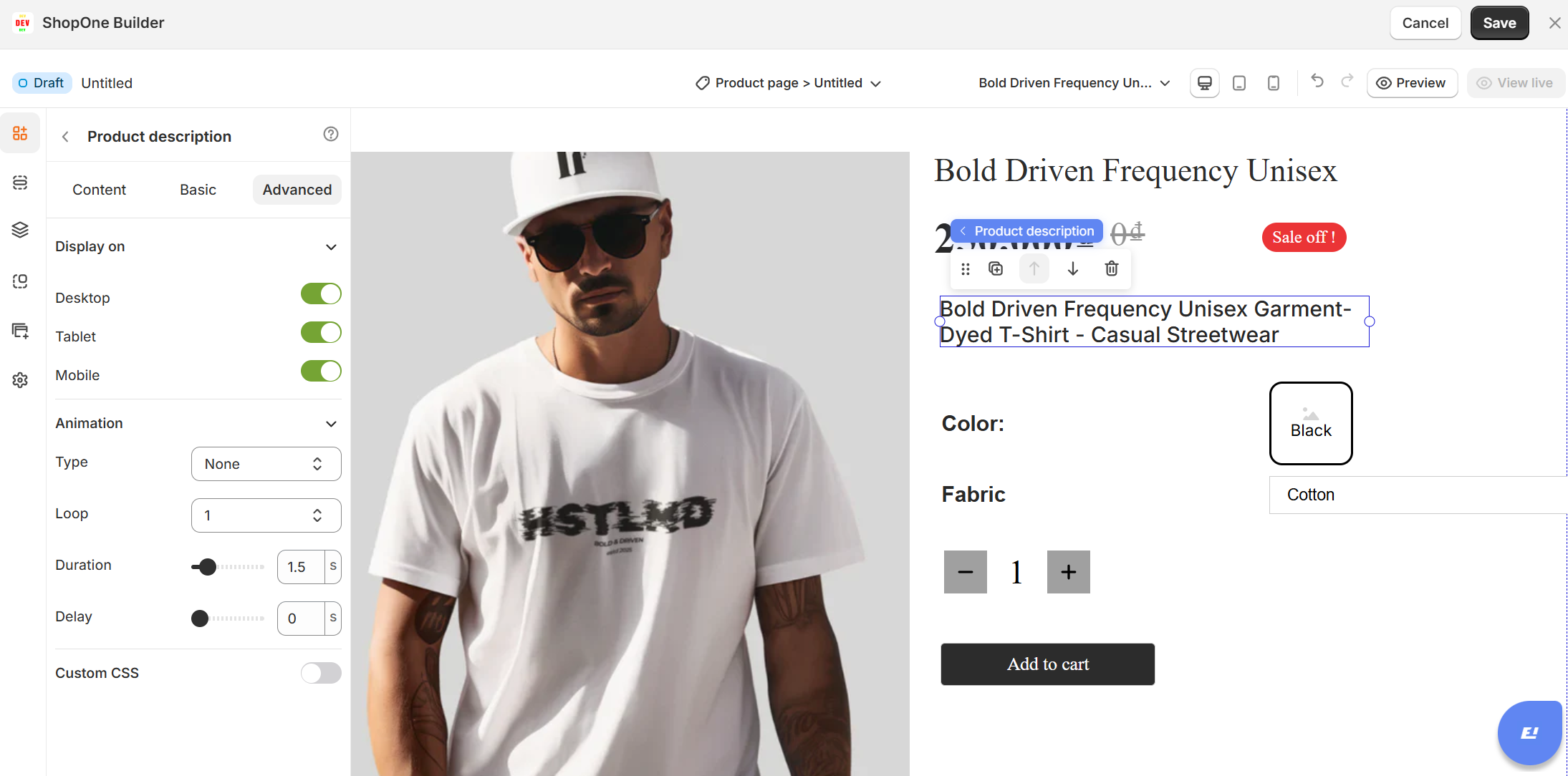
III. Product Description Element – Advanced Settings
1. Display On
Control where the image is visible:
- Desktop: Show or hide the image on desktop devices.
- Mobile: Show or hide the image on mobile devices.
2. Animation
Add visual effects when the image appears on the page:
- Type: Choose from available animations (fade, slide, zoom, etc.).
- Loop: Number of times the animation should repeat.
- Duration: How long the animation lasts (in seconds).
- Delay: Time before the animation starts (in seconds).
3. Custom CSS
Apply custom styling for advanced design control:
- Class Name: Add a CSS class that you can reference in your stylesheet.
- Custom Style: Write inline CSS styles that apply only to this image element.
Thanks for reading! If you have any questions, please contact us via email: support@shopone.io
Was this article helpful?
That’s Great!
Thank you for your feedback
Sorry! We couldn't be helpful
Thank you for your feedback
Feedback sent
We appreciate your effort and will try to fix the article
