Shopify product price element allows you to display and style the price of your product dynamically. It supports showing both the original price and a comparison price (useful for discounts and sales).
I. Product Price Element - Content Settings
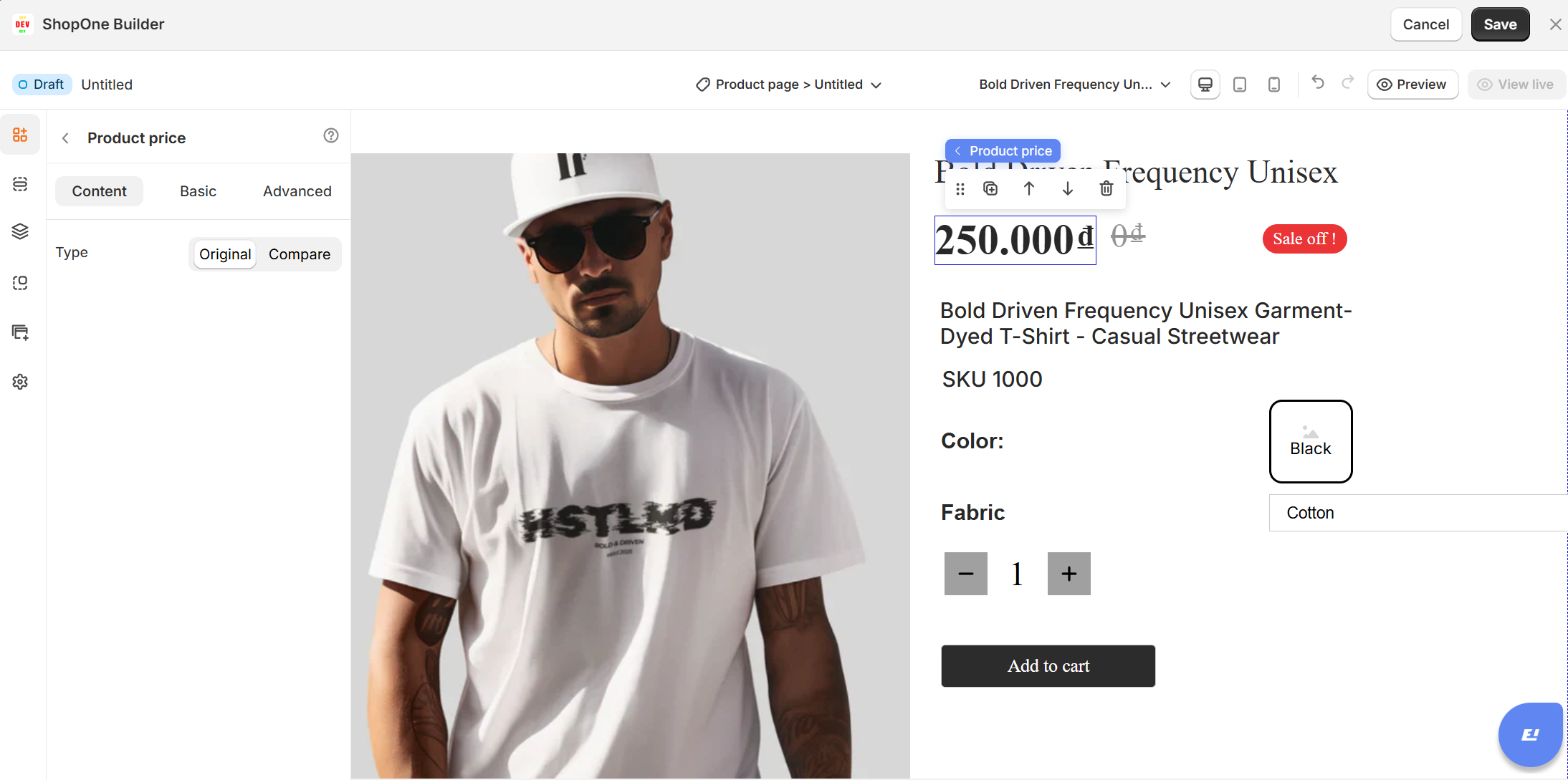
1. Type
Choose which type of price to display:
Original → Displays the product’s standard price.
Compare → Displays the comparison price (often shown as the “original” or “crossed-out” price when a discount is applied).
Use Case:
Show Original price as the main price.
Show Compare price alongside to highlight discounts (e.g., "Was $100, Now $80").
II. Product Price Element - Basic Settings
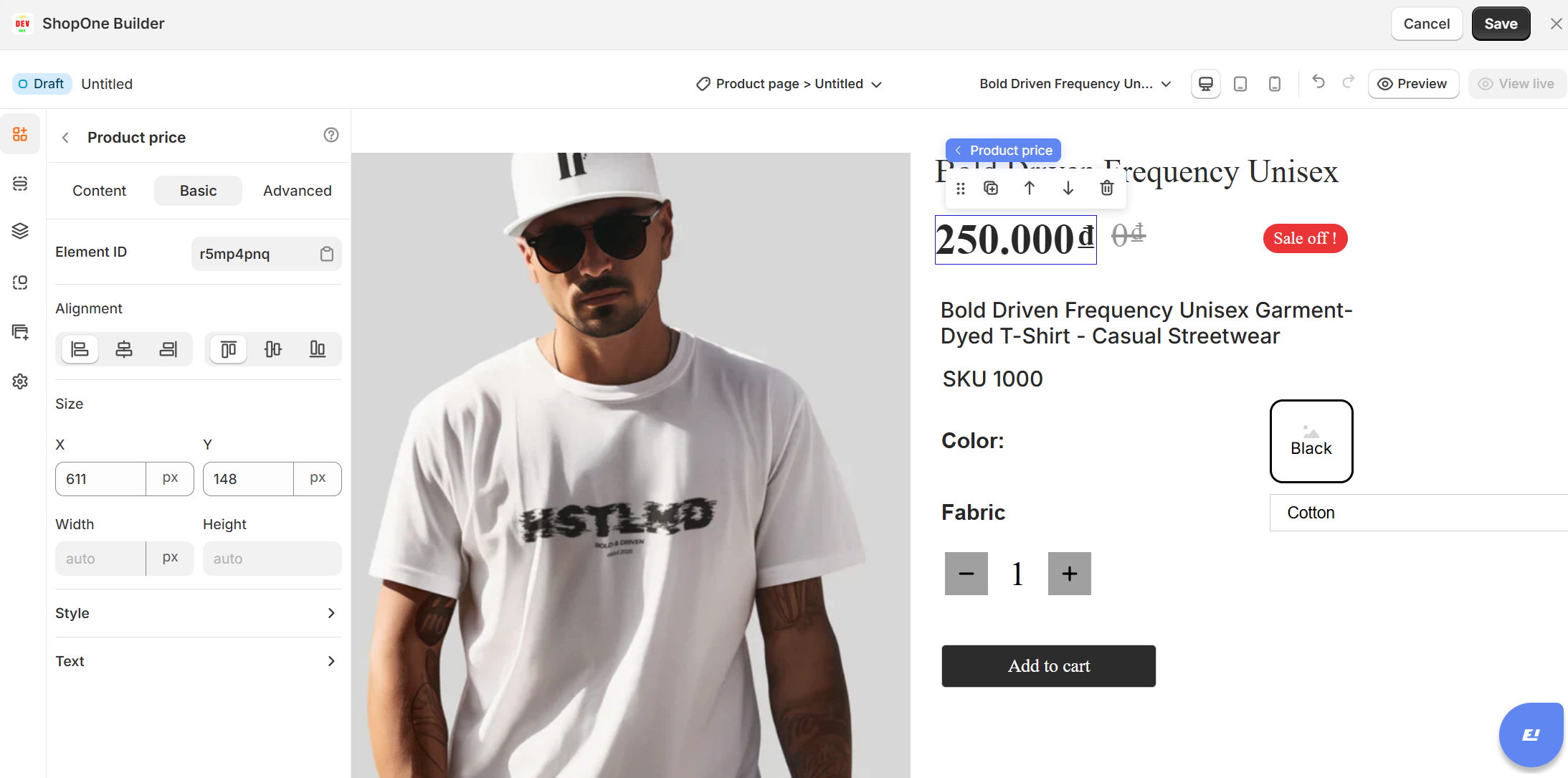
1. Element ID
- Each price element is assigned a unique
Element ID. - This can be used for custom CSS or scripts to target this specific price element.
2. Alignment
Control the horizontal and vertical alignment of the price within its container.
Left, center, right alignment
Top, middle, bottom positioning
Tip: Use center alignment for minimalistic layouts, left for product lists, and right for price-heavy designs.
3. Size
Adjust the size and positioning manually:
X / Y – Set the position of the price element relative to the container.
Width / Height – Define a fixed width/height (or leave as auto to fit content).
4. Style
Background – Add a background color or image to the price area.
Opacity – Adjust transparency of the entire price element (0% = fully invisible, 100% = fully visible).
5. Text
5.1 Text alignment
- Align your text to the left, center, right, or justify it across the container.
- Helps structure your content according to the design layout.
5.2 Type
- Choose the text type: Paragraph, Heading 1, Heading 2, Heading 3, etc.
- This is useful for creating proper content hierarchy and SEO-friendly headings.
5.3 Font family
- Select from different fonts (e.g., Poppins).
- This changes the overall style and feel of your text.
5.4 Font size
- Adjust the text size in pixels (px).
- Example: Larger size for headings, smaller size for body text.
5.5 Text color
- Change the text color using the color picker.
- You can match it with your brand colors or background design.
5.6 Font weight
Adjust how bold or light your text appears (e.g., 400 = normal, 700 = bold).
5.7 Font style
- Choose between default, italic, or oblique text styling.
5.8 Line height
- Control the spacing between lines of text.
- A higher value increases readability, especially for longer paragraphs.
5.9 Letter spacing
- Adjust the space between individual letters.
- Useful for creating a clean, modern, or dramatic look.
5.10 Text decoration
Add styling such as:
- Underline (U)
- Strikethrough (S)
- Overline (‾)
5.11 Text transform
Change text case automatically:
- Default – keeps original typing
- Uppercase – converts all letters to caps
- Lowercase – converts all letters to lowercase
- Capitalize – capitalizes the first letter of each word
5.12 Text shadow
Add a shadow effect behind the text.
Can make text stand out more against the background.
III. Product Price Element - Advanced Settings
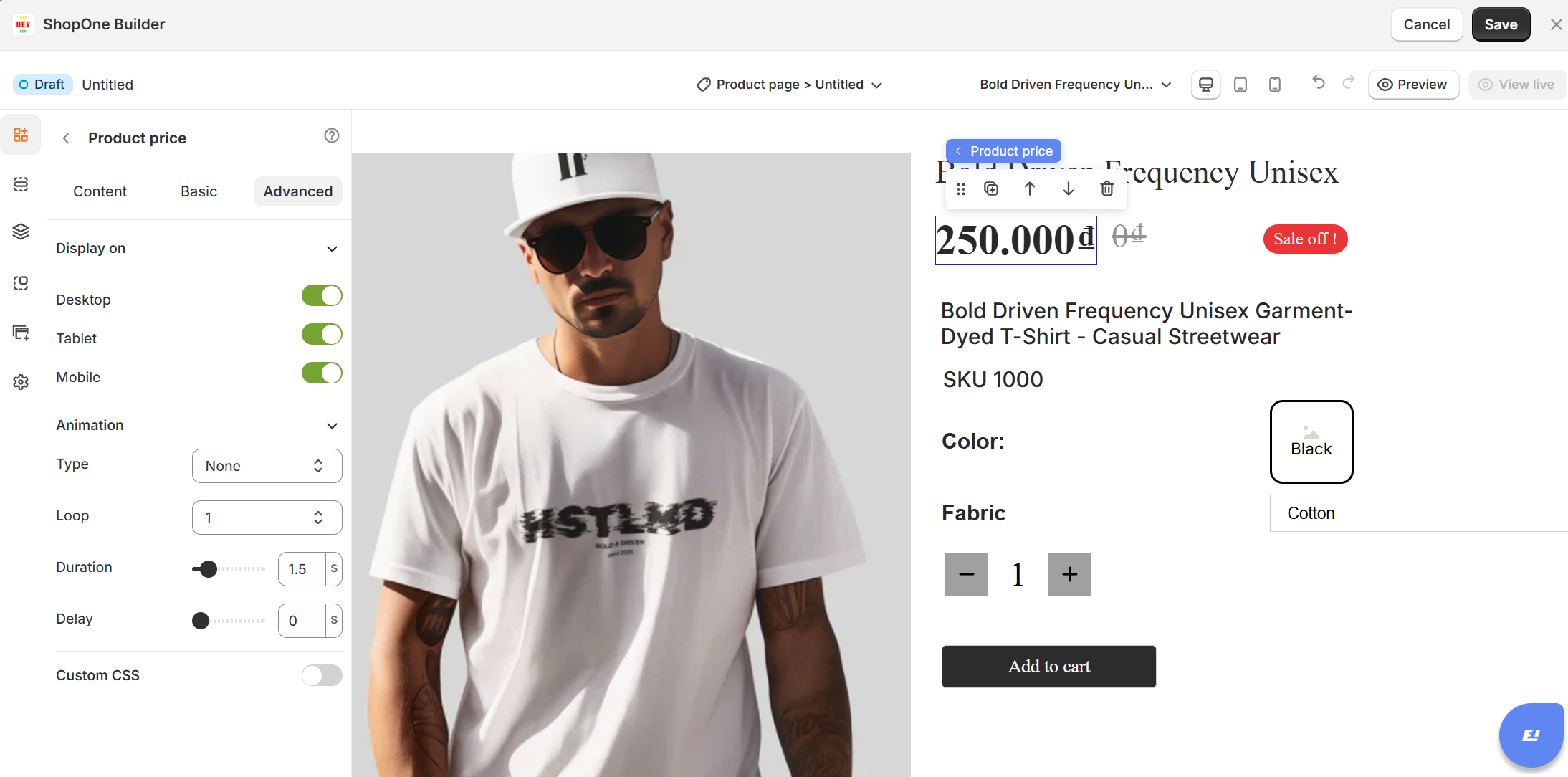
1. Display On
Control where the image is visible:
- Desktop: Show or hide the image on desktop devices.
- Mobile: Show or hide the image on mobile devices.
2. Animation
Add visual effects when the image appears on the page:
- Type: Choose from available animations (fade, slide, zoom, etc.).
- Loop: Number of times the animation should repeat.
- Duration: How long the animation lasts (in seconds).
- Delay: Time before the animation starts (in seconds).
3. Custom CSS
Apply custom styling for advanced design control:
- Class Name: Add a CSS class that you can reference in your stylesheet.
- Custom Style: Write inline CSS styles that apply only to this image element.
Thanks for reading! If you have any questions, please contact us via email: support@shopone.io
Was this article helpful?
That’s Great!
Thank you for your feedback
Sorry! We couldn't be helpful
Thank you for your feedback
Feedback sent
We appreciate your effort and will try to fix the article
