The Estimate Shipping element allows customers to calculate shipping costs before checkout by entering their location details. This helps improve transparency and reduces cart abandonment by letting customers preview shipping rates in advance.
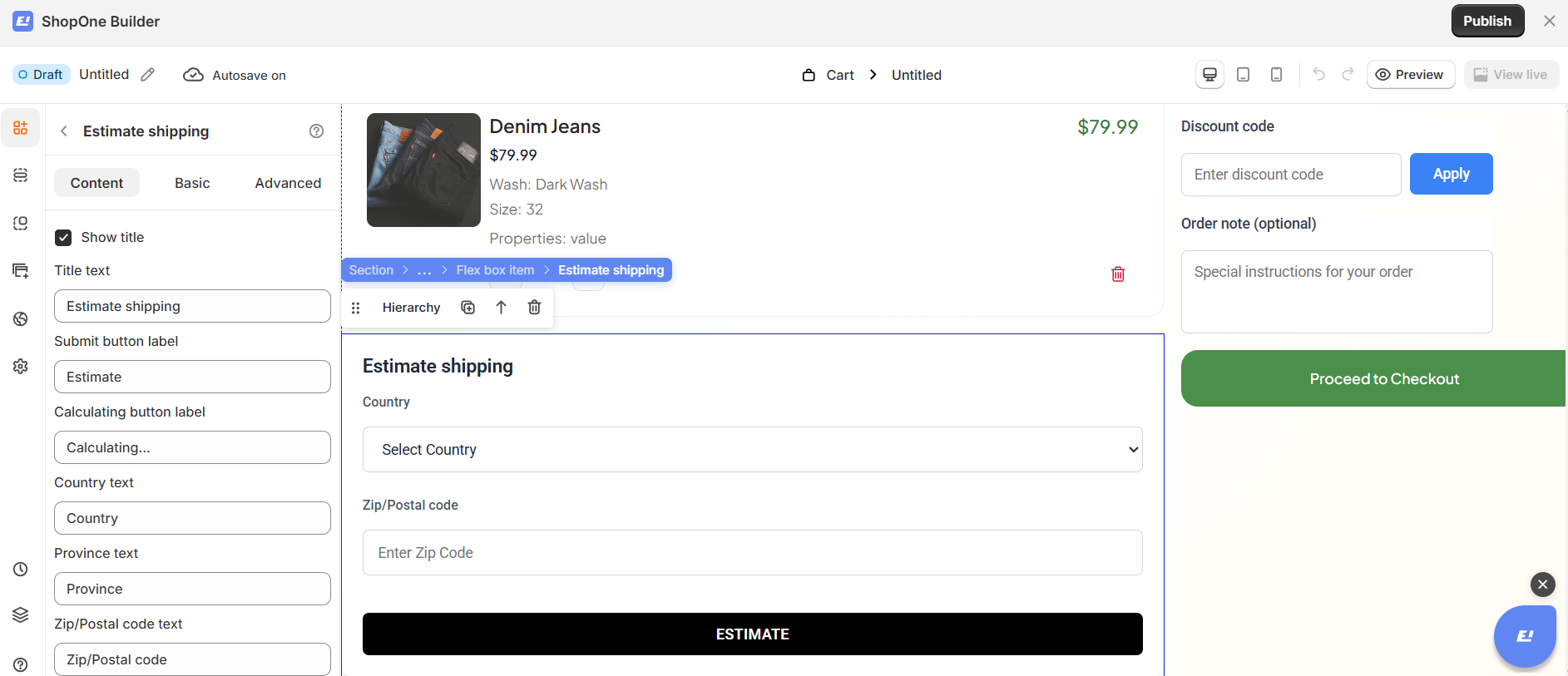
I. Estimate Shipping Element - Content Settings
The Content tab controls all text labels, messages, and calculation-related settings displayed to customers.
Title Text
Defines the heading of the estimate shipping section.
Example: Estimate shipping
Submit Button Label
Sets the text shown on the button used to calculate shipping costs.
Example: Estimate
Calculating Button Label
Displays temporary text while the system is calculating shipping rates.
Example: Calculating…
Country Text
Specifies the label for the country selection field.
Example: Country
Province Text
Defines the label for the province/state input field.
Example: Province
Zip/Postal Code Text
Sets the label for the postal or ZIP code field.
Example: Zip/Postal code
Error Message (General)
Displayed when shipping rates cannot be calculated due to an error.
Example: Unable to calculate shipping.
Preview Error Message
Allows previewing the error message directly in the editor for testing purposes.
Shipping Rate Text After Calculated
Defines the message shown after shipping rates are successfully calculated.
Supports dynamic values such as price placeholders.
Example: Rates start at: {{price}}
Preview Shipping Rate After Calculated
Enables previewing the calculated shipping result in the editor.
Text When Do Not Ship to a Location
Displayed when shipping is unavailable for the selected destination.
Example: Sorry, we do not ship to this destination
II. Estimate Shipping Element - Basic Settings
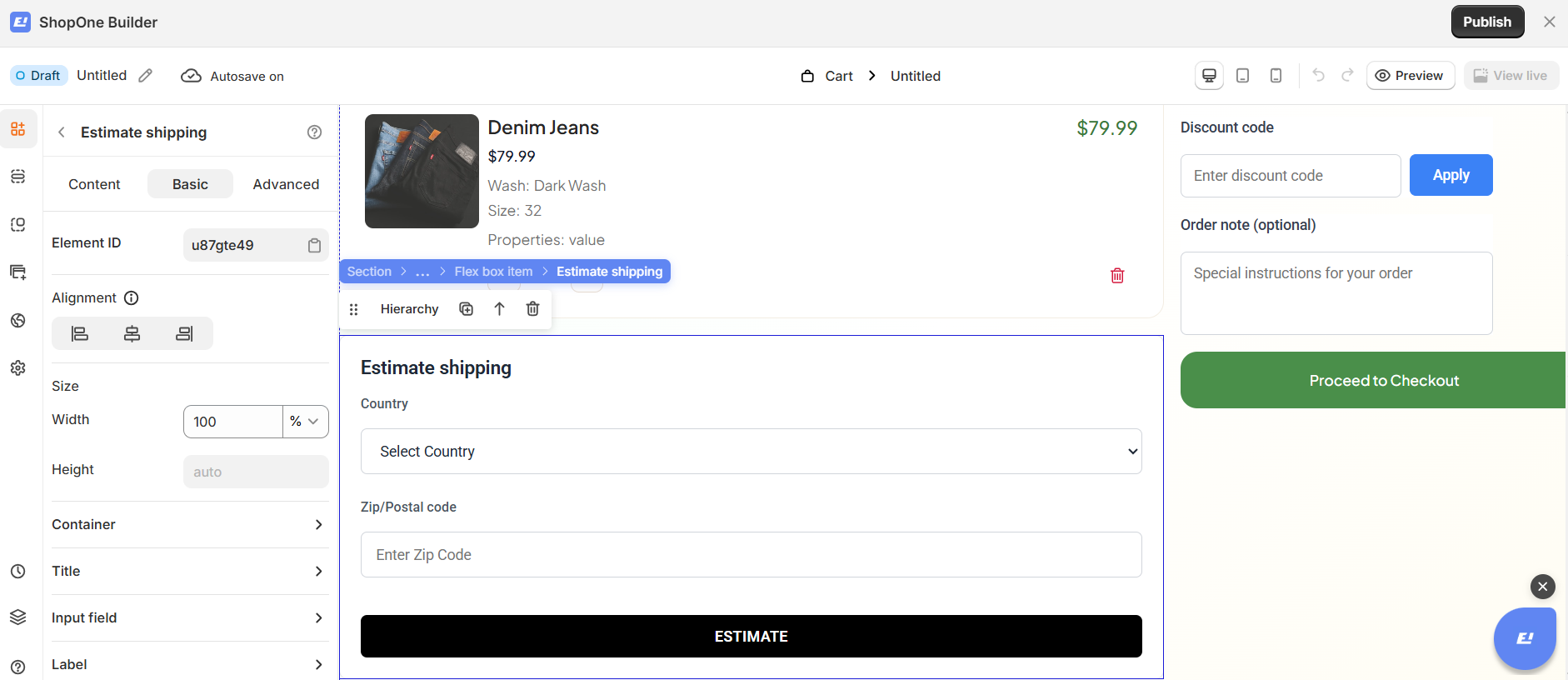
The Basic tab manages layout, alignment, size, and visual styling for the Estimate Shipping element.
Element ID
A unique identifier for the element, useful for custom styling or scripts.
Alignment
Controls how the element is aligned within its container (left, center, or right).
Size
Width: Defines the width of the estimate shipping block (e.g., 100%).
Height: Automatically adjusts based on content.
Container
Controls spacing, background, and overall layout of the estimate shipping block.
Title
Customize the appearance of the title text, including font size, color, and spacing.
Input Field
Adjust styles for dropdowns and input fields such as borders, padding, and background.
Label
Controls the appearance of field labels, including typography and spacing.
Button
Customize the estimate button’s style, including colors, typography, hover effects, and borders.
Results Display
Defines how calculated shipping rates or messages are displayed after estimation.
III. Estimate Shipping Element – Advanced Settings
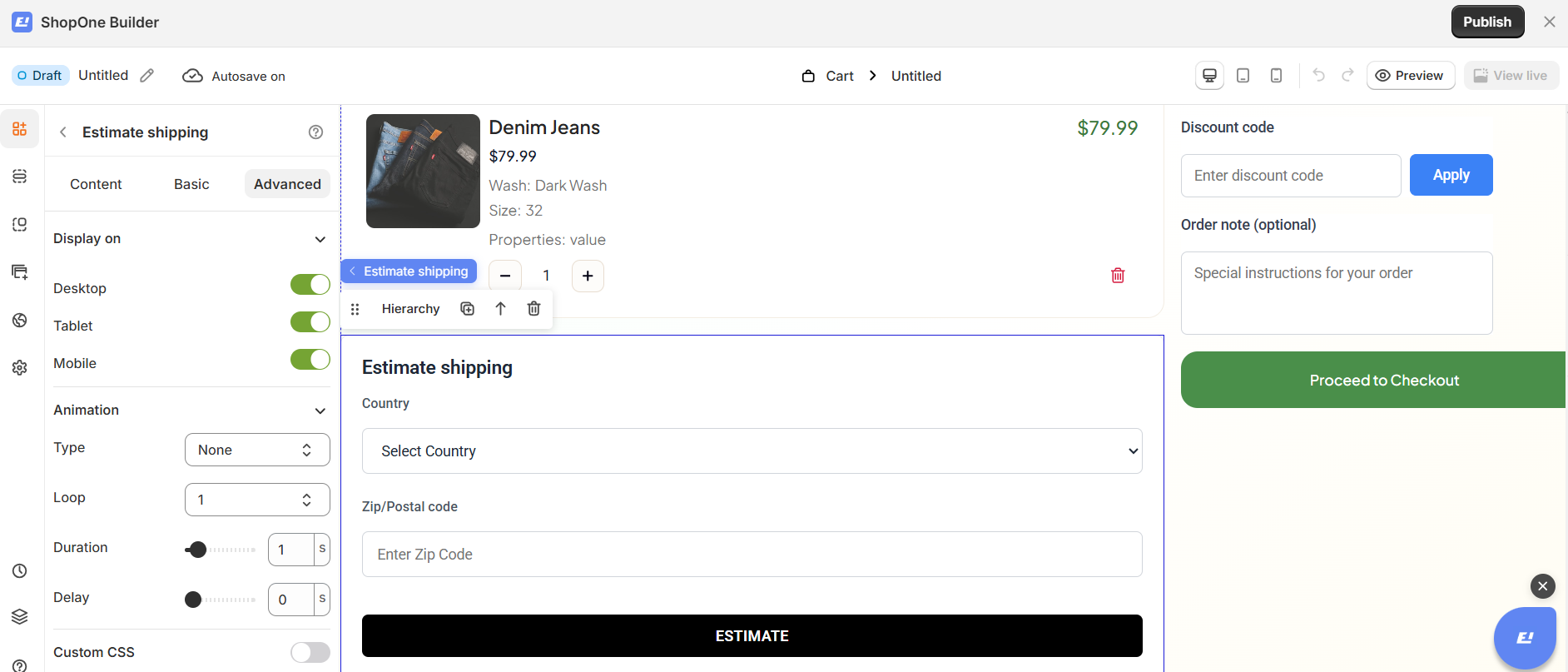
The Advanced tab allows you to control interactions, device visibility, animations, and custom styling for your text element.
Display on
Control where the text will be visible:
- Desktop – show/hide text on desktop devices.
- Mobile – show/hide text on mobile devices.
This helps you optimize the layout for different screens (responsive design).
Animation
Bring your text to life with animation effects.
- Type: Choose an animation style (e.g., fade, slide, bounce).
- Loop: Set how many times the animation repeats.
- Duration: Adjust how long the animation lasts (in seconds).
- Delay: Add a delay before the animation starts.
Custom CSS
- Turn this on to apply your own CSS code for advanced styling.
- This is especially useful for developers or advanced users who want unique effects beyond the built-in options.
=> The Advanced tab gives users more control, interactivity, and professional effects, making the text stand out and adapt perfectly to any device.
Thanks for reading! If you have any questions, please contact us via email: support@shopone.io
Was this article helpful?
That’s Great!
Thank you for your feedback
Sorry! We couldn't be helpful
Thank you for your feedback
Feedback sent
We appreciate your effort and will try to fix the article
