Image element: Inserts images like product photos, banners, logos, or decorative graphics. You can adjust size, position, and add links or animations.
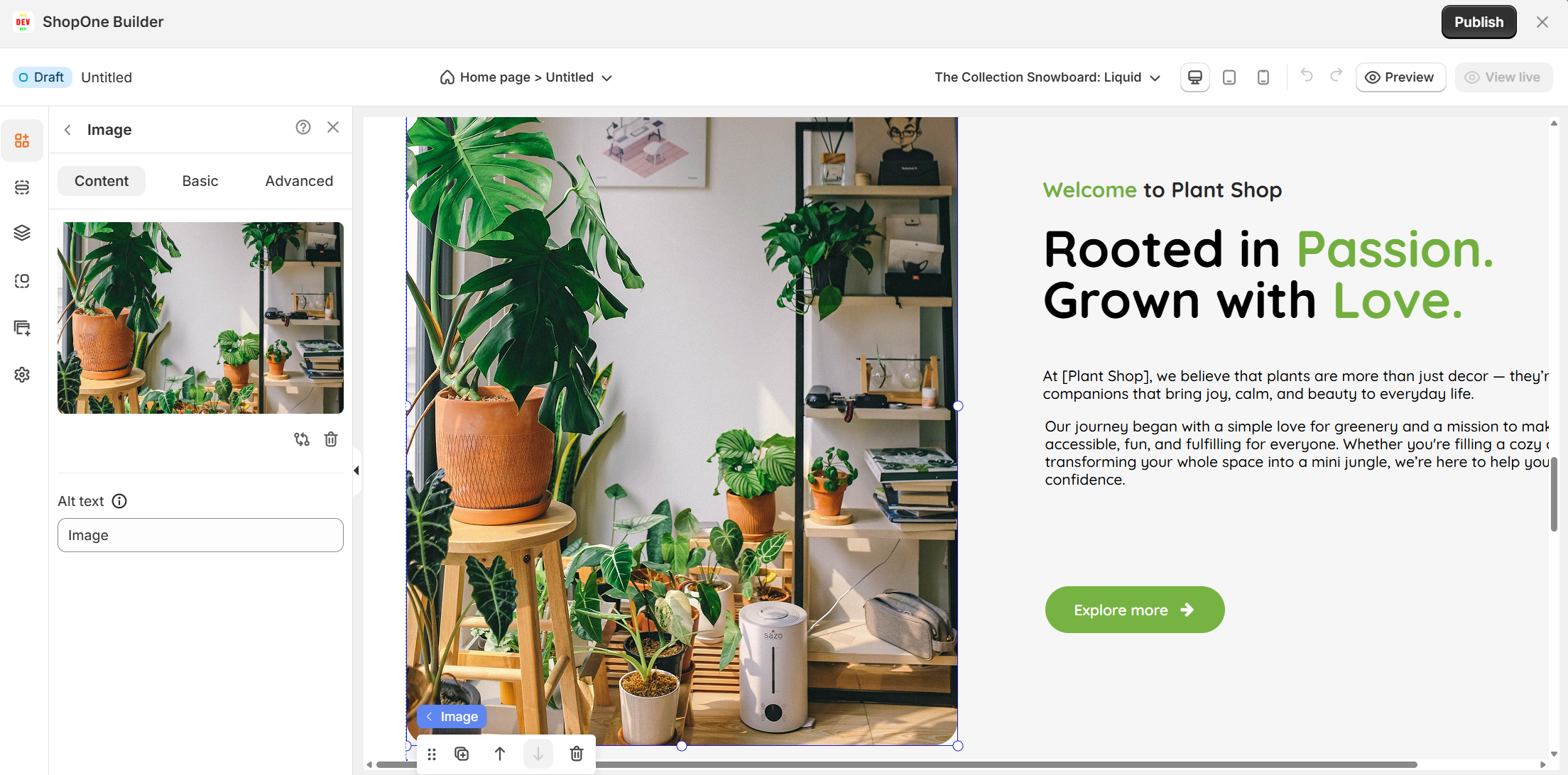
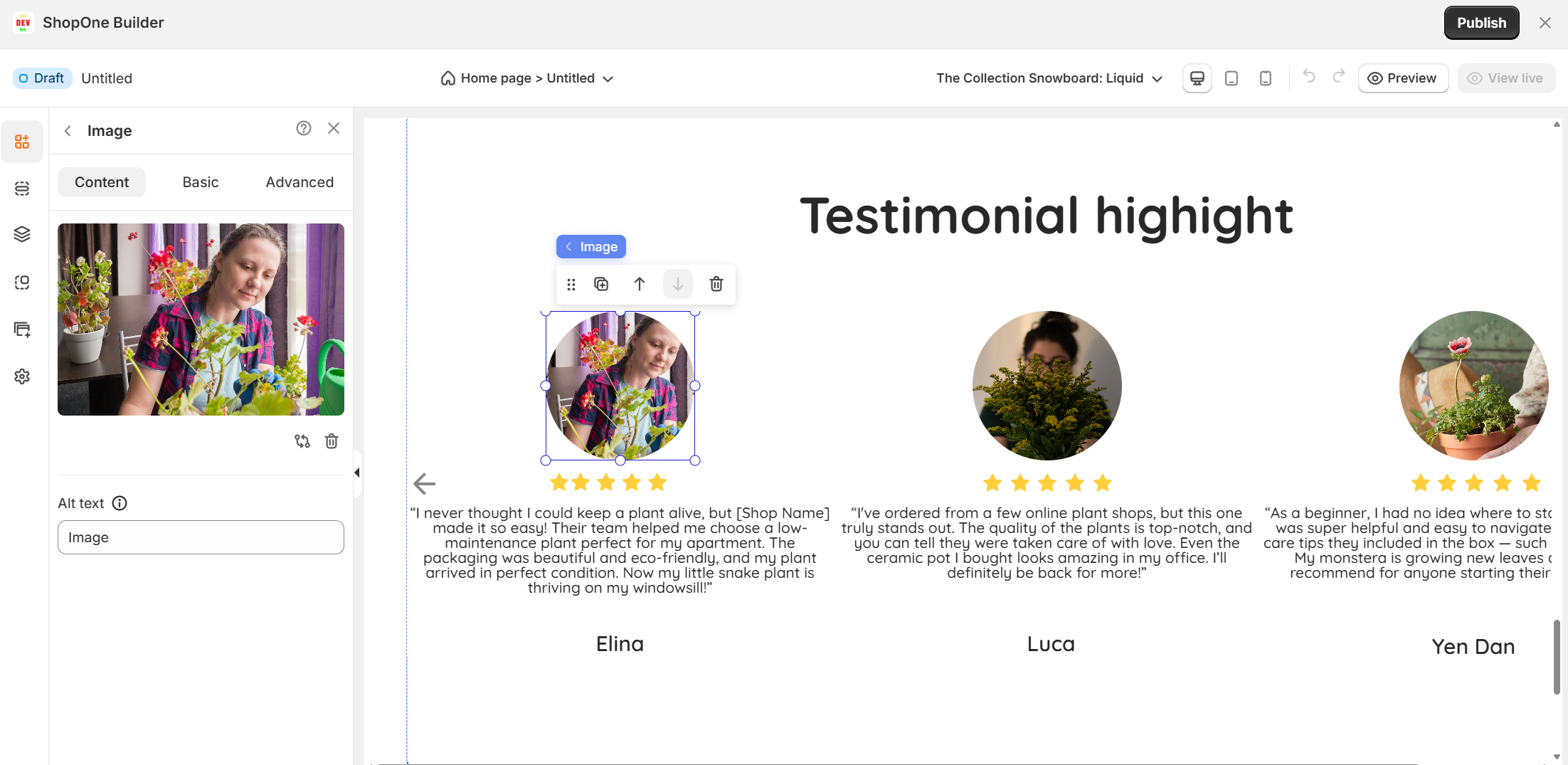
I. Image Element – Content Settings
The Image Element is used to display images on your page, allowing you to visually enhance your content.
1. Upload Image
Click to Upload / Drag and Drop: Add an image from your computer by clicking the upload box or dragging and dropping the file directly.
Replace / Remove: After uploading, you can replace the image with a new one or delete it entirely.
2. Alt Text
Alt Text Field: Add a descriptive text for the image.
Purpose: Improves accessibility for visually impaired users and helps search engines understand your content (important for SEO).
Tip: Write clear and concise alt text that describes the image’s purpose, not just its appearance (e.g., “Team photo at company event” instead of “photo1.jpg”).
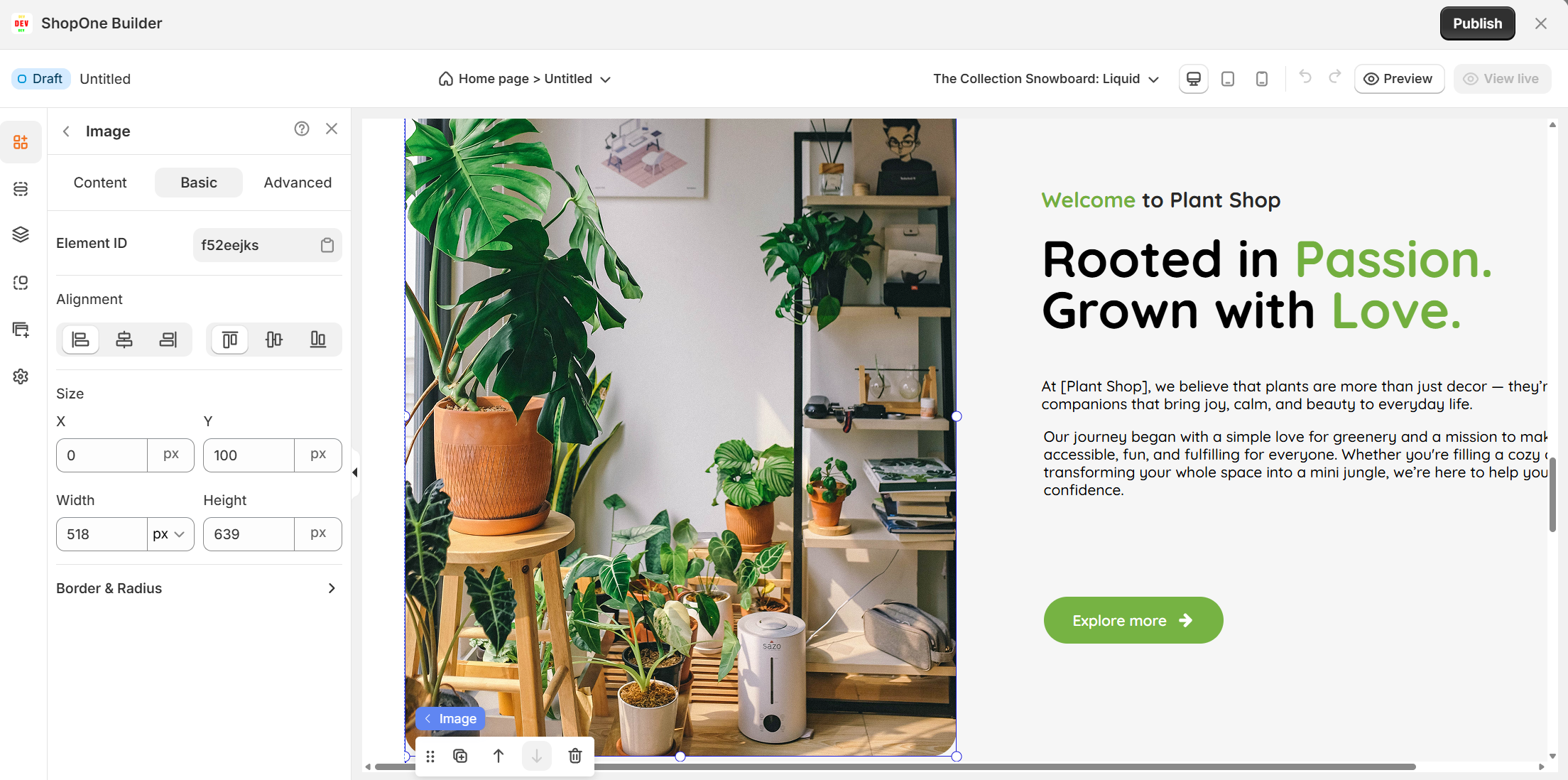
II. Image Element – Basic Settings
The Basic Tab allows you to control the image’s position, alignment, size, and borders for better layout customization.
1. Element ID
Element ID: Unique identifier for the image element.
Usage: Helpful for applying custom CSS or JavaScript to this specific image.
2. Alignment
Choose how the image is aligned within its container:
Left: Aligns image to the left.
Center: Centers image horizontally.
Right: Aligns image to the right.
Top / Middle / Bottom: Vertical alignment options.
3. Size
X / Y: Set the image’s exact horizontal (X) and vertical (Y) position (in pixels).
Width / Height: Adjust the dimensions of the image.
You can manually enter values or select a unit (px, %, etc.) if supported.
4. Border & Radius
Border: Customize the border thickness, color, and style (solid, dashed, dotted).
Radius: Round the image’s corners by adjusting the radius values.
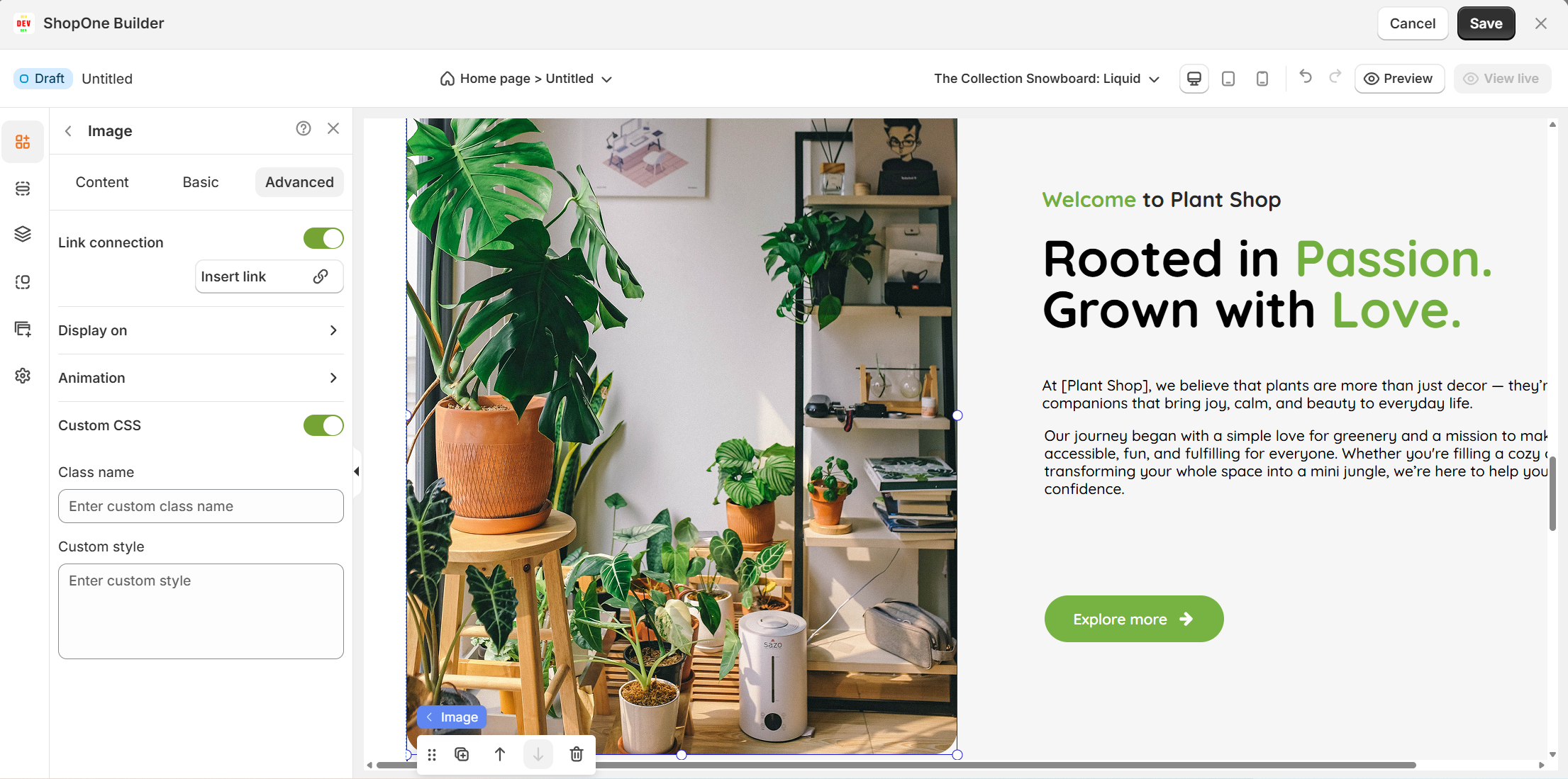
III. Image Element – Advanced Settings
The Advanced Tab provides extra functionality for linking, responsiveness, animations, and applying custom styles.
1. Link Connection
Toggle On/Off: Enable this to make the image clickable.
Insert Link: Add a URL, page link, email, or anchor so users can interact with the image.
2. Display On
Control where the image is visible:
Desktop: Show or hide the image on desktop devices.
Mobile: Show or hide the image on mobile devices.
Tip: Use this to create device-specific designs (e.g., different images for desktop and mobile users).
3. Animation
Add visual effects when the image appears on the page:
Type: Choose from available animations (fade, slide, zoom, etc.).
Loop: Number of times the animation should repeat.
Duration: How long the animation lasts (in seconds).
Delay: Time before the animation starts (in seconds).
4. Custom CSS
Apply custom styling for advanced design control:
Class Name: Add a CSS class that you can reference in your stylesheet.
Custom Style: Write inline CSS styles that apply only to this image element.
Thanks for reading! If you have any questions, please contact us via email: support@shopone.io
Was this article helpful?
That’s Great!
Thank you for your feedback
Sorry! We couldn't be helpful
Thank you for your feedback
Feedback sent
We appreciate your effort and will try to fix the article