Text element: Lets you add and edit text blocks. You can format headings, paragraphs, lists, and apply custom fonts, sizes, and styles.
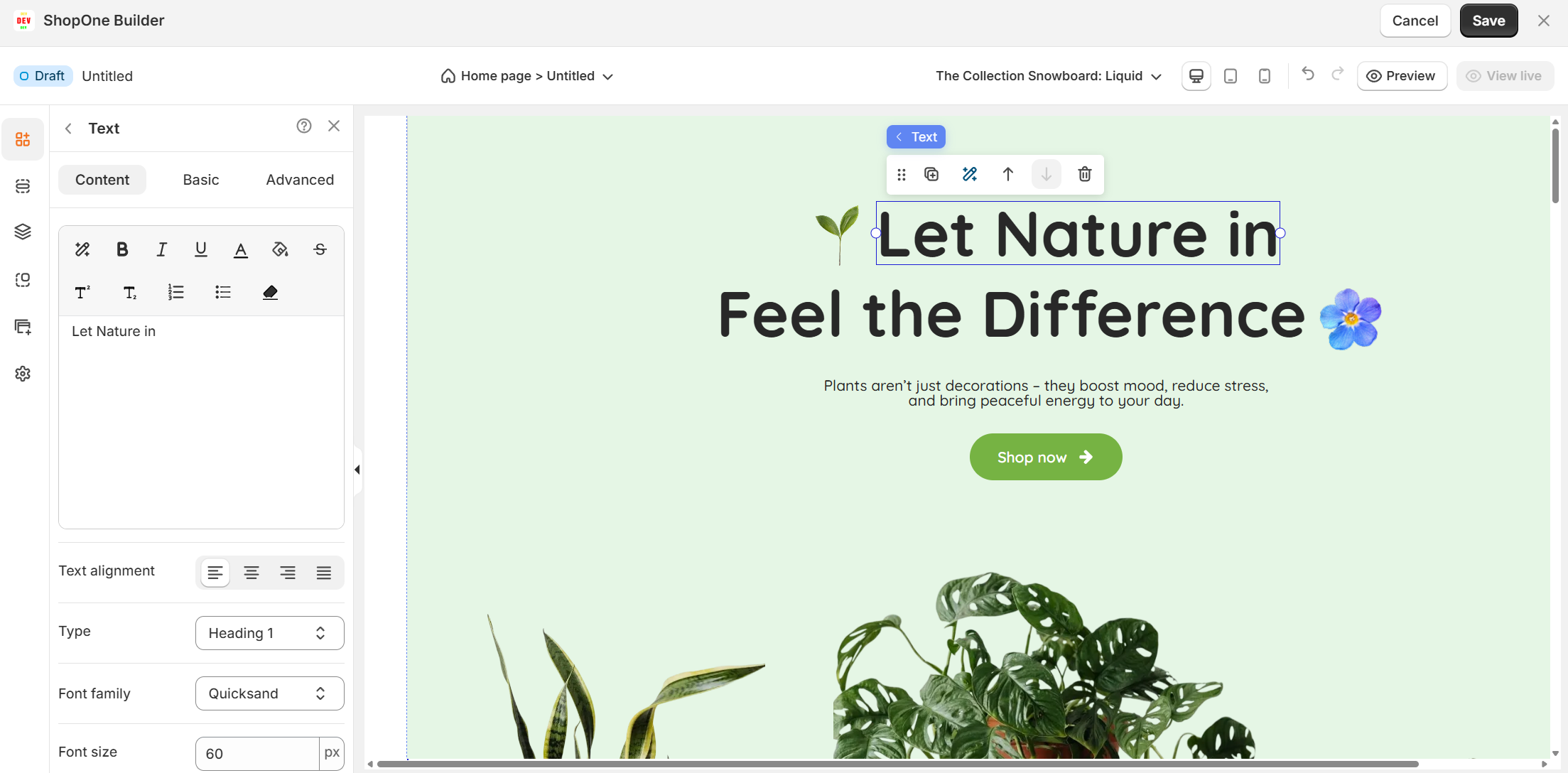
I. Text Element - Content Settings
The Text element lets you fully customize how your text looks and behaves on your website or landing page. Below are the functions available:
1. Text alignment
Align your text to the left, center, right, or justify it across the container.
Helps structure your content according to the design layout.
2. Type
Choose the text type: Paragraph, Heading 1, Heading 2, Heading 3, etc.
This is useful for creating proper content hierarchy and SEO-friendly headings.
3. Font family
Select from different fonts (e.g., Poppins).
This changes the overall style and feel of your text.
4. Font size
Adjust the text size in pixels (px).
Example: Larger size for headings, smaller size for body text.
5. Text color
Change the text color using the color picker.
You can match it with your brand colors or background design.
6. Font weight
Adjust how bold or light your text appears (e.g., 400 = normal, 700 = bold).
7. Font style
Choose between default, italic, or oblique text styling.
8. Line height
Control the spacing between lines of text.
A higher value increases readability, especially for longer paragraphs.
9. Letter spacing
Adjust the space between individual letters.
Useful for creating a clean, modern, or dramatic look.
10. Text decoration
Add styling such as:
Underline (U)
Strikethrough (S)
Overline (‾)
11. Text transform
Change text case automatically:
Default – keeps original typing
Uppercase – converts all letters to caps
Lowercase – converts all letters to lowercase
Capitalize – capitalizes the first letter of each word
12. Text shadow
Add a shadow effect behind the text.
Can make text stand out more against the background.
=> With these functions, users can easily control the style, readability, and design impact of their website text.
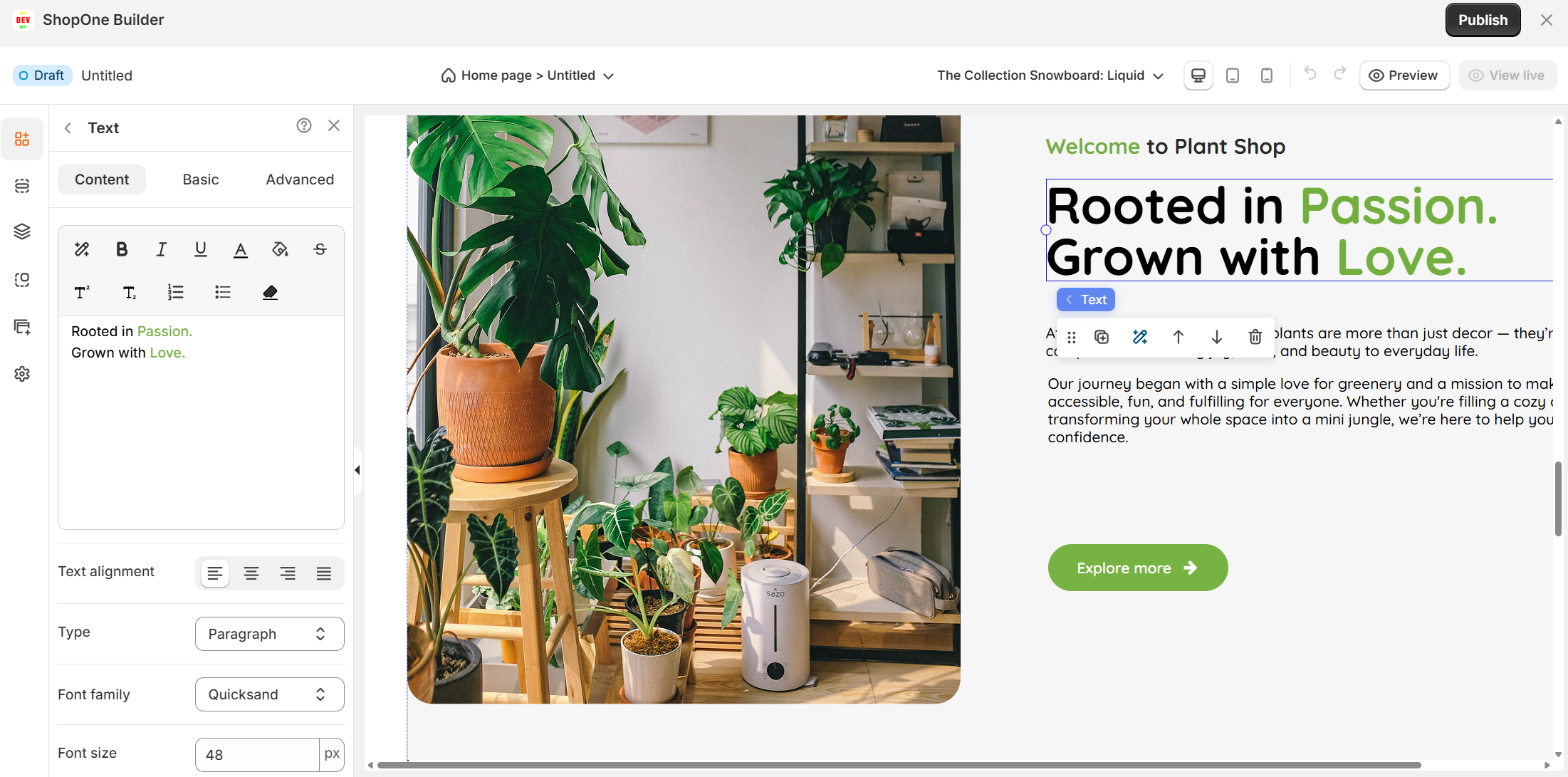
II. Text Element – Basic Settings
The Basic tab lets you control the position, size, and background style of your text element.
1. Element ID
A unique identifier automatically generated for each text block.
Useful for developers who want to add custom code or link styles to this specific element.
2. Alignment
Align the text block within its container:
- Left, Center, Right – horizontal positioning.
- Top, Middle, Bottom – vertical positioning.
3. Size (X, Y, Width, Height)
X / Y: Define the exact position of the text element on the page, measured in pixels.
- Example: X = 0, Y = 90 means the text starts at the left edge and is placed 90px from the top.
Width / Height: Control the text box size.
- Width can be adjusted (e.g., 1200px).
- Height is set automatically based on text content unless you specify.
4. Style – Background
Add a background color or image behind the text.
This is useful to highlight headings, create banners, or improve text readability against busy backgrounds
=> The Basic tab focuses on layout and placement so users can control exactly where the text appears and how it interacts with surrounding design elements.
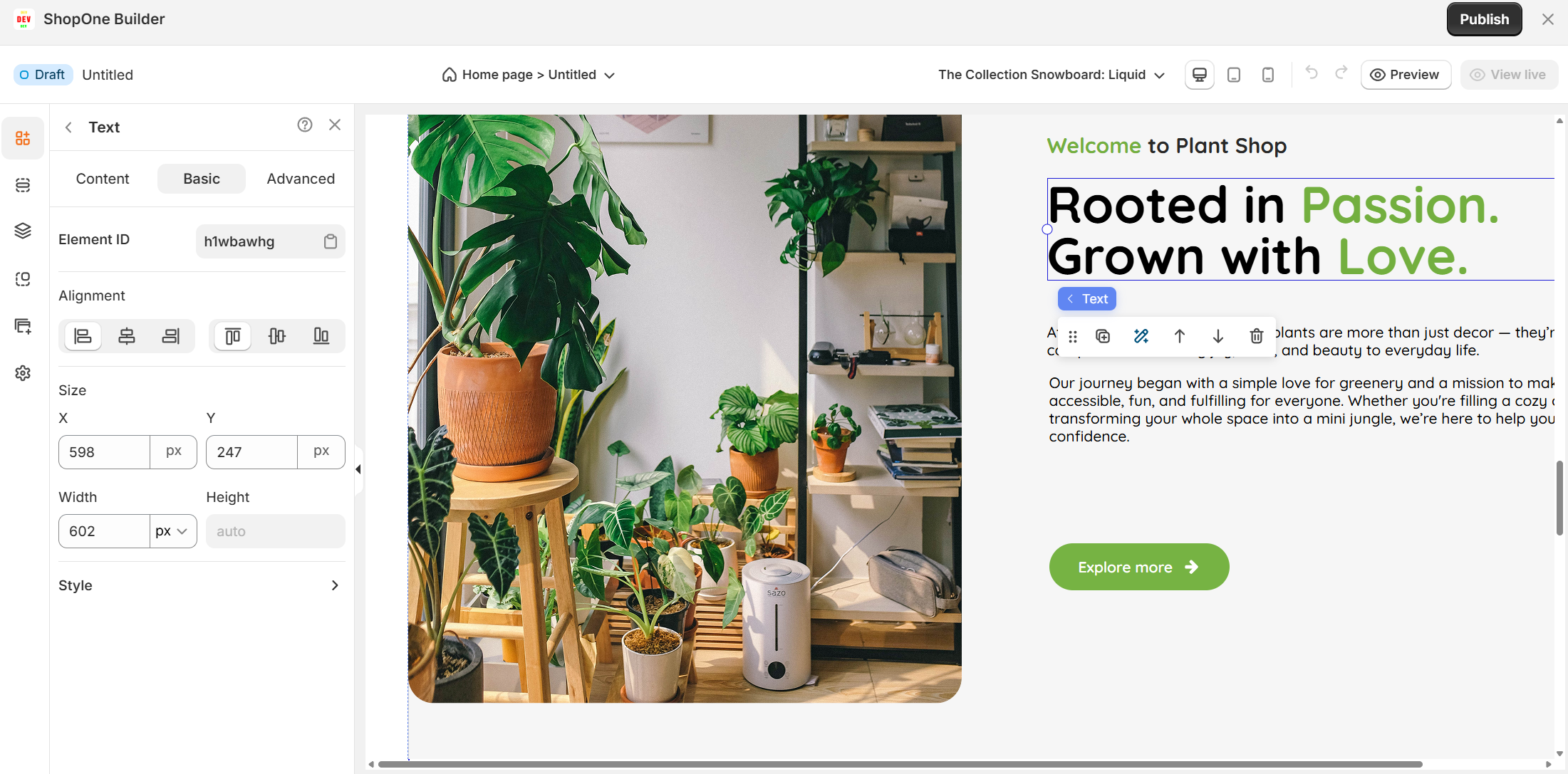
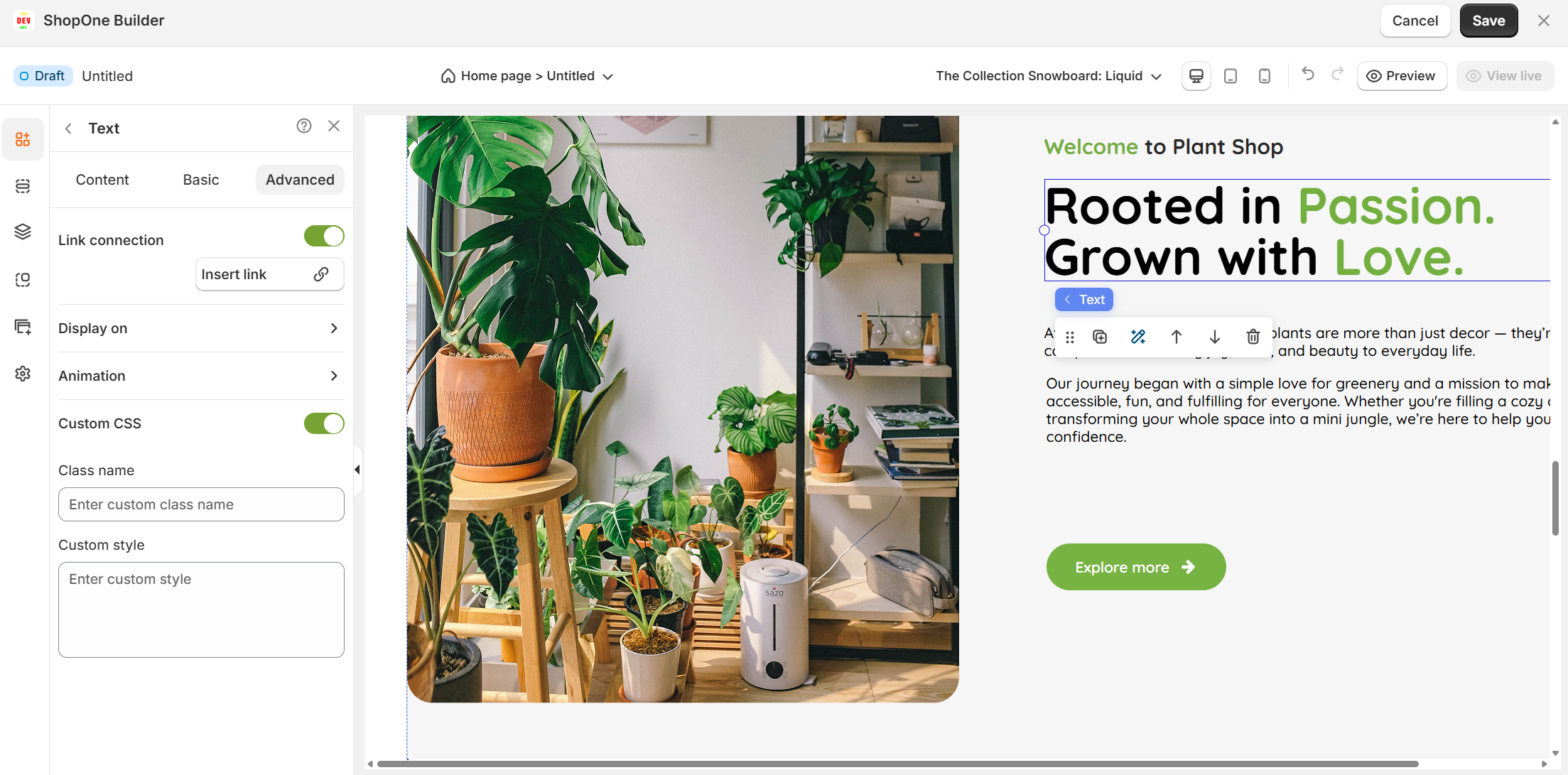
III. Text Element – Advanced Settings
The Advanced tab allows you to control interactions, device visibility, animations, and custom styling for your text element.
1. Link connection
- Turn this on to make the text element a clickable link.
- Useful for buttons, CTAs (Call-To-Actions), or linking to another page/section.
2. Display on
Control where the text will be visible:
- Desktop – show/hide text on desktop devices.
- Mobile – show/hide text on mobile devices.
This helps you optimize the layout for different screens (responsive design).
3. Animation
Bring your text to life with animation effects.
- Type: Choose an animation style (e.g., fade, slide, bounce).
- Loop: Set how many times the animation repeats.
- Duration: Adjust how long the animation lasts (in seconds).
- Delay: Add a delay before the animation starts.
4. Custom CSS
- Turn this on to apply your own CSS code for advanced styling.
- This is especially useful for developers or advanced users who want unique effects beyond the built-in options.
=> The Advanced tab gives users more control, interactivity, and professional effects, making the text stand out and adapt perfectly to any device.
Thanks for reading! If you have any questions, please contact us via email: support@shopone.io
Was this article helpful?
That’s Great!
Thank you for your feedback
Sorry! We couldn't be helpful
Thank you for your feedback
Feedback sent
We appreciate your effort and will try to fix the article