Shape element: Adds visual elements like rectangles, circles, or custom shapes for decoration or to highlight content sections.
I. Shape Element - Content Settings
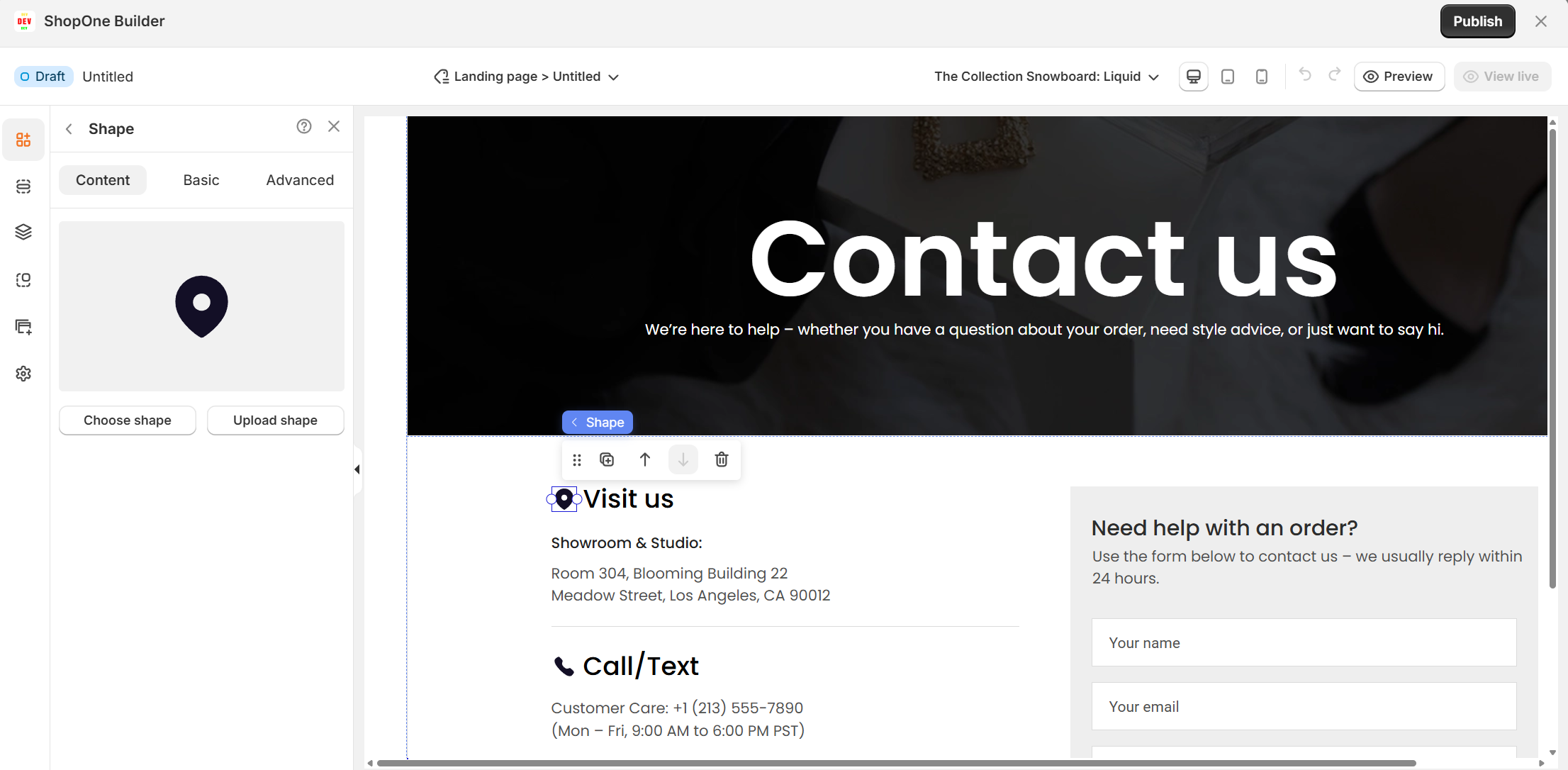
This is where you select or change the shape displayed:
Shape preview: Shows the currently selected shape.
Choose shape: Opens a library of available shapes (icons, geometric figures, etc.) for you to select.
Upload shape: Allows you to upload a custom SVG file to use as a shape. This is great for brand-specific icons or unique design elements.
II. Shape Element – Basic Settings
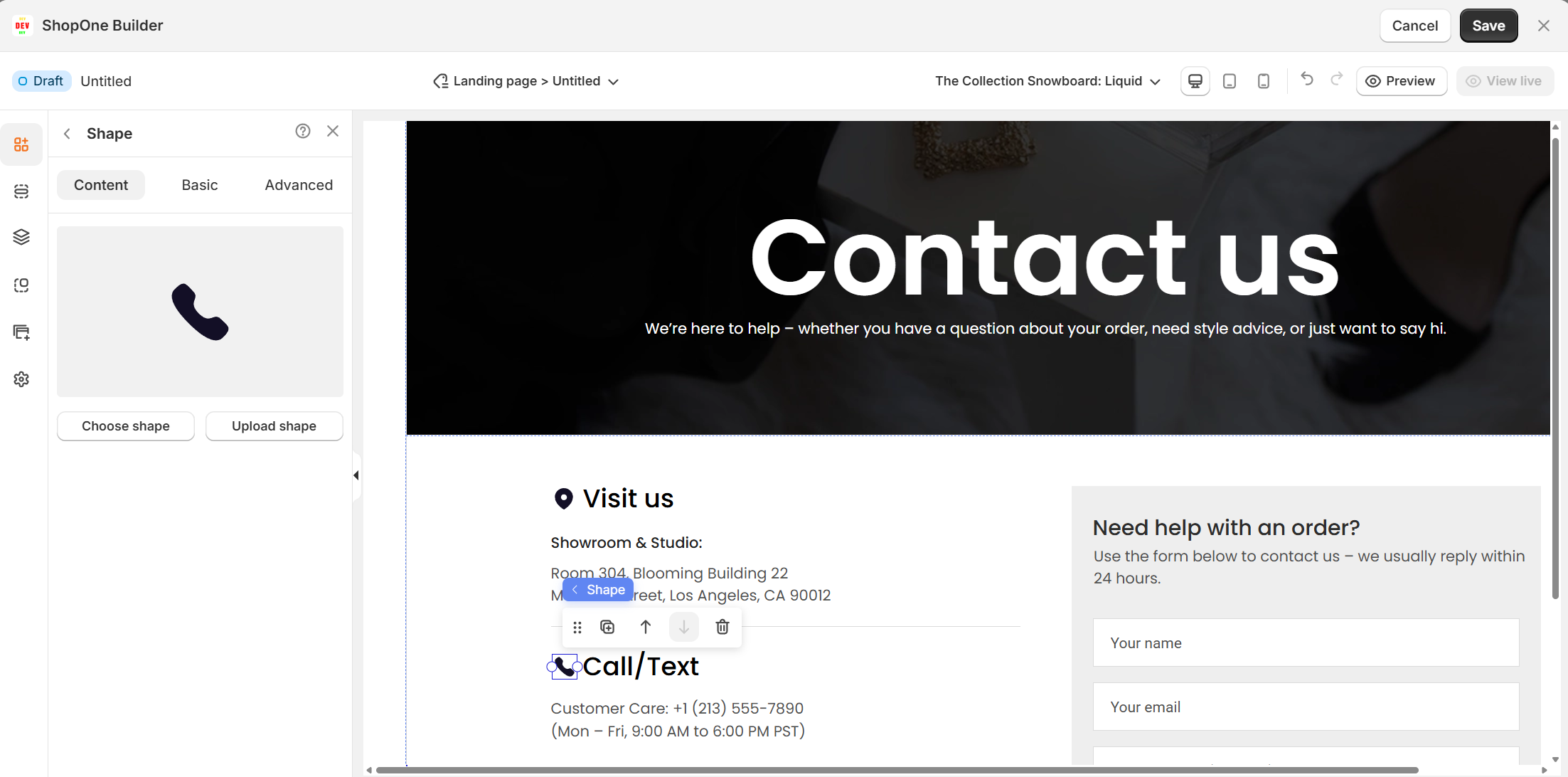
The Basic tab lets you control the size, position, and style of your Shape element so it fits perfectly into your page design.
1. Element settings
Element ID: A unique identifier for the shape. Useful if you want to apply custom CSS or JavaScript targeting this element.
2. Alignment
Control how the shape is positioned inside its container:
Left / Center / Right alignment: Position the shape horizontally.
Stretch / Space distribution: Adjust how the shape fills available space.
3. Size & Position
X / Y: Set the exact position of the shape relative to its container using pixel values.
Width & Height: Define the size of the shape. Width can be set in pixels or percentage for responsive layouts.
4. Style
Box shadow: Add a shadow to create depth or make the shape stand out.
5. Border & Radius
Border: Customize the thickness and color of the shape’s border for each side individually (or link them for uniform borders).
Radius: Round the corners of the shape. This is especially useful if your shape is a square or rectangle and you want softer edges.
III. Shape Element – Advanced Settings
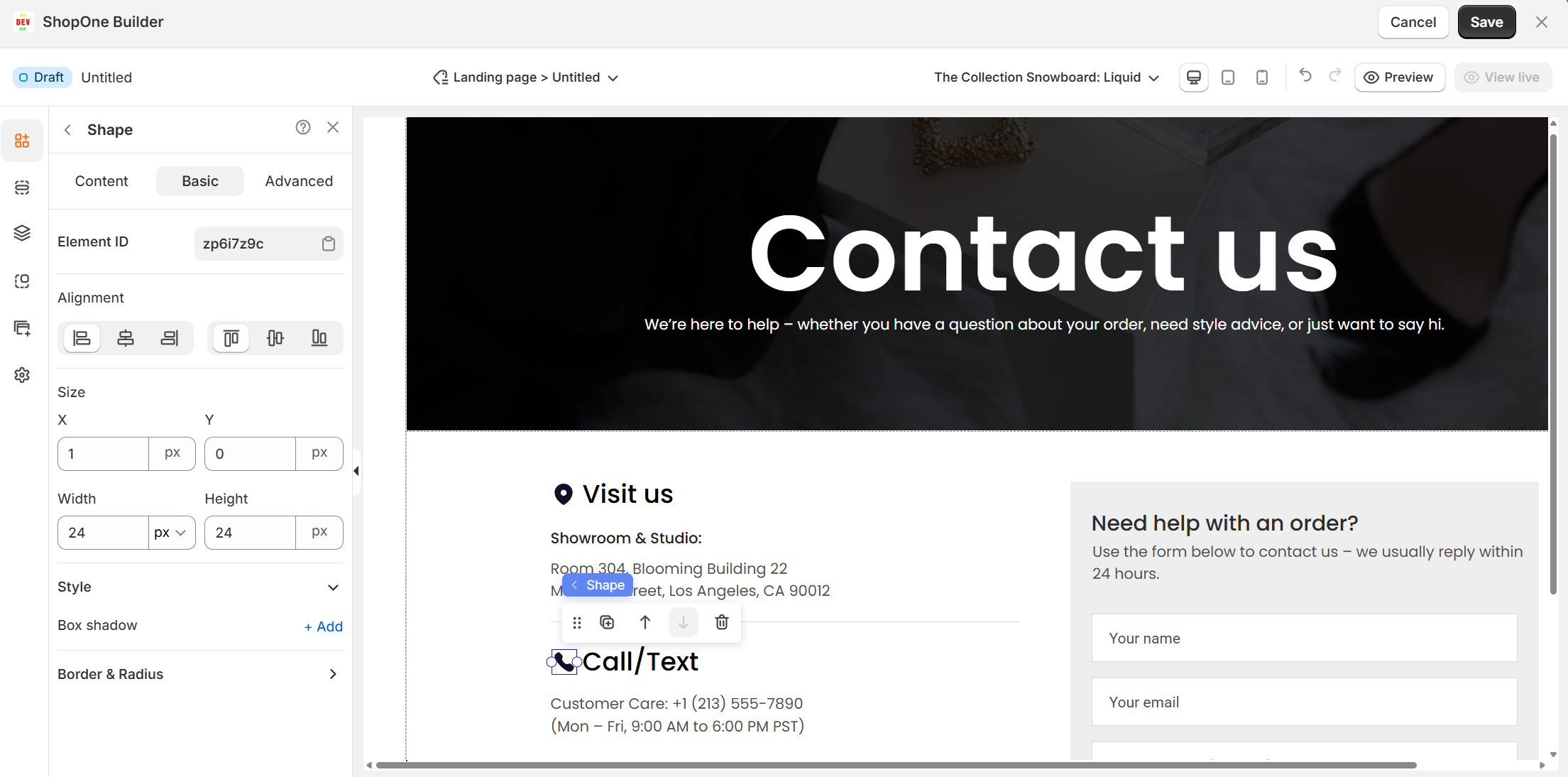
The Advanced tab allows you to control interactions, device visibility, animations, and custom styling for your text element.
1. Display on
Control where the text will be visible:
- Desktop – show/hide text on desktop devices.
- Mobile – show/hide text on mobile devices.
This helps you optimize the layout for different screens (responsive design).
2. Animation
Bring your text to life with animation effects.
- Type: Choose an animation style (e.g., fade, slide, bounce).
- Loop: Set how many times the animation repeats.
- Duration: Adjust how long the animation lasts (in seconds).
- Delay: Add a delay before the animation starts.
3. Custom CSS
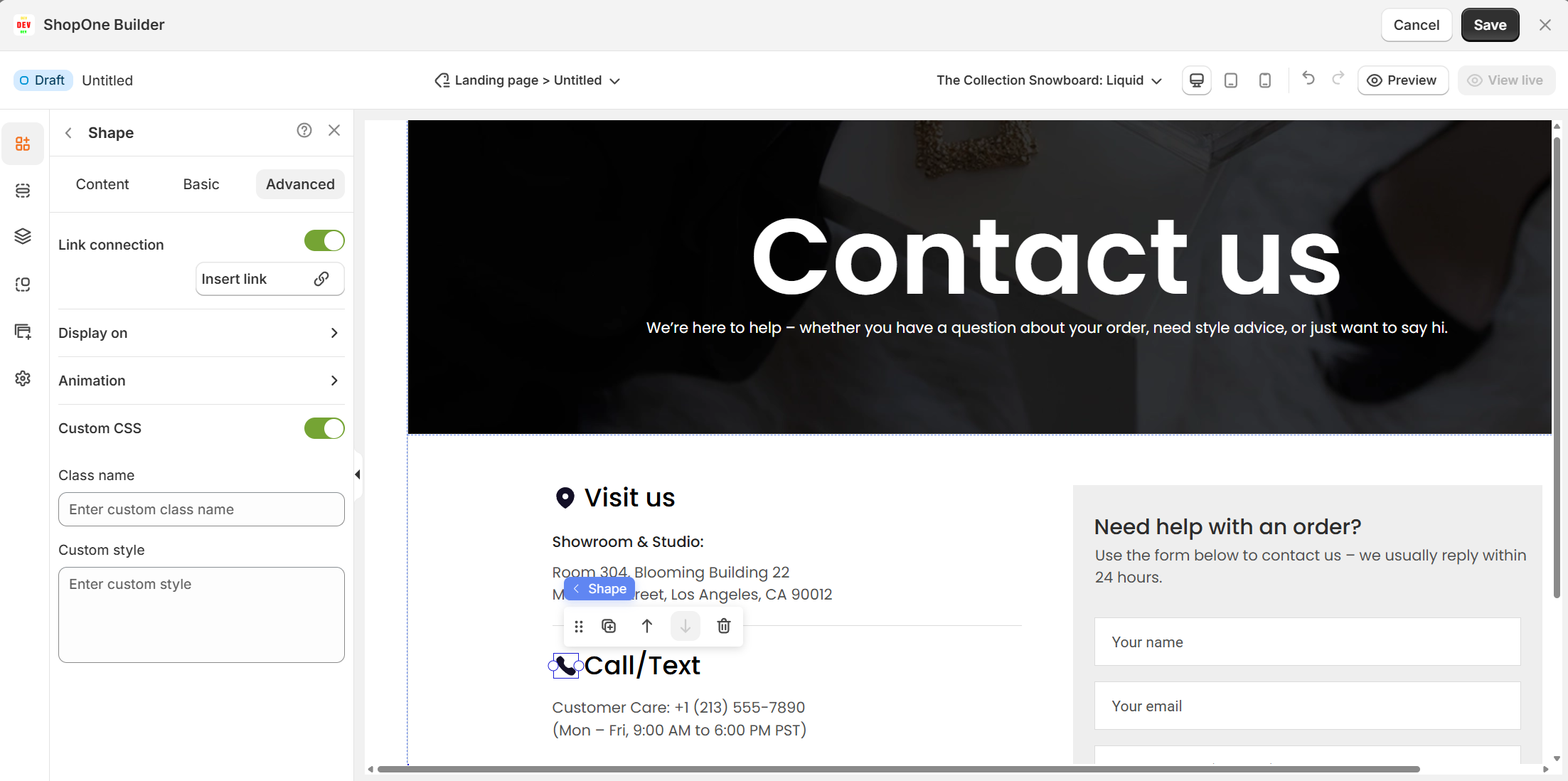
- Turn this on to apply your own CSS code for advanced styling.
- This is especially useful for developers or advanced users who want unique effects beyond the built-in options.
=> The Advanced tab gives users more control, interactivity, and professional effects, making the text stand out and adapt perfectly to any device.
Thanks for reading! If you have any questions, please contact us via email: support@shopone.io
Was this article helpful?
That’s Great!
Thank you for your feedback
Sorry! We couldn't be helpful
Thank you for your feedback
Feedback sent
We appreciate your effort and will try to fix the article