Form element: Allows you to add input fields for collecting information (e.g., name, email, feedback). Useful for contact forms, newsletter signup, etc.
I. Form Element - Content Settings
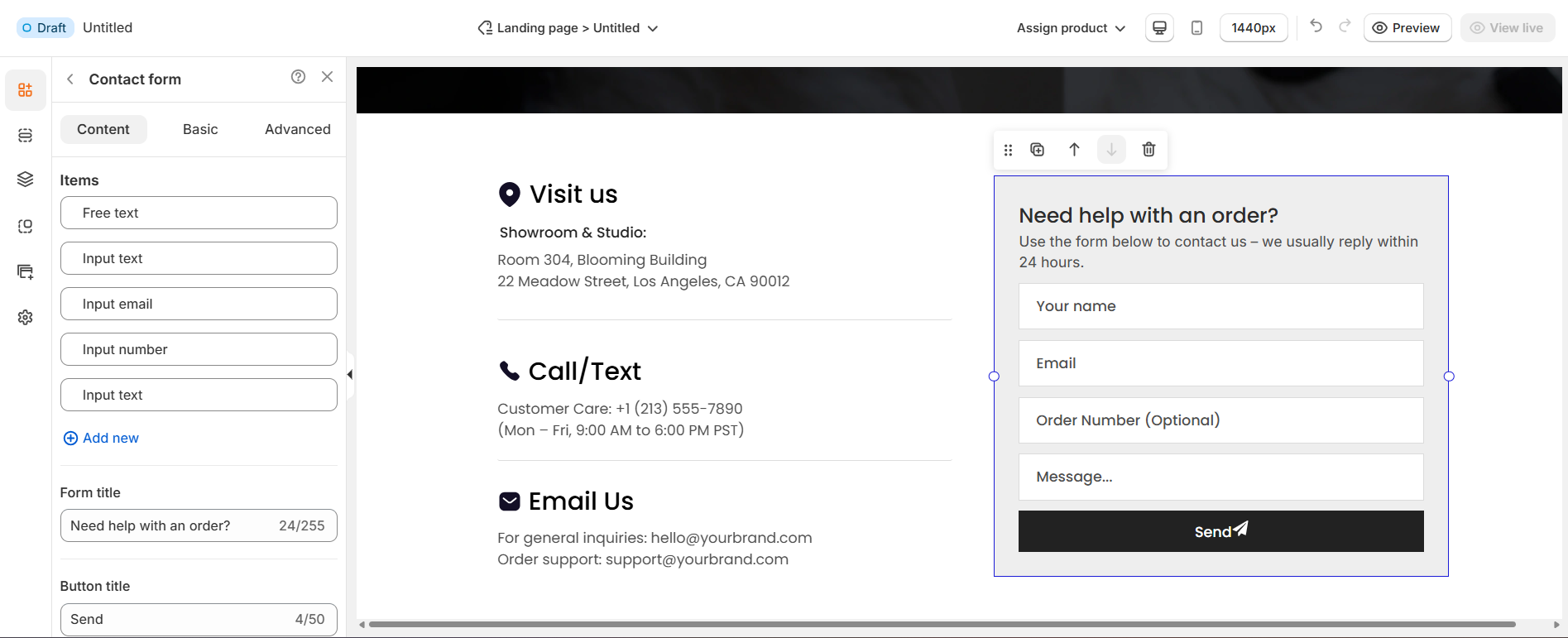
In the Content tab, you can manage the structure and content of your form:
1. Items (Form fields)
This section displays the fields currently in your form. Each field type serves a different purpose:
- Input email: Collects a user’s email address (with email validation).
- Phone number: Collects a user’s phone number.
- Input text: Short text input (ideal for name or subject).
- Input password: Adds a password field (for login or account-related forms).
- Input number: Collects numeric data (e.g., order number, quantity).
- Input long text: Collects longer responses (e.g., message or feedback).
- Dropdown: Creates a dropdown menu with selectable options.
- Checkbox: Adds one or more checkboxes (ideal for terms & conditions or multiple selections).
- Radio: Adds radio buttons for single-option selection.
- Free text: Displays static text (e.g., form instructions).
2. Add new
Click this option to add more fields to your form (opens the "Add field" menu).
3. Form title
Customize the title displayed at the top of your form (e.g., "Need help with an order?").
4. Button title
Edit the text on the submit button (e.g., "Send," "Submit," or "Get in Touch").
II. Form Element – Basic Settings
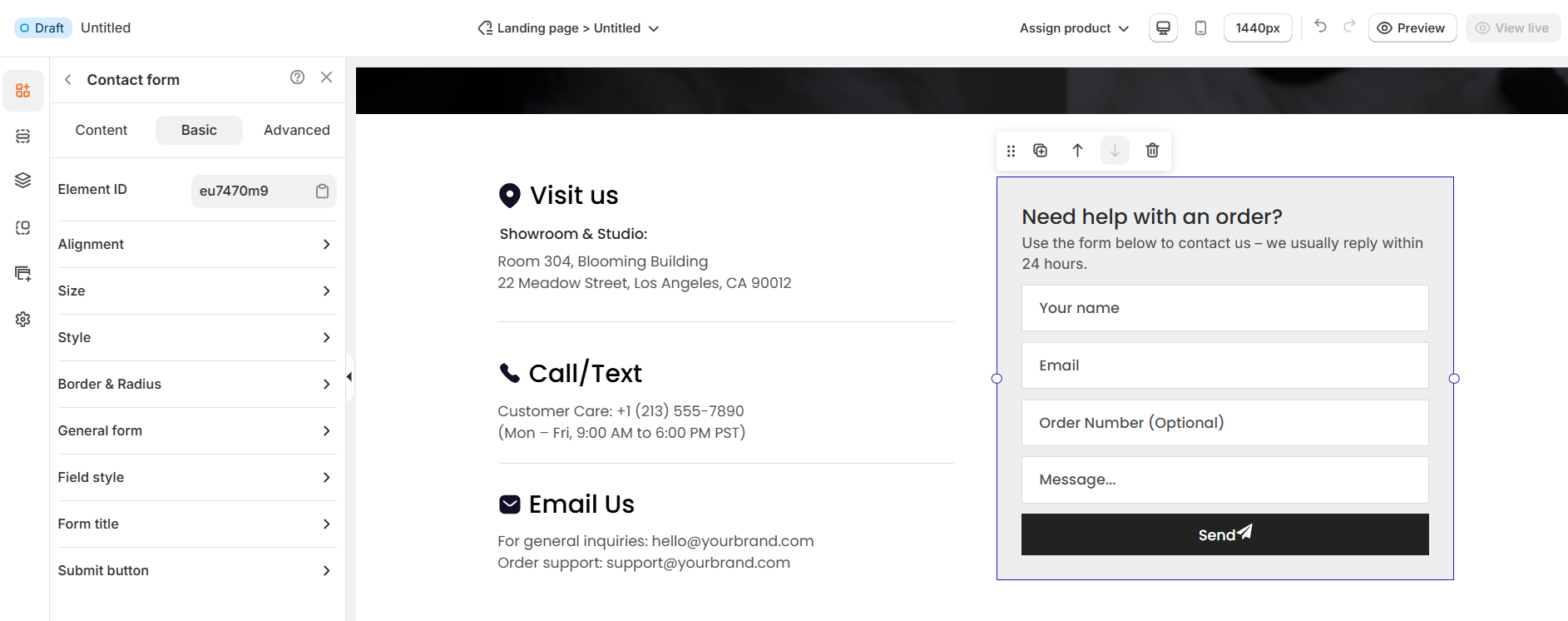
The Basic tab allows you to control the appearance, position, and style of your contact form. This is where you adjust how the form looks and behaves on your page.
1. Element settings
Element ID: A unique identifier for the form element. This is useful if you want to target this form with custom code (e.g., CSS or JavaScript).
2. Alignment
Control how your form is positioned within its container:
Left / Center / Right Alignment: Align the entire form horizontally.
Stretch / Space Distribution: Adjust how the form fills the available space.
3. Size & Position
X / Y: Set the exact position of the form on the page using pixel values.
Width & Height:
Width: Adjust the width of the form (fixed in pixels or percentage).
Height: Usually set to "Auto" to adjust automatically based on form content.
4. Style customization
Background: Choose a background color for the form or remove it for a transparent look.
Box shadow: Add a shadow effect for a more elevated and visually distinct form.
5. Border & Radius
Border: Customize border thickness on each side (top, right, bottom, left).
Radius: Round the corners of the form for a softer look (e.g., 10px for rounded edges).
6. Additional styling options
You can expand these sections for more detailed customization:
General form: Adjust overall padding, spacing, and layout.
Field style: Customize the look of individual fields (text boxes, dropdowns, etc.).
Form title: Change typography, size, and style of the form title.
Submit button: Customize the button's size, shape, colors, and hover effects.
III. Button Element – Advanced Settings
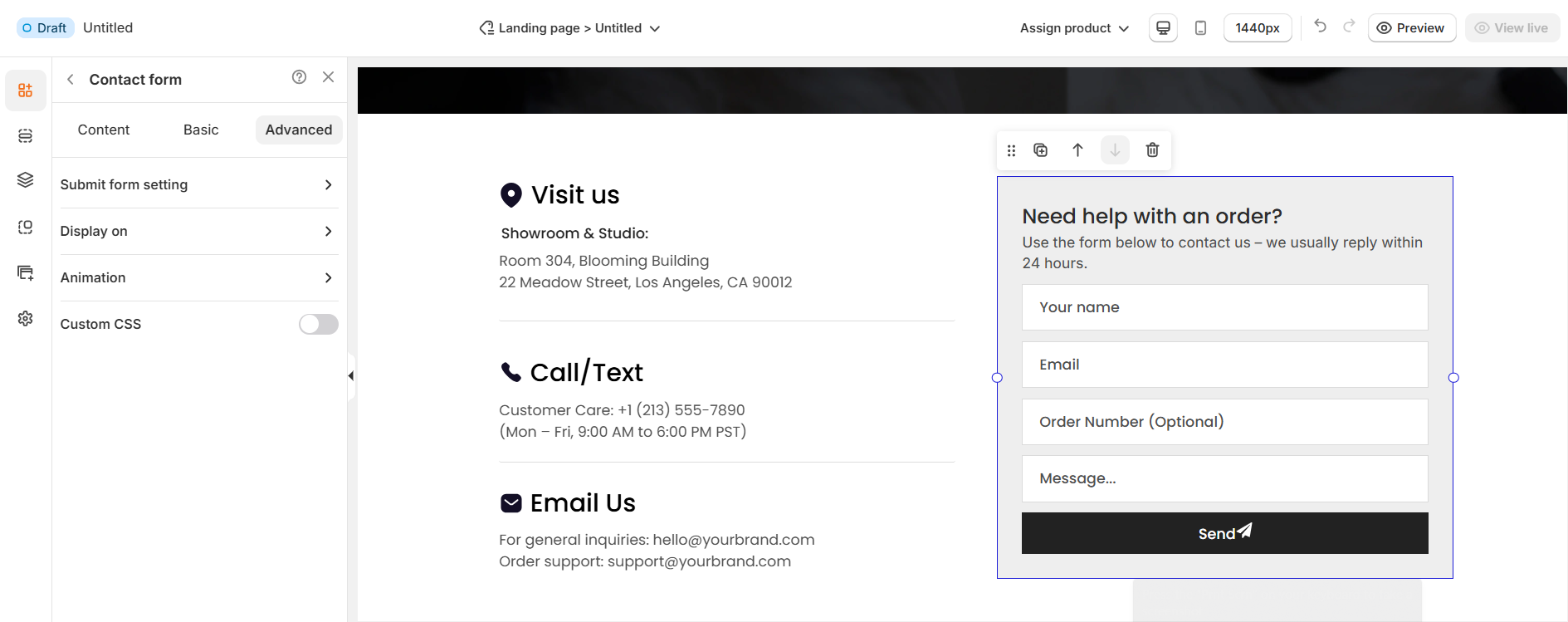
The Advanced tab allows you to control interactions, device visibility, animations, and custom styling for your text element.
1. Submit form setting
Event: Choose what happens after the user submits the form.
- Stay on page: Keeps the user on the same page and displays a confirmation message.
- (Other options may be available, such as redirecting to another page — you can explain these if your app supports them.)
2. Success message
- This is the message displayed after a successful form submission.
- Example: "Thanks for contacting us. We'll get back to you as soon as possible."
- You can customize this message to match your brand’s tone or provide next steps for your customers.
3. Error message
- This message appears if the form fails to submit (e.g., network issue, email service error).
- Example: "Can't send email. Please try again later."
- You can edit this text to make it friendlier and provide guidance if needed.
4. Display on
Control where the text will be visible:
Desktop – show/hide text on desktop devices.
Mobile – show/hide text on mobile devices.
This helps you optimize the layout for different screens (responsive design).
5. Animation
Bring your text to life with animation effects.
- Type: Choose an animation style (e.g., fade, slide, bounce).
- Loop: Set how many times the animation repeats.
- Duration: Adjust how long the animation lasts (in seconds).
- Delay: Add a delay before the animation starts.
6. Custom CSS
- Turn this on to apply your own CSS code for advanced styling.
- This is especially useful for developers or advanced users who want unique effects beyond the built-in options.
=> The Advanced tab gives users more control, interactivity, and professional effects, making the text stand out and adapt perfectly to any device.
Thanks for reading! If you have any questions, please contact us via email: support@shopone.io
Was this article helpful?
That’s Great!
Thank you for your feedback
Sorry! We couldn't be helpful
Thank you for your feedback
Feedback sent
We appreciate your effort and will try to fix the article