Slideshow element: Adds a carousel/slider for cycling through images or content. Perfect for hero banners, product showcases, or testimonials.
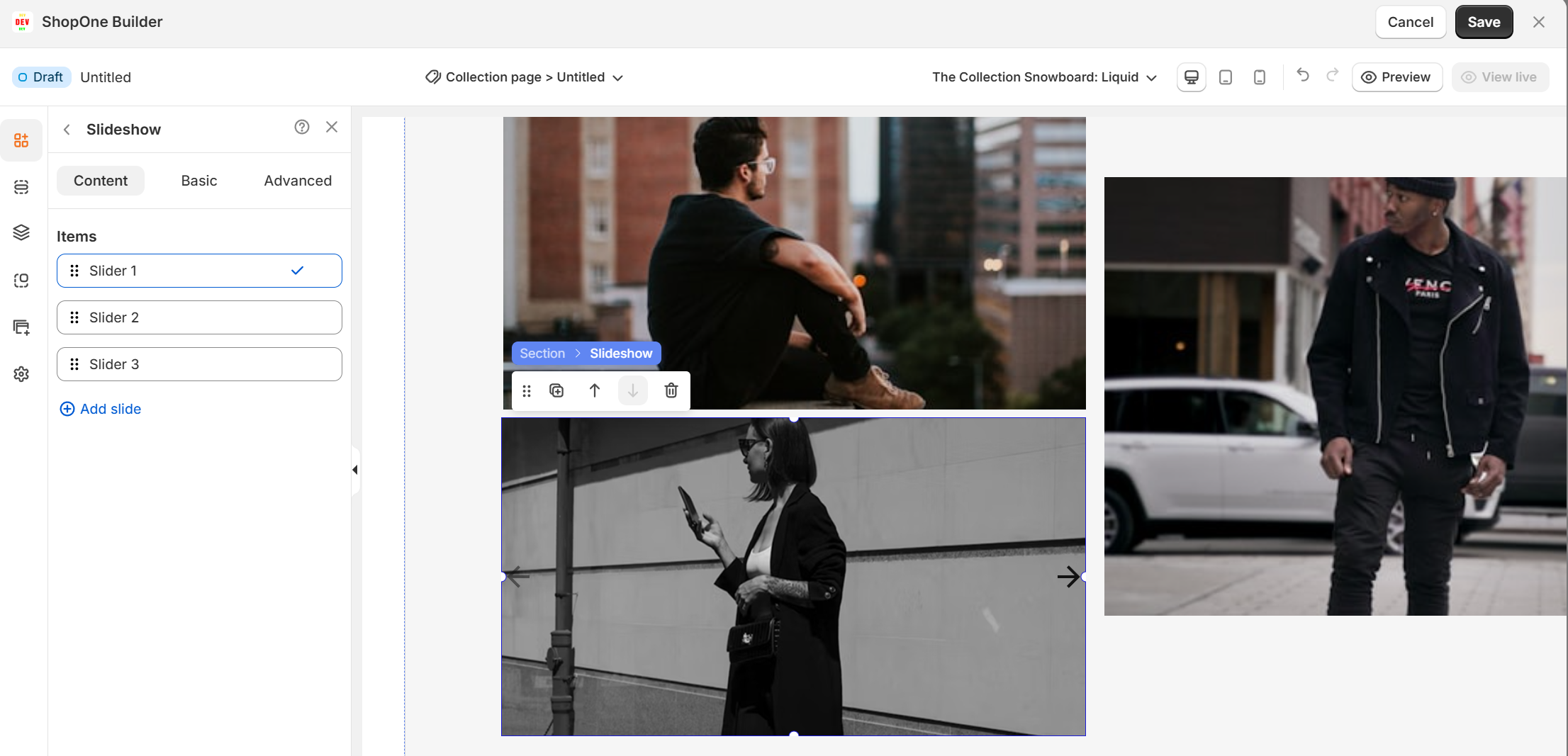
I. Slideshow Element – Content Settings
1. Items
Shows the list of slides included in the slideshow.
Each slide can be edited individually by selecting it.
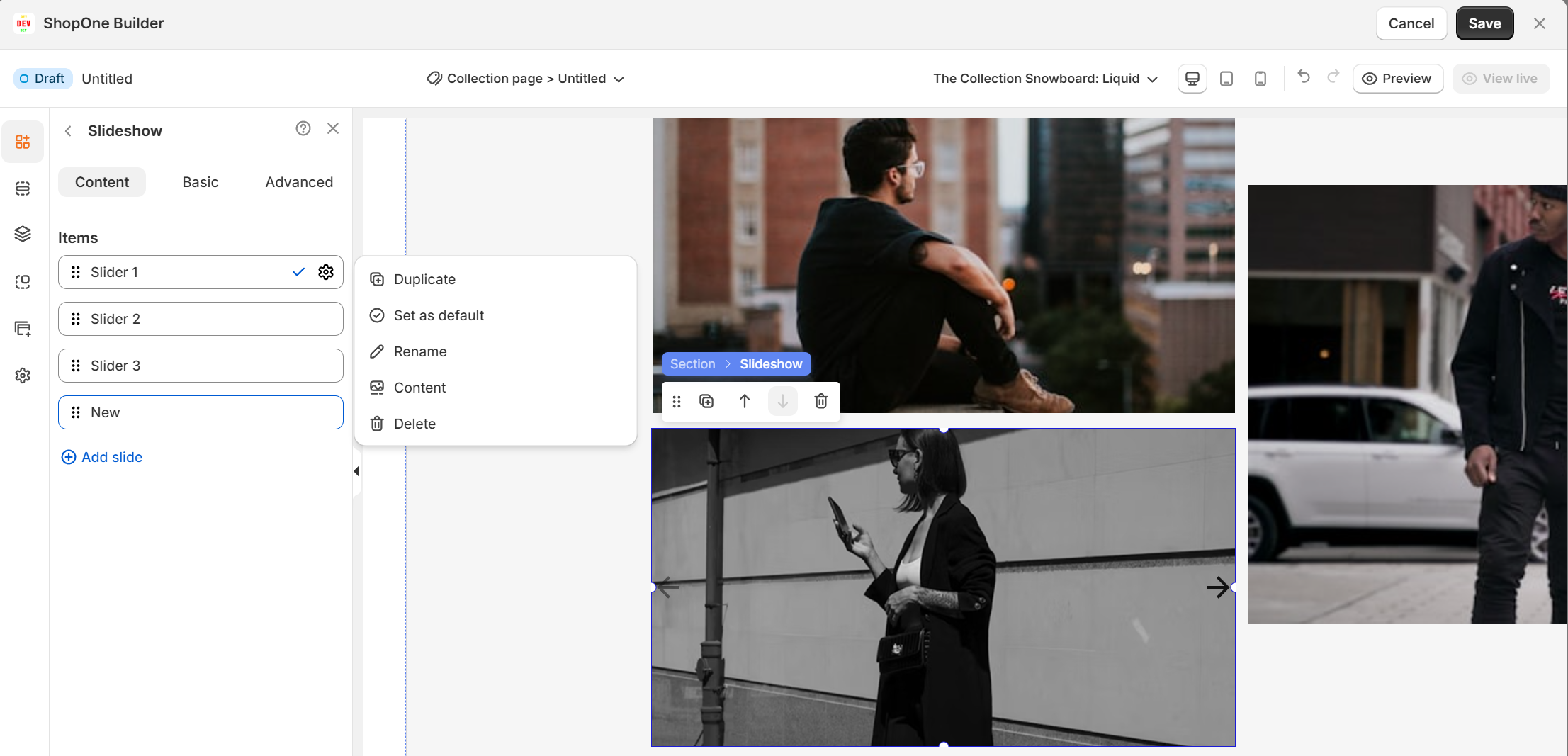
You can rename slides for better organization.
You can reorder slides by dragging them using the handle on the left.
Add slide – lets you insert additional slides to the slideshow.
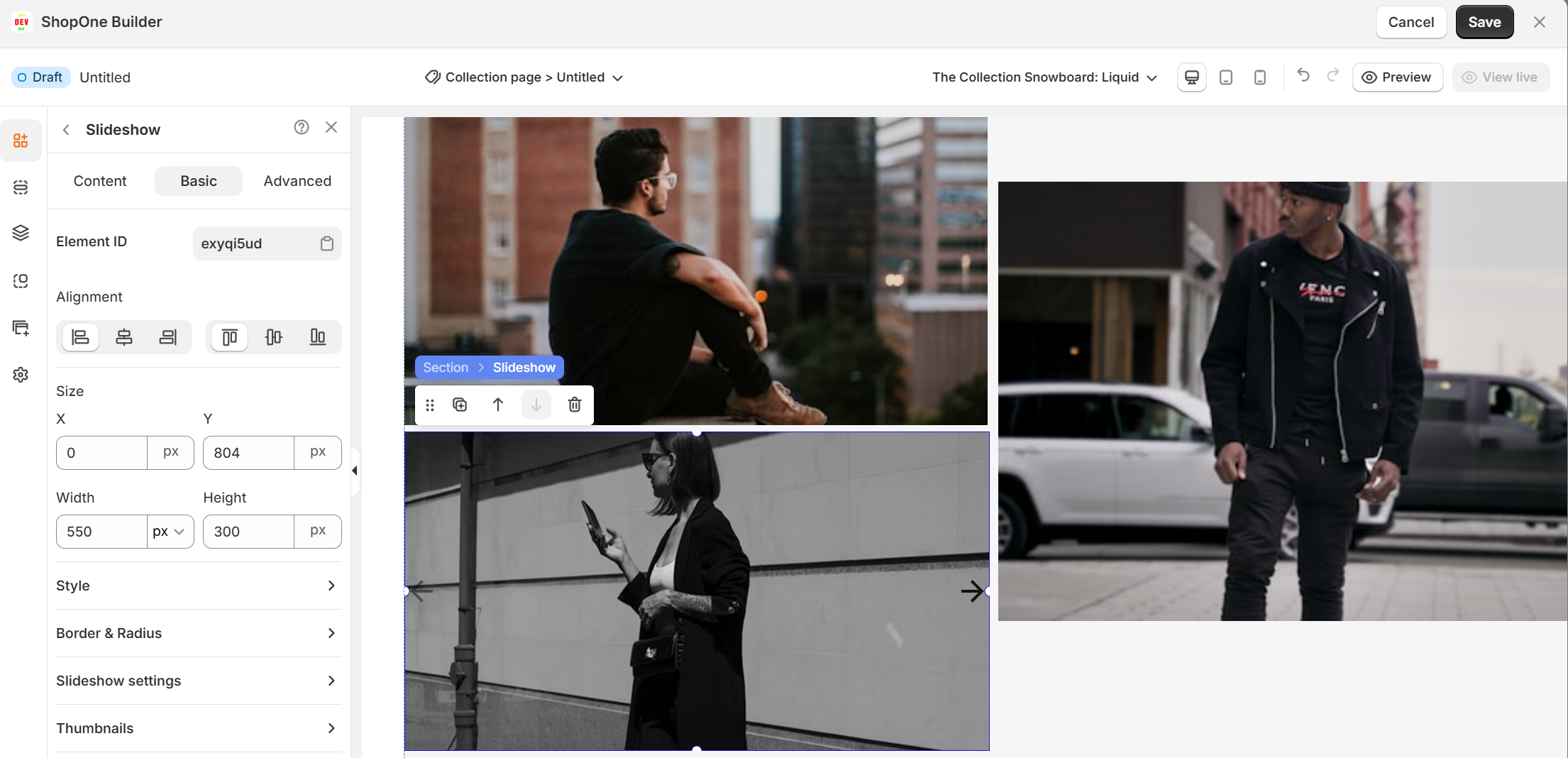
II. Slideshow Element – Basic Settings
1. Element ID
The unique identifier for this slideshow element. Useful for targeting it with Custom CSS or JavaScript.
2. Alignment
Controls how the slideshow is positioned within its container:
Left, Center, Right – Horizontal alignment.
Stretch – Make it full-width of the parent container.
Other icons – Vertical alignment depending on container setup.
3. Size
Allows manual adjustment of X (horizontal position), Y (vertical position), Width, Height.
Useful for precise layout control.
4. Style
Background – Set a background color behind the slideshow.
Box shadow – Add drop shadows for depth.
5. Border & Radius
Customize borders, corners (radius), and outline styling.
6. Slideshow Settings
Animation direction – e.g., Right-to-left, Left-to-right, Fade, etc.
Number of slides – How many slides move per transition.
Time of movement – Duration of the transition animation.
Spacing – Space between slides.
Loop – Whether slideshow restarts automatically when it ends.
Autoplay – Enables automatic slide transition.
Display time of each slide – How long each slide stays visible.
Gap – Space between slides when multiple slides are shown together.
7. Thumbnails
Enable – Show small clickable preview images of slides.
8. Set Dot Icon
Enable – Show navigation dots under the slideshow for manual navigation.
9. Button
Enable – Show next/previous arrows.
Show on hover – Make buttons visible only when the user hovers over the slideshow.
Position – Inside or outside the slideshow container.
III. Slideshow Element – Advanced Settings
1. Display On
- Desktop – show/hide text on desktop devices.
- Mobile – show/hide text on mobile devices.
This helps you optimize the layout for different screens (responsive design).
2. Animation
- Type: Choose an animation style (e.g., fade, slide, bounce).
- Loop: Set how many times the animation repeats.
- Duration: Adjust how long the animation lasts (in seconds).
- Delay: Add a delay before the animation starts.
3. Custom CSS
- Turn this on to apply your own CSS code for advanced styling.
- This is especially useful for developers or advanced users who want unique effects beyond the built-in options.

Thanks for reading! If you have any questions, please contact us via email: support@shopone.io
Was this article helpful?
That’s Great!
Thank you for your feedback
Sorry! We couldn't be helpful
Thank you for your feedback
Feedback sent
We appreciate your effort and will try to fix the article