Container element: A flexible box to group multiple elements together. Containers help organize layouts and make responsive design easier.
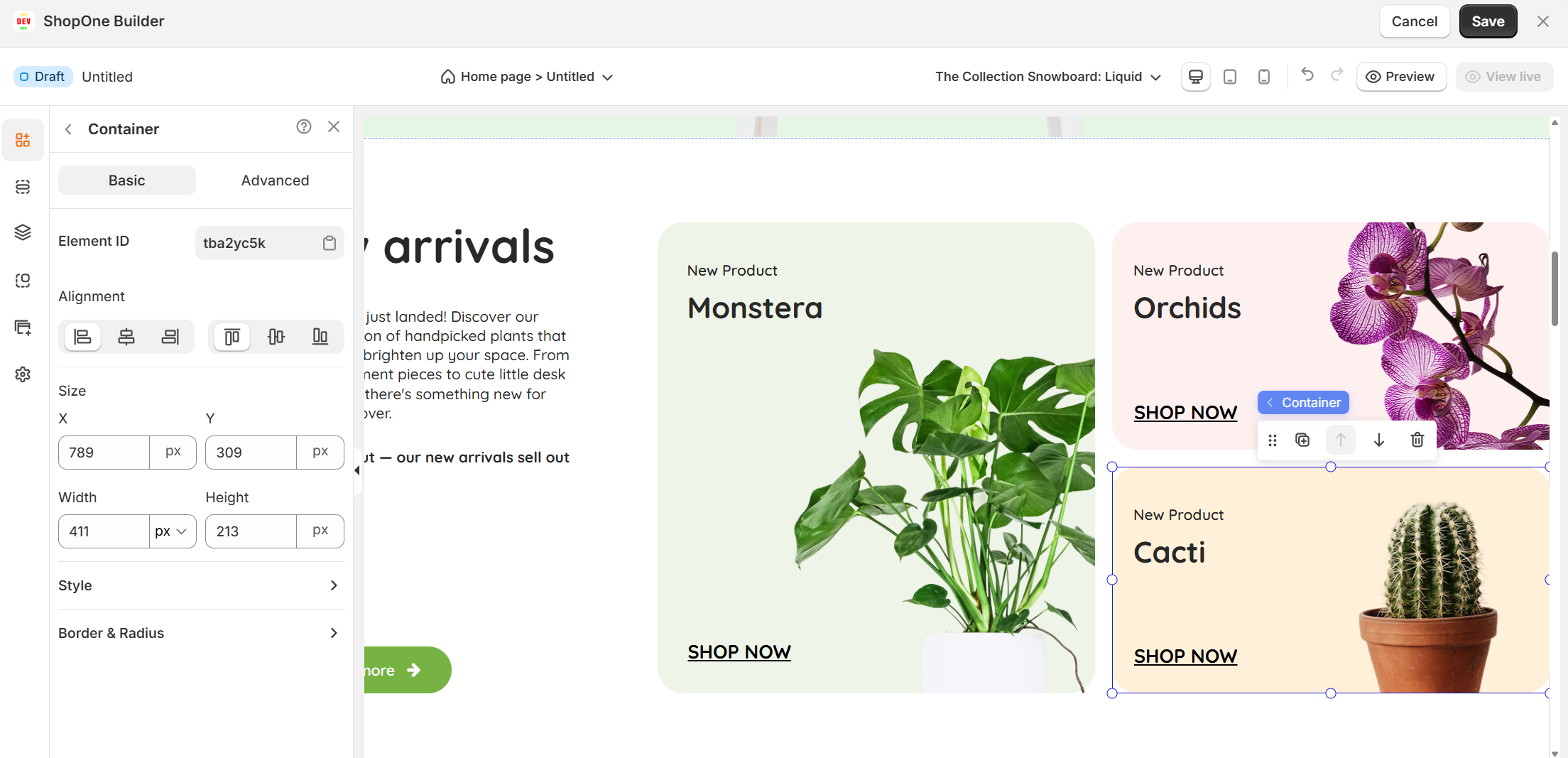
I. Container Element – Basic Settings
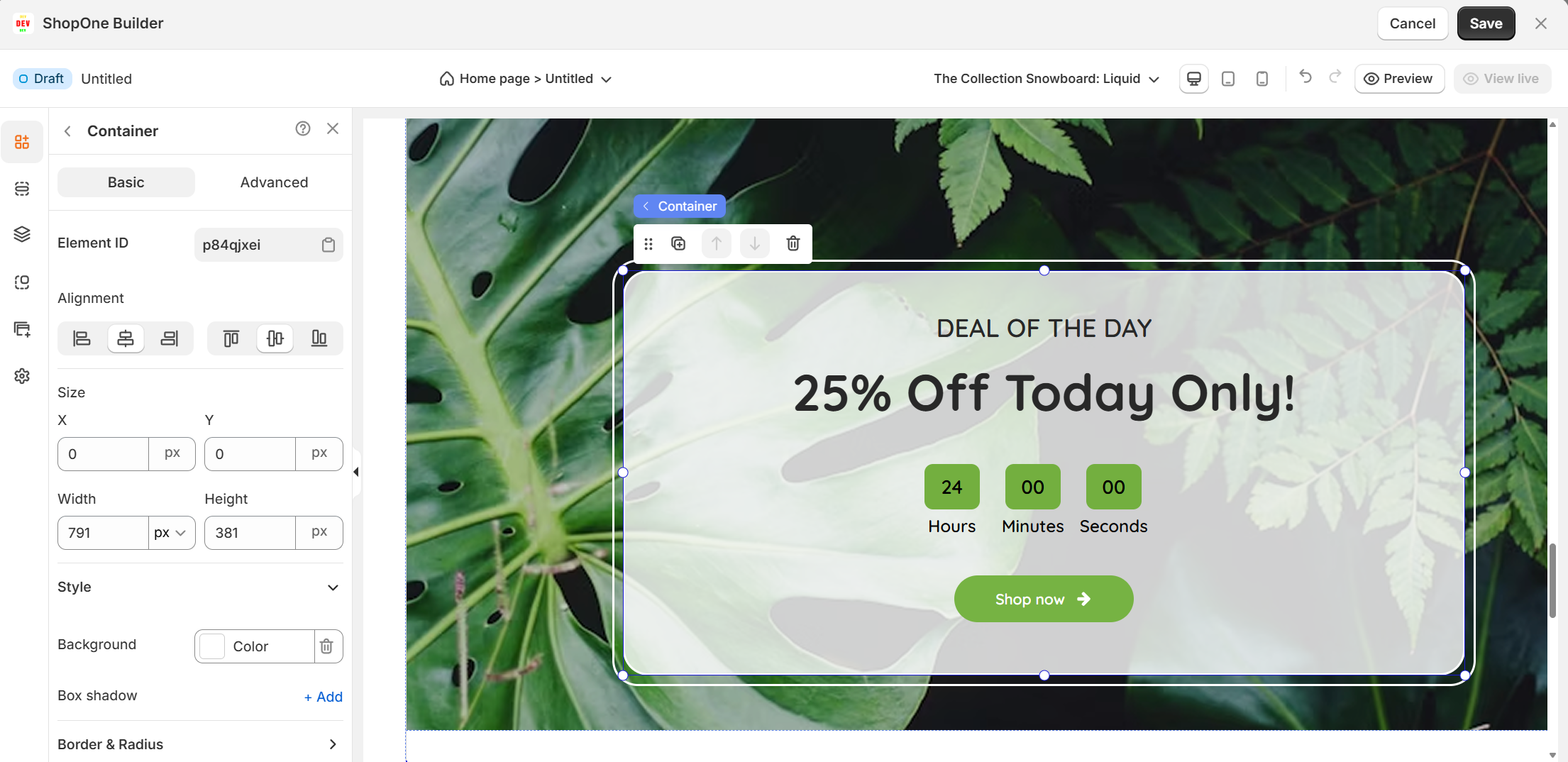
The Basic tab allows you to control its size, alignment, and overall appearance.
1. Element Settings
Element ID: A unique identifier for the container. This is helpful if you want to target the container with custom CSS or JavaScript.
2. Alignment
Control how the container is positioned within its section:
Left / Center / Right Alignment: Align the container horizontally.
Stretch / Distribute Space: Expand the container or distribute its position across the available space.
3. Size & Position
X / Y: Set the exact position of the container relative to its section (in pixels).
Width & Height: Define the container’s dimensions.
Width can be set in pixels or percentage for a responsive layout.
Height can be fixed or left to auto-adjust based on the content inside.
4. Style
Background: Set a background color or image for the container. This is useful for creating visually distinct sections (e.g., highlighted call-to-action areas).
Box Shadow: Add a shadow effect to make the container stand out.
5. Border & Radius
Customize the container’s border thickness, color, and corner radius for a polished look.
6. Space
Adjust padding (space inside the container) and margin (space outside the container) to control how the content inside is displayed and how the container interacts with other elements around it.
II. Container Element – Advanced Settings
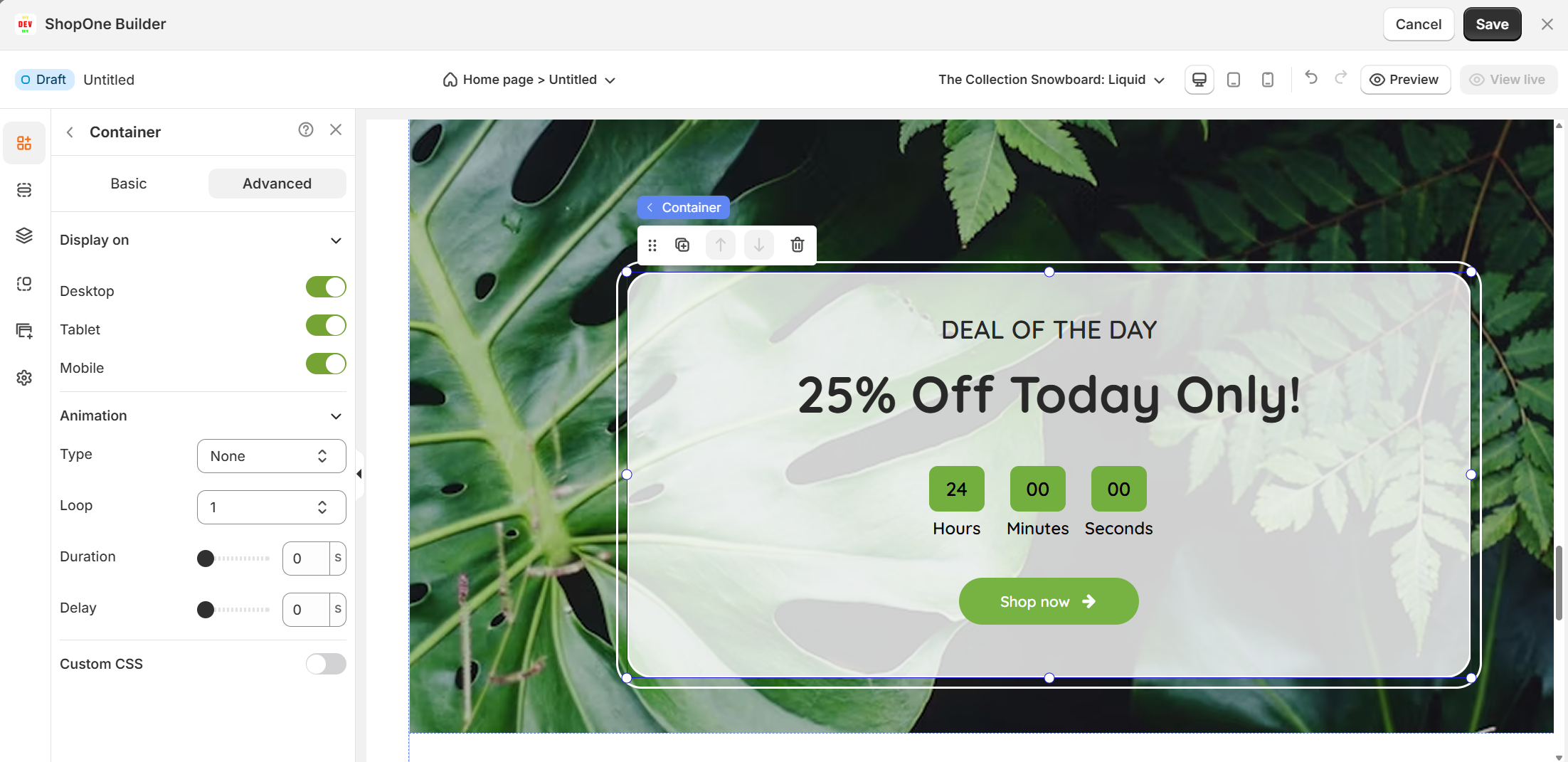
The Advanced tab provides additional customization options for the Container element, giving you control over device visibility, animations, and custom code styling.
1. Display on
Control which devices will display the container:
Desktop: Toggle ON/OFF to show or hide the container on desktop screens.
Mobile: Toggle ON/OFF to show or hide the container on mobile screens.
Tip: Use this feature to create device-specific layouts (e.g., show a simplified container on mobile).
2. Animation
Add motion effects to the container for a more engaging experience.
Type: Choose from available animations (e.g., Fade, Slide, Bounce).
Loop: Set how many times the animation repeats (e.g., 1, 2, infinite).
Duration: Control how long the animation lasts (in seconds).
Delay: Set a wait time before the animation starts (in seconds).
Tip: Use subtle animations to draw attention to important content without distracting users.
3. Custom CSS
Fine-tune the appearance and behavior of the container with custom code:
Class name: Assign a custom class to the container to target it in your stylesheet.
Custom style: Enter inline CSS to quickly apply styling (e.g., background gradients, borders, hover effects).
Use case: Great for designers or developers who want full control over how the container looks and behaves.
Thanks for reading! If you have any questions, please contact us via email: support@shopone.io
Was this article helpful?
That’s Great!
Thank you for your feedback
Sorry! We couldn't be helpful
Thank you for your feedback
Feedback sent
We appreciate your effort and will try to fix the article