Tab element: Creates a tabbed content layout. Users can switch between different content panels without leaving the page. Useful for FAQs, product details, or multiple sections.
I. Tab Element - Content Settings
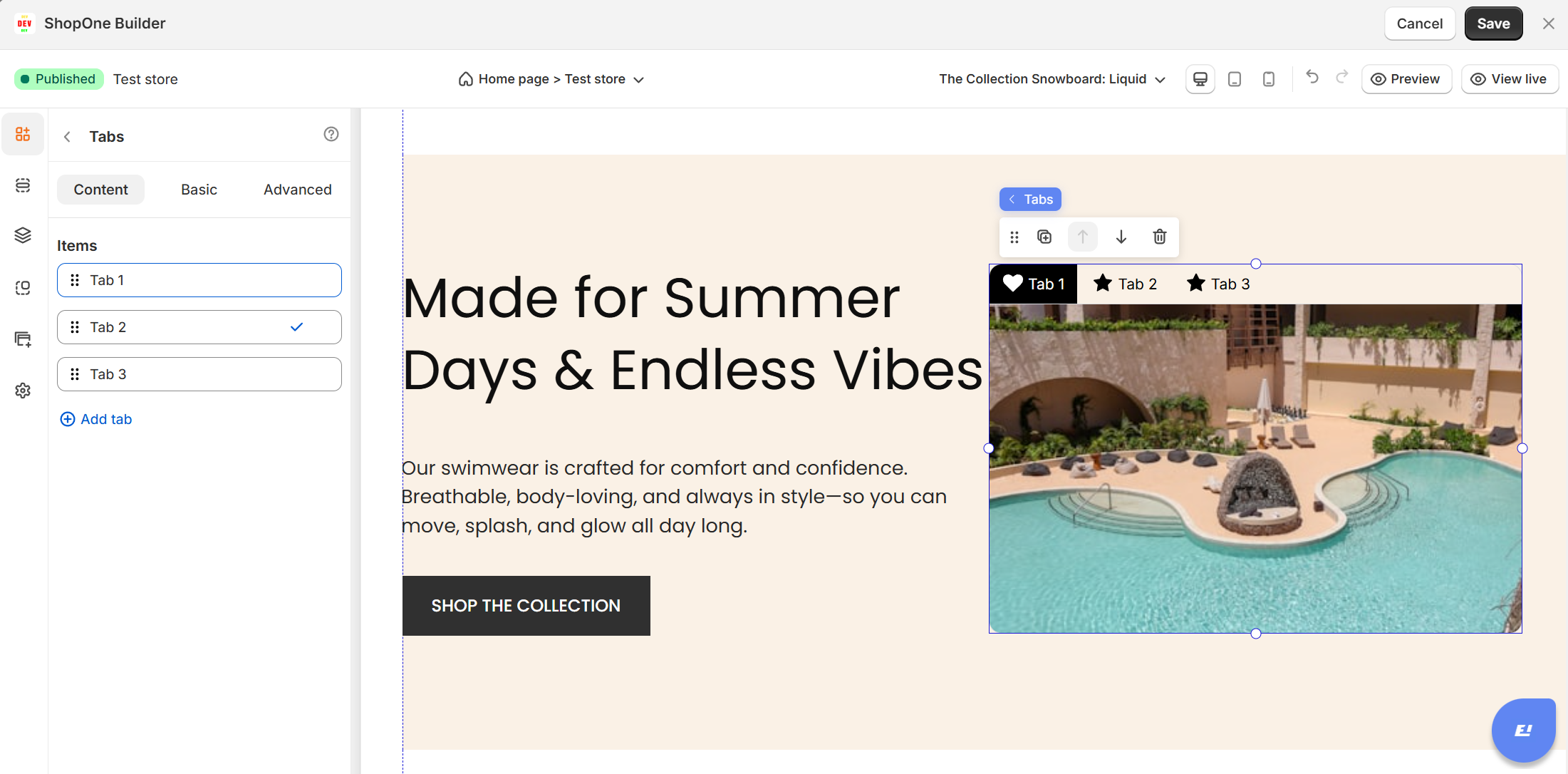
1. Items (Tab List):
Shows all existing tabs (Tab 1, Tab 2, Tab 3).
You can click on any tab name to rename it directly.
The checkmark indicates the currently active tab (Tab 1 in this case).
Drag-and-drop handles (left side) let you reorder tabs.
Add tab (+ Add tab):
Lets you create a new tab.
It appears as “New” by default, which you can rename.
II. Tab Element – Basic Settings
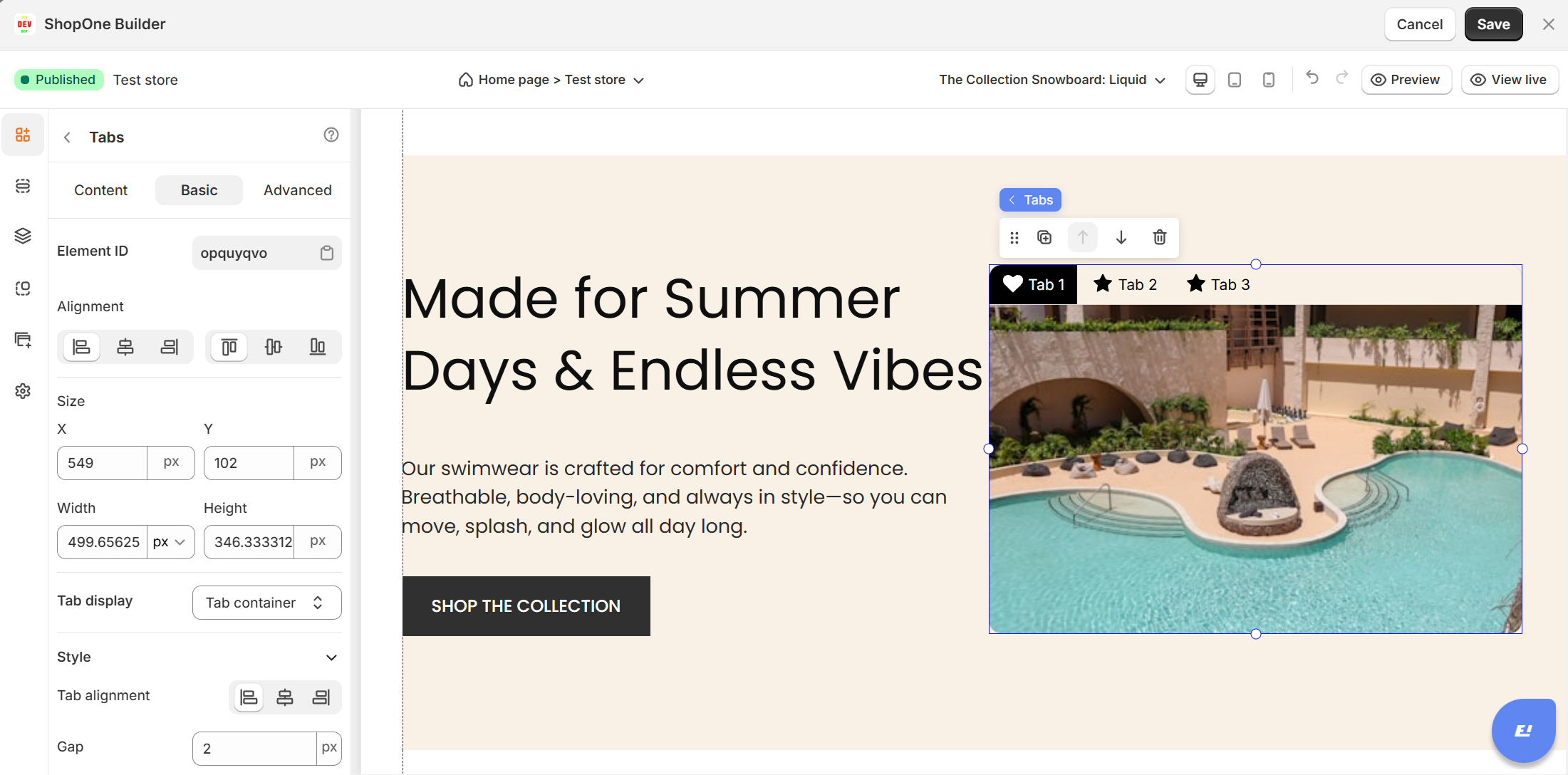
1. Element ID
Unique identifier
Can be referenced for custom CSS or JavaScript.
2. Alignment
Controls the position of the Tabs container (left, center, right, stretch).
3. Size
X / Y: Sets the position of the Tabs container on the canvas.
Width / Height: Adjusts the overall size of the Tabs container.
4. Tab Display
Choose between different display modes (e.g., Tab container, tab or container)
5. Style
Tab alignment: Aligns tab labels (left, center, right).
Gap: Controls the space between tabs.
Vertical toggle: Displays tabs vertically instead of horizontally.
Background: Lets you apply a background color to the tab container.
6. Box Shadow
Adds shadow effects for a raised look.
7. Border & Radius
Allows customizing borders and corner roundness for the container.
III. Tab Element - Advanced Settings
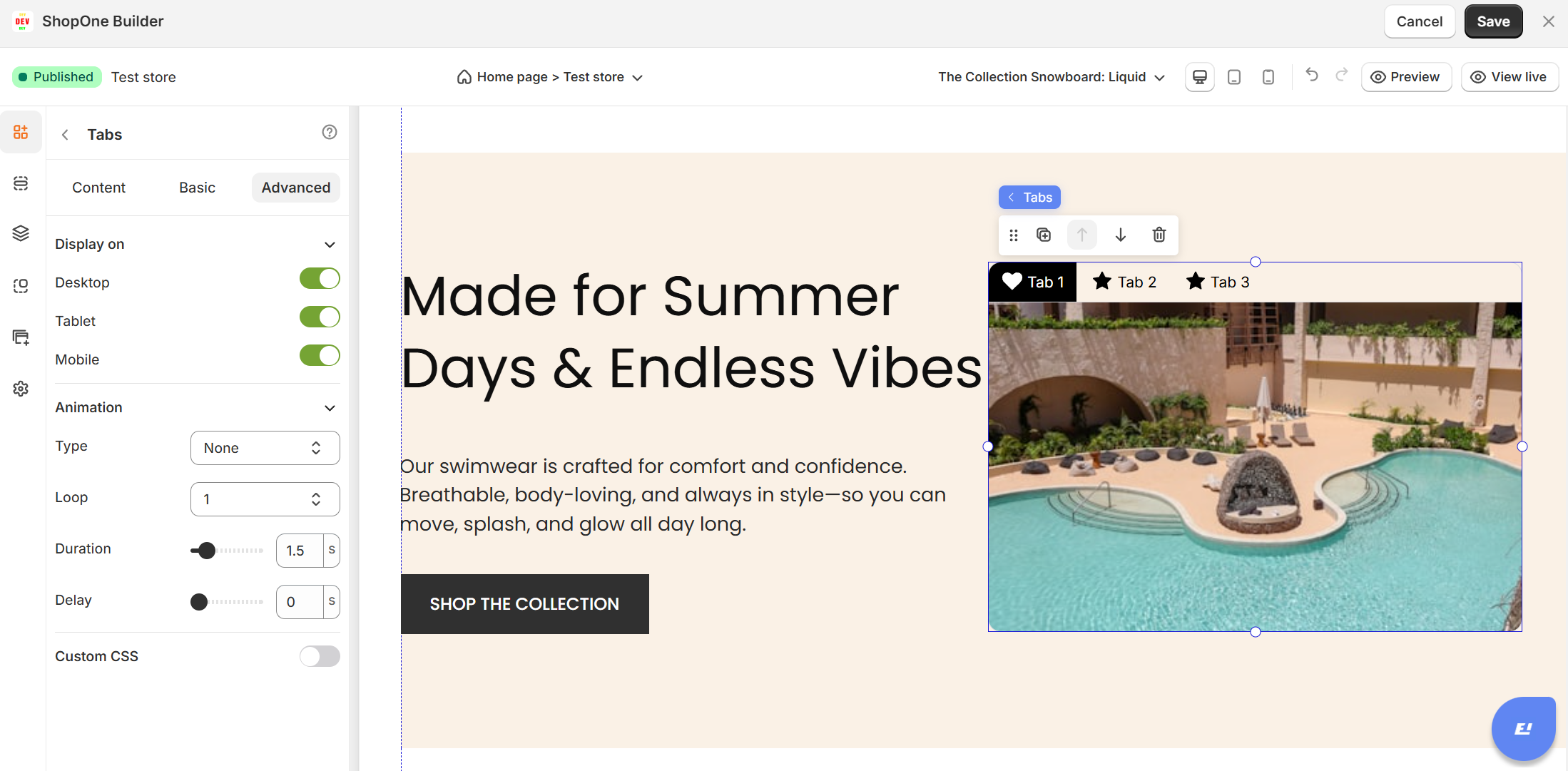
1. Display On
- Desktop – show/hide text on desktop devices.
- Mobile – show/hide text on mobile devices.
This helps you optimize the layout for different screens (responsive design).
2. Animation
- Type: Choose an animation style (e.g., fade, slide, bounce).
- Loop: Set how many times the animation repeats.
- Duration: Adjust how long the animation lasts (in seconds).
- Delay: Add a delay before the animation starts.
3. Custom CSS
- Turn this on to apply your own CSS code for advanced styling.
- This is especially useful for developers or advanced users who want unique effects beyond the built-in options.
Thanks for reading! If you have any questions, please contact us via email: support@shopone.io
Was this article helpful?
That’s Great!
Thank you for your feedback
Sorry! We couldn't be helpful
Thank you for your feedback
Feedback sent
We appreciate your effort and will try to fix the article