Button element: Adds a clickable button that can link to another page, product, checkout, or external URL. Perfect for CTAs (Call-to-Action).
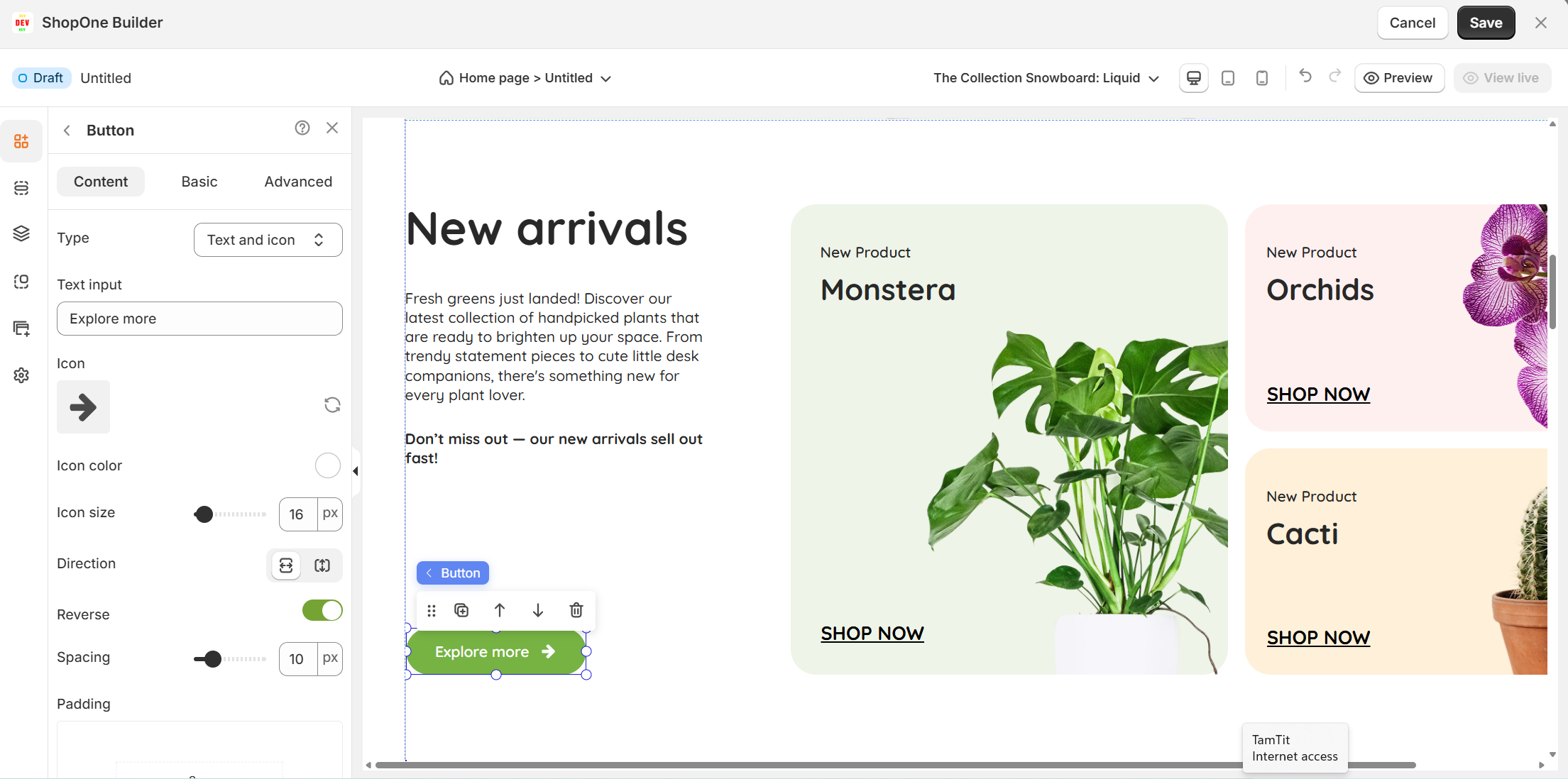
I. Button Element – Content Settings
The Button element lets you create clickable buttons for forms, links, and calls-to-action (CTAs). In the Content tab, you can customize text, icons, and spacing to match your design.
1. Type
Choose how your button looks:
Text only – simple button with just text.
Icon only – button with only an icon.
Text and icon – button that combines both.
Nothing - Button shape only
2. Text input
Enter the button label (e.g., Submit, Buy Now, Sign Up).
This is the text users will see on the button.
3. Icon
Select an icon to display on the button (e.g., paper plane, shopping cart).
You can change or remove the icon as needed.
4. Icon color
Pick a custom color for the icon to match your brand.
5. Icon size
Adjust the icon’s size in pixels (px).
Example: 16px for small icons, larger for emphasis.
6. Direction
Set the icon’s position before or after the text.
7. Reverse
Toggle this option to flip the order of text and icon.
8. Spacing
Adjust the space between the text and icon.
Example: increase spacing for a cleaner look, reduce spacing for compact buttons.
9. Padding
Define the inner spacing inside the button (top, bottom, left, right).
Example: more padding makes the button bigger and easier to click
=> With these settings, users can design buttons that are functional, branded, and visually appealing, improving click-through rates on their websites and landing pages.
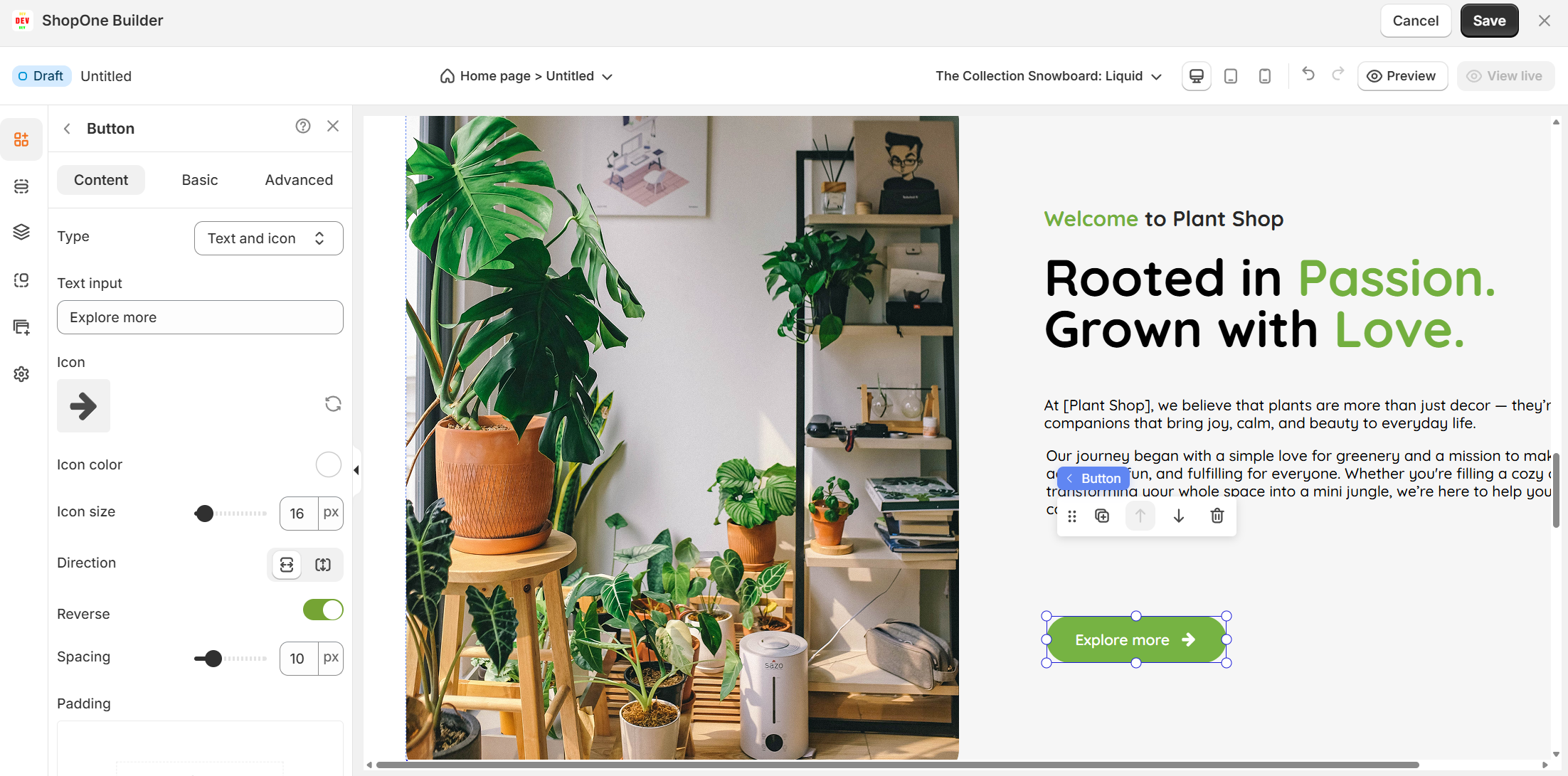
II. Button Element – Basic Settings
The Basic tab lets you control the position, size, background, borders, and typography of your button.
1. Element ID
Each button has a unique Element ID for easy reference.
Useful if you want to apply custom code (CSS/JS) to a specific button.
2. Alignment
Align the button within its container:
Left, Center, Right (horizontal).
Top, Middle, Bottom (vertical).
3. Size (X, Y, Width, Height)
X / Y: Defines the button’s position in pixels. Example: X = 468px (from the left), Y = 31px (from the top).
Width / Height: Set button dimensions in pixels. Example: 120px wide × 40px high.
4. Style – Background
Choose a background color or image for the button.
Helps match the button with your branding.
5. Rotate
Rotate the button by degrees (°).
Example: Rotate by 45° for creative design layouts.
6. Box shadow
Add a shadow effect to make the button stand out.
Great for creating a 3D or elevated effect.
7. Border & Radius
Border: Define border thickness (e.g., 1px solid).
Radius: Round the corners of your button.
Example: 0px = sharp corners, 50px = fully rounded button.
8. Typography
Control the button text style:
Text alignment: Left, center, right, or justified.
Font family: Choose from available fonts (e.g., Roboto).
Font size: Adjust text size in pixels.
Text color: Set text color for visibility and branding.
Font weight: Adjust thickness (400 = normal, 700 = bold).
Font style: Default, italic, or oblique.
Line height: Control spacing between lines (useful for multi-line buttons).
Letter spacing: Adjust spacing between letters.
Text decoration: Apply underline, strikethrough, or overline effects.
Text shadow: Add a shadow effect behind the text.
=> The Basic tab focuses on the visual appearance and positioning of the button, giving you full control over style, layout, and typography.
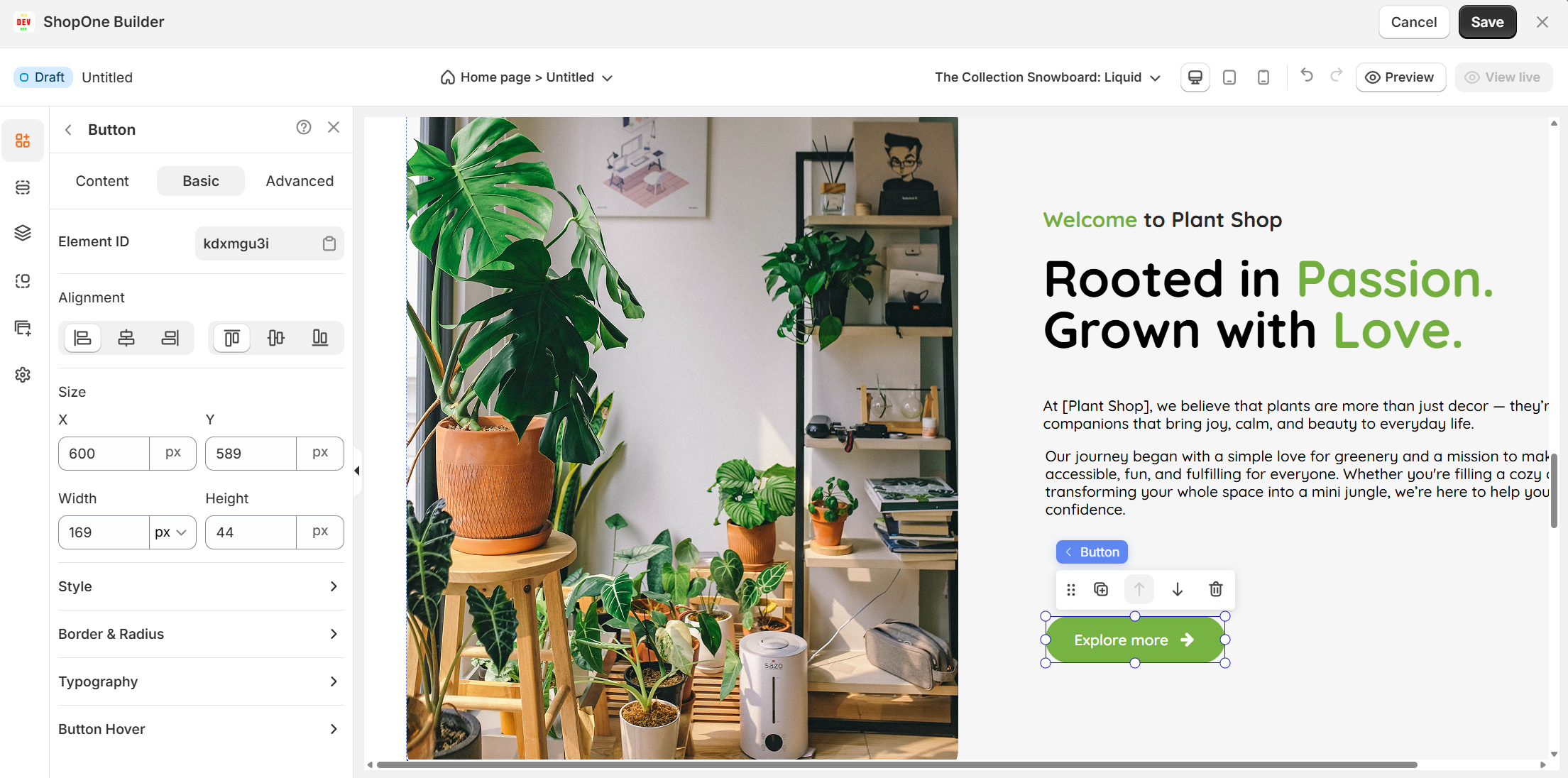
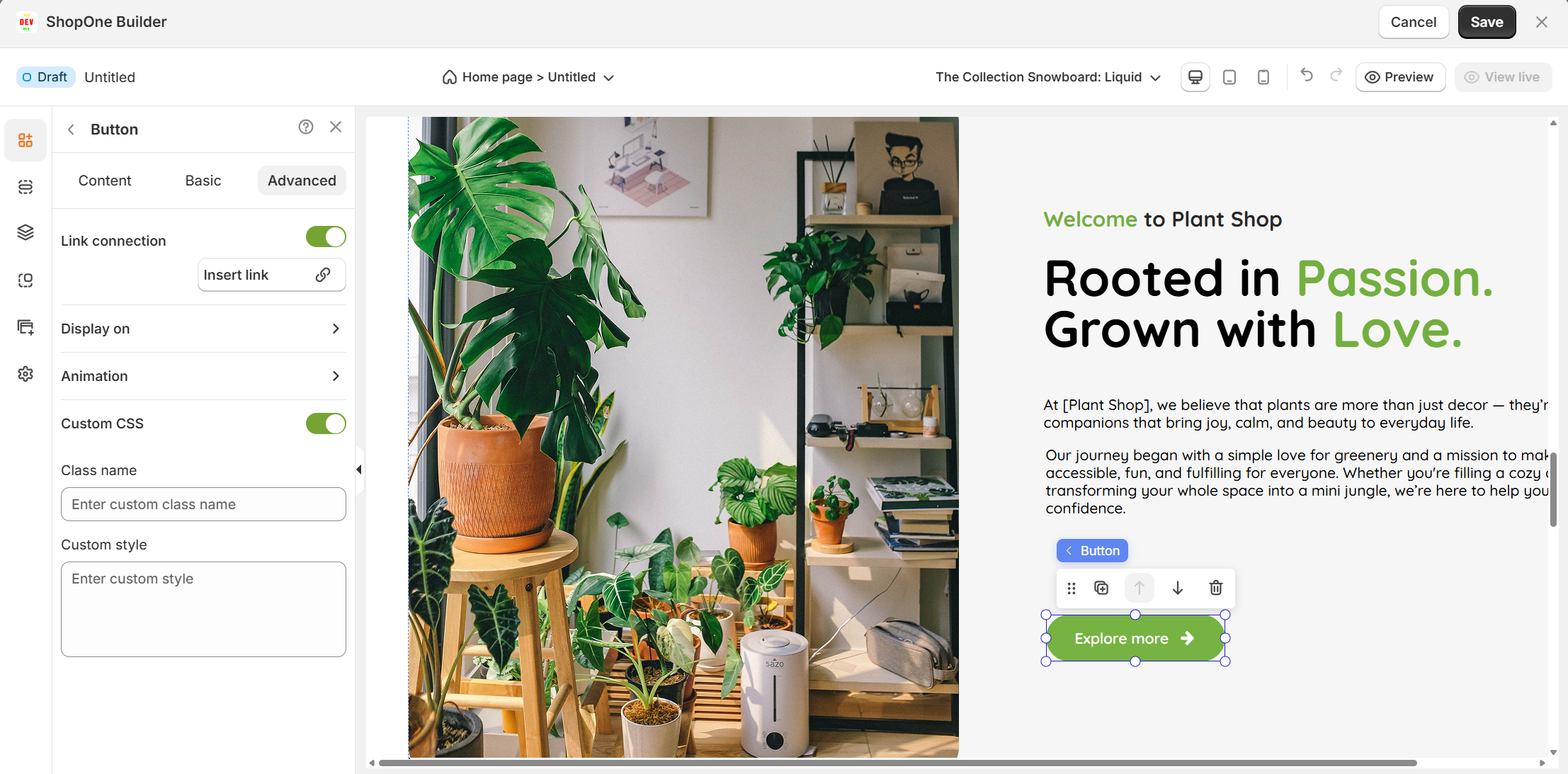
III. Button Element – Advanced Settings
The Advanced tab allows you to control interactions, device visibility, animations, and custom styling for your text element.
1. Link connection
- Turn this on to make the text element a clickable link.
- Useful for buttons, CTAs (Call-To-Actions), or linking to another page/section.
2. Display on
Control where the text will be visible:
Desktop – show/hide text on desktop devices.
Mobile – show/hide text on mobile devices.
This helps you optimize the layout for different screens (responsive design).
3. Animation
Bring your text to life with animation effects.
- Type: Choose an animation style (e.g., fade, slide, bounce).
- Loop: Set how many times the animation repeats.
- Duration: Adjust how long the animation lasts (in seconds).
- Delay: Add a delay before the animation starts.
4. Custom CSS
- Turn this on to apply your own CSS code for advanced styling.
- This is especially useful for developers or advanced users who want unique effects beyond the built-in options.
=> The Advanced tab gives users more control, interactivity, and professional effects, making the text stand out and adapt perfectly to any device.
Thanks for reading! If you have any questions, please contact us via email: support@shopone.io
Was this article helpful?
That’s Great!
Thank you for your feedback
Sorry! We couldn't be helpful
Thank you for your feedback
Feedback sent
We appreciate your effort and will try to fix the article