The Checkout Button allows customers to proceed from the cart to the checkout page. It supports customizable text, layout, and styling to match your store design and user experience.
I. Checkout Button Element - Content Settings
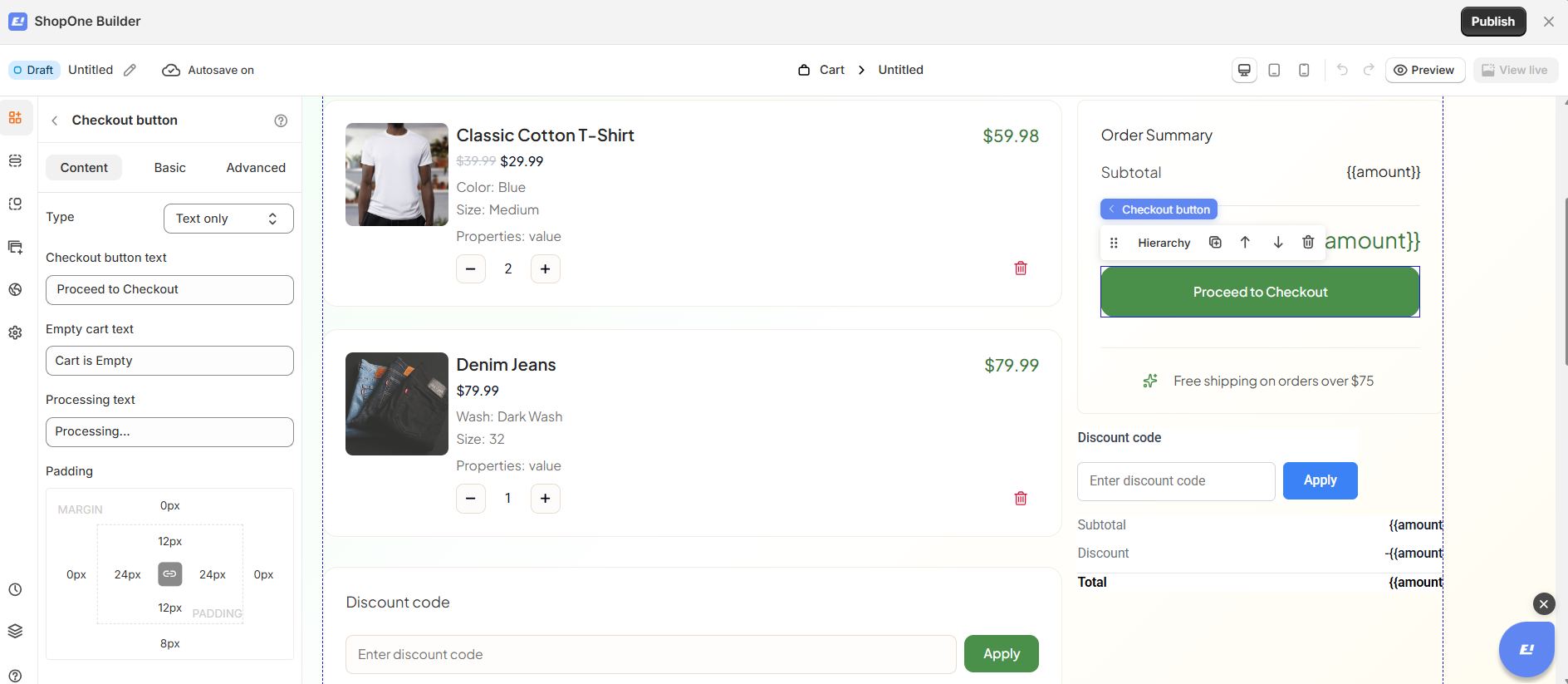
The Content tab controls the text and behavior of the checkout button in different cart states.
Type
Text only: Displays a button with text only, without icons.
Checkout button text
Defines the main label displayed on the button.
Example: “Proceed to Checkout”
Empty cart text
Text shown when the cart has no items.
Helps inform users that checkout is unavailable until items are added.
Example: “Cart is Empty”
Processing text
Text displayed while the checkout action is being processed.
Provides feedback that the system is working.
Example: “Processing…”
Padding
Controls the internal spacing between the button content and its edges.
Allows you to adjust top, right, bottom, and left padding independently for better visual balance.
II. Checkout Button Element - Basic Settings
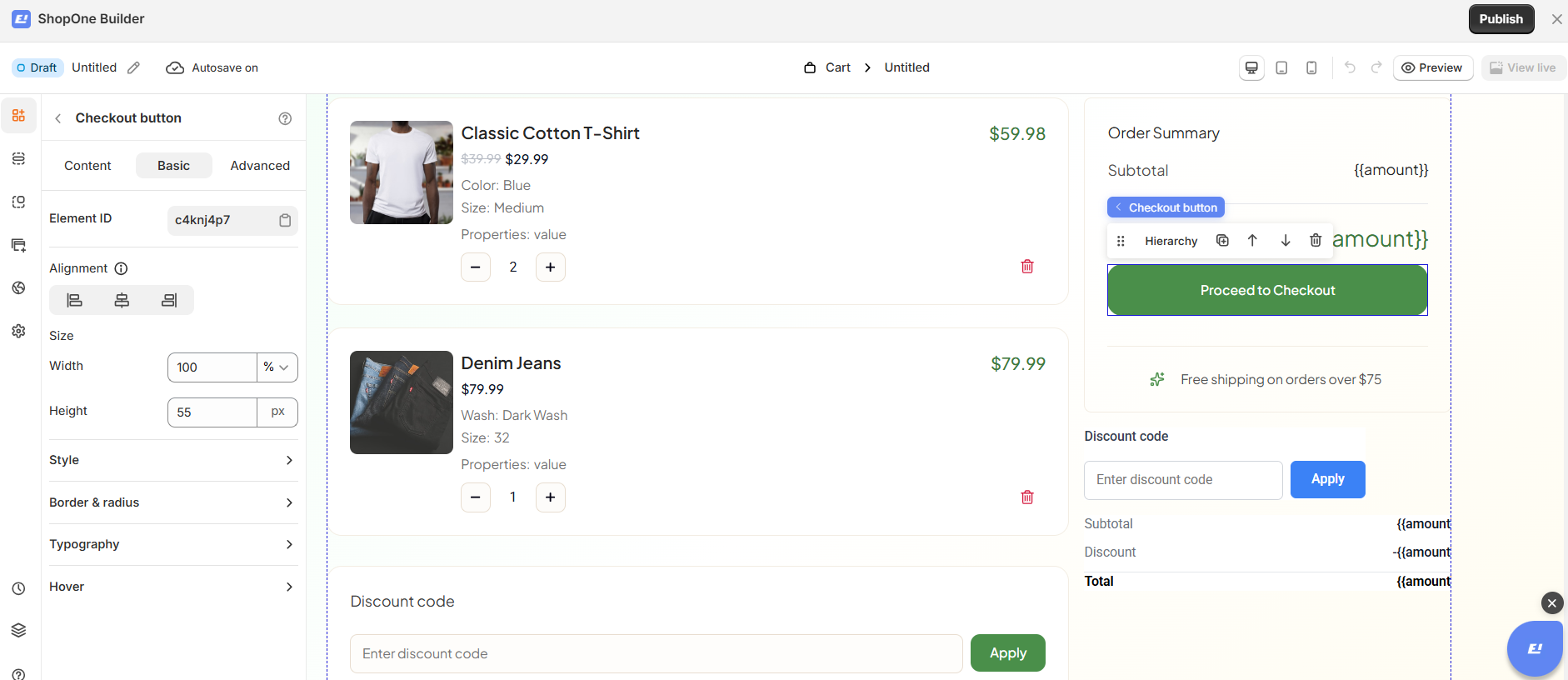
The Basic tab controls layout, size, and visual styling of the checkout button.
Element ID
A unique identifier for the button element.
Useful for custom styling or advanced customization.
Alignment
Sets the horizontal position of the button within its container:
Left
Center
Right
Size
Width
Defines the width of the button.
Can be set as a percentage (e.g., 100%) to make the button span the full container.
Height
Sets a fixed height for the button (e.g., 55px) to ensure consistent appearance.
Style
Controls the overall visual appearance of the button, such as background and text color.
Border & Radius
Allows customization of border thickness, color, and corner rounding.
Typography
Controls font family, size, weight, and text alignment of the button label.
Hover
Defines how the button looks when users hover over it, improving interactivity and user feedback.
III. Checkout Button Element – Advanced Settings
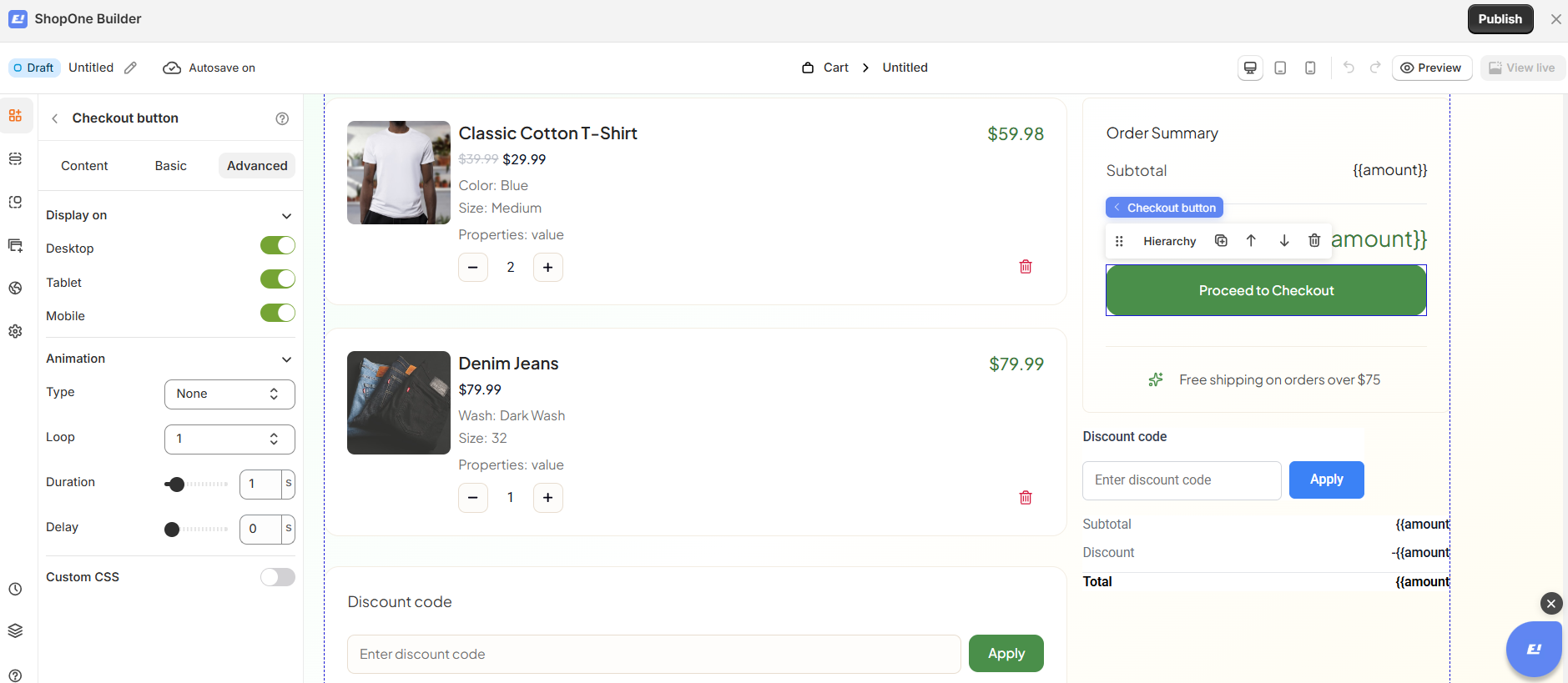
The Advanced tab allows you to control interactions, device visibility, animations, and custom styling for your text element.
Display on
Control where the text will be visible:
- Desktop – show/hide text on desktop devices.
- Mobile – show/hide text on mobile devices.
This helps you optimize the layout for different screens (responsive design).
Animation
Bring your text to life with animation effects.
- Type: Choose an animation style (e.g., fade, slide, bounce).
- Loop: Set how many times the animation repeats.
- Duration: Adjust how long the animation lasts (in seconds).
- Delay: Add a delay before the animation starts.
Custom CSS
- Turn this on to apply your own CSS code for advanced styling.
- This is especially useful for developers or advanced users who want unique effects beyond the built-in options.
=> The Advanced tab gives users more control, interactivity, and professional effects, making the text stand out and adapt perfectly to any device.
Thanks for reading! If you have any questions, please contact us via email: support@shopone.io
Was this article helpful?
That’s Great!
Thank you for your feedback
Sorry! We couldn't be helpful
Thank you for your feedback
Feedback sent
We appreciate your effort and will try to fix the article
