The Cart Coupon element allows customers to enter and apply a discount code directly on the cart page. It helps improve conversion by making promotions easy to use and clearly visible before checkout.
This element connects with Shopify’s built-in discount system, ensuring valid discount codes are applied instantly to the cart.
I. Cart Coupon Element - Content Settings
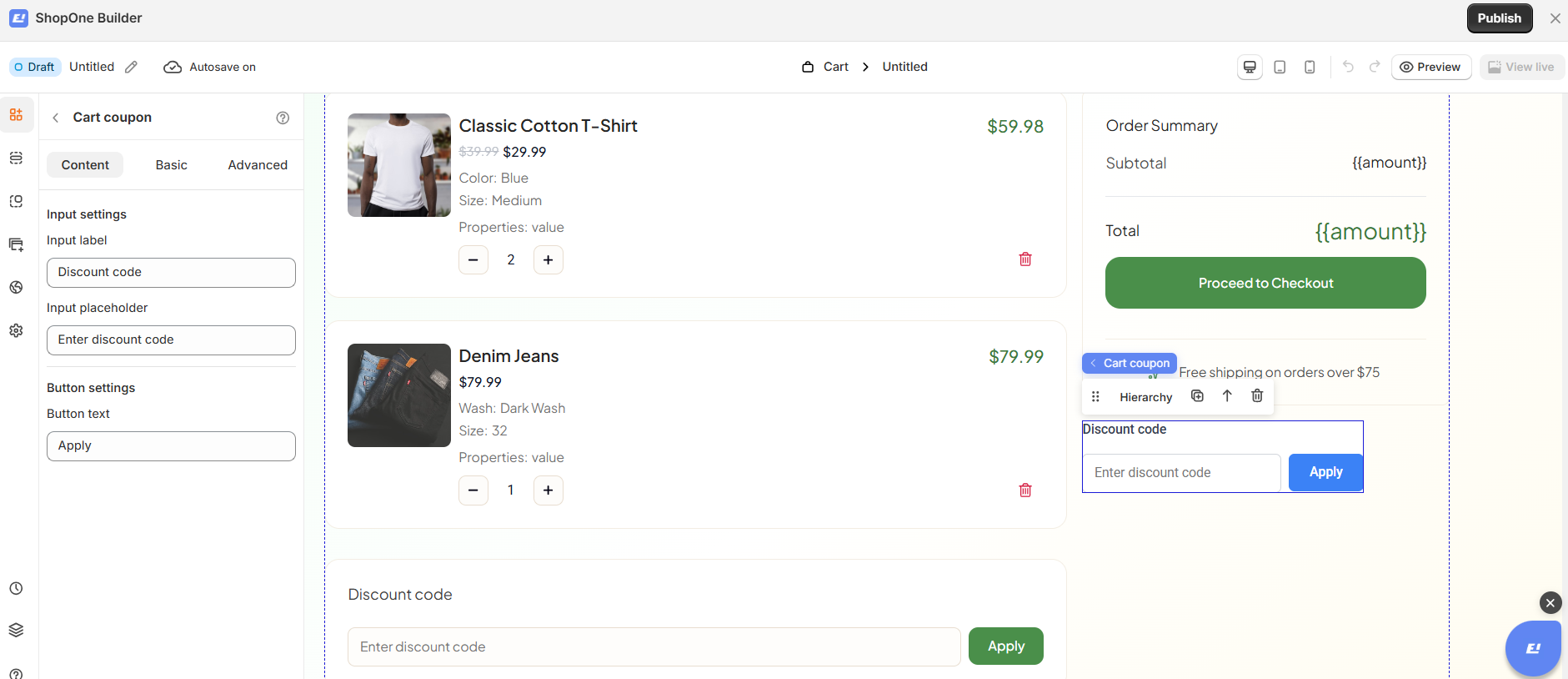
Input Settings
Use these options to control how the discount input field appears to customers:
Input label: Text displayed above the discount input field (e.g. Discount code)
Input placeholder: Helper text shown inside the input field (e.g. Enter discount code)
These settings guide customers on what to enter and improve usability.
Button Settings
Customize the action button used to apply the discount:
Button text: The label displayed on the apply button (e.g. Apply)
This allows you to match the wording with your store’s tone and language.
II. Cart Coupon Element - Basic Settings
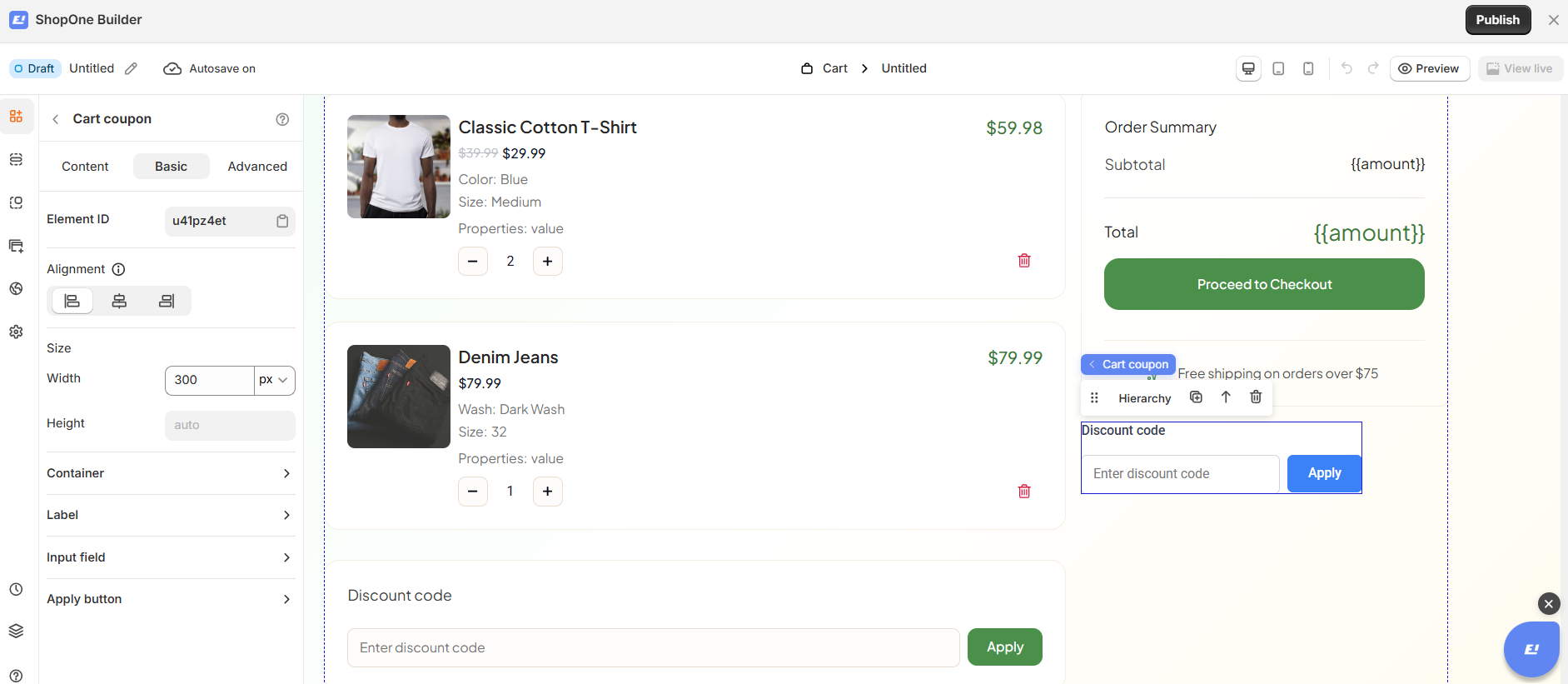
The Basic tab lets you control the layout, position, and appearance of the Cart Coupon element:
Element ID: A unique identifier for custom styling or scripts
Alignment: Adjust horizontal and vertical alignment
Size & Position: Configure X/Y position, width, and height
Container: Customize the wrapper styling and spacing
Label: Style the input label text
Input field: Control the appearance of the coupon input
Apply button: Customize button size, colors, and style
These options give you full flexibility to match the cart design with your brand.
III. Cart Coupon Element – Advanced Settings
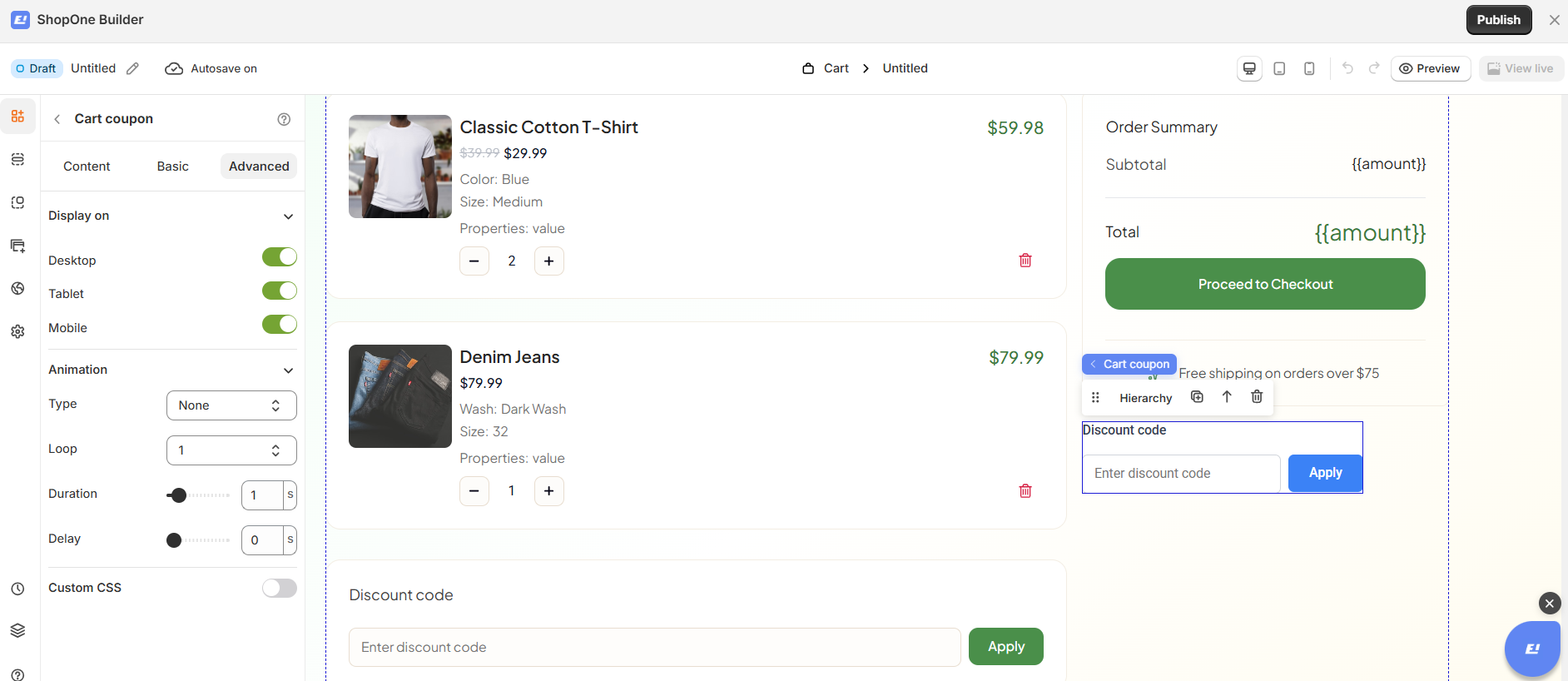
The Advanced tab allows you to control interactions, device visibility, animations, and custom styling for your text element.
Display on
Control where the text will be visible:
- Desktop – show/hide text on desktop devices.
- Mobile – show/hide text on mobile devices.
This helps you optimize the layout for different screens (responsive design).
Animation
Bring your text to life with animation effects.
- Type: Choose an animation style (e.g., fade, slide, bounce).
- Loop: Set how many times the animation repeats.
- Duration: Adjust how long the animation lasts (in seconds).
- Delay: Add a delay before the animation starts.
Custom CSS
- Turn this on to apply your own CSS code for advanced styling.
- This is especially useful for developers or advanced users who want unique effects beyond the built-in options.
=> The Advanced tab gives users more control, interactivity, and professional effects, making the text stand out and adapt perfectly to any device.
Thanks for reading! If you have any questions, please contact us via email: support@shopone.io
Was this article helpful?
That’s Great!
Thank you for your feedback
Sorry! We couldn't be helpful
Thank you for your feedback
Feedback sent
We appreciate your effort and will try to fix the article
