Cart Summary displays the customer a total price for the items in a short and consolidated view. With the summary amount displayed on the Cart page, customers will see the amount of money they need to pay for all items while shopping.
I. Cart Summary Element - Content Settings
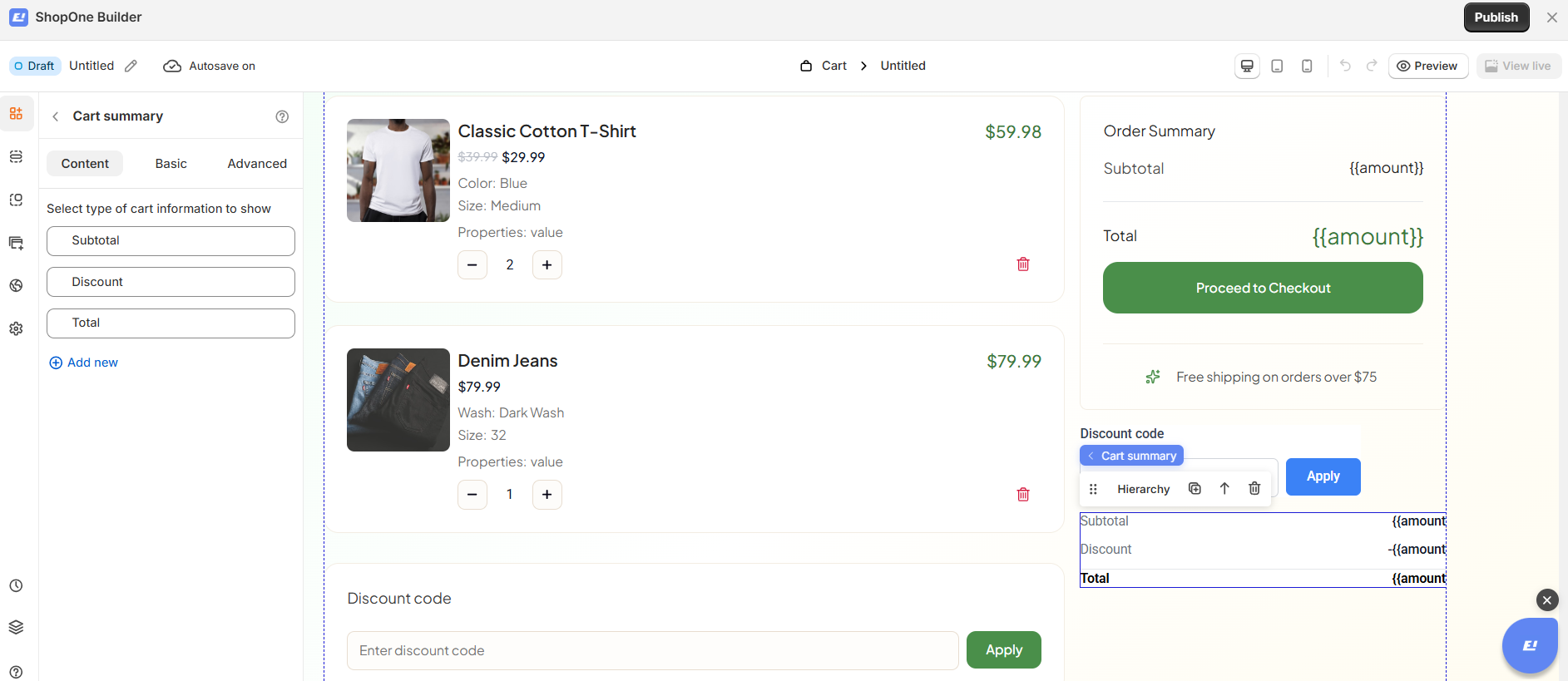
The Content tab is used to control which cart information is displayed in the Cart Summary section.
Features:
Select type of cart information to show
Allows you to choose the cart data that will appear in the summary.Subtotal – Displays the total price of all items before discounts.
Discount – Shows the total discount applied from coupons or promotions.
Total – Displays the final amount after discounts are applied.
Add new
Enables adding additional cart summary items if supported by the system.
This tab focuses on what information is shown to the customer in the cart summary.
II. Cart Summary Element - Basic Settings
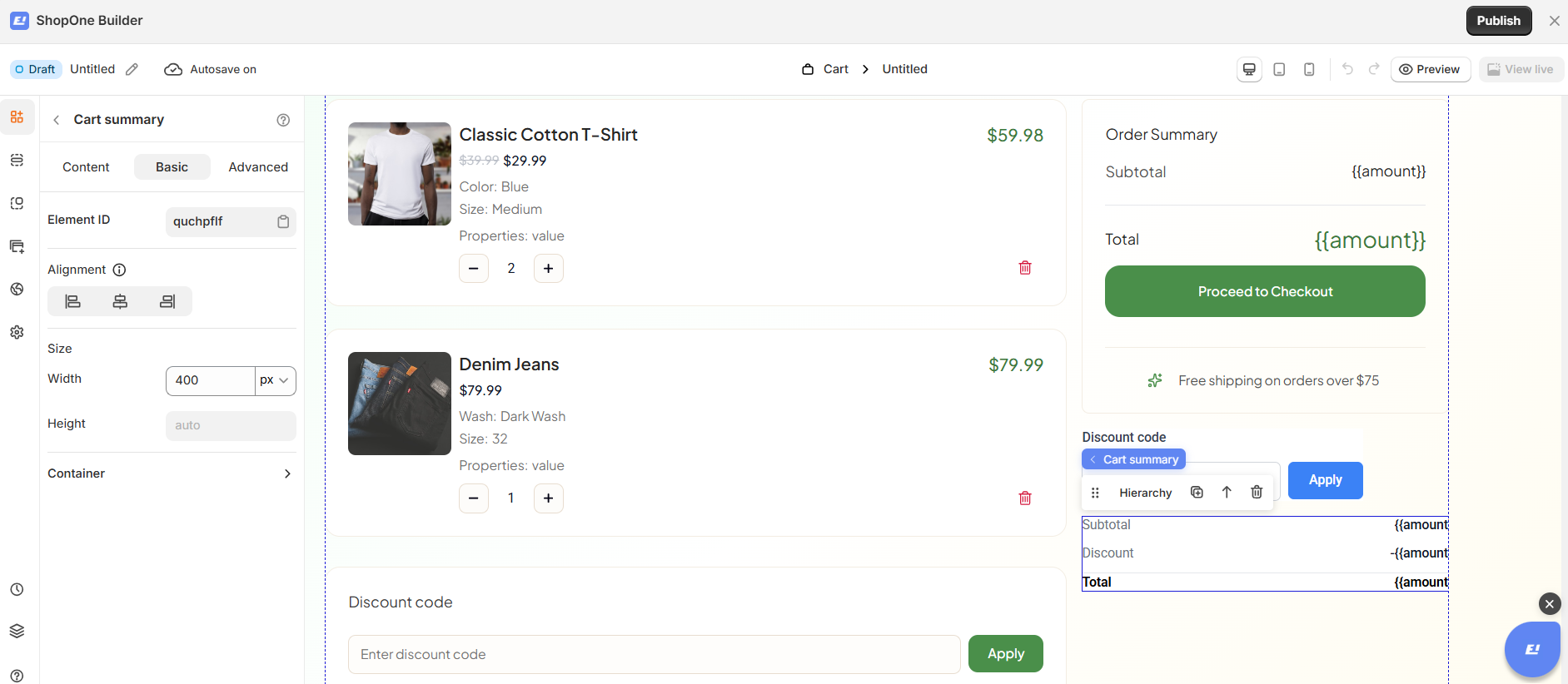
The Basic tab controls the layout, size, and visual structure of the Cart Summary element.
Features:
Element ID
Displays a unique ID for the Cart Summary element, useful for custom styling or advanced targeting.Alignment
Sets how the cart summary is aligned within its container:Left
Center
Right
Size
Width – Defines the width of the Cart Summary (e.g., 400px).
Height – Automatically adjusts based on content.
Container
Row gap – Controls the vertical spacing between each cart summary row (e.g., Subtotal, Discount, Total).
Background – Allows setting a background color for the Cart Summary container.
Spacing – Adjusts padding and margin around the Cart Summary for better layout control.
This tab focuses on how the Cart Summary looks and is positioned on the page.
III. Cart Summary Element – Advanced Settings
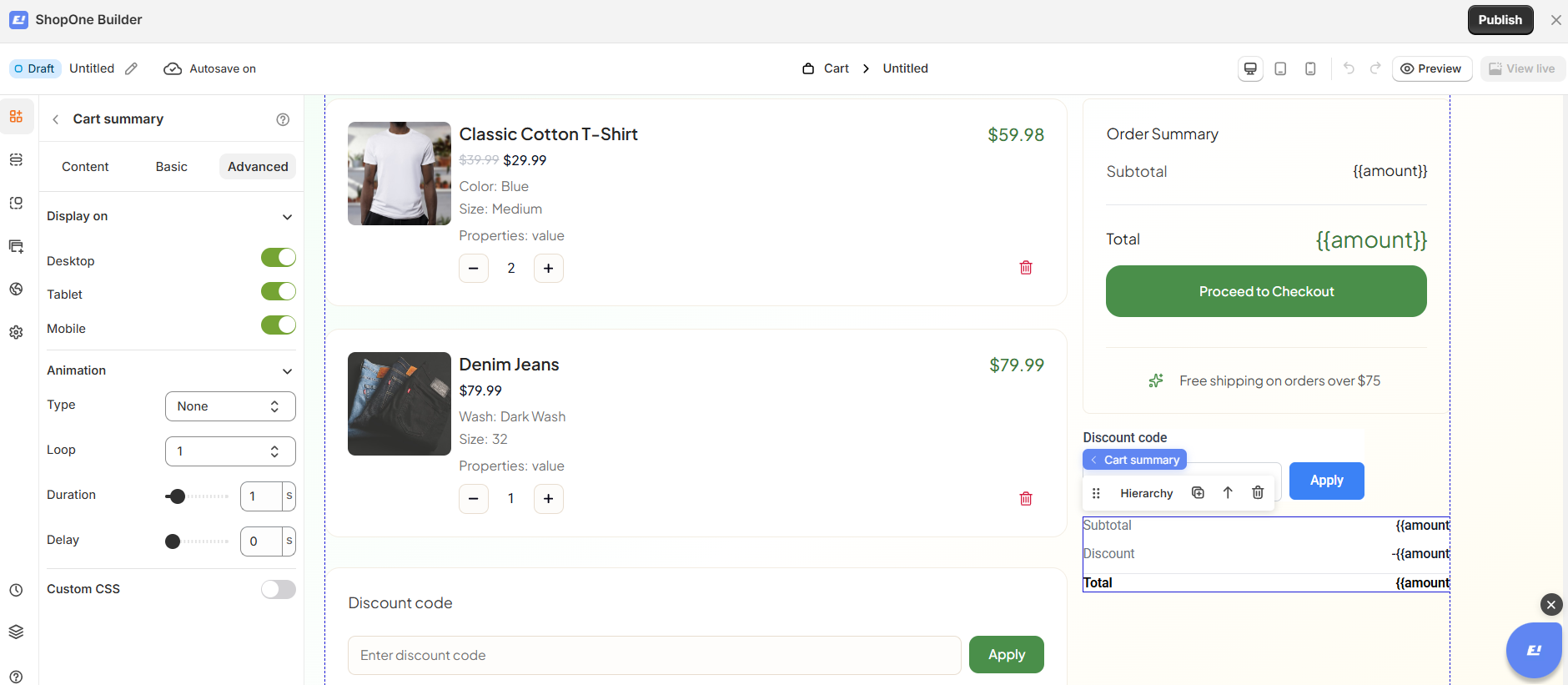
The Advanced tab allows you to control interactions, device visibility, animations, and custom styling for your text element.
Display on
Control where the text will be visible:
- Desktop – show/hide text on desktop devices.
- Mobile – show/hide text on mobile devices.
This helps you optimize the layout for different screens (responsive design).
Animation
Bring your text to life with animation effects.
- Type: Choose an animation style (e.g., fade, slide, bounce).
- Loop: Set how many times the animation repeats.
- Duration: Adjust how long the animation lasts (in seconds).
- Delay: Add a delay before the animation starts.
Custom CSS
- Turn this on to apply your own CSS code for advanced styling.
- This is especially useful for developers or advanced users who want unique effects beyond the built-in options.
=> The Advanced tab gives users more control, interactivity, and professional effects, making the text stand out and adapt perfectly to any device.
Thanks for reading! If you have any questions, please contact us via email: support@shopone.io
Was this article helpful?
That’s Great!
Thank you for your feedback
Sorry! We couldn't be helpful
Thank you for your feedback
Feedback sent
We appreciate your effort and will try to fix the article
