Video element: Embeds a video from a source like YouTube, Vimeo, or an uploaded file. Ideal for product demos, tutorials, or marketing videos.
I. Video Element – Content Settings
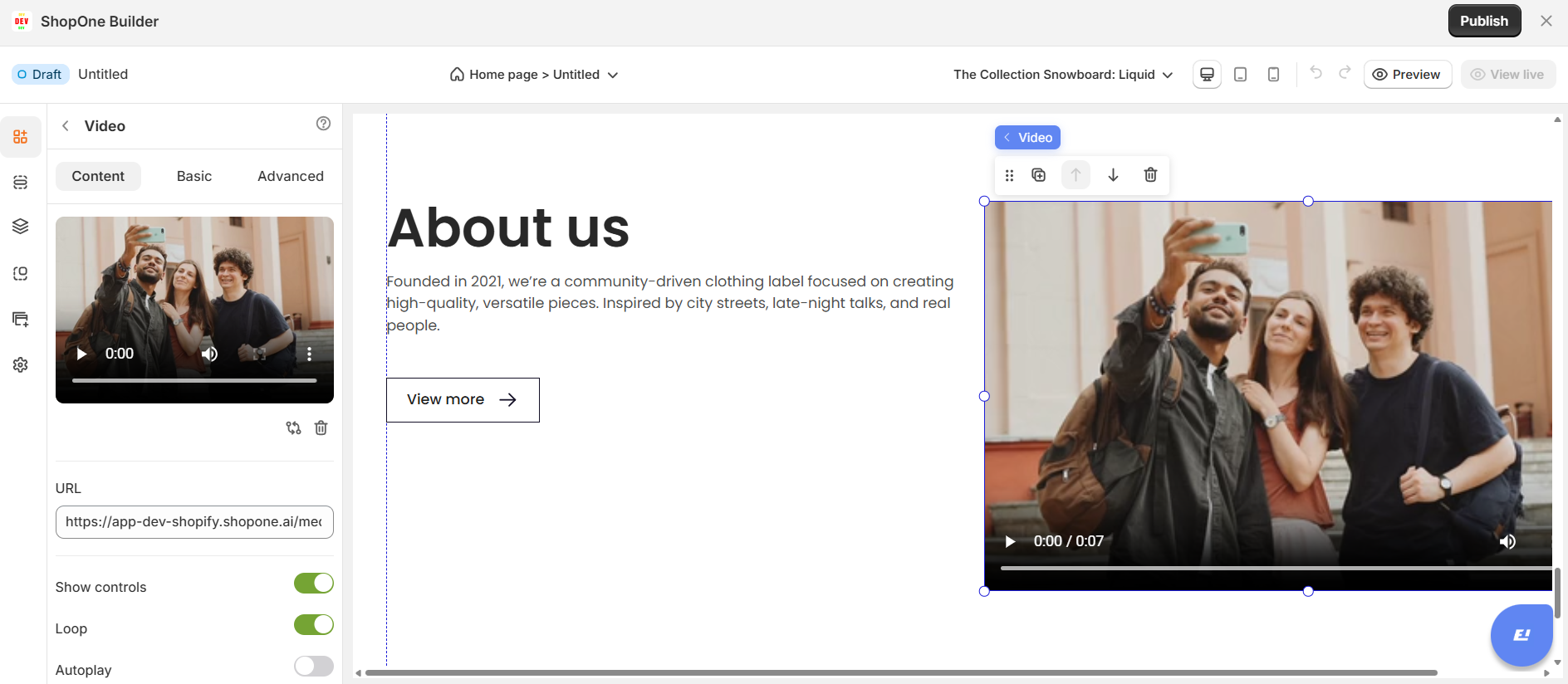
1. Video Source
You have two ways to add a video:
Upload Video: Click the upload area to select a video file from your computer.
URL: Paste a direct video URL to display a hosted video.
2. Playback Options
Customize how your video behaves on the page:
Show Controls: Toggle ON to display the video player’s controls (play, pause, volume, fullscreen).
Loop: Toggle ON to replay the video automatically after it finishes.
Auto play: Toggle ON to start playing the video automatically when the page loads.
Play Audio: Toggle ON to play sound along with the video. Turn OFF to mute by default.
Tip: Many browsers block autoplay with sound — if you want autoplay to work reliably, consider turning Play Audio OFF.
II. Video Element – Basic Settings
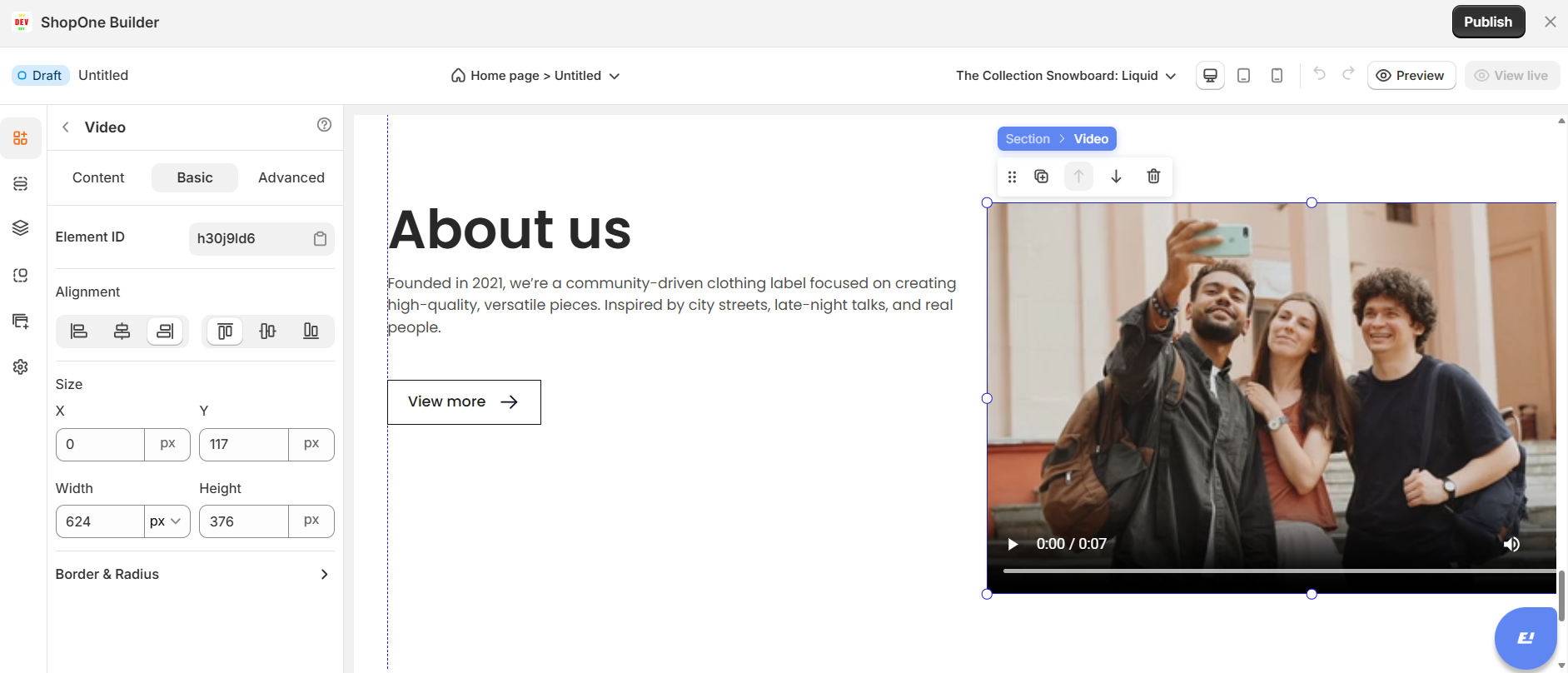
The Basic Tab controls the positioning, sizing, and alignment of your video element on the page.
1. Element ID
Displays the unique identifier of the video element.
Click the copy icon to quickly copy the ID — useful for custom CSS or scripts.
2. Alignment
Choose how the video aligns within its container:
Left / Center / Right: Horizontal alignment options.
Top / Middle / Bottom: Vertical alignment options.
3. Size & Position
X / Y: Adjust the video’s exact position (in pixels) relative to its container.
Width / Height: Define the size of the video player. Units can be set to px (pixels) for precise control.
Tip: Use consistent width-to-height ratios (e.g., 16:9) to avoid video stretching.
III. Video Element – Advanced Settings
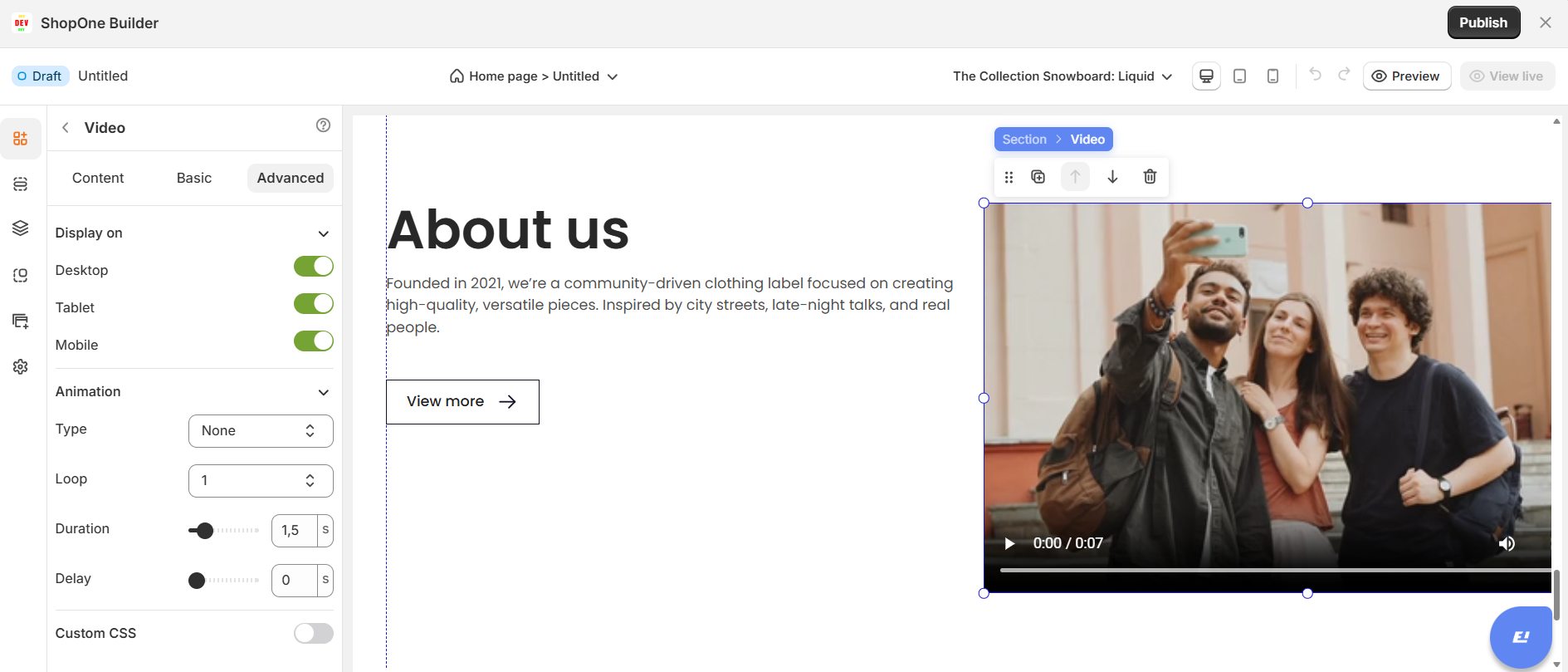
The Advanced Tab lets you control visibility, animations, and custom styling for your video element.
1. Display On
Control where the video is visible:
Desktop: Toggle ON/OFF to show or hide the video on desktop devices.
Mobile: Toggle ON/OFF to show or hide the video on mobile devices.
2. Animation
Bring your video to life with entry animations:
Type: Select an animation (e.g., Fade In, Slide, Zoom) or choose None for no animation.
Loop: Choose how many times the animation repeats.
Duration: Adjust how long the animation lasts (in seconds).
Delay: Set a delay before the animation starts.
3. Custom CSS
Enhance styling with your own code:
Class Name: Assign a custom class name for targeted styling via external CSS.
Custom Style: Add inline CSS styles that apply directly to this video element.
Tip: Use this section to fine-tune spacing, borders, or responsiveness with custom code.
Thanks for reading! If you have any questions, please contact us via email: support@shopone.io
Was this article helpful?
That’s Great!
Thank you for your feedback
Sorry! We couldn't be helpful
Thank you for your feedback
Feedback sent
We appreciate your effort and will try to fix the article