Counter element: Animates numbers counting up to a target value. Useful for highlighting statistics, achievements, sales numbers, or milestones.
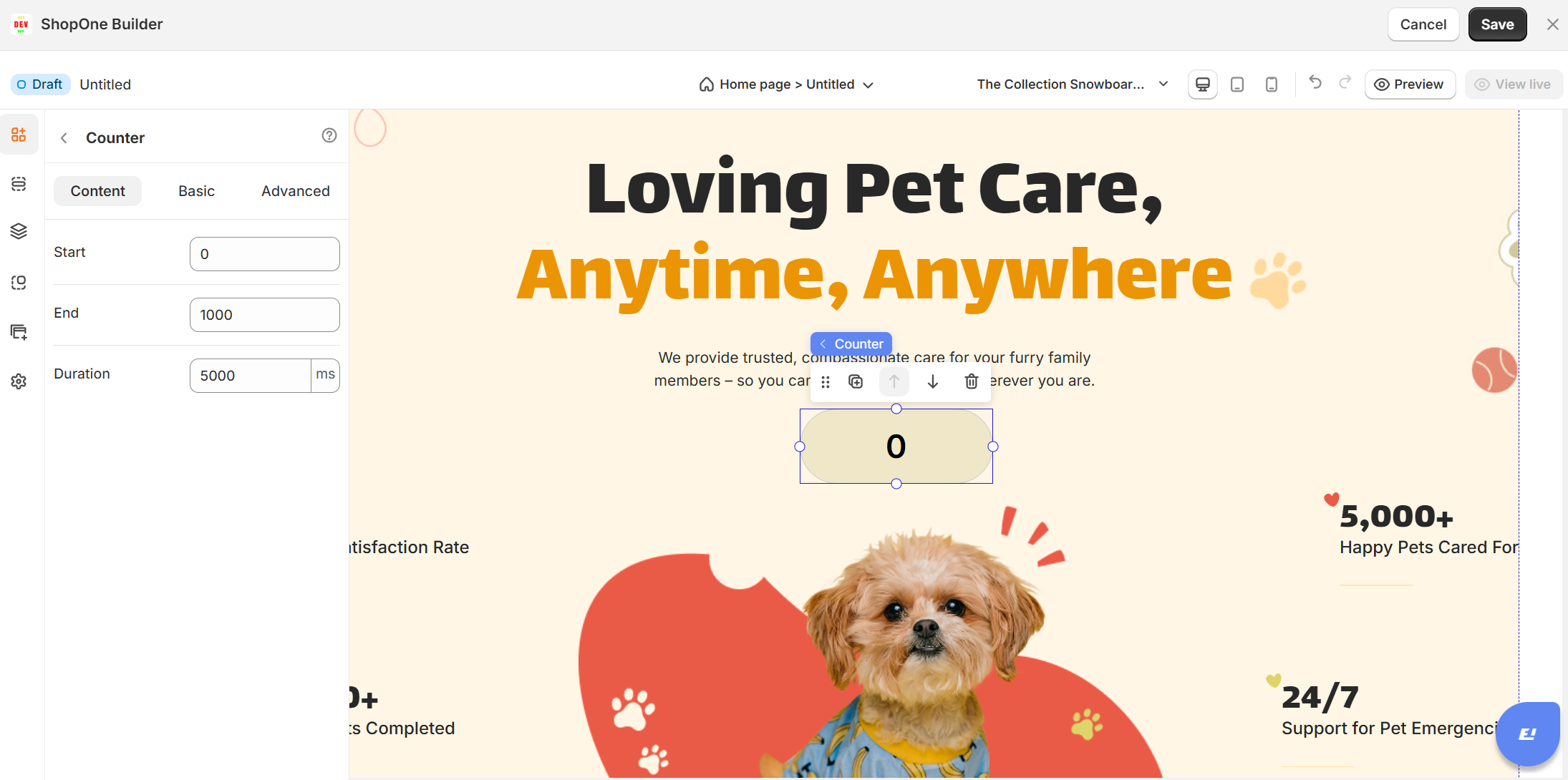
I. Counter Element - Content Settings
1. Start
The initial number where the counter animation begins.
Example: If set to
0, the counter will start counting from 0.
2. End
The final number where the counter stops.
Example: If set to
1000, the counter will count up (or down) until it reaches 1000.
3. Duration
The total time (in milliseconds) for the counting animation.
Example:
5000 ms= 5 seconds to go from Start → End.Shorter duration = faster count. Longer duration = slower count.
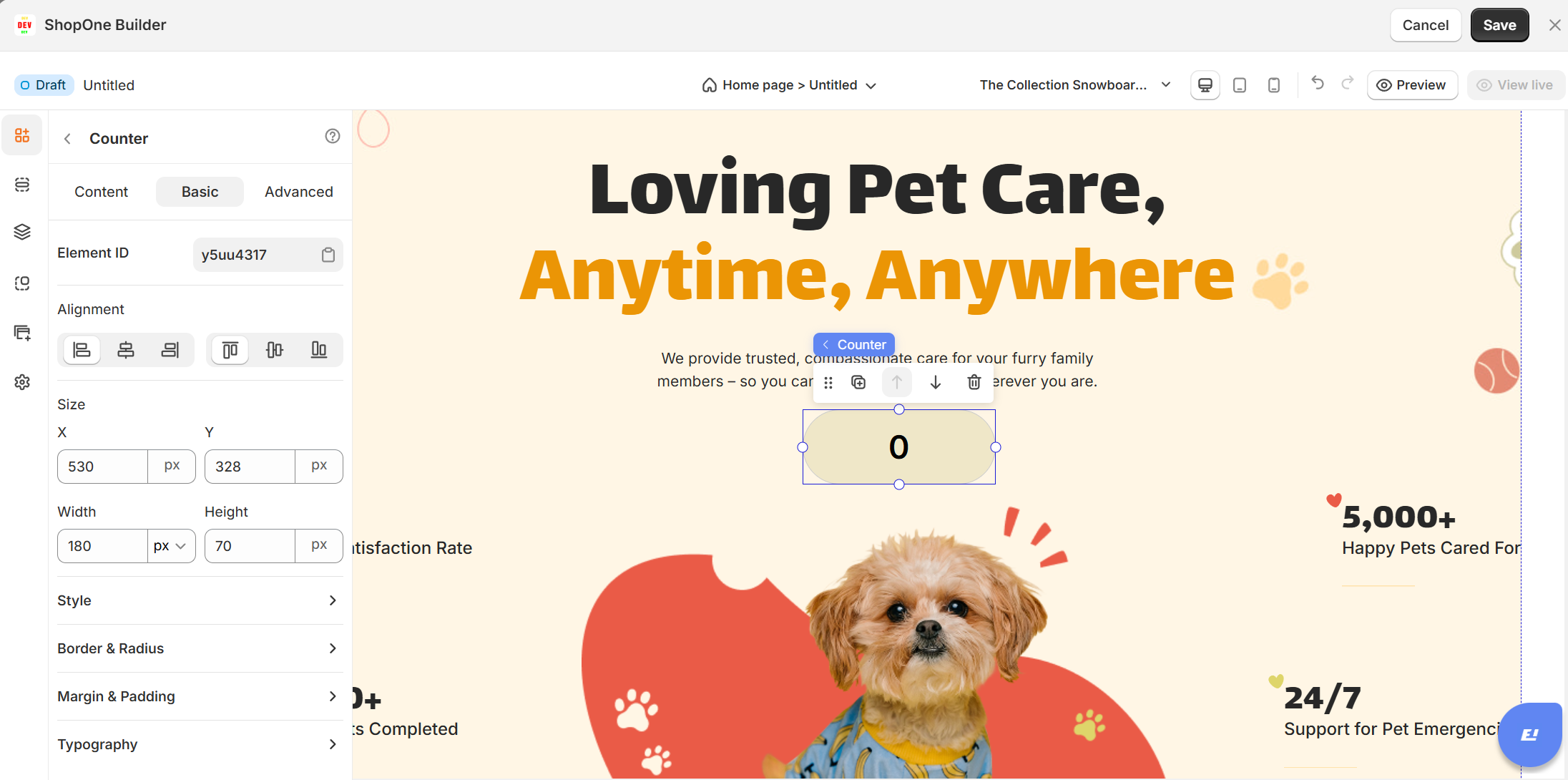
II. Counter Element - Basic Settings
1. Element ID
A unique identifier for this counter element.
Useful if you want to target this counter with custom CSS or JavaScript.
2. Alignment
Controls horizontal alignment of the counter inside its container.
Options include:
Left
Center
Right
Stretch / Full-width
3. Size
X / Y: Position offsets (in pixels) from the parent container.
X = -113 pxmeans it’s shifted left by 113px.Y = 29 pxmeans it’s shifted down by 29px.
Width / Height: Controls the dimensions of the counter container.
Height is
0 pxhere, so it auto-adjusts to fit the text height.
4. Style
Opens additional styling options like background color, border, and shadows.
5. Border & Radius
Lets you set borders (thickness, color, style) and corner radius for rounded edges.
6. Margin & Padding
Margin = space outside the counter box.
Padding = space inside the counter box (around the text).
7. Typography
Controls the look of the text itself:
- Text alignment: Align text left, center, right, or justified.
- Font family
- Font size
- Text color
- Font weight
- Font style
- Line height
- Letter spacing
- Text decoration
- Text transform
- Text shadow
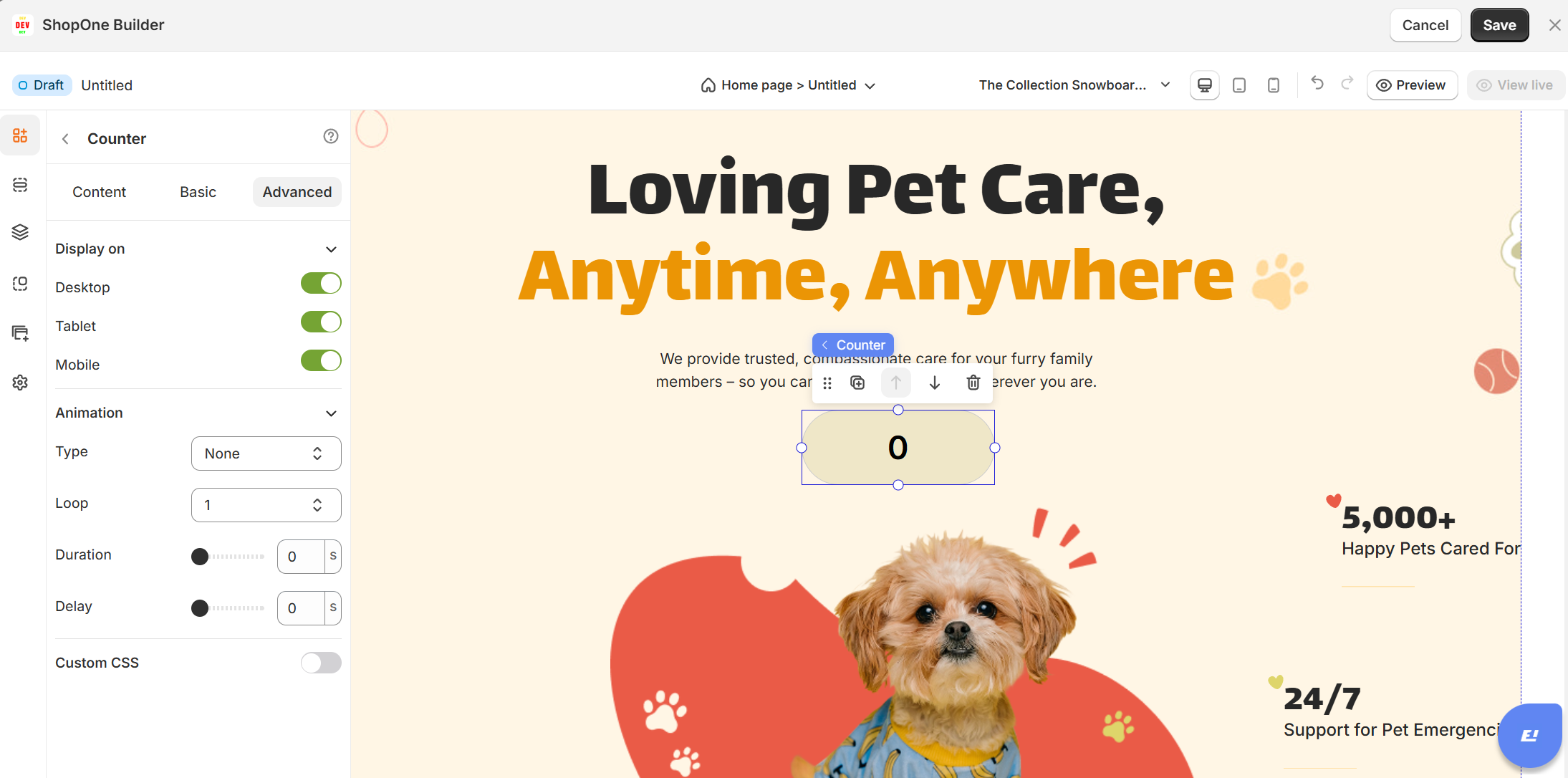
III. Counter Element - Advanced Settings
1. Display On
- Desktop – show/hide text on desktop devices.
- Mobile – show/hide text on mobile devices.
This helps you optimize the layout for different screens (responsive design).
2. Animation
- Type: Choose an animation style (e.g., fade, slide, bounce).
- Loop: Set how many times the animation repeats.
- Duration: Adjust how long the animation lasts (in seconds).
- Delay: Add a delay before the animation starts.
3. Custom CSS
- Turn this on to apply your own CSS code for advanced styling.
- This is especially useful for developers or advanced users who want unique effects beyond the built-in options.
Thanks for reading! If you have any questions, please contact us via email: support@shopone.io
Was this article helpful?
That’s Great!
Thank you for your feedback
Sorry! We couldn't be helpful
Thank you for your feedback
Feedback sent
We appreciate your effort and will try to fix the article