Countdown timer element: Displays a timer counting down to a specific date/time or duration. Great for sales, limited offers, or urgency-driven campaigns.
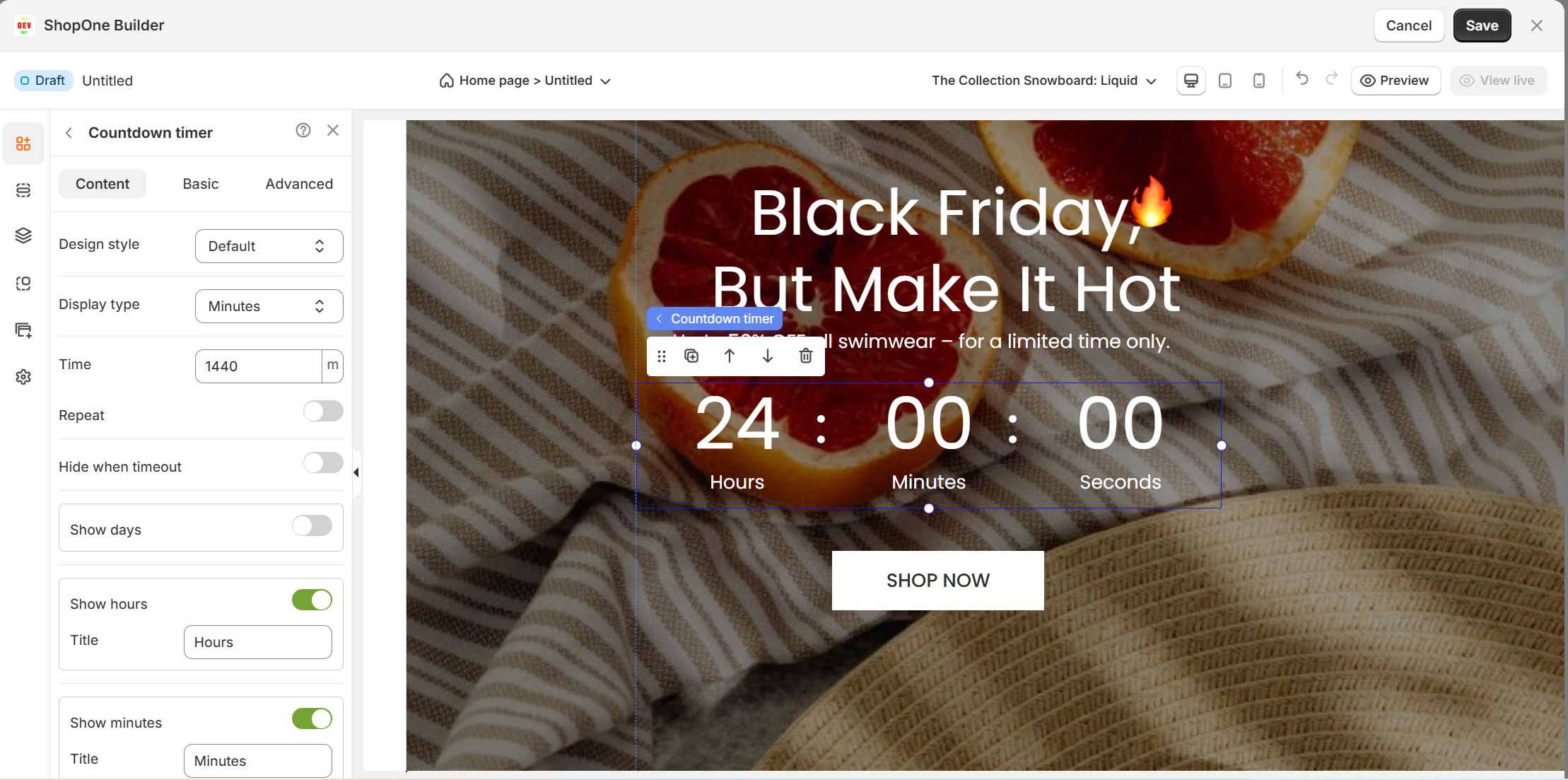
I. Countdown Timer Element– Content Settings
The Countdown Timer element lets you display a timer on your page to create urgency, count down to an event, or trigger a message when time runs out.
1. Design Style
Inline / Block: Choose how the timer is displayed on the page.
Inline: Fits within a line of text or content.
Block: Displays as a separate block element, taking full width.
2. Display Type
Select the unit of time you want the countdown to be based on:
Minutes
Everyday
Duration
3. Time
Set the countdown time manually.
Value is expressed in minutes (e.g., 1440 minutes = 24 hours).
4. Repeat
Toggle ON: Automatically restarts the countdown after reaching zero.
Toggle OFF: Stops permanently when it reaches zero.
5. Hide When Timeout
Toggle ON: Hides the timer after it reaches zero.
Timeout Message: Display a custom message (e.g., “Time’s up!”) when the timer ends.
6. Show / Hide Units
Choose which time units to display:
Show Days: Enable/disable the day counter.
Show Hours: Enable/disable hours display and customize its title.
Show Minutes: Enable/disable minutes display and customize its title.
Show Seconds: Enable/disable seconds display and customize its title.
Tip: You can rename the titles to match your brand voice (e.g., “Hrs” instead of “Hours”).
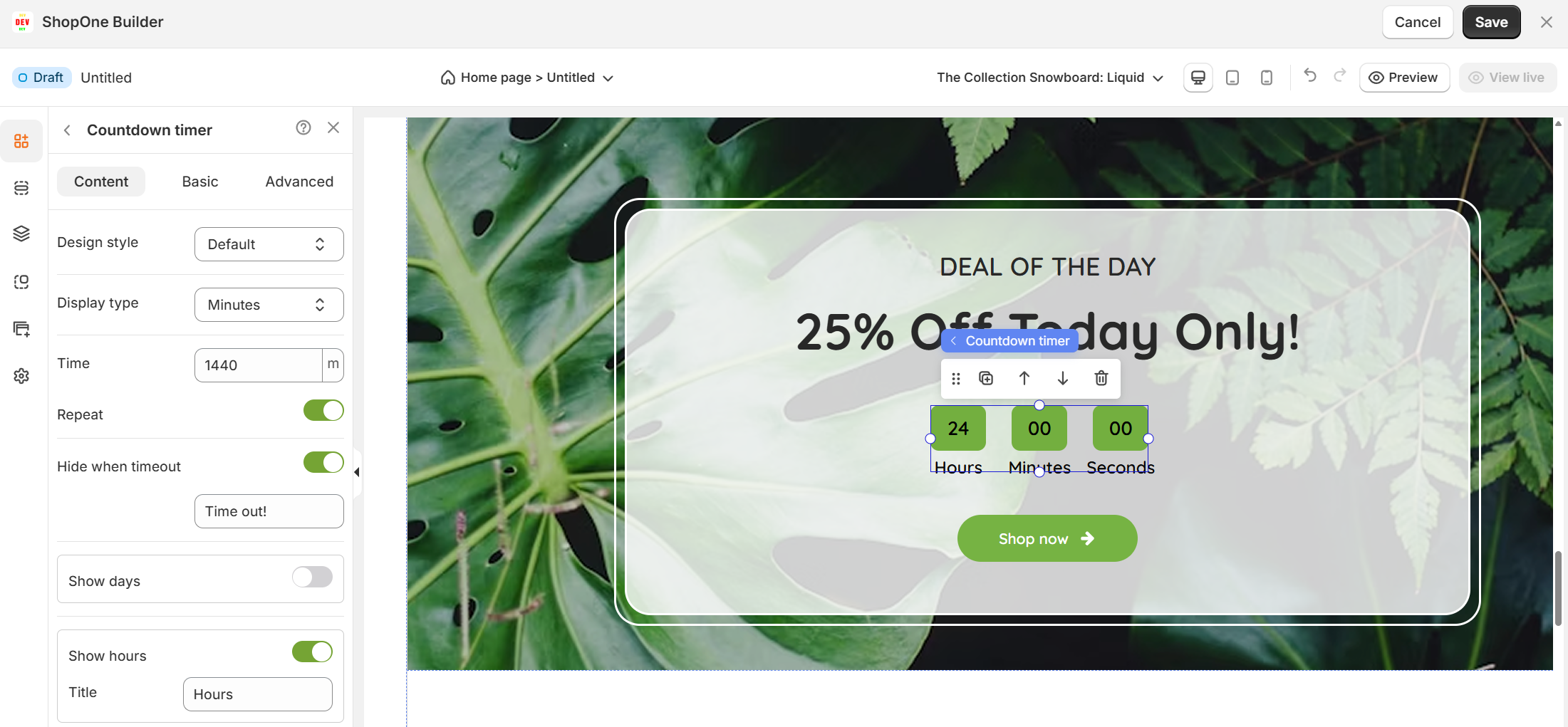
II. Countdown Timer Element – Basic Settings
1. Element ID
- A unique identifier for this countdown timer element.
2. Alignment Options
- Left, center, right, and full width alignment controls.
3. Size
X / Y: Position of the element (in pixels) relative to the page or container.
Width: 285px (adjustable).
Height: 0px (likely adjusts automatically based on content).
4. Margin & Padding:
Padding is set to 10px on left and right, 0px on top and bottom.
Margins are all 0px (so no extra spacing outside the element).
5. Style Options:
Background: Can set or remove a background color.
Border & Radius: Adjust border thickness, color, and corner rounding.
Text Label: Customize font, size, weight, and color for labels like “Hours,” “Minutes,” “Seconds.”
Number: Customize the appearance of the numbers in the countdown (font size, weight, color).
Spacing: Adjust the spacing between the number blocks and labels.
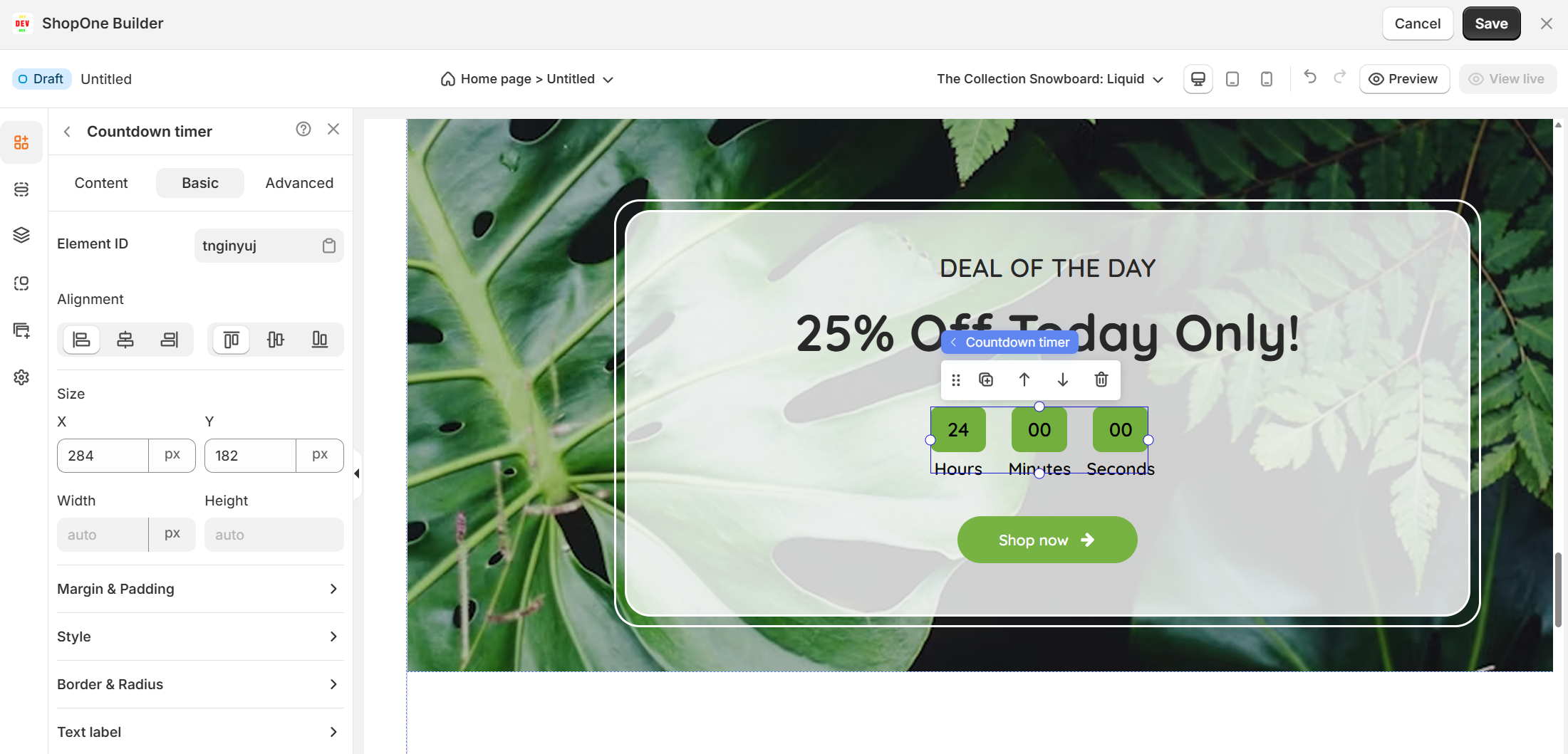
III. Countdown Timer Element – Advanced Settings
1. Display On
- Desktop – show/hide text on desktop devices.
- Mobile – show/hide text on mobile devices.
2. Animation:
Type: Choose animation
Loop: Number of times the animation repeats
Duration: Time animation lasts
Delay: Time before animation starts
3. Custom CSS:
Class name: Assign a custom CSS class name for styling
Custom style: Enter raw CSS rules to style this countdown timer
Thanks for reading! If you have any questions, please contact us via email: support@shopone.io
Was this article helpful?
That’s Great!
Thank you for your feedback
Sorry! We couldn't be helpful
Thank you for your feedback
Feedback sent
We appreciate your effort and will try to fix the article