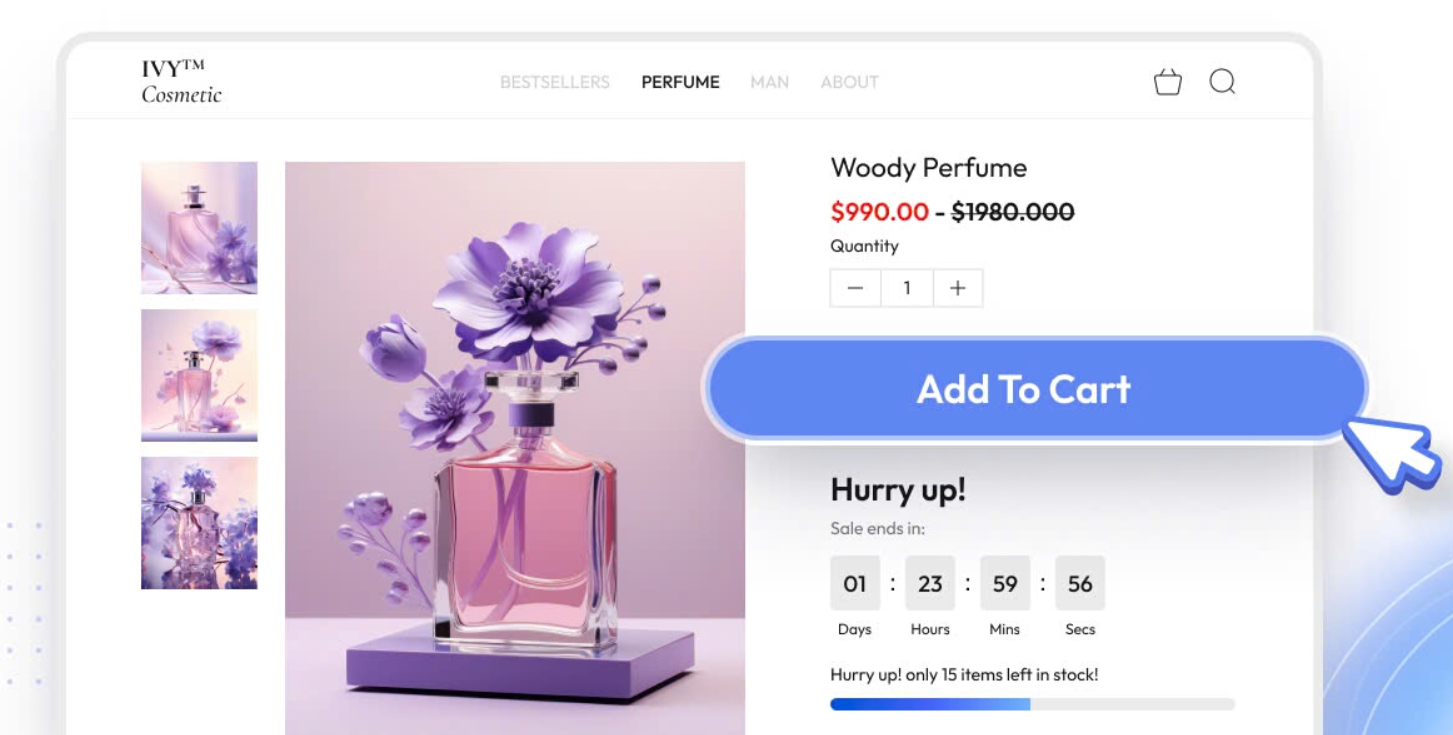
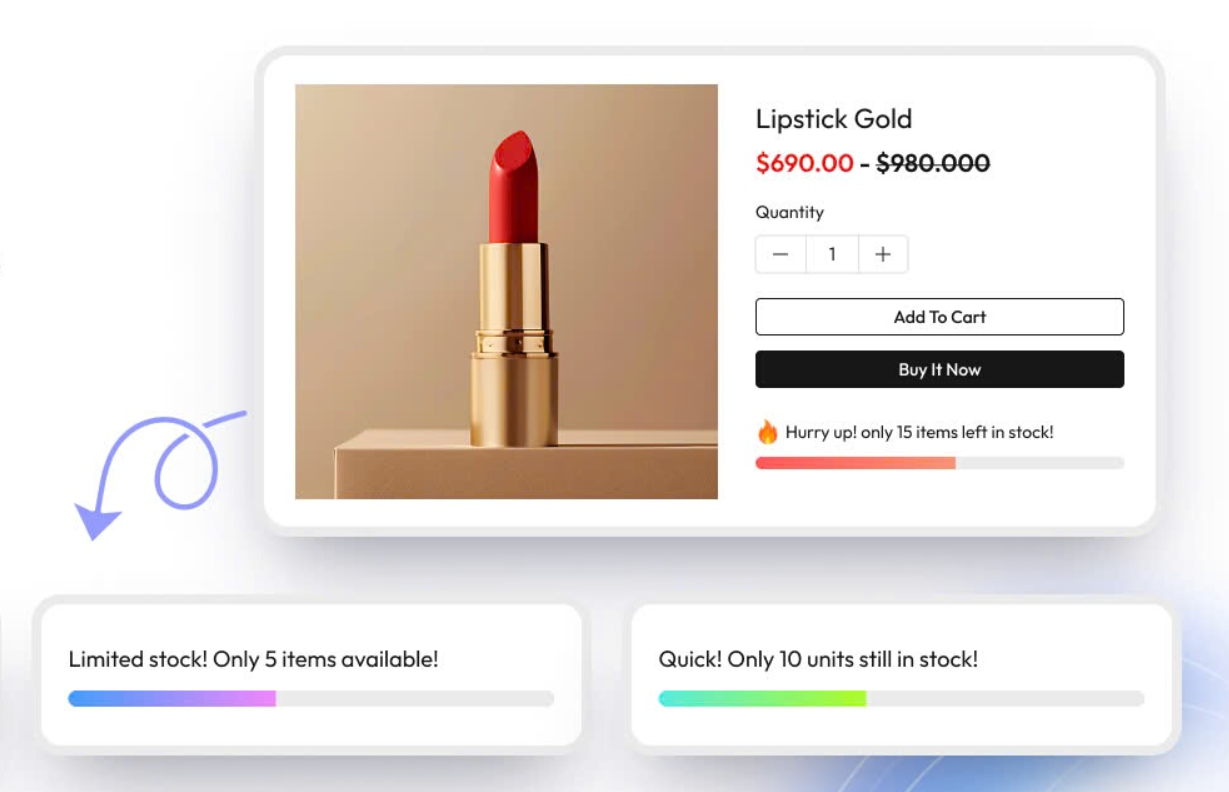
The combination of the three elements of discount, countdown timer and inventory countdown to create urgency and encourage customers to buy quickly.
Create a bulk discount campaign combined with a countdown timer to create urgency about the sale ending soon. Additionally, inventory countdowns also create product scarcity when there are only a few promotional products left in stock and the promotional period is about to end. So, every display element has a big impact on customer purchase.
Here are the steps to create an inventory countdown campaign that combines a discount and countdown timer campaign.
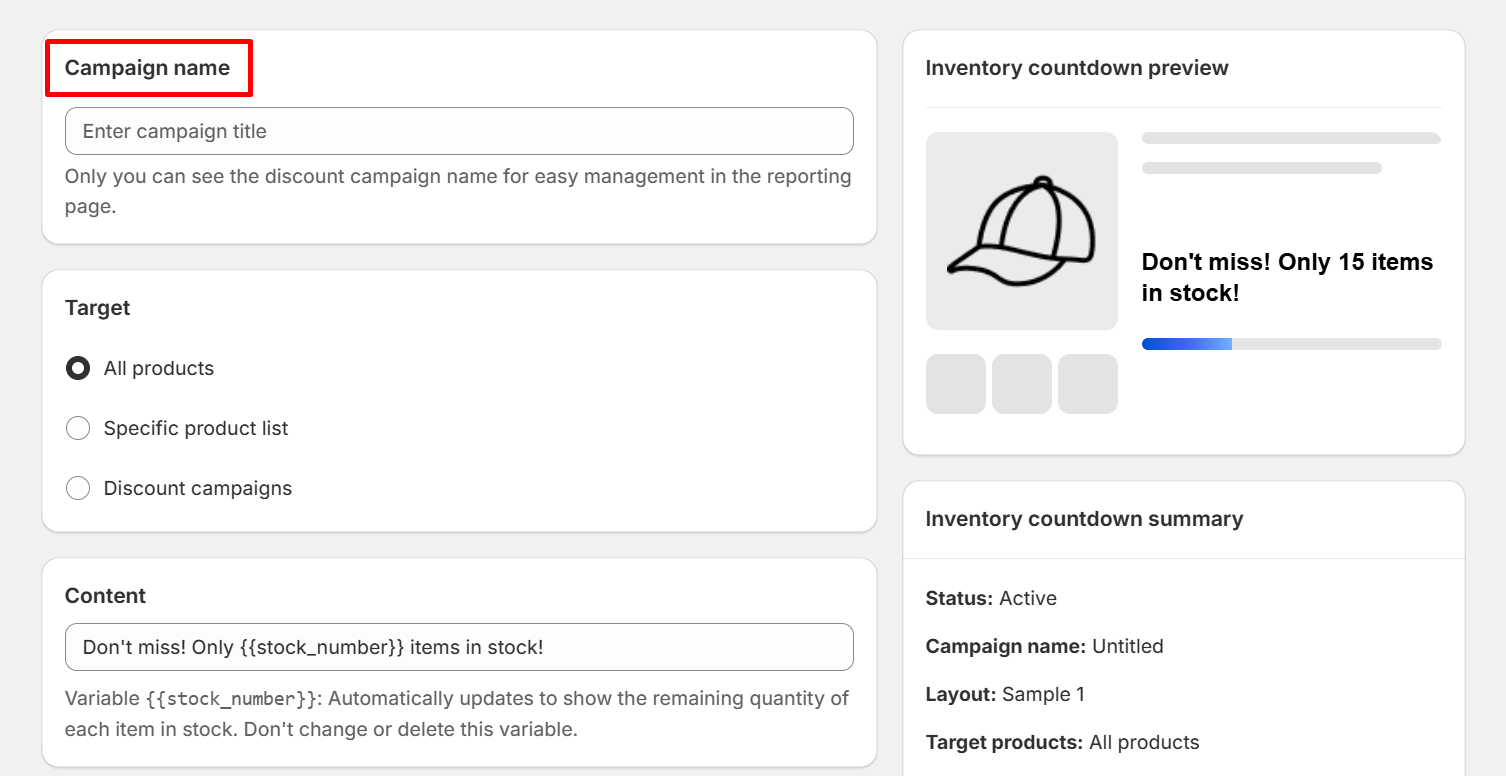
Step 1: Create a name for your inventory countdown campaign
You need to create a name for your inventory countdown campaign to easily distinguish and manage other campaigns in the statistics table. In particular, only you can see the names of these campaigns, so you can name them whatever you want.
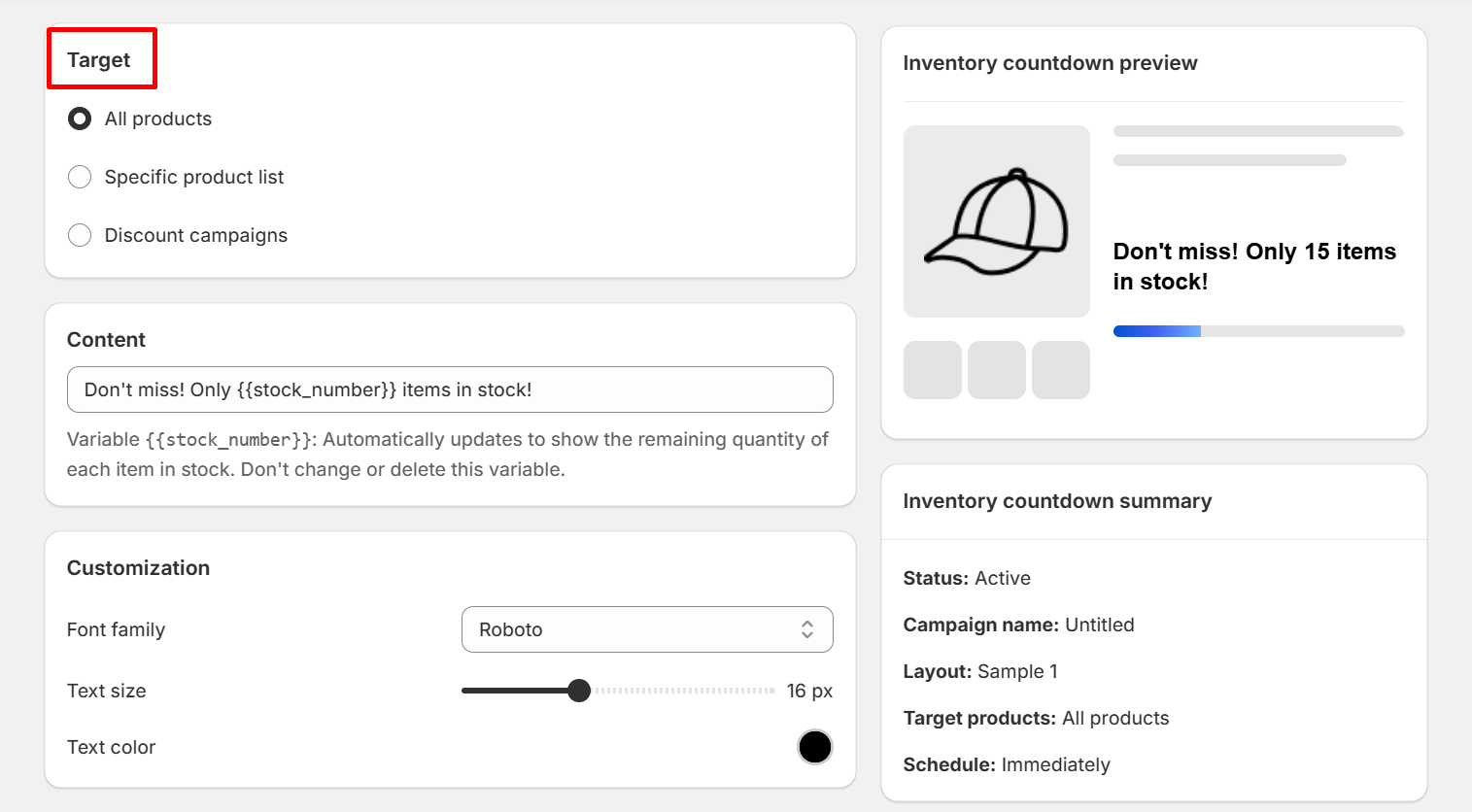
Step 2: Select the target type for your inventory countdown campaign
You can select target from All products, product list or active discount campaign. The number of products will be displayed according to the actual inventory of products on your store.
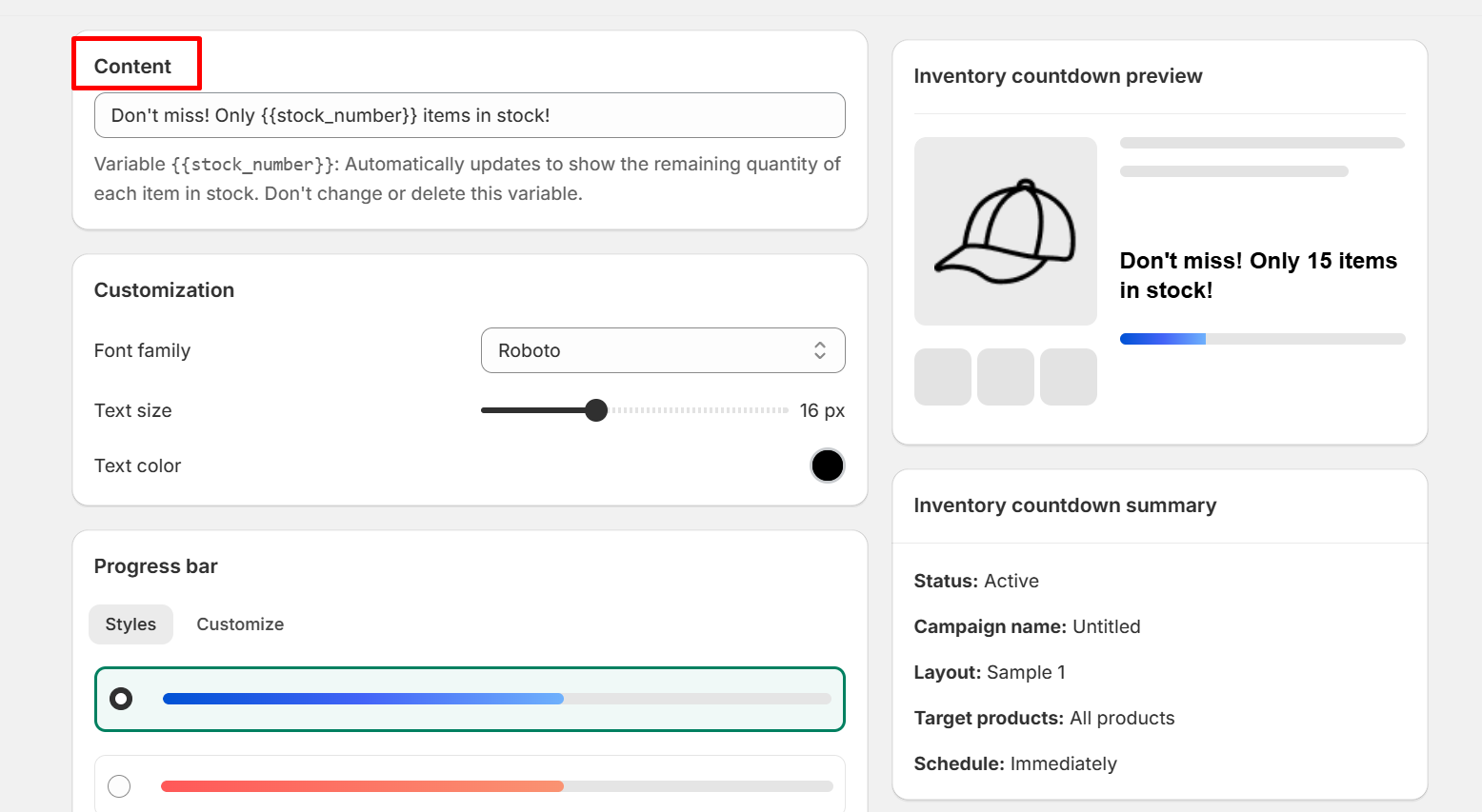
Step 3: Customize the message displayed on the progress bar
Variable {{stock_number}}: Automatically updates to show the remaining quantity of each item in stock. Don't change or delete this variable.
You can edit any text but do not delete the {{stock_number}} variable because it will automatically update the number of products left in stock on your Shopify system.
Step 4: Customize notification messages
You can customize elements on the text message like font, text size, text color to match the design on your website.
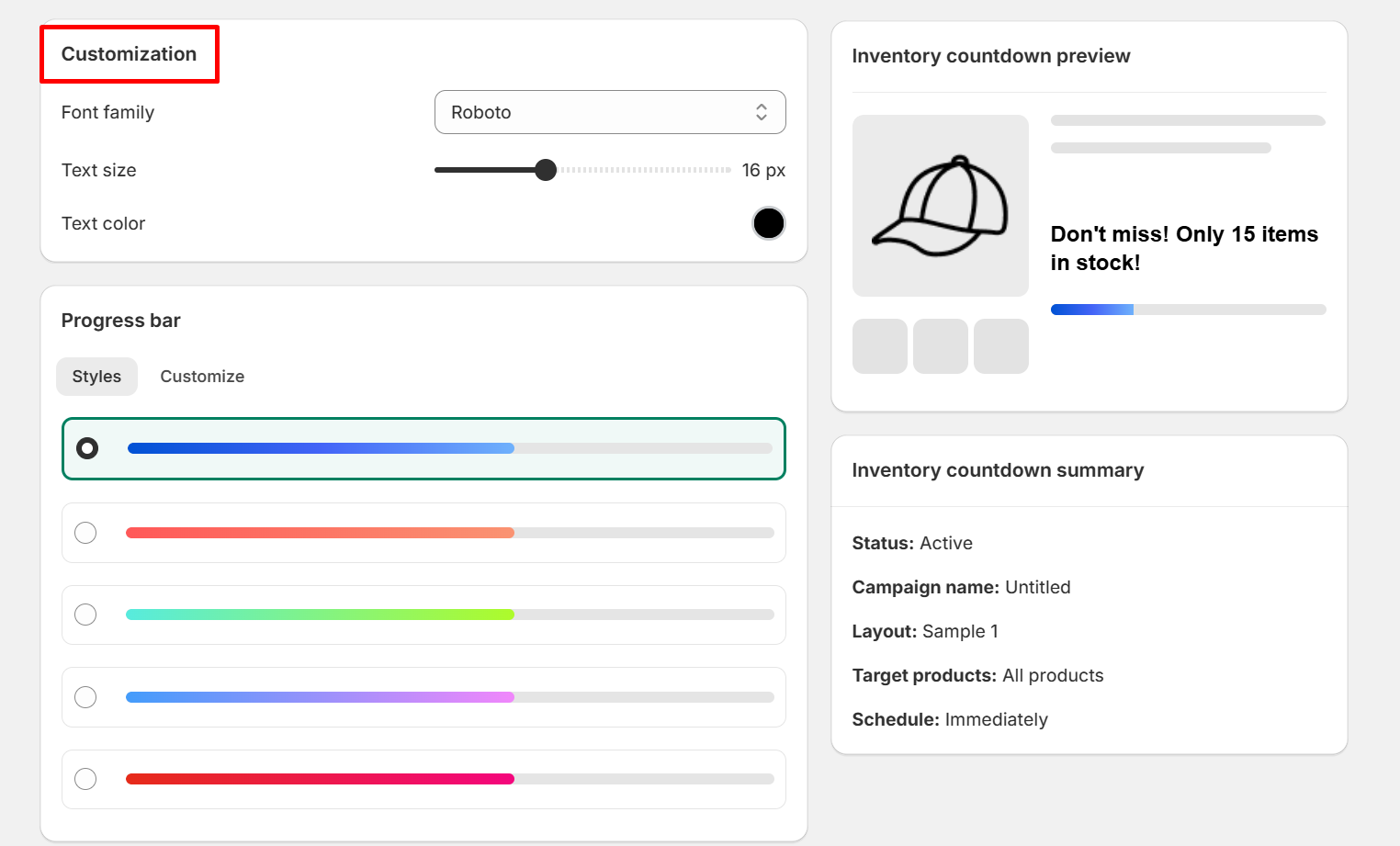
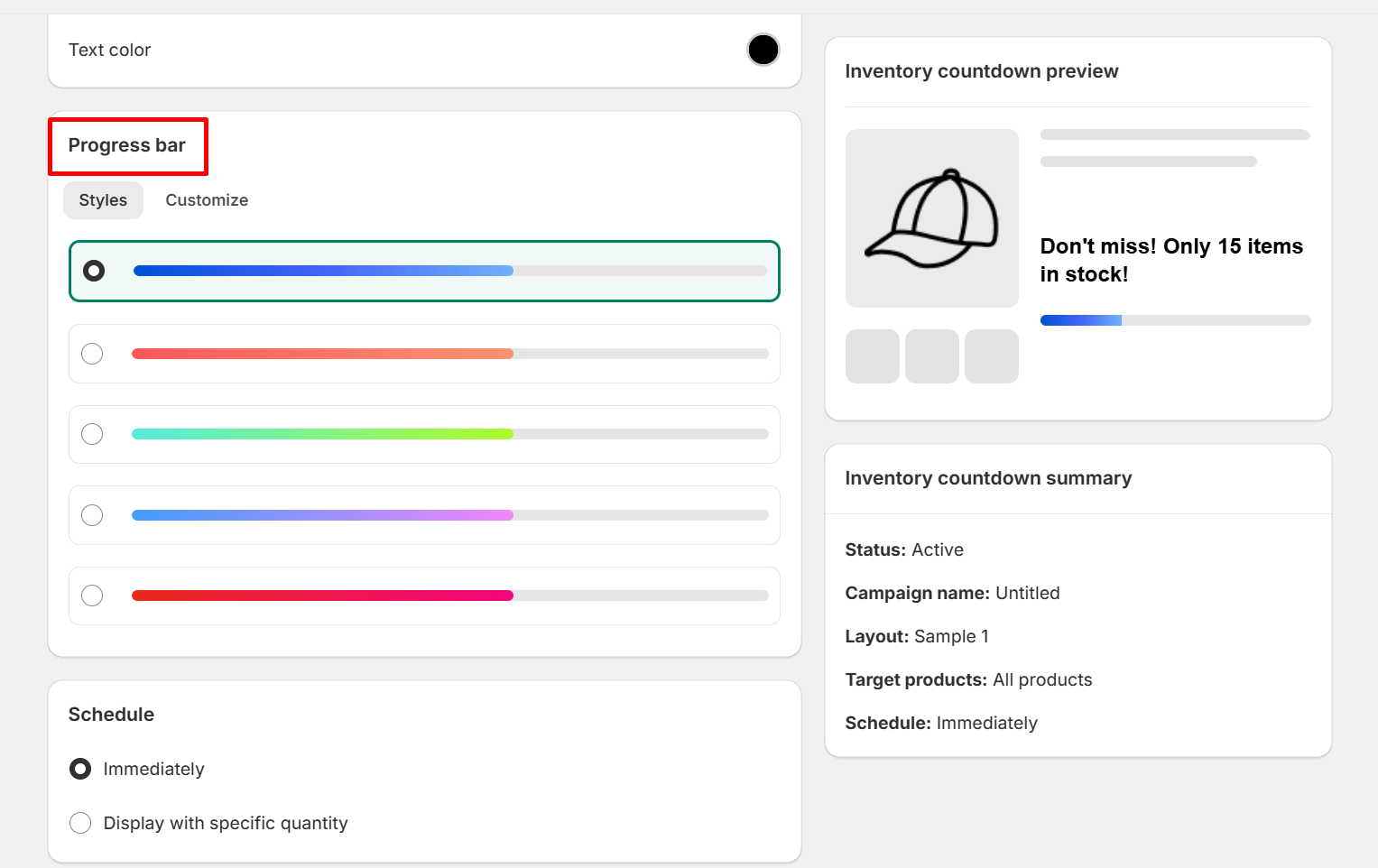
Step 5: Choose the display style of the progress bar and customize it
You can choose the display style of the progress bar and edit it through elements such as bar size, bar color, position.
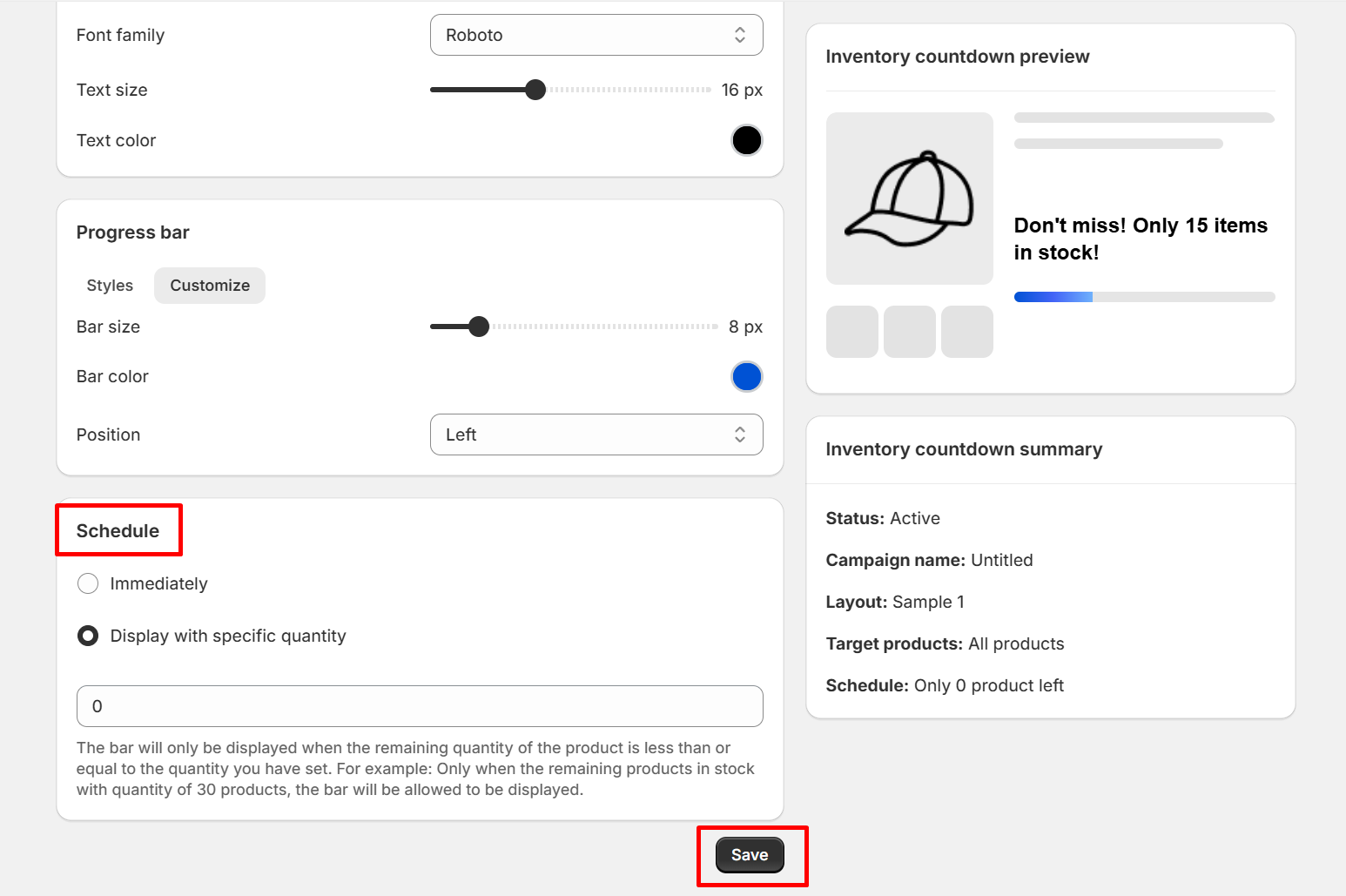
Step 6: Set up the schedule and press the Save button
You can set the schedule to display immediately or by a specific quantity. If you choose the schedule as Immediately, the notification will display how much stock is left.
If you choose the schedule as a specific quantity, the notification will only be displayed when the quantity of products in stock is less than or equal to the quantity you set. For example: Only when the remaining products in stock with a quantity of 30 products, the bar will be allowed to be displayed.
Thanks for reading! If you have any questions, please contact us via email: support@shopone.io
Was this article helpful?
That’s Great!
Thank you for your feedback
Sorry! We couldn't be helpful
Thank you for your feedback
Feedback sent
We appreciate your effort and will try to fix the article