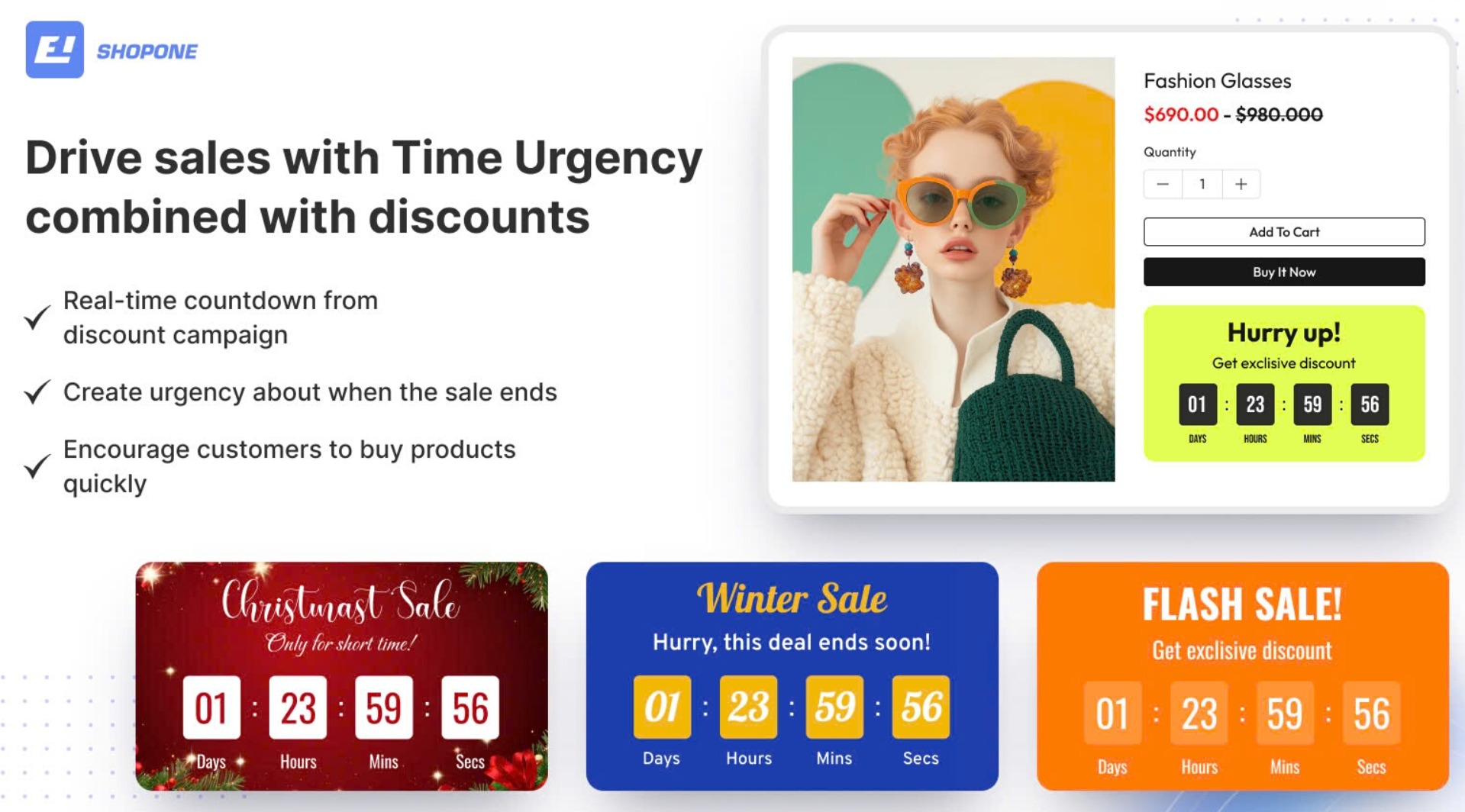
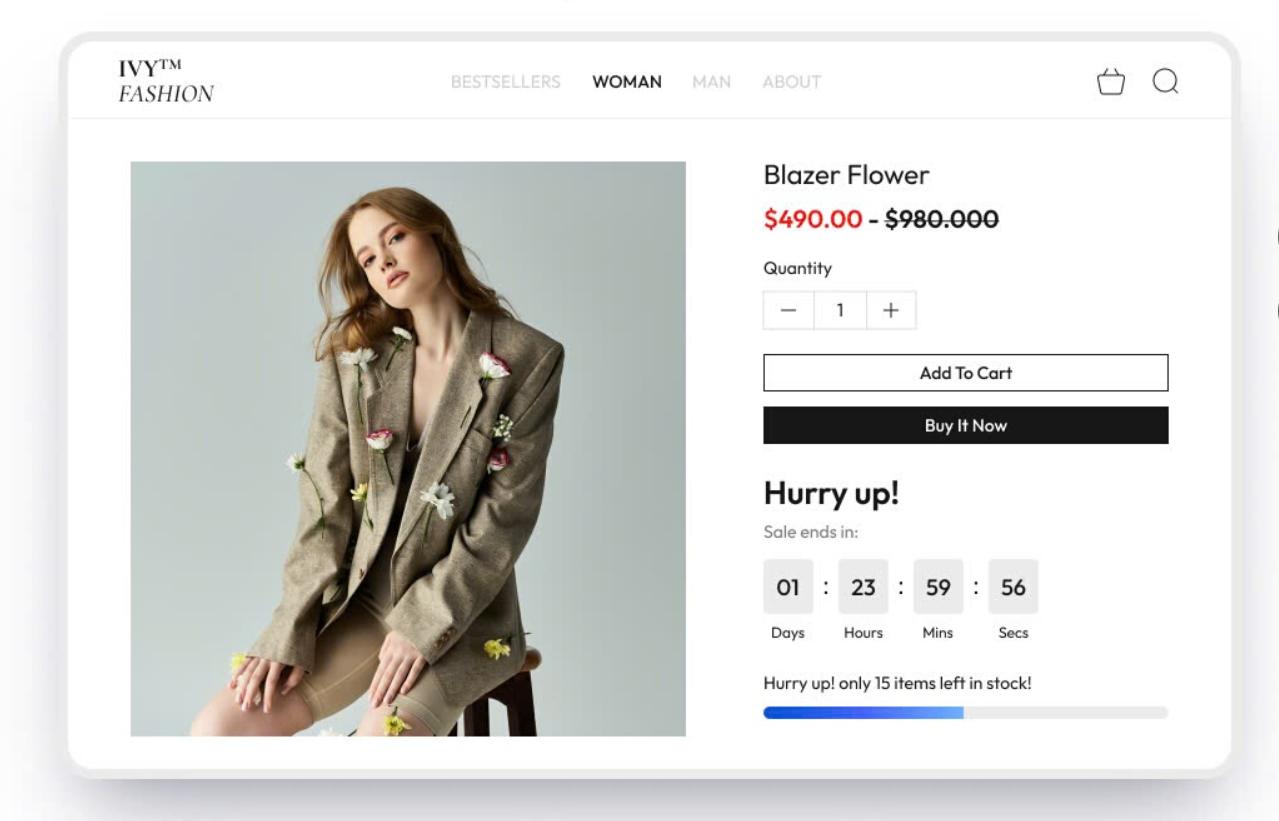
A discount campaign combined with a countdown timer will create a sense of urgency. From there, the two elements of discount and countdown time will encourage customers to make a quick purchase decision before the promotion and promotion period ends.
Here are the steps to set up a countdown timer campaign that effectively combines with the discount campaign that is being displayed.
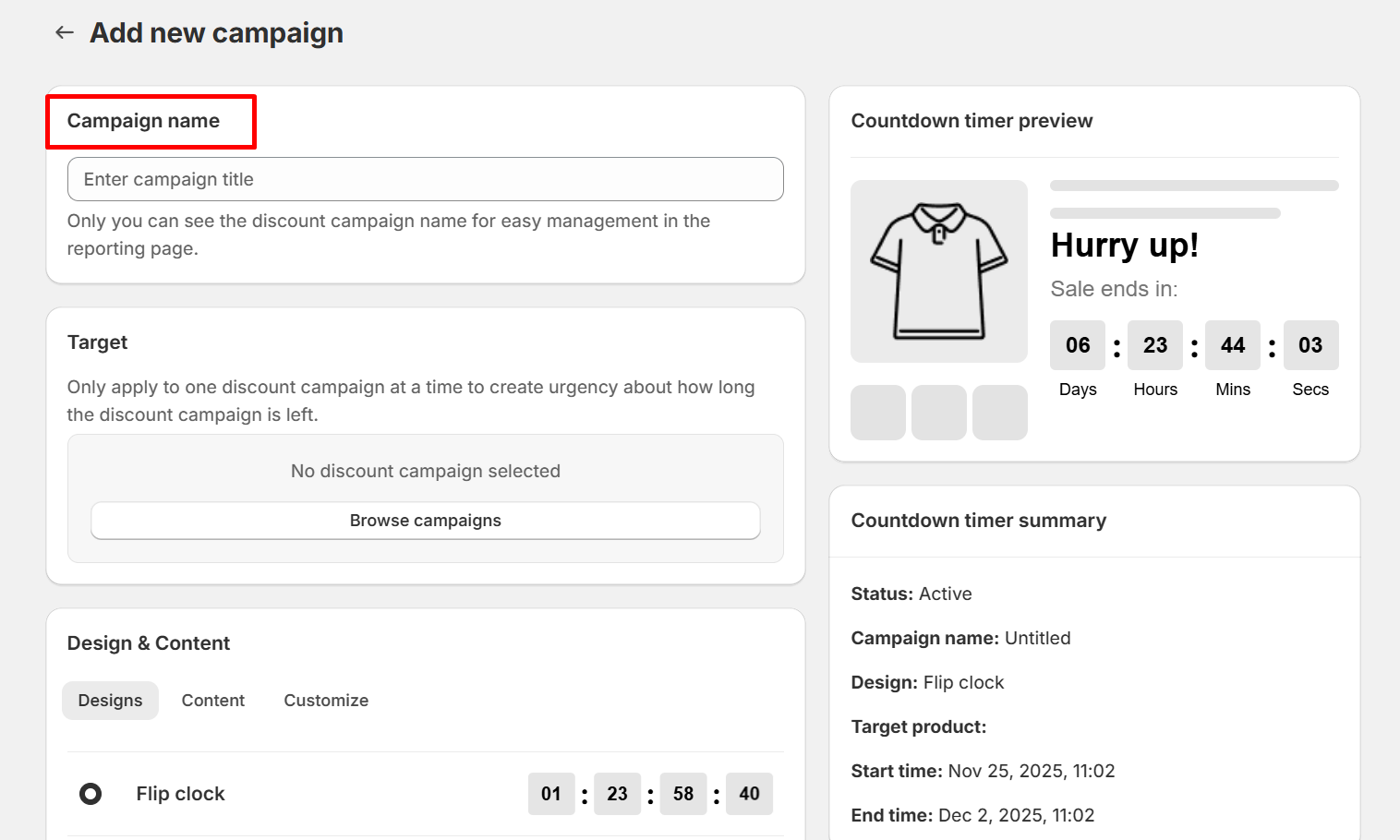
Step 1: Create a name for your countdown timer campaign
You need to create a name for your countdown timer campaign to easily distinguish and manage other campaigns in the statistics table. In particular, only you can see the names of these campaigns, so you can name them whatever you want.
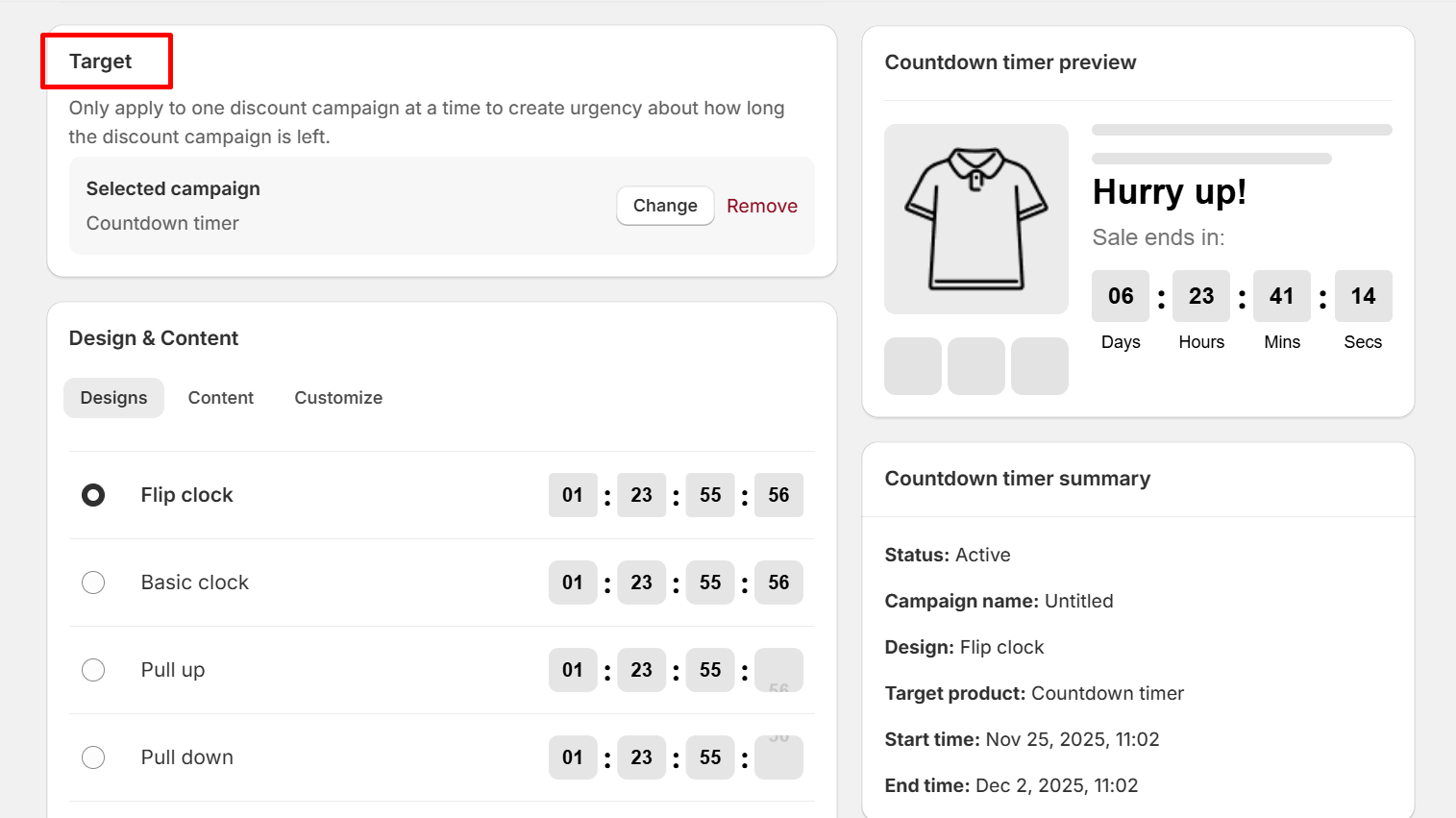
Step 2: Select the target as an active discount campaign
You need to select a discount campaign as the goal of your countdown timer campaign. Only apply to one discount campaign at a time to create urgency about how long the discount campaign is left.
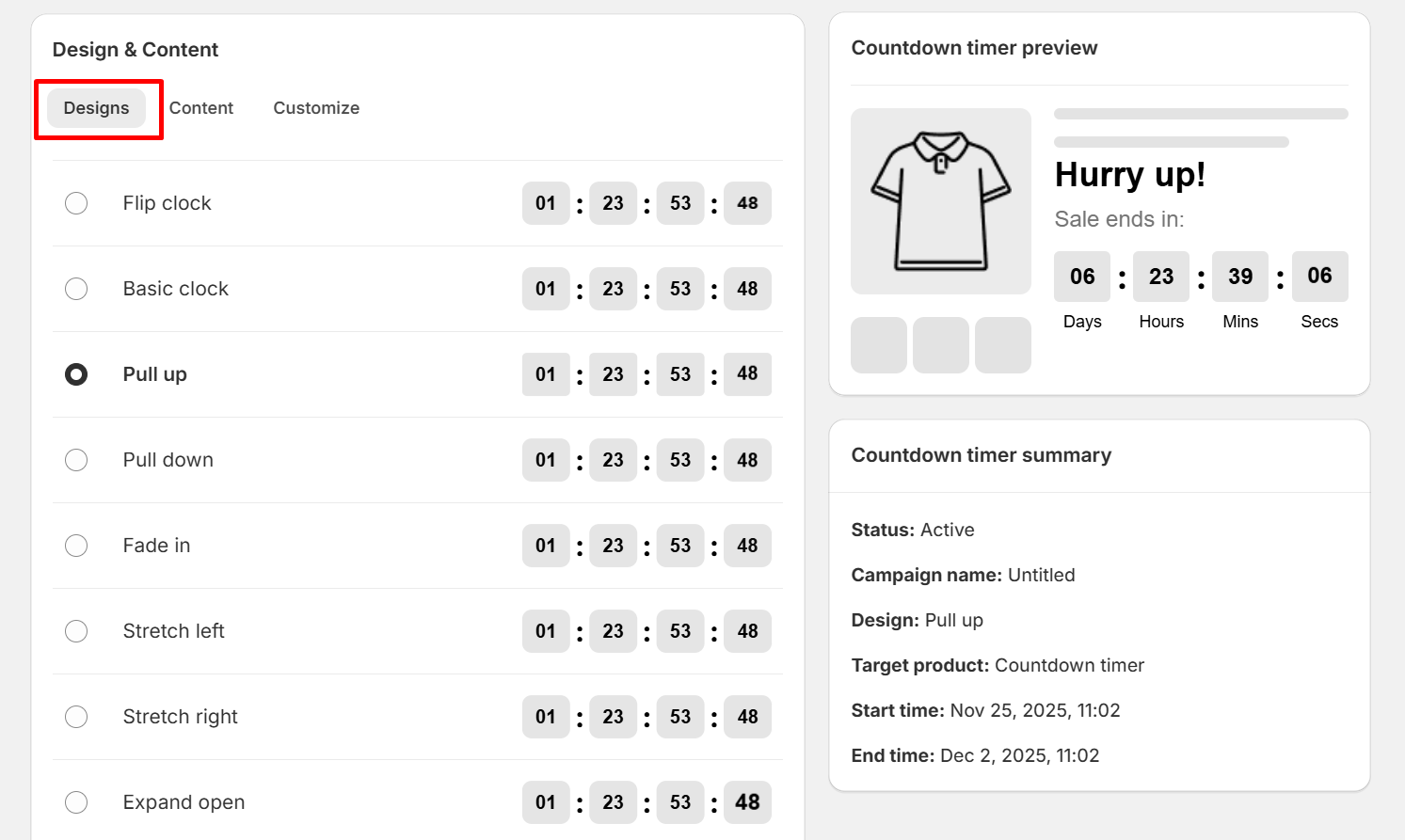
Step 3: Choose a countdown timer layout and customize the elements
You can choose layouts for the countdown clock such as Flip clock, Basic clock, Pull up, Pull down...
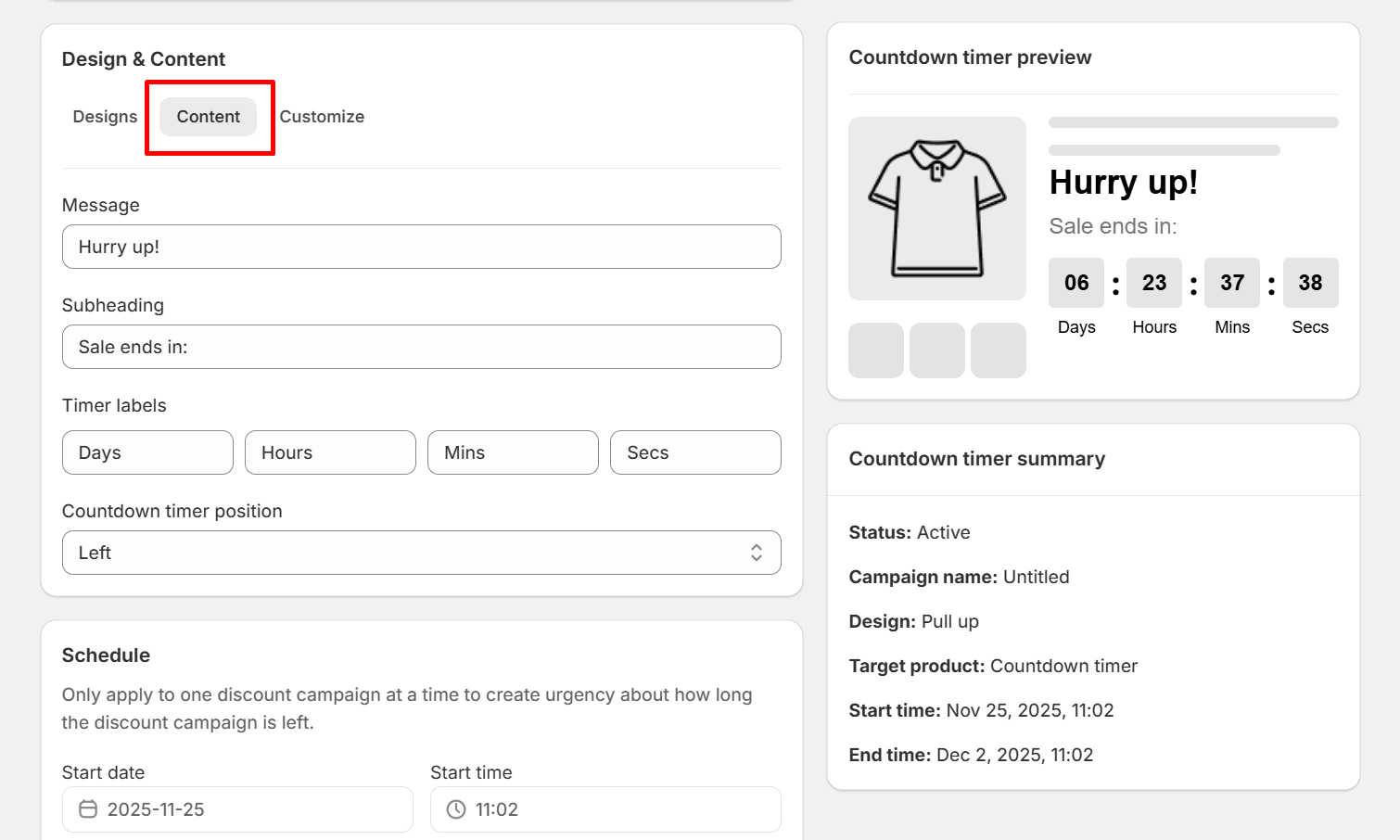
You can edit elements in the Content section such as Message, Subheading, Timer labels, Countdown timer position.
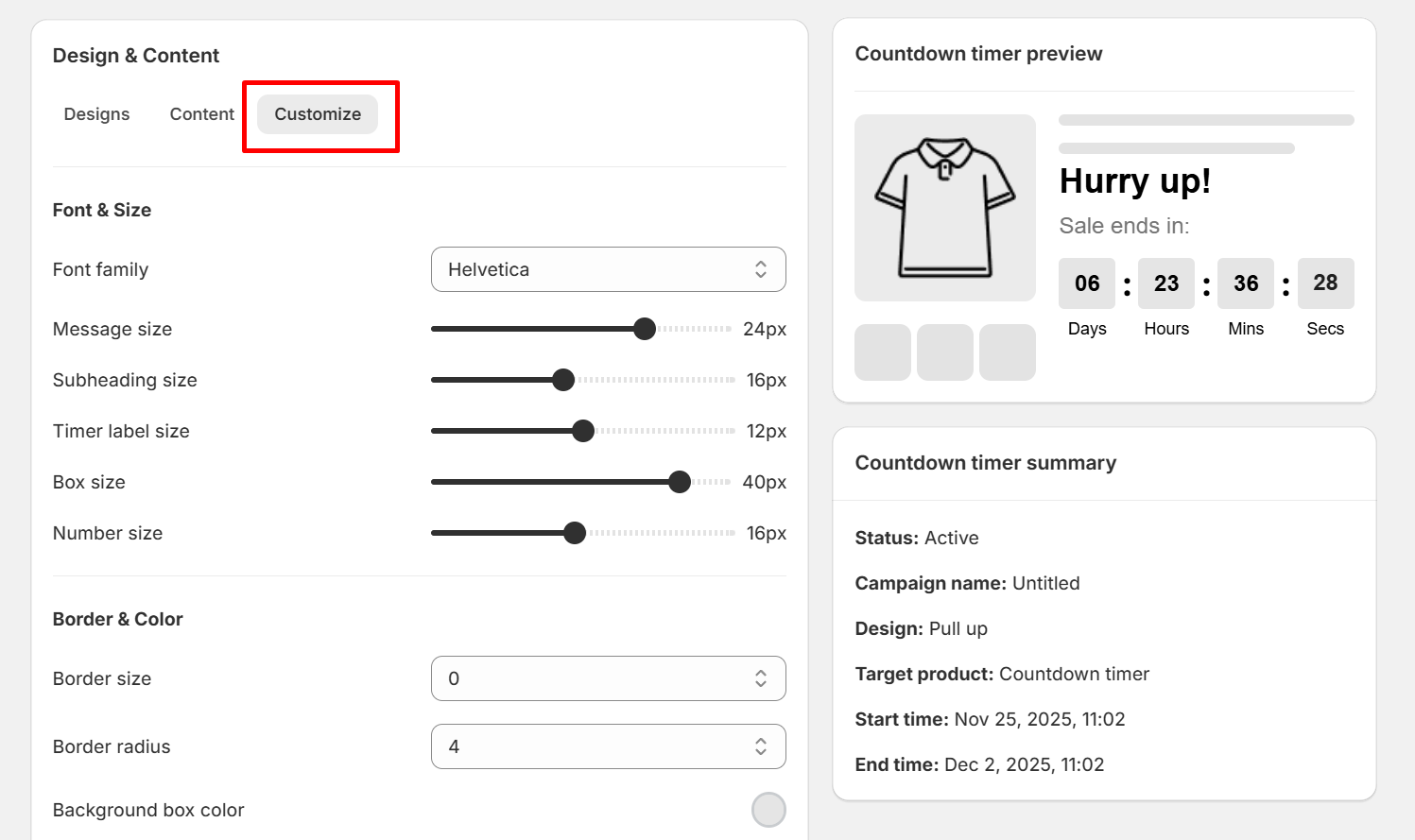
You can edit elements like color, font, size, border in Customize section.
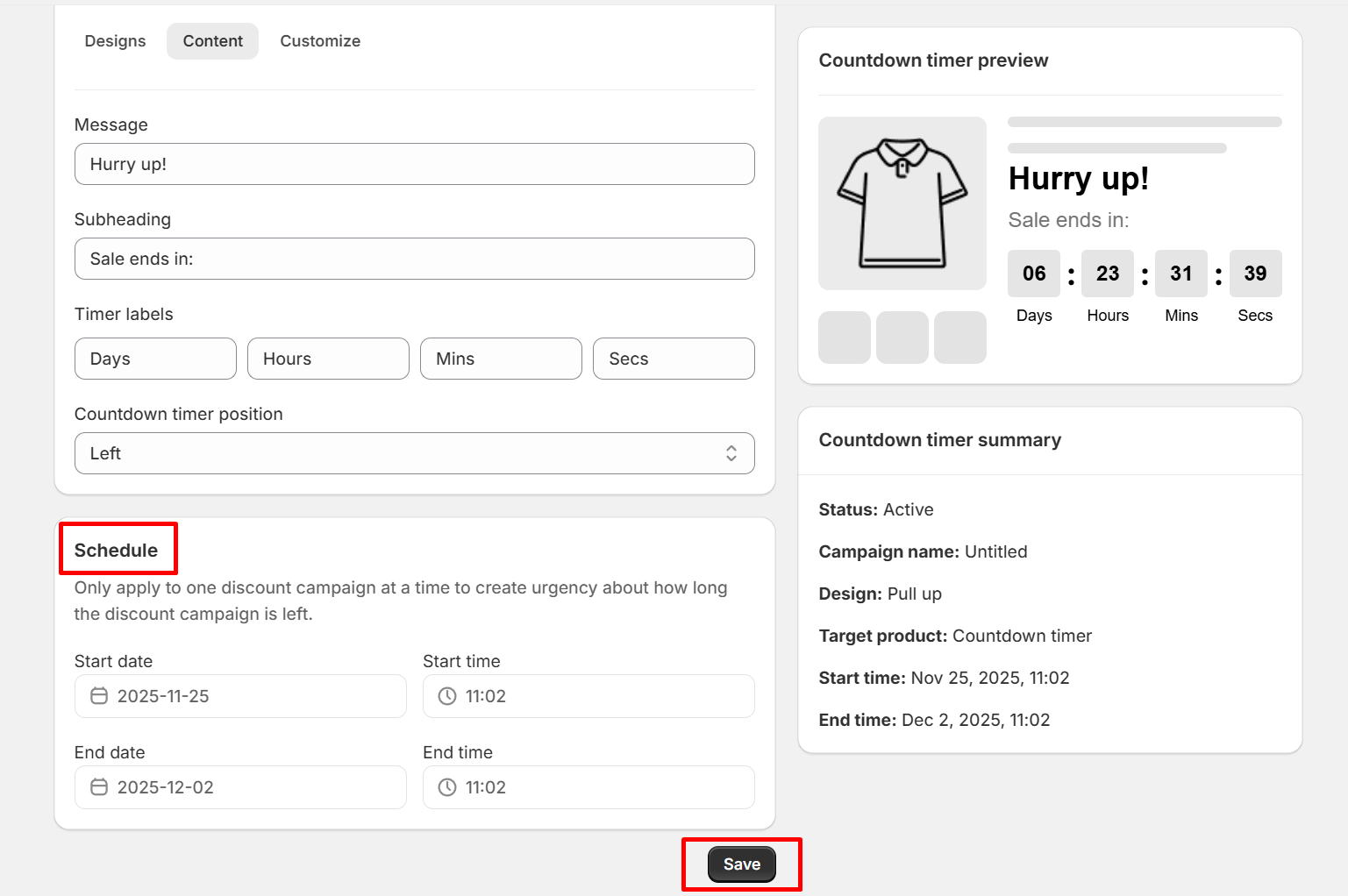
Step 4: Set the time for the countdown timer campaign
You can set the start time of the countdown campaign depending on the duration of the discount campaign or set it to your desired time. Click "Save" button to start the countdown timer campaign.
Thanks for reading! If you have any questions, please contact us via email: support@shopone.io
Was this article helpful?
That’s Great!
Thank you for your feedback
Sorry! We couldn't be helpful
Thank you for your feedback
Feedback sent
We appreciate your effort and will try to fix the article