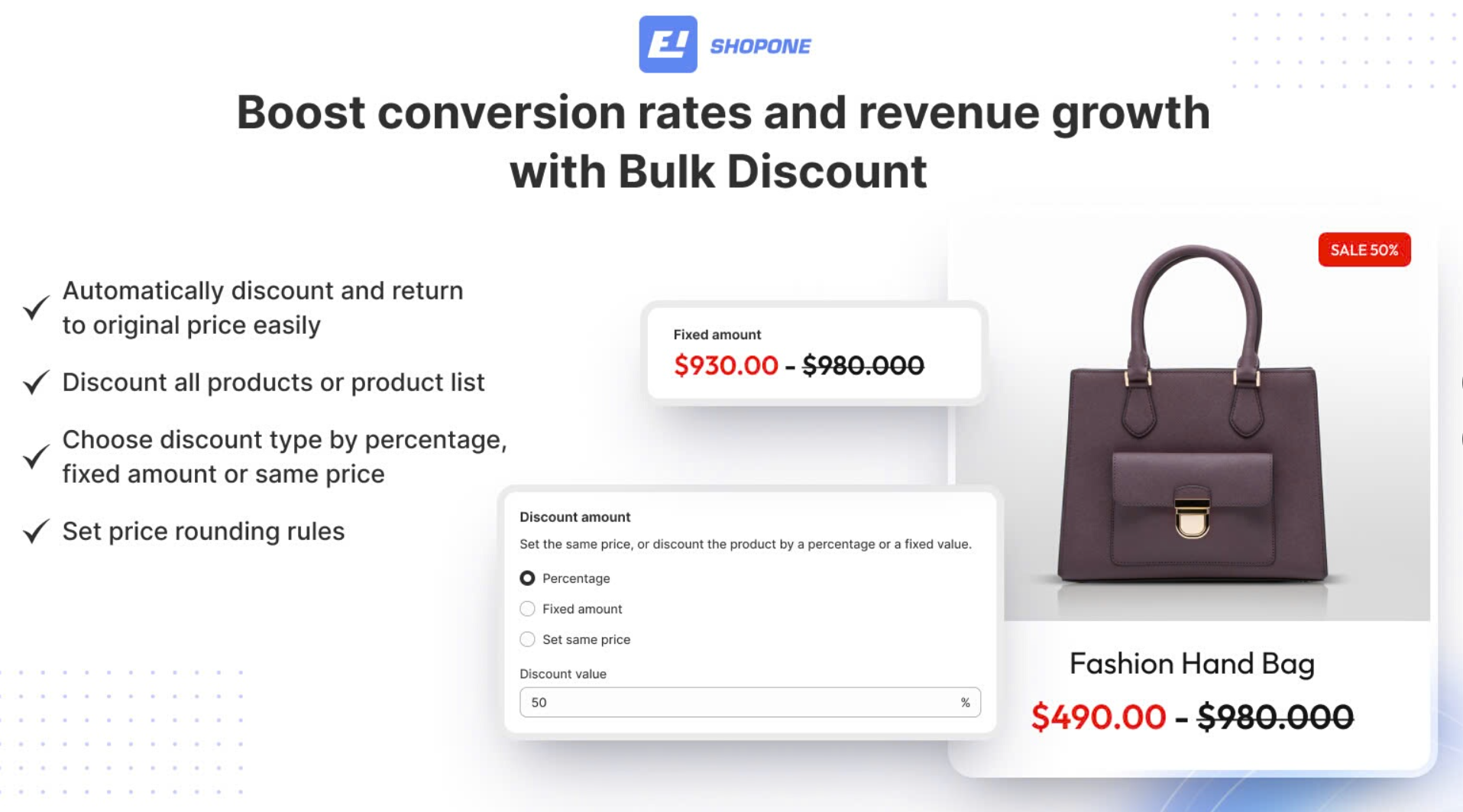
Our app allows customers to create multiple discount campaigns with a large number of products and variants. A discount campaign can apply up to 70,000 variants to ensure the app works stably and efficiently.
The time it takes for a discount campaign to end depends on the number of products and variants in that campaign. Shopify's fastest discount speed is 2 seconds/product if network conditions are met.
Here are the steps to creating an accurate and effective discount campaign.
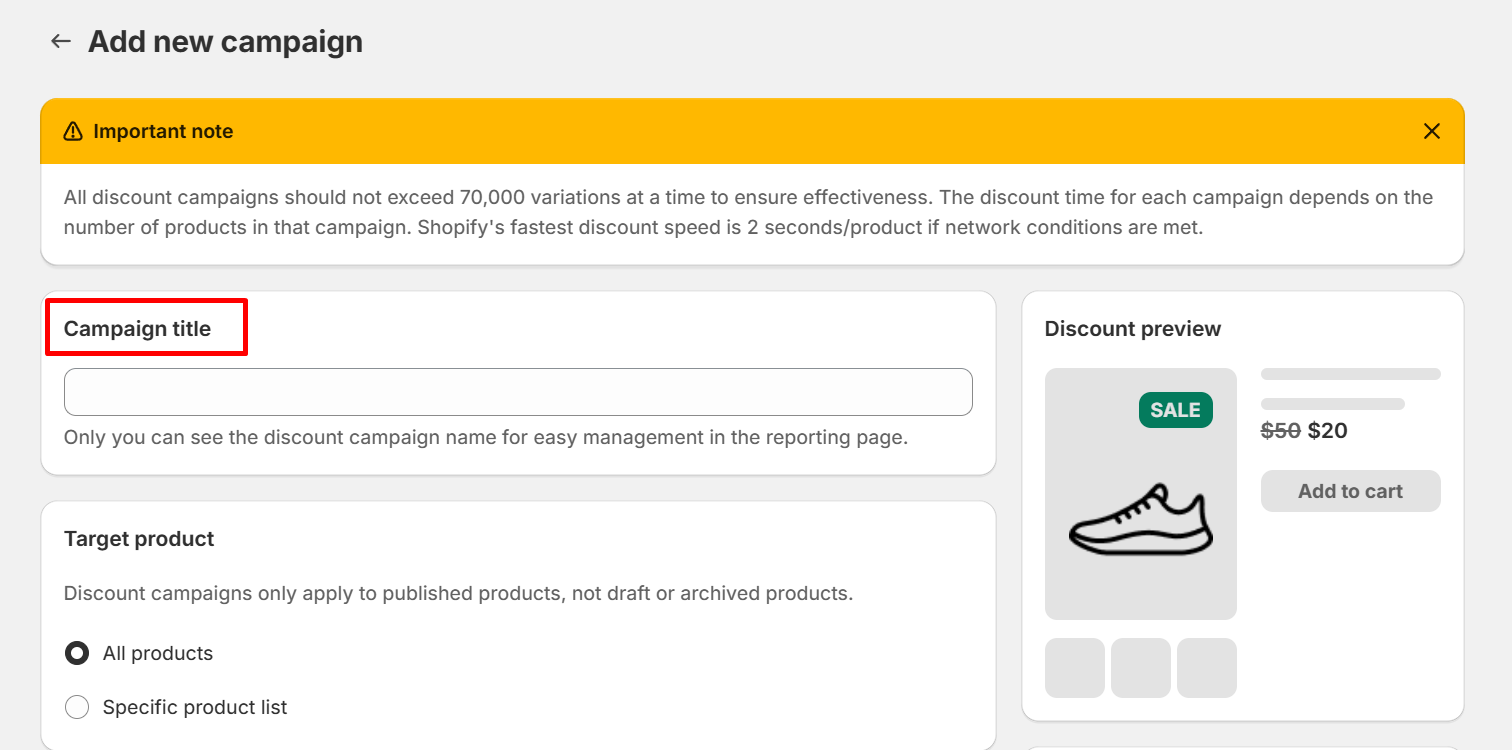
Step 1: Create a name for your discount campaign
You need to create a name for your discount campaign to easily distinguish and manage other campaigns in the statistics table. In particular, only you can see the names of these campaigns, so you can name them whatever you want.
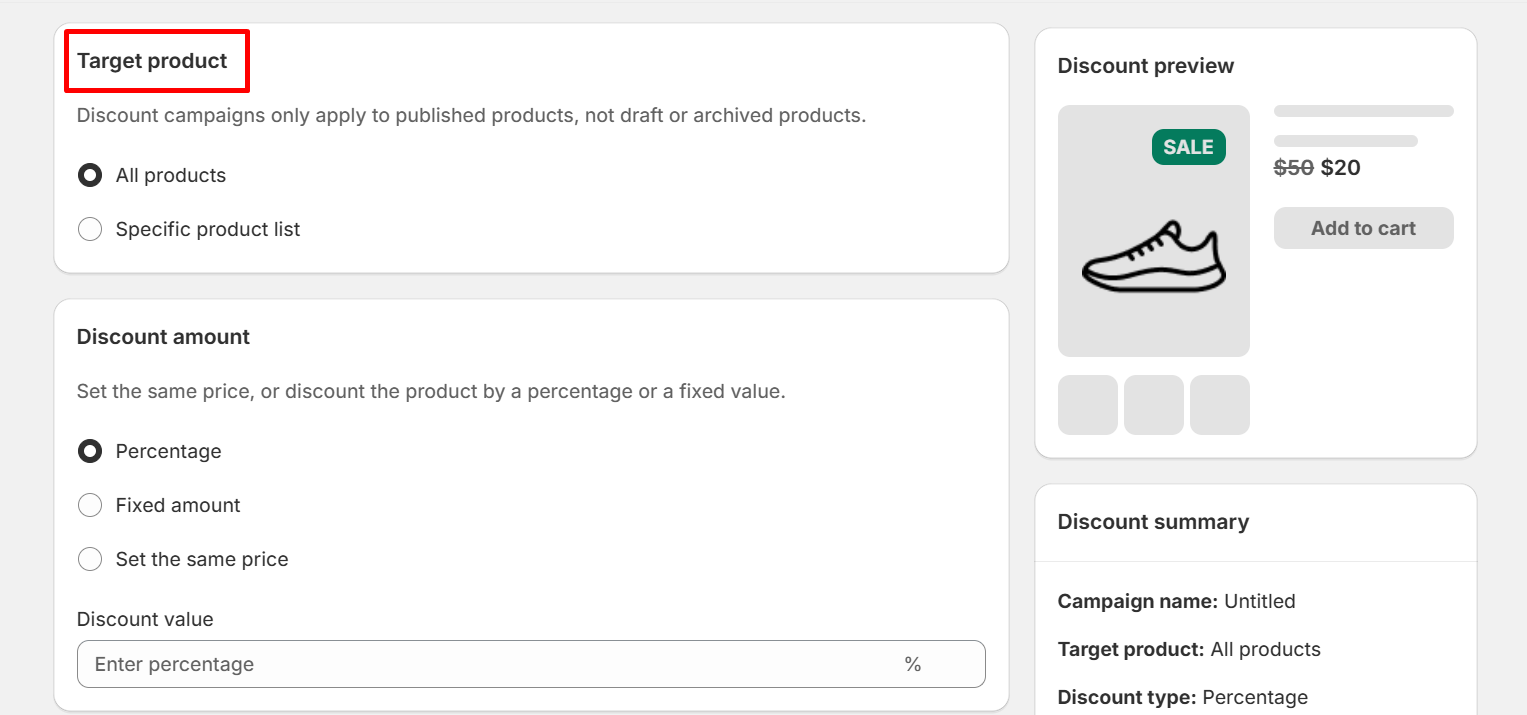
Step 2: Select target products for discounts
You can select target product as All products or product list from specific product or product list from collection. Product list will show total number of varriants in each product.
You may have to wait a little while as our system needs to load all the products and their variations before the discount starts.
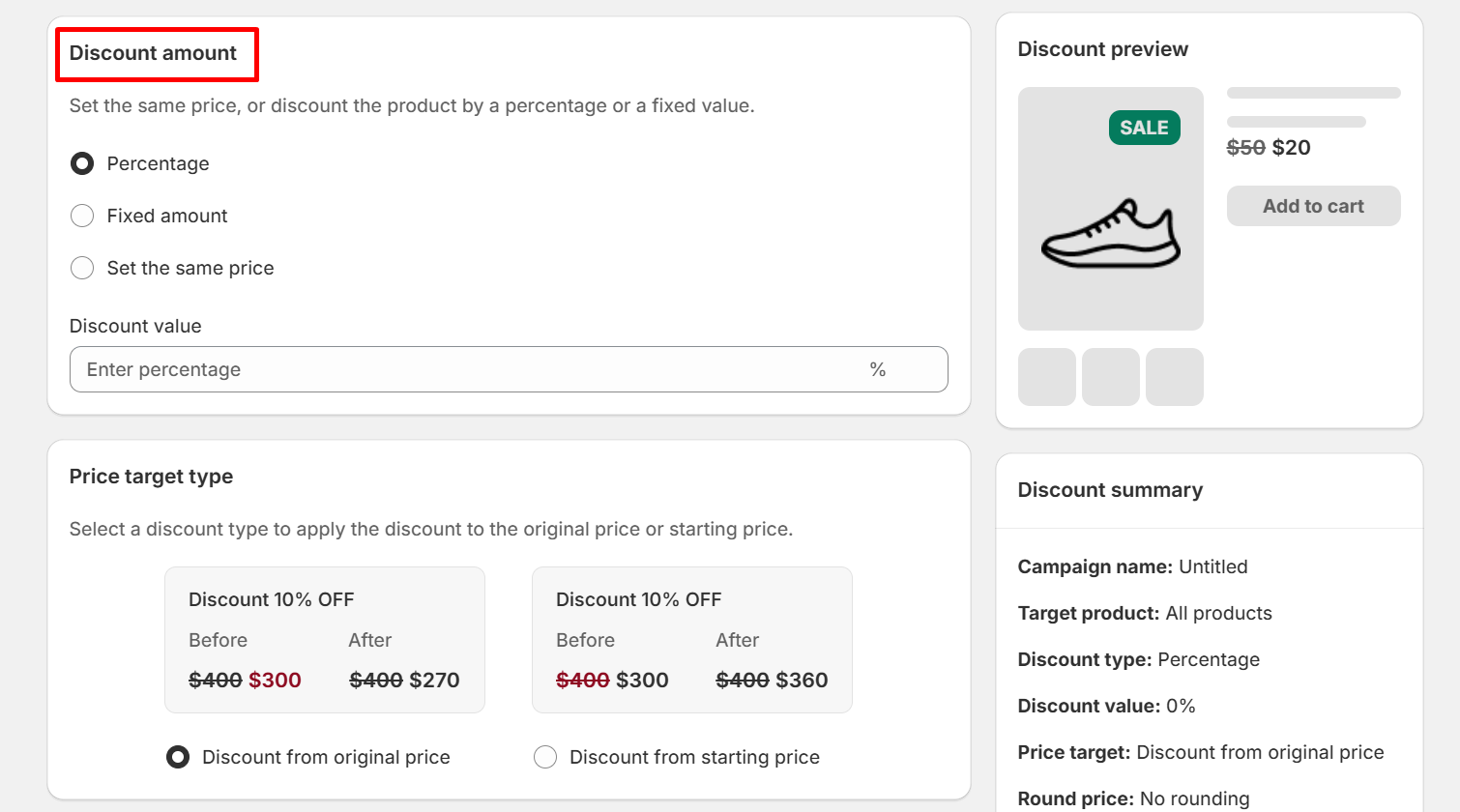
Step 3: Choose a discount amount (percentage, fixed amount, same price)
You can choose to discount a large quantity of products by percentage, fixed amount or set a same price for all products.
Once you have selected the appropriate discount type, enter the exact amount you want to discount in the box. The discount value will be based on your store's currency.
Step 4: Select a discount type to apply the discount to the original price or starting price
You can choose to discount from the original price or discount from the starting price to suit each advertising campaign.
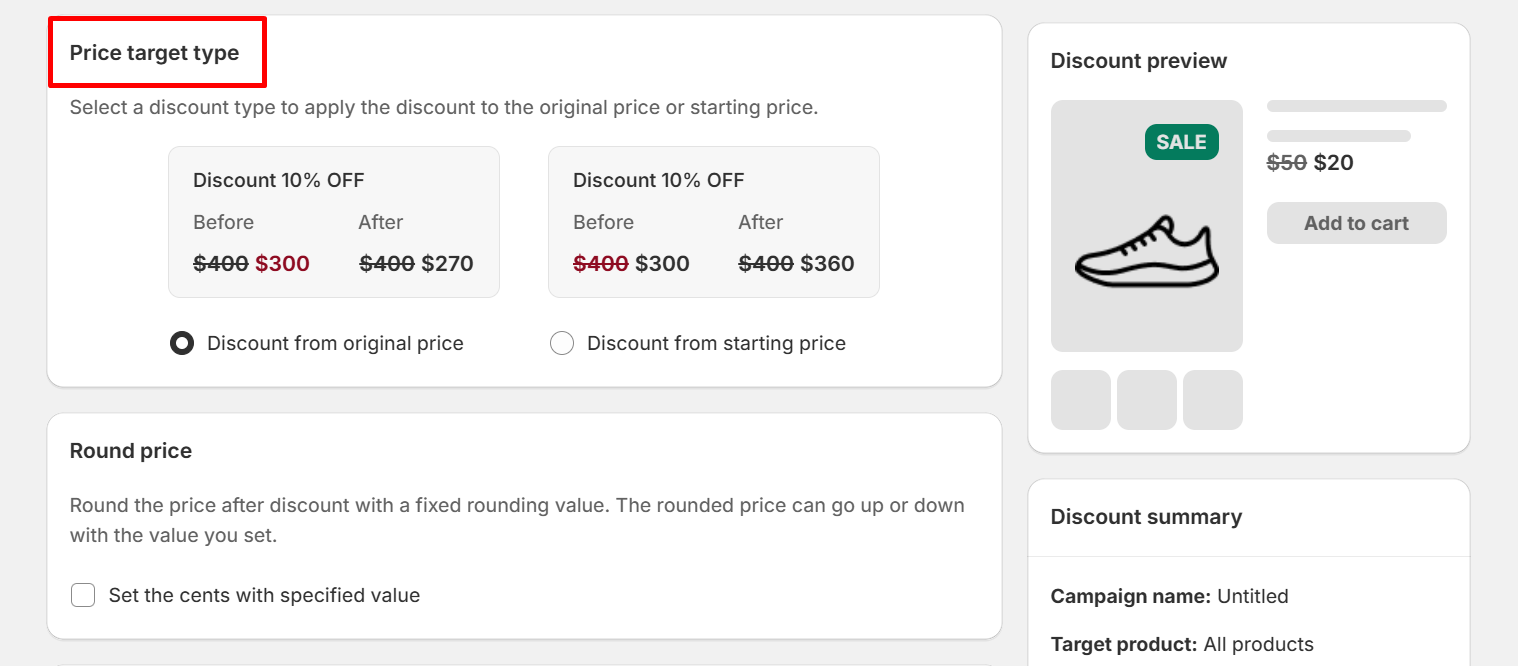
Step 5: Round the price after discount with a fixed rounding value
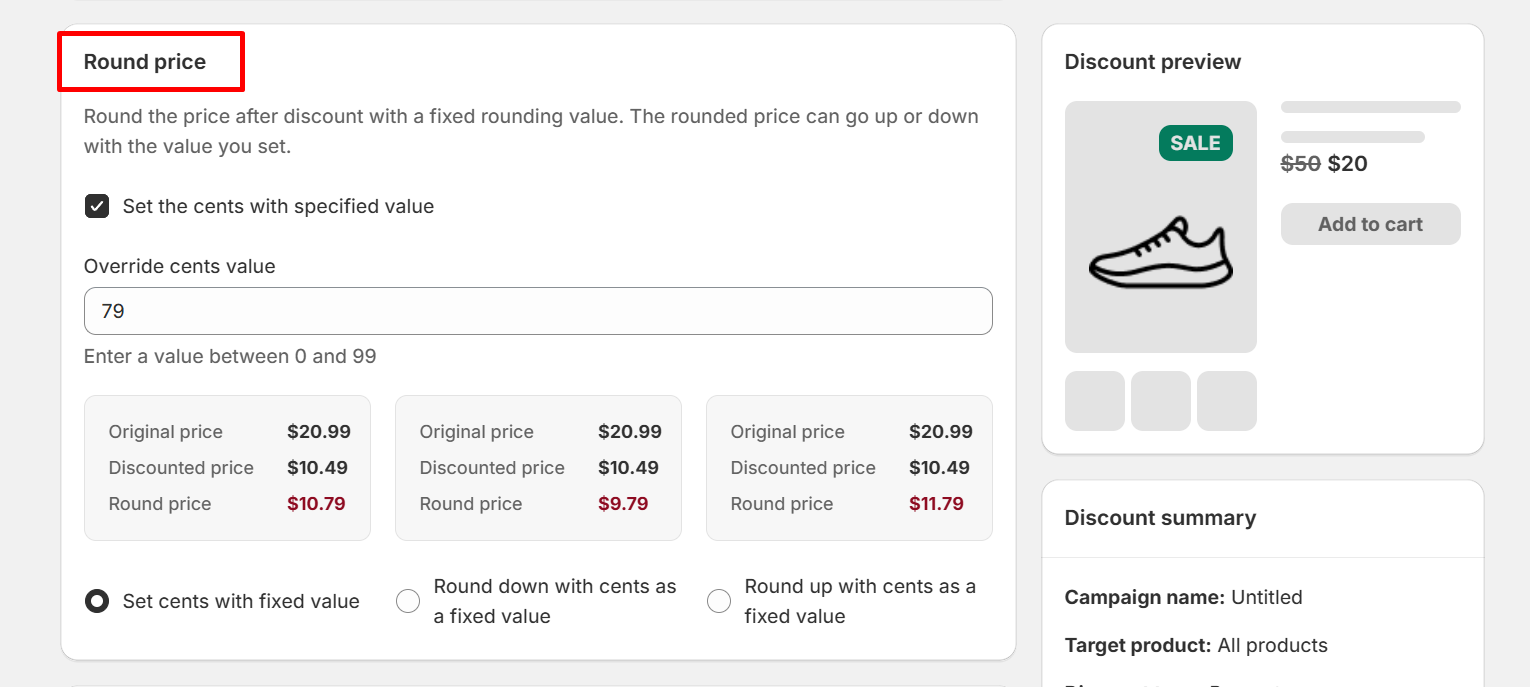
Round the price after discount with a fixed rounding value. The rounded price can go up or down with the value you set.
You just need to enter a specific cents value into the cell, our application will suggest you 3 rounding types like round to current value, round up or round down.
Step 6: Set start time and end time for the discount campaign
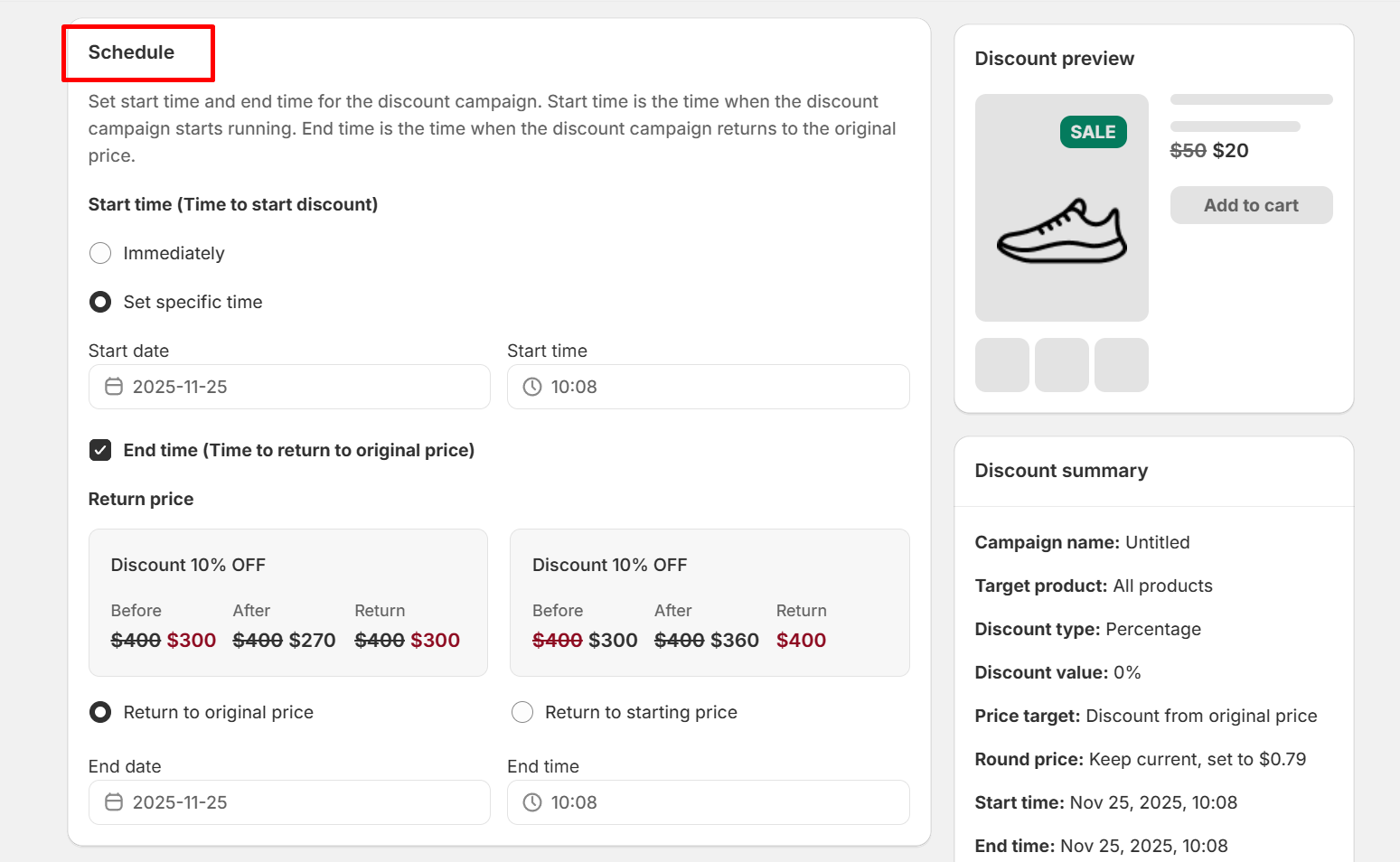
Set start time and end time for the discount campaign. Start time is the time when the discount campaign starts running. End time is the time when the discount campaign returns to the original price.
You can choose to revert to the original price or starting price if your product has been discounted before.
Step 7: Click "Save" to save your discount campaign
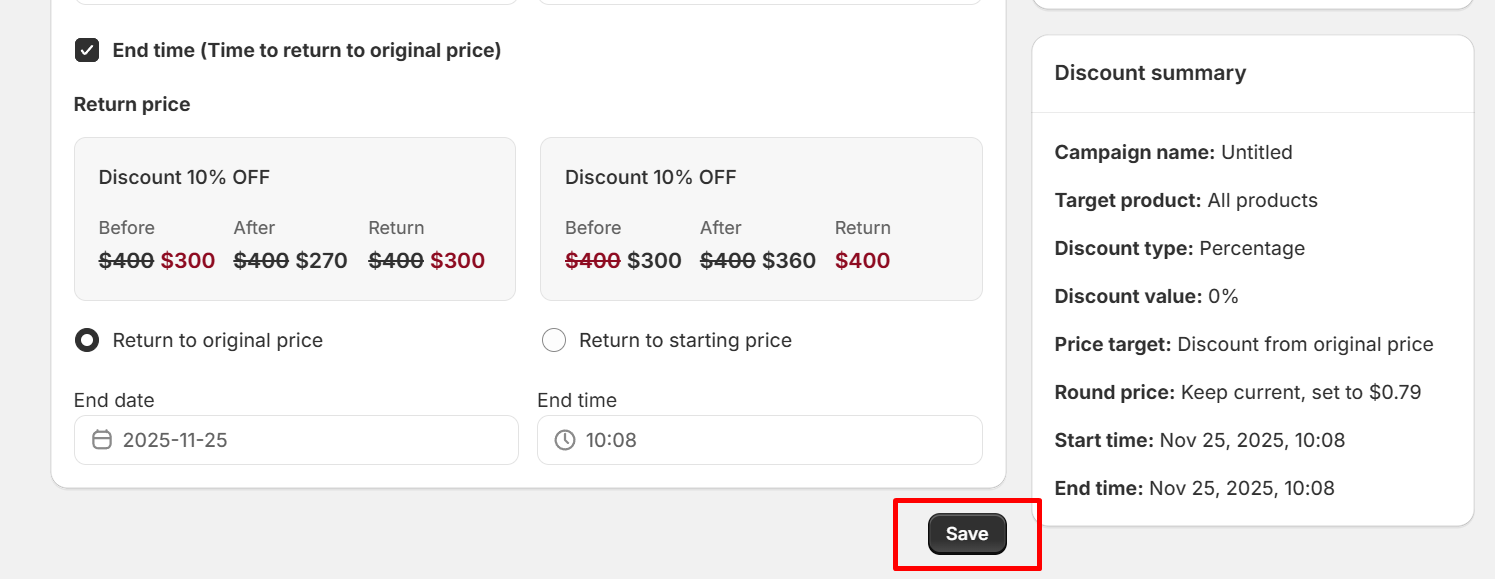
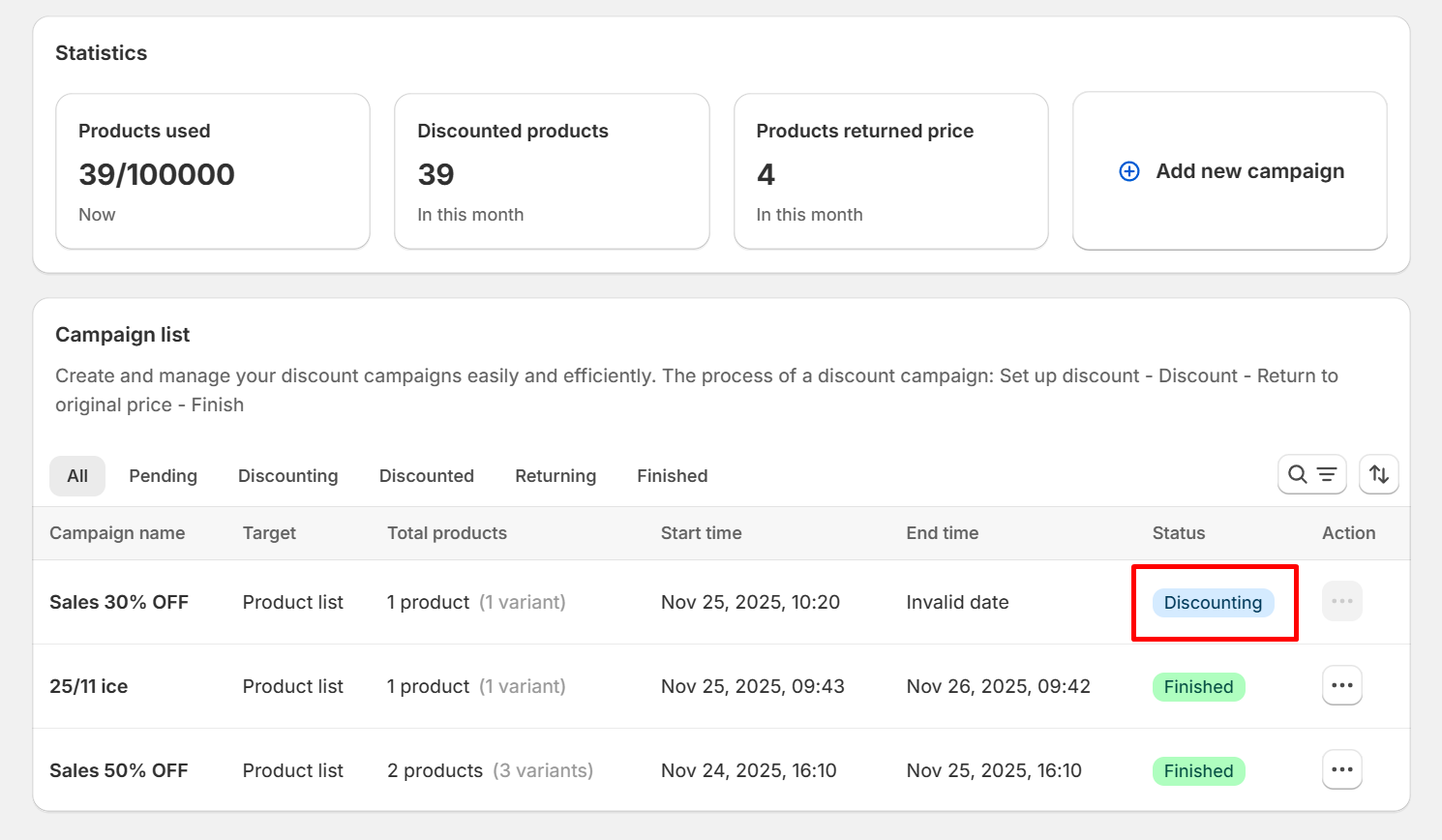
You click the Click button at the bottom of the page to save the settings for your discount campaign. Then, if you set the start time to "Immediately", the discount campaign will change to the "Discounting" status.
If you set the start time to a specific milestone, the campaign will be in the "Pending" status.
After the time you set to return to the original price or starting price, the discount campaign will automatically return to the original price and completely end the discount campaign.
Thanks for reading! If you have any questions, please contact us via email: support@shopone.io
Was this article helpful?
That’s Great!
Thank you for your feedback
Sorry! We couldn't be helpful
Thank you for your feedback
Feedback sent
We appreciate your effort and will try to fix the article