Accordion element: Displays collapsible sections that expand/collapse when clicked. Best for FAQs, lists, or organizing large chunks of text neatly.
I. Accordion Element - Content Settings
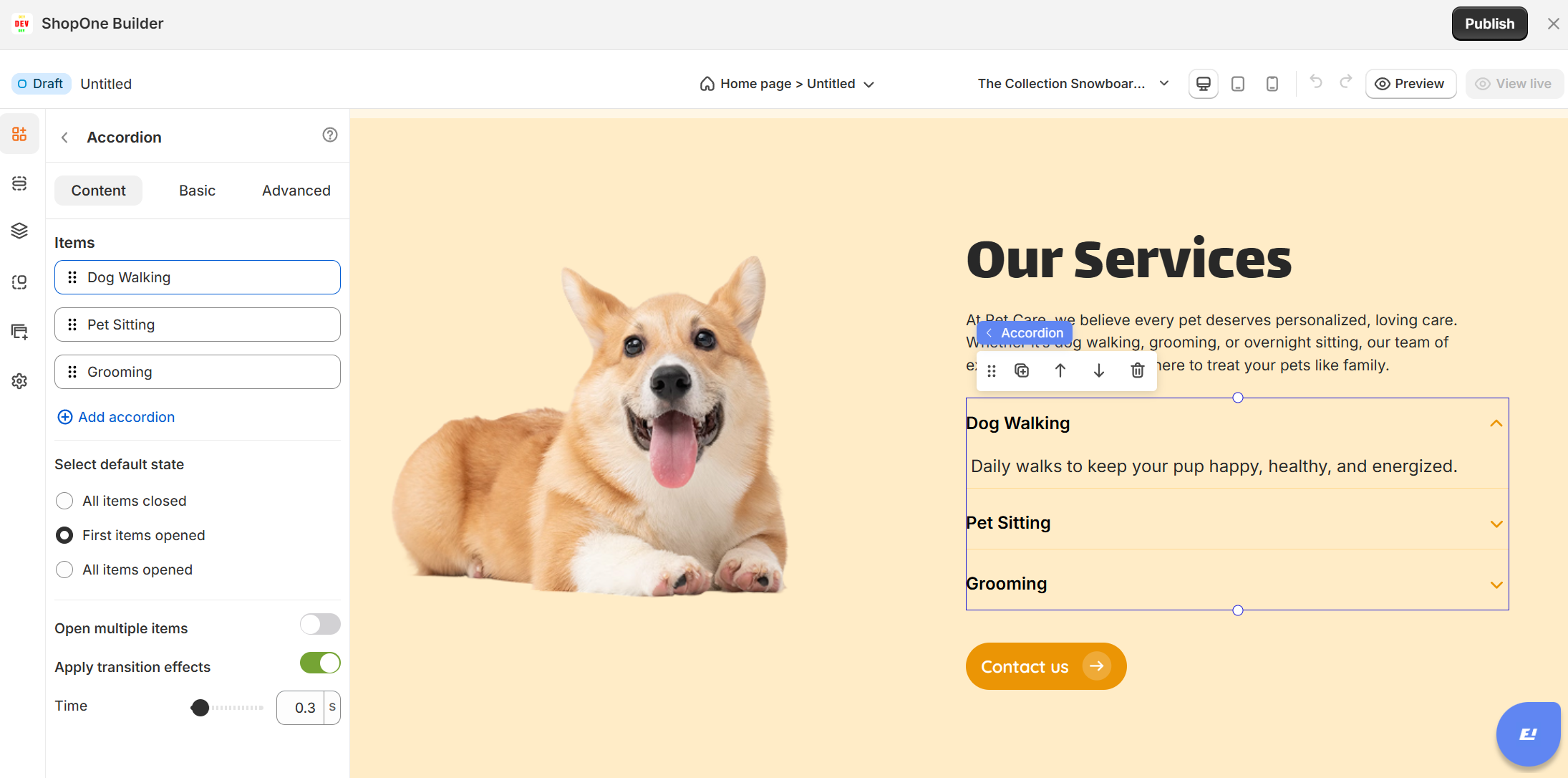
1. Items
You have three accordions: Accordion 1, Accordion 2, Accordion 3.
You can add more accordions with the “Add accordion” button.
Each accordion item can hold text, images, or other elements and will expand/collapse when clicked.
2. Select Default State
Determines how the accordion appears when the page loads:
All items closed – Every accordion section starts collapsed.
First item opened – The first accordion section is open by default.
All items opened – Every accordion section is expanded initially.
3. Open Multiple Items
Enabled – Allows several accordion panels to stay open simultaneously.
Disabled – When a new accordion opens, the previous one automatically closes.
4. Apply Transition Effects
Enabled – Smooth expand/collapse animation.
Disabled – Instant open/close with no animation.
5. Time
Controls animation speed for opening/closing.
II. Accordion Element - Basic Settings
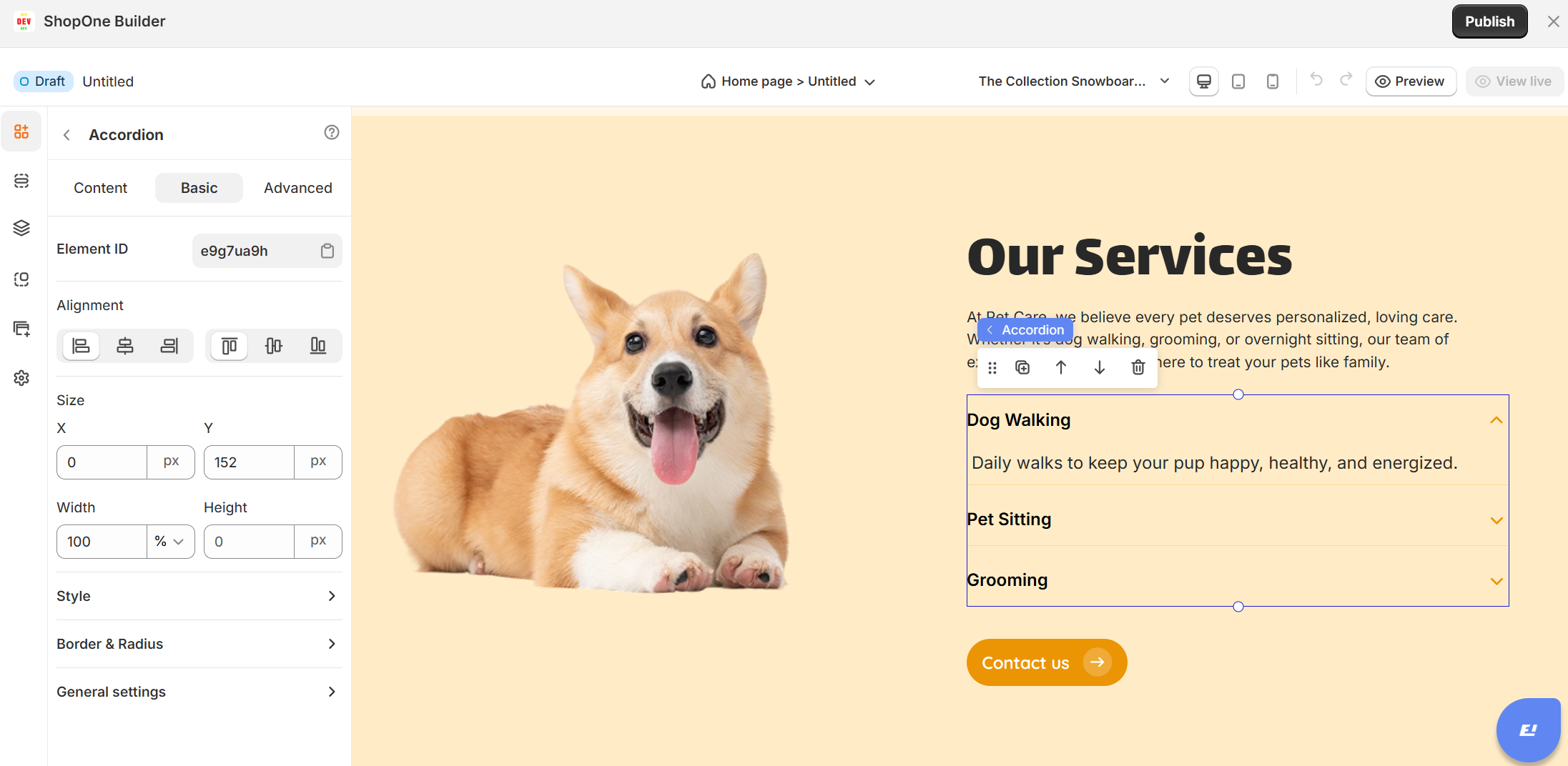
1. Element ID
A unique identifier for this accordion element (useful for custom CSS/JS targeting).
2. Alignment
Options to align the accordion left, center, right, or full-width within its container.
3. Size
X & Y: Control the position offset of the accordion relative to its parent container
Width: Set to
350px.Height: Auto (expands based on content).
4. Style
Box shadow: You can add shadows for depth and emphasis.
5. Border & Radius
Collapsible section where you can adjust borders and corner roundness.
6. General Settings:
Opens detailed header/collapse styling (like the screenshot you shared earlier, where you choose icons, padding, font styles, etc.).
Background color: Set header background (currently none applied).
Choose an icon: You’ve selected a downward arrow for collapse/expand.
Icon position: Left or right alignment.
Icon color & size: Fully adjustable (currently 24px size, dark color).
Padding: Horizontal = 10px, vertical = 10px
Typography controls:
Font family
Text transform
Font weight
Font size
Text decoration
Text color
Line height:
Letter spacing
Gap
III. Accordion Element - Advanced Settings
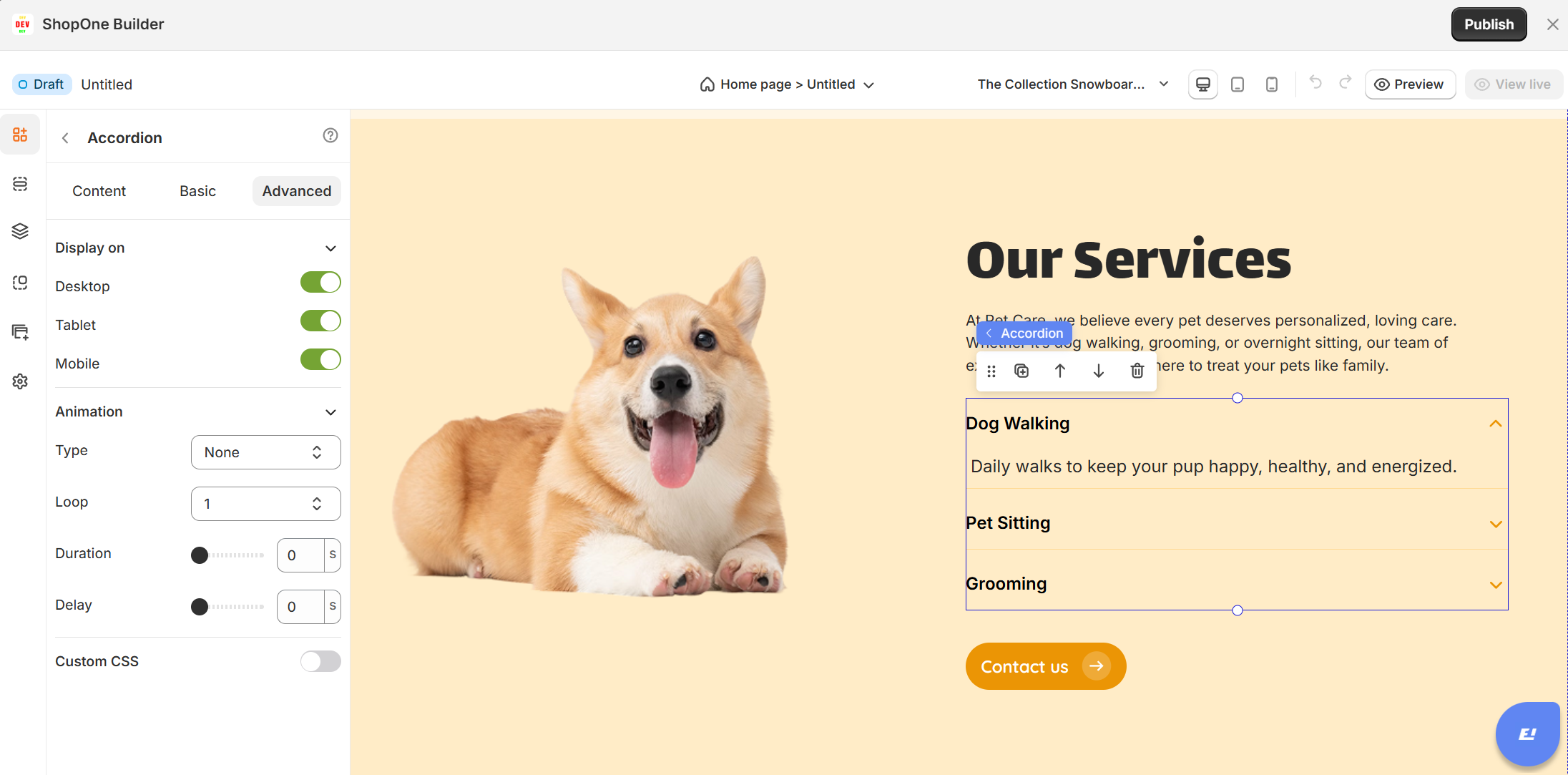
1. Display On
- Desktop – show/hide text on desktop devices.
- Mobile – show/hide text on mobile devices.
This helps you optimize the layout for different screens (responsive design).
2. Animation
- Type: Choose an animation style (e.g., fade, slide, bounce).
- Loop: Set how many times the animation repeats.
- Duration: Adjust how long the animation lasts (in seconds).
- Delay: Add a delay before the animation starts.
3. Custom CSS
- Turn this on to apply your own CSS code for advanced styling.
- This is especially useful for developers or advanced users who want unique effects beyond the built-in options.
Thanks for reading! If you have any questions, please contact us via email: support@shopone.io
Was this article helpful?
That’s Great!
Thank you for your feedback
Sorry! We couldn't be helpful
Thank you for your feedback
Feedback sent
We appreciate your effort and will try to fix the article