The Popup feature allows you to display important messages, promotions, or actions in a visually engaging way on your website or app. Popups can grab user attention immediately, making them ideal for announcements, sales, or lead capture.
I. Create A Popup
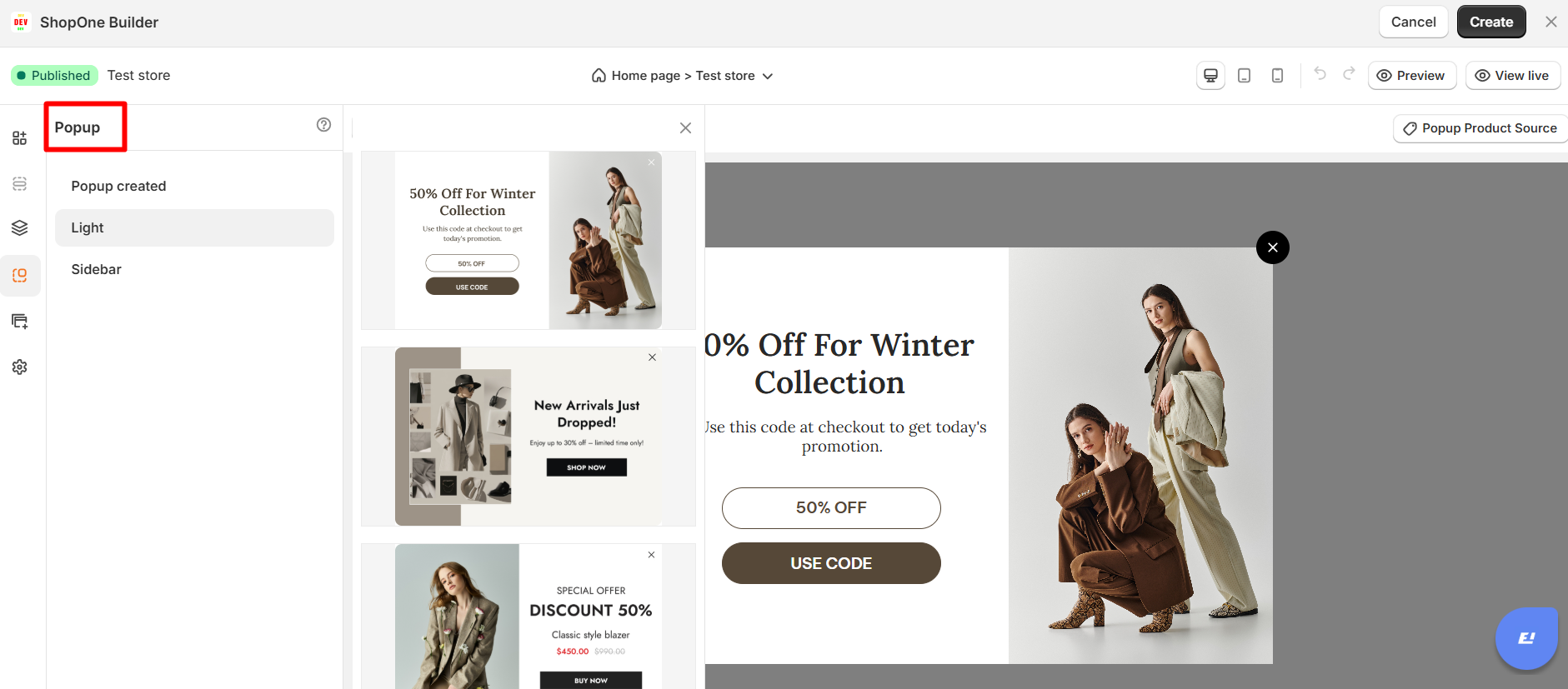
Go to Popup in the editor.
Select a popup type:
Light – a standard popup that appears in the center of the screen.
Sidebar – a popup that slides in from the side.
II. Customize Popup Settings (Basic Tab)
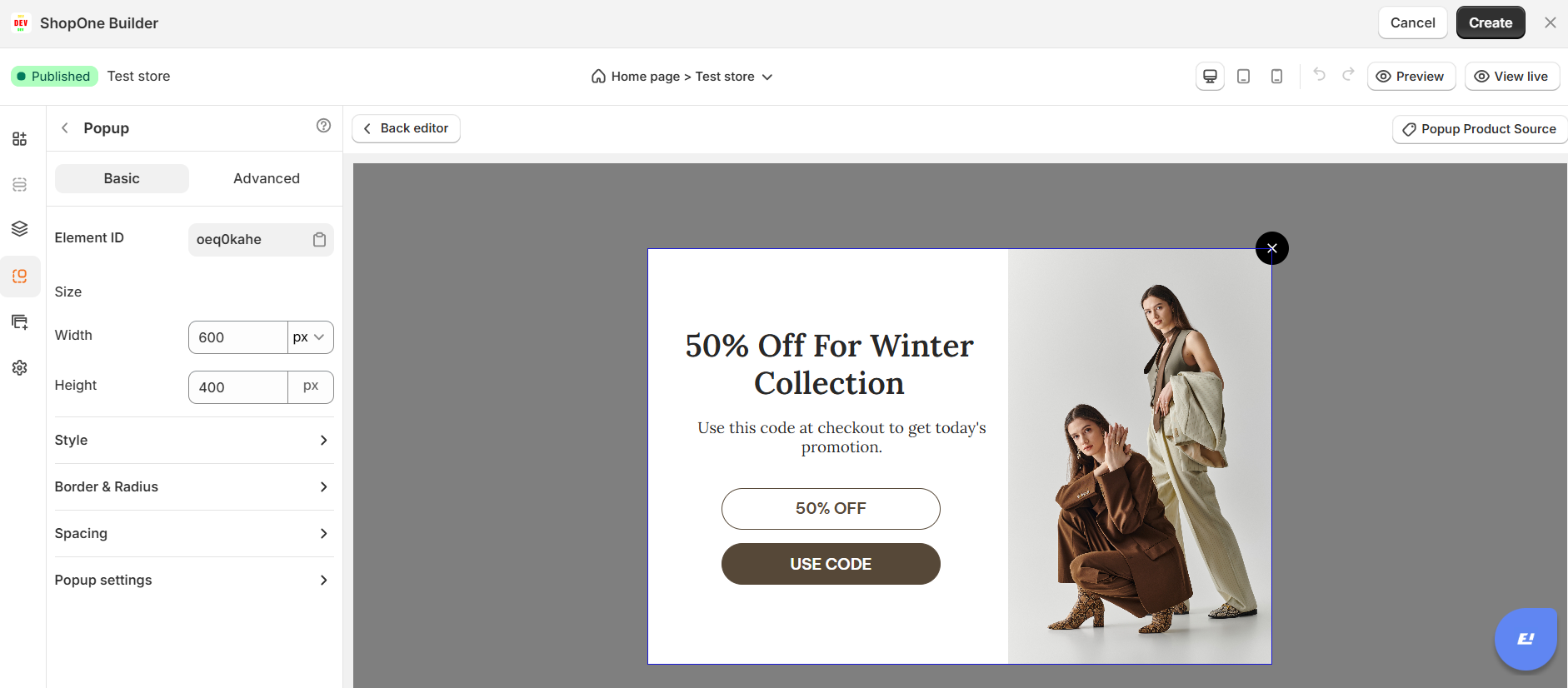
1. Element ID
- A unique identifier for the element, useful for custom CSS or advanced scripting.
2. Size
- Configure the element’s dimensions (width, height, X/Y positioning).
3. Style
- Set background color/image and control opacity to customize the vendor section’s look.
4. Border & Radius
- Add borders or rounded corners to the element for styling purposes.
5. Spacing
- Adjust padding for better touch targets and responsive design.
6. Popup Settings
6.1 Display Condition
Choose when the popup appears:
Immediately – shows as soon as the page loads.
With delay – specify a timer delay before showing the popup.
Z-index
Controls the layer order. Higher values make the popup appear on top of other elements.
6.2 Overlay
Color & Opacity – choose the background color and transparency for the overlay to dim the page.
Click to Close
Enable or disable closing the popup by clicking outside it.
6.3 Position
- Select where the popup appears: center, top-right, bottom-left, etc.
6.4 Close Button
Show or hide the close (X) button.
Customize its icon, size, color, and background.
6.5 Design Your Popup
Add text, images, videos, or buttons inside the popup.
Adjust spacing, borders, and background to match your branding.
6.6 Save & Preview
Save your popup and test it in preview mode to ensure it behaves as expected.
Best Practices
Use sparingly – Too many popups can frustrate users.
Time it right – Use delayed display for better engagement.
Make it actionable – Include clear CTAs (e.g., "Subscribe Now", "Claim Offer").
Ensure accessibility – Provide an easy way to close the popup.
III. Popup Settings (Advanced Tab)
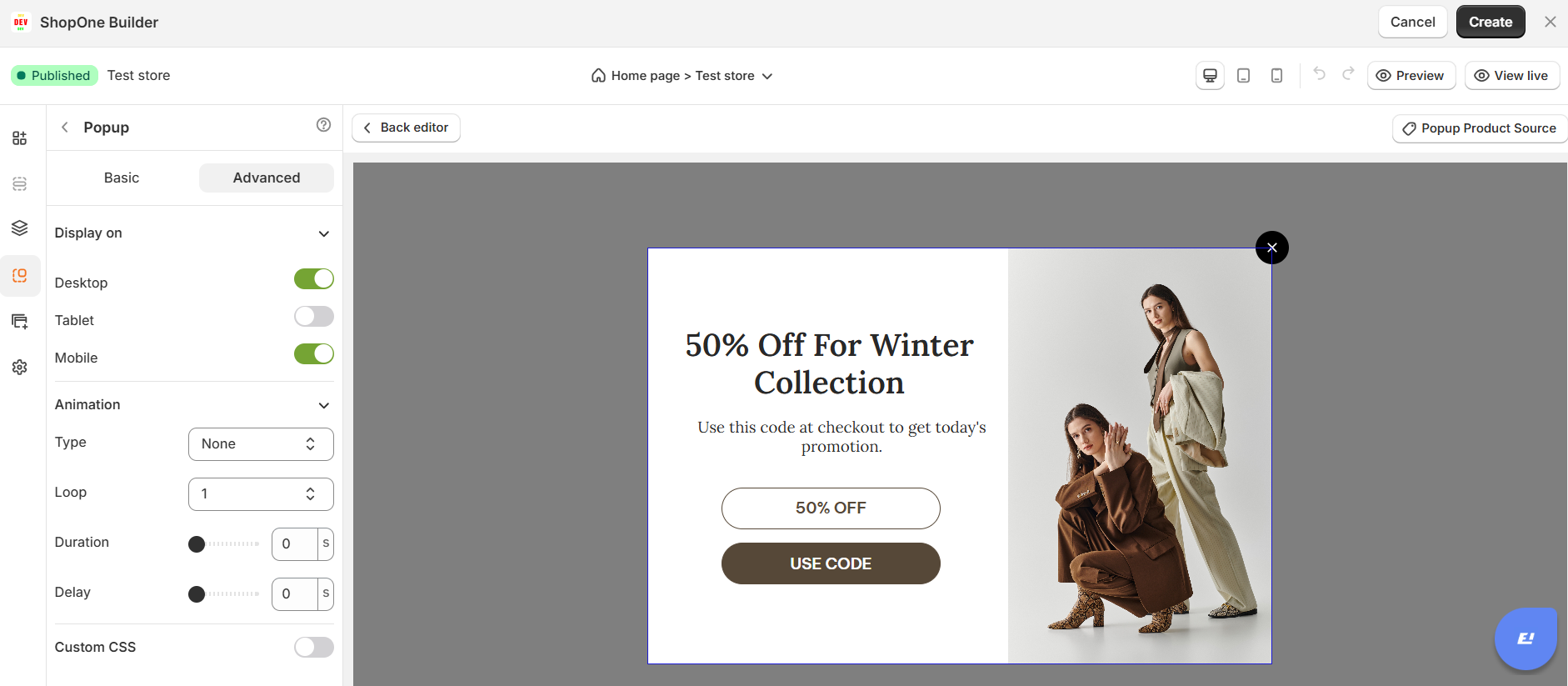
1. Display On
Control where the image is visible:
- Desktop: Show or hide the image on desktop devices.
- Mobile: Show or hide the image on mobile devices.
2. Animation
Add visual effects when the image appears on the page:
- Type: Choose from available animations (fade, slide, zoom, etc.).
- Loop: Number of times the animation should repeat.
- Duration: How long the animation lasts (in seconds).
- Delay: Time before the animation starts (in seconds).
3. Custom CSS
Apply custom styling for advanced design control:
- Class Name: Add a CSS class that you can reference in your stylesheet.
- Custom Style: Write inline CSS styles that apply only to this image element.
Thanks for reading! If you have any questions, please contact us via email: support@shopone.io
Was this article helpful?
That’s Great!
Thank you for your feedback
Sorry! We couldn't be helpful
Thank you for your feedback
Feedback sent
We appreciate your effort and will try to fix the article