ShopOne provides customers with many section templates with a variety of topics such as Hero banner, Newsletter, Sales boost, General content, Social, FAQs, Testimonials, Trust badge, Brand story, Collection suggestion, Product suggestion, Product information, Product specification, Featured product.
To add a section to a page, you just need to follow the steps below.
Step 1: Select a page where you want to add a section and access the editor area of the application.
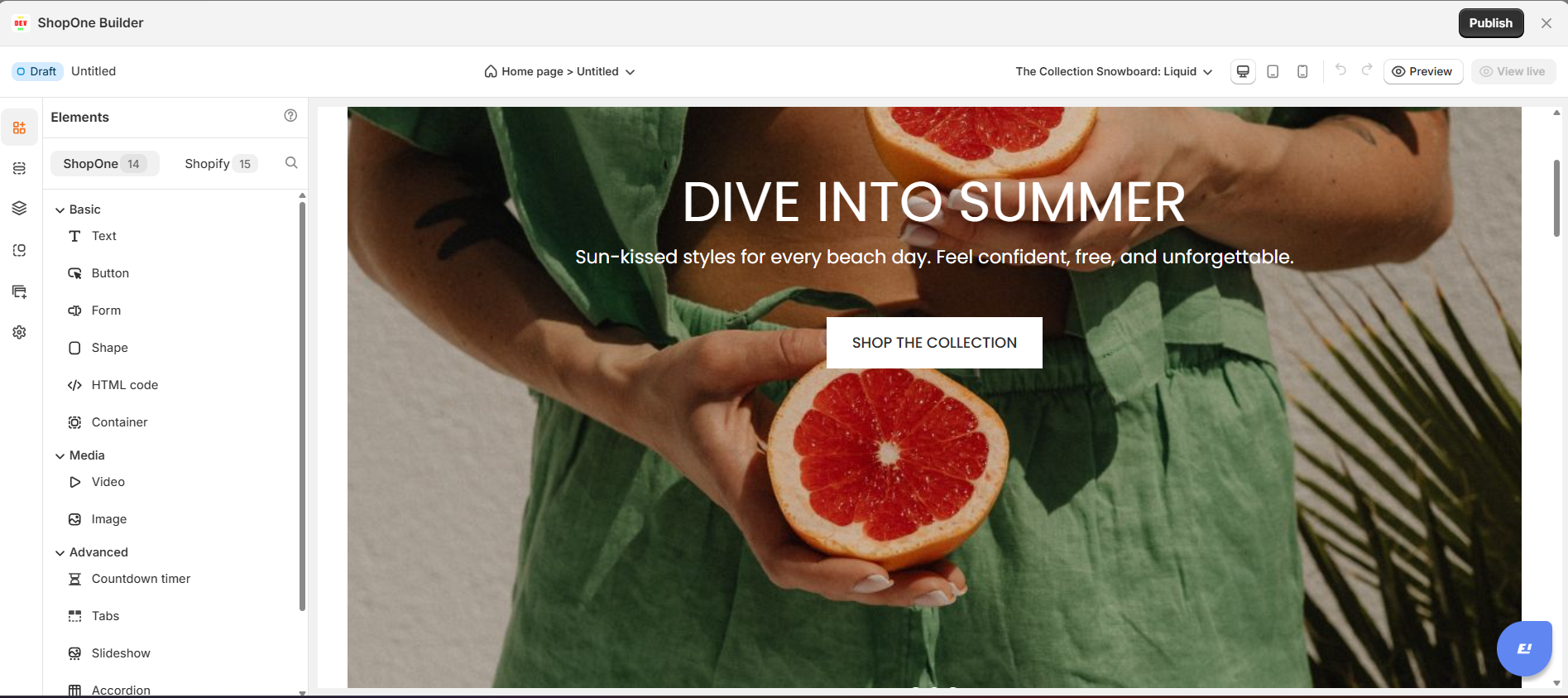
Step 2: Go to Section, choose available section templates or add a blank section to design your own.
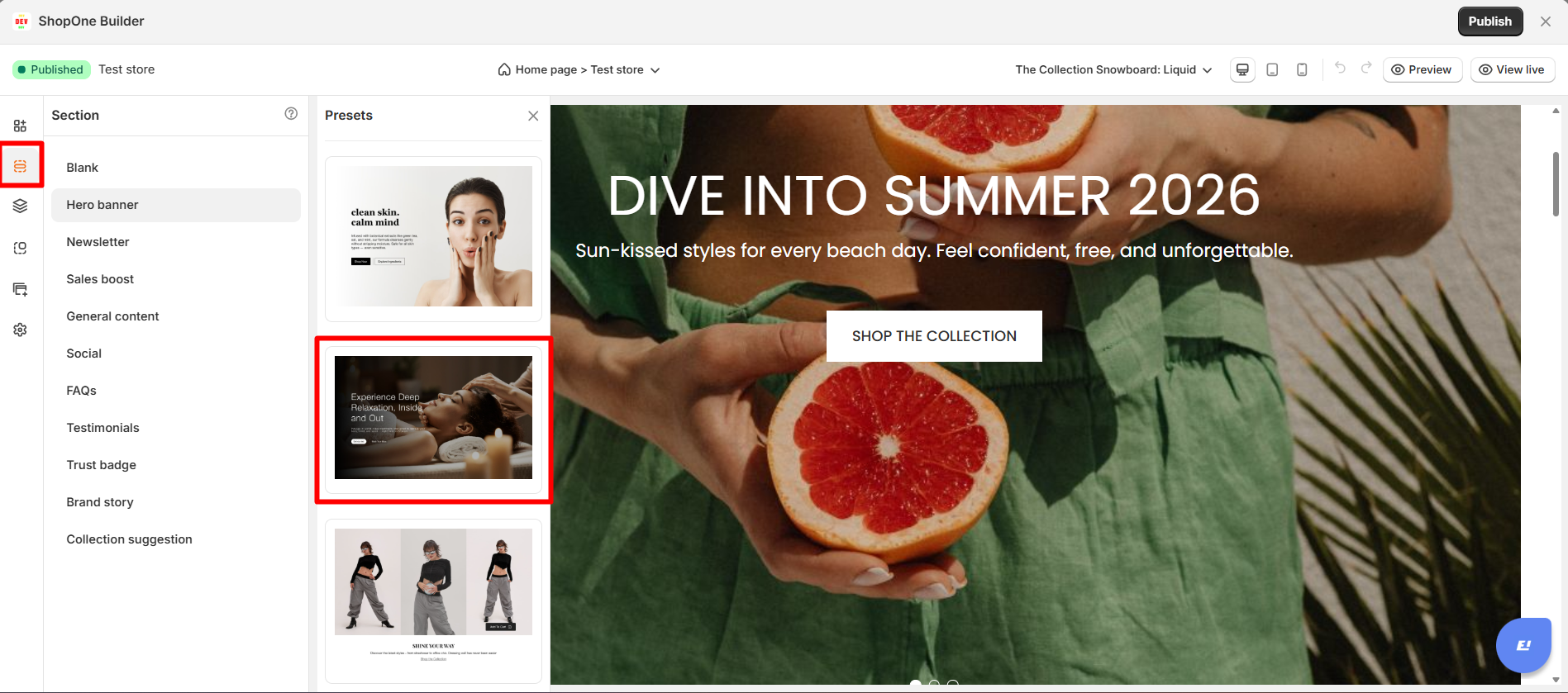
Step 3: Select sections and add them to the page. Our application will automatically detect where you want to add a section by adding the section in the middle of where you are placing your mouse.
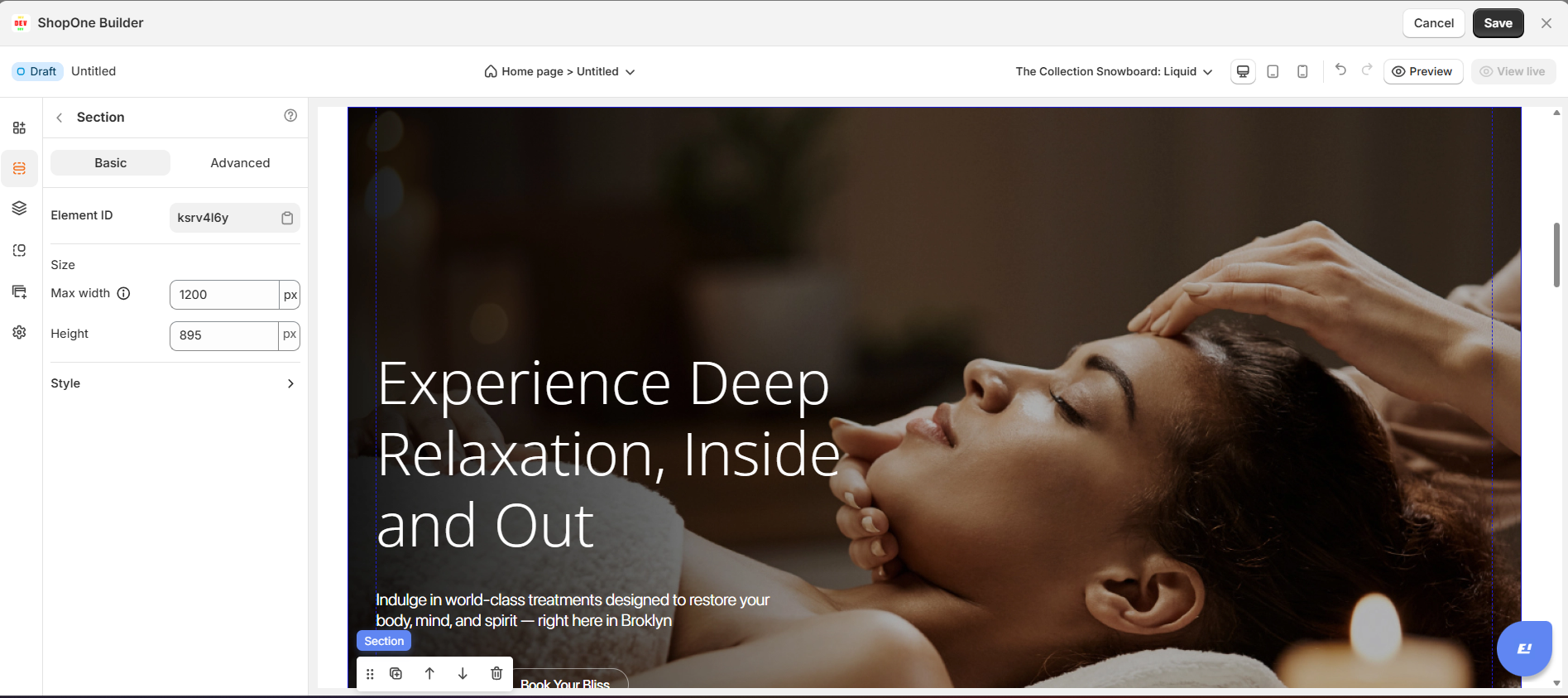
Step 4: Click the Save button to save your edits.
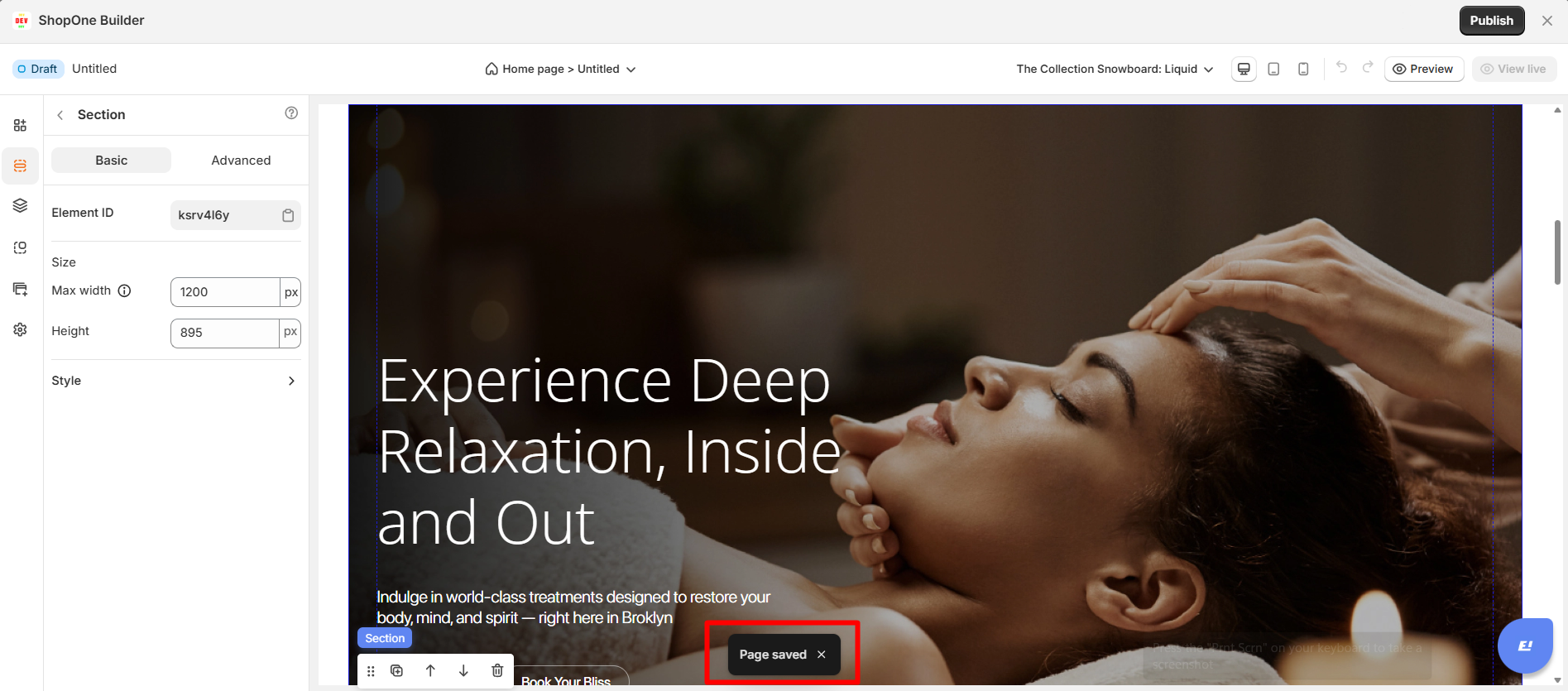
Step 5: Once the page is saved, click the Publish button to publish the page containing the section you added.
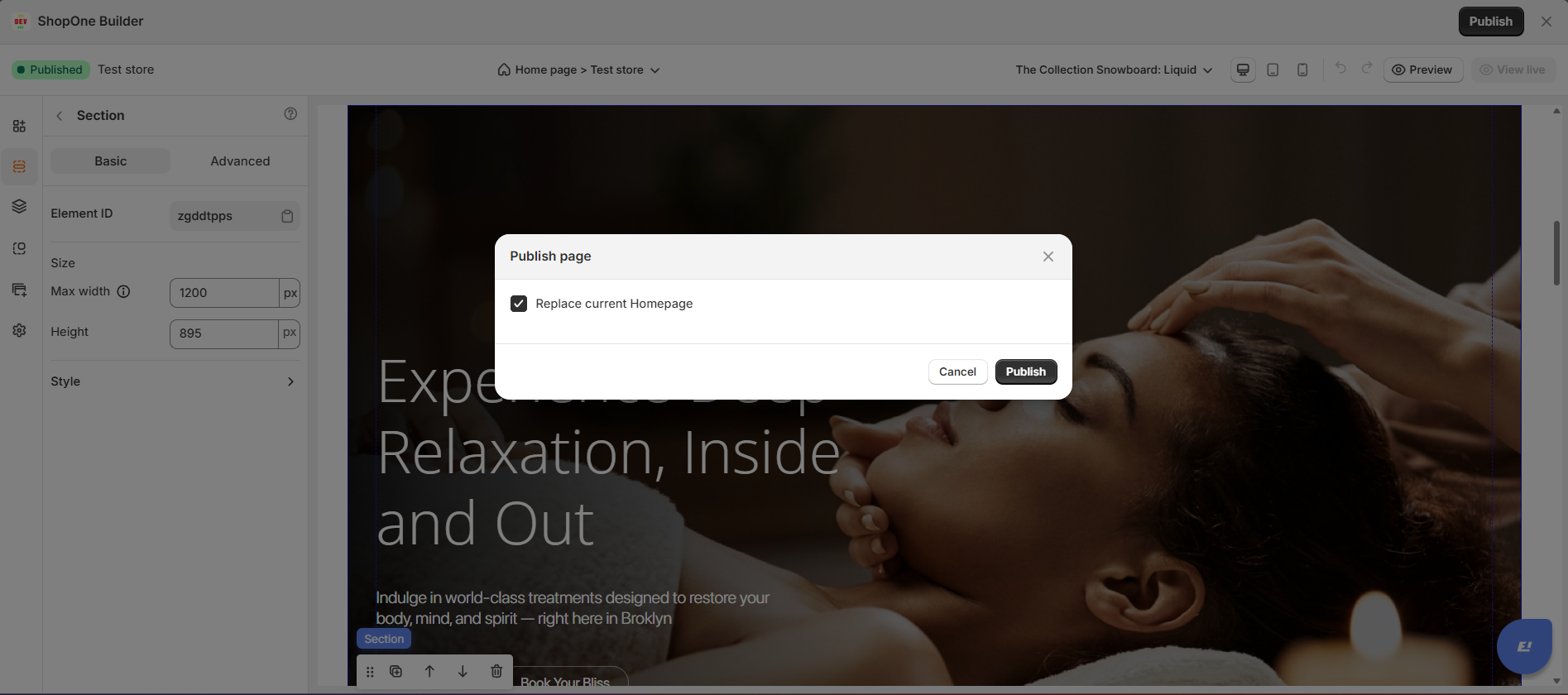
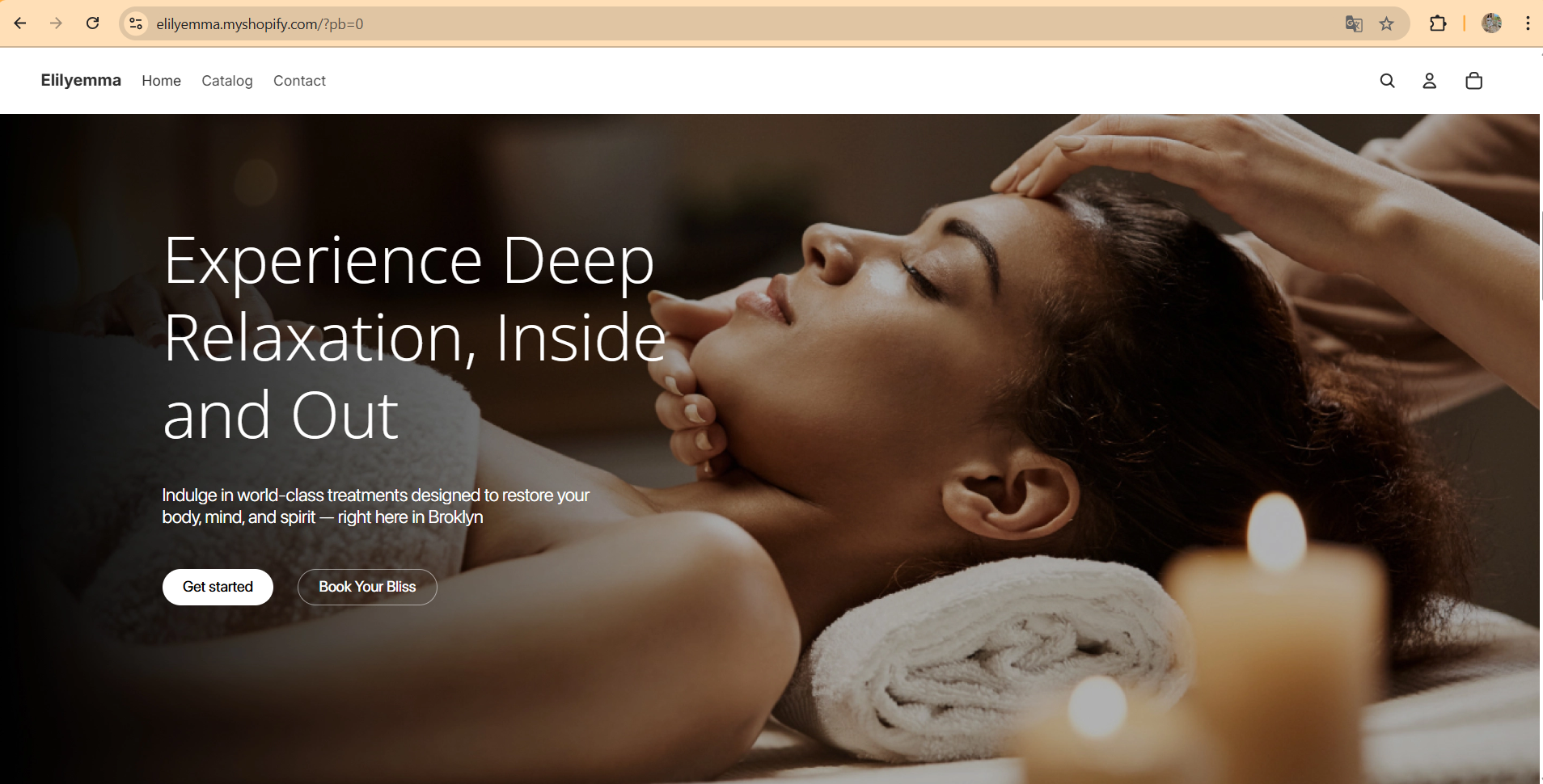
Step 6: After publishing, click the View live button to see the page containing the section you added.
Thanks for reading! If you have any questions, please contact us via email: support@shopone.io
Was this article helpful?
That’s Great!
Thank you for your feedback
Sorry! We couldn't be helpful
Thank you for your feedback
Feedback sent
We appreciate your effort and will try to fix the article