HTML Code element: Lets you insert custom HTML, CSS, or JavaScript code for more control or third-party integrations (widgets, tracking scripts, etc.).
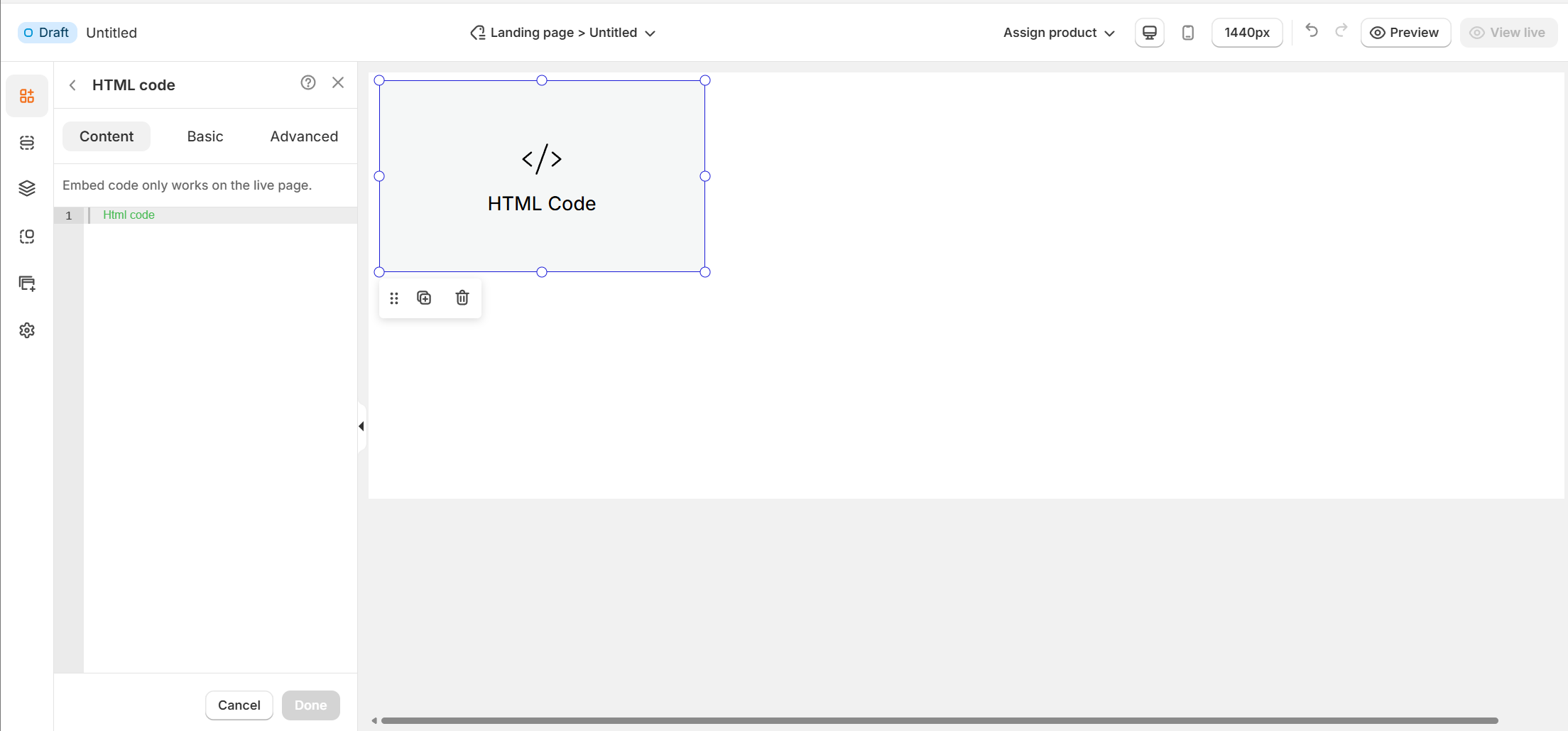
Important: The embedded code will only work on the live published page, not in the preview editor.
I. HTML Code Element - Content Settings
This is where you add your custom HTML code:
Code editor: A text box where you can write or paste your HTML.
Examples of what you can embed:Custom forms or buttons from external services
Scripts such as live chat widgets or tracking pixels
Iframes to embed videos, maps, or other external content
II. HTML Code Element – Basic Settings
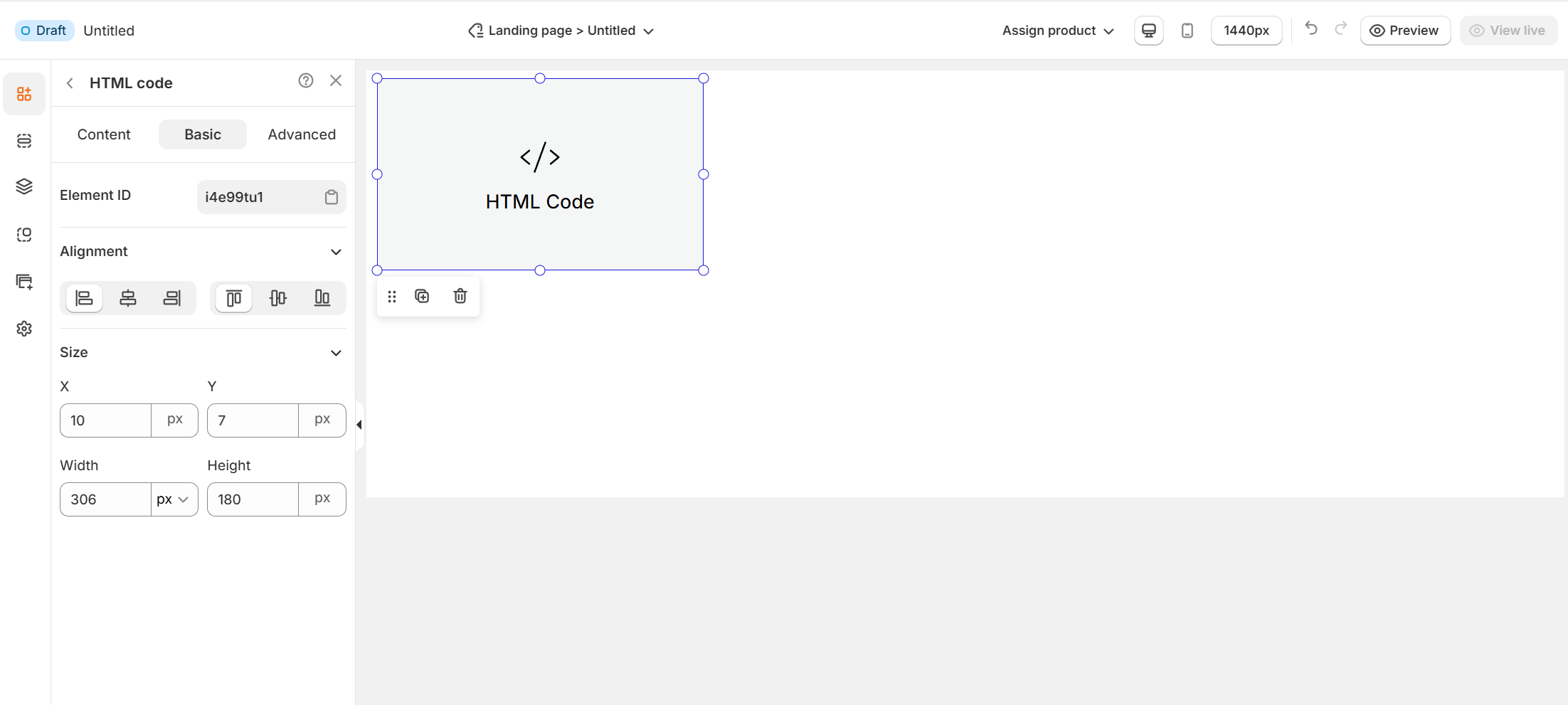
The Basic tab lets you control the size, alignment, and exact placement of your HTML code element on the page.
1. Element Settings
Element ID: A unique identifier for the HTML code block. This is helpful if you want to apply custom CSS or JavaScript specifically to this element.
2. Alignment
Choose how the embedded code is aligned within its container:
Left, Center, Right: Align the code block horizontally.
Stretch & Distribution: Adjust how it fills the available space.
3. Size & Position
X / Y: Set the exact position of the HTML code block in pixels relative to its container.
Width & Height: Define the size of the code block manually.
This is especially useful when embedding iframes or widgets so they display properly within the layout.
III. HTML Code Element – Advanced Settings
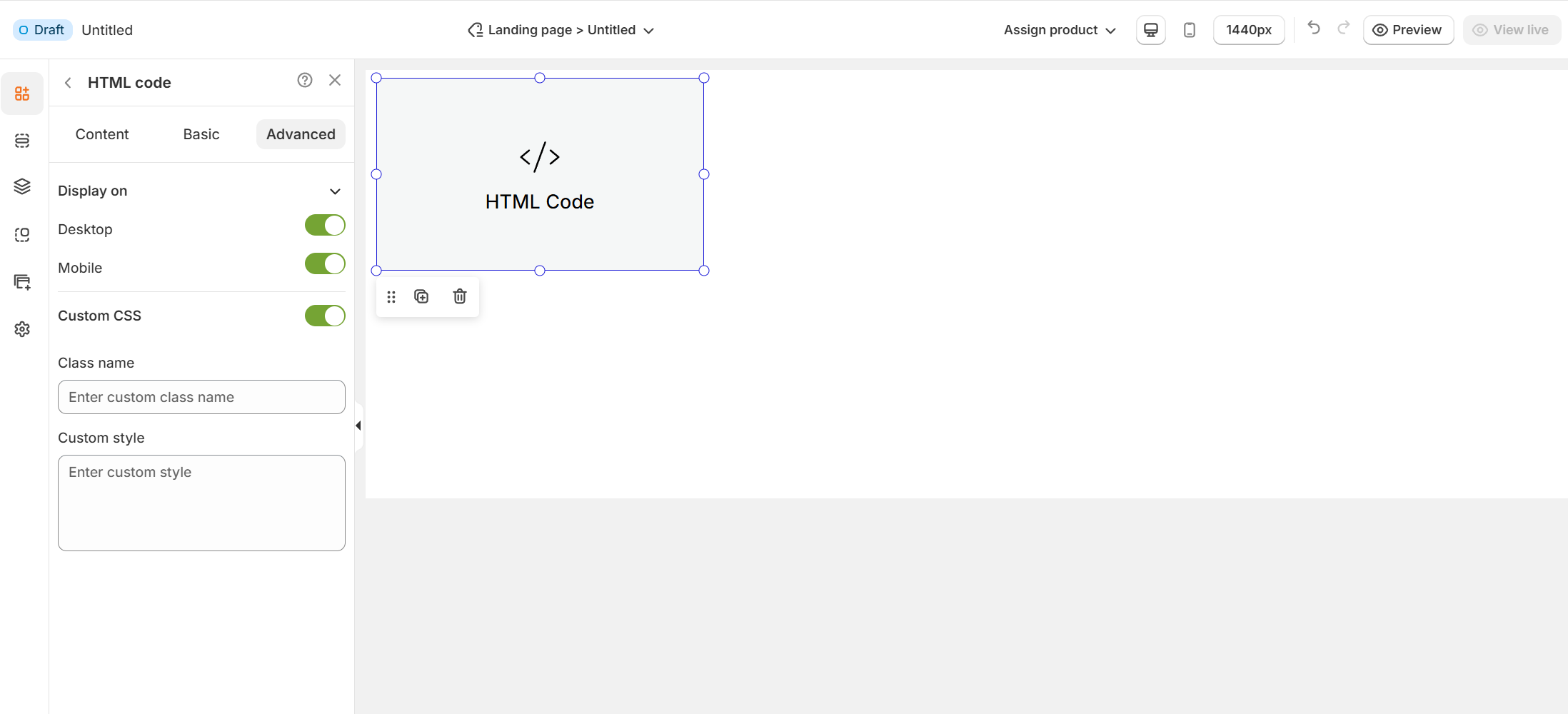
The Advanced tab gives you greater control over where your HTML code appears and lets you apply custom CSS for complete design flexibility.
1. Display On
Choose which devices will display the HTML code element:
Desktop: Toggle ON/OFF to show or hide the code block on desktop screens.
Mobile: Toggle ON/OFF to show or hide the code block on mobile devices.
This is useful if your embedded code is designed only for certain devices (e.g., a widget optimized for desktop only).
2. Custom CSS
Enable custom styling and apply your own CSS code:
Class name: Add a custom class name to target this element in your site’s CSS file.
Custom style: Directly enter inline CSS to style this element (e.g., change background color, adjust padding, etc.).
This is ideal for users who want complete control over how their embedded code looks.
Thanks for reading! If you have any questions, please contact us via email: support@shopone.io
Was this article helpful?
That’s Great!
Thank you for your feedback
Sorry! We couldn't be helpful
Thank you for your feedback
Feedback sent
We appreciate your effort and will try to fix the article