Breadcrumb element: Shows a navigation trail (e.g., Home > Collection > Product). Helps users know where they are and easily navigate back.
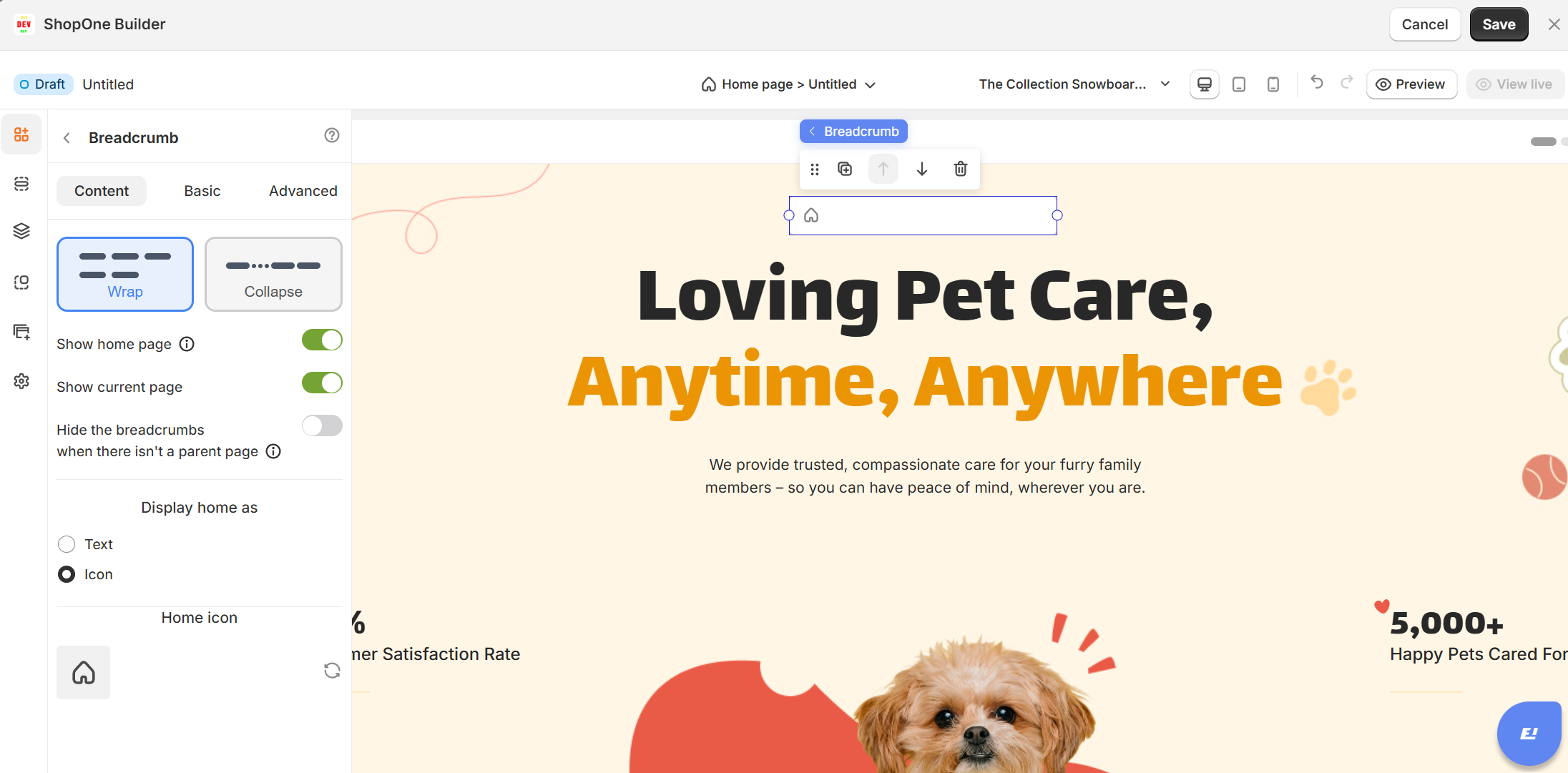
I. Breadcrumb Element - Content Settings
1. Layout Type
Wrap – Breadcrumbs will flow onto multiple lines if they are too long.
Collapse – Breadcrumbs will collapse into a single line with ellipses (
...) when there isn’t enough space.
2. Toggle Options
Show home page – Enables or disables displaying a link/icon for the homepage in the breadcrumb trail.
Show current page – Toggles whether the current page appears as the last breadcrumb item.
Hide the breadcrumbs when there isn't a parent page – Hides the breadcrumb entirely if the current page does not belong to a hierarchy (useful for top-level pages).
3. Display Home As
Text – Shows "Home" or custom text.
Icon – Displays a home icon (default setting in your screenshot).
4. Home Icon Selector
Lets you choose or replace the home icon from available icons.
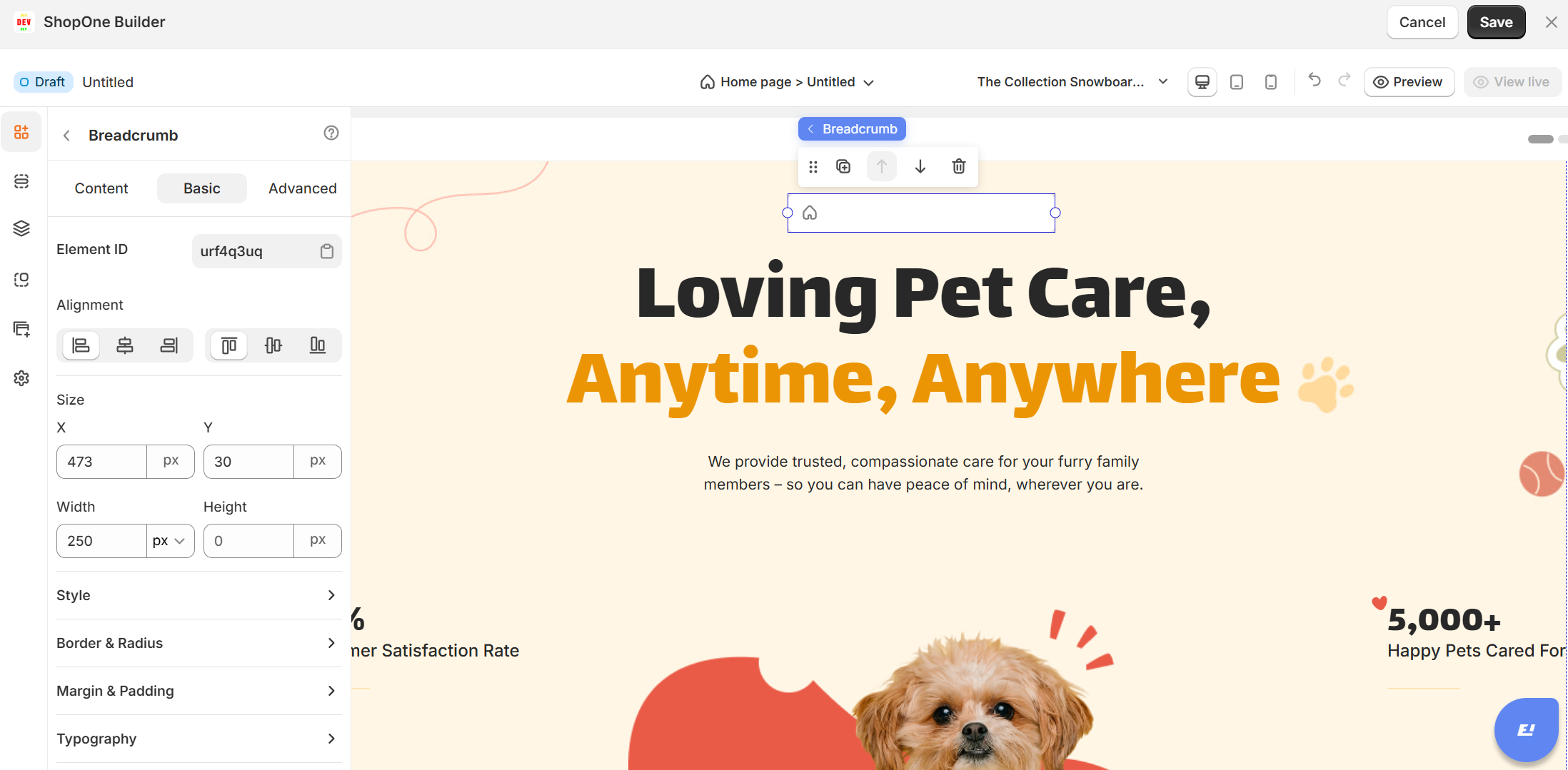
II. Breadcrumb Element - Basic Settings
1. Element ID
Shows the unique identifier for this breadcrumb widget (useful for custom CSS or scripts).
2. Alignment
Lets you align the breadcrumb:
Left
Center
Right
Justify / Full width
3. Size
X & Y: Controls the breadcrumb’s horizontal (X) and vertical (Y) positioning in pixels.
Width & Height: Defines the breadcrumb’s size. (Height is often auto since it adjusts to the text size.)
4. Style
Background: Lets you choose a background color for the breadcrumb bar.
5. Border & Radius
Adjusts border styles and corner radius (rounded edges) if you want a card-like breadcrumb look.
6. Margin & Padding
Fine-tunes spacing outside (margin) and inside (padding) the breadcrumb container.
7. Typography
Lets you set:
Font family
Size
Weight
Text color
Letter spacing
Line height
8. Icon
Choose an icon: Selects the separator icon (default is
>).Icon color: Pick a color for the separator icon.
Icon size: Adjust the size in pixels.
9. Space
Spacing between text and icon: Controls the gap between breadcrumb text and its separator.
Vertical spacing: Adjusts space above/below the breadcrumb text for better visual alignment.
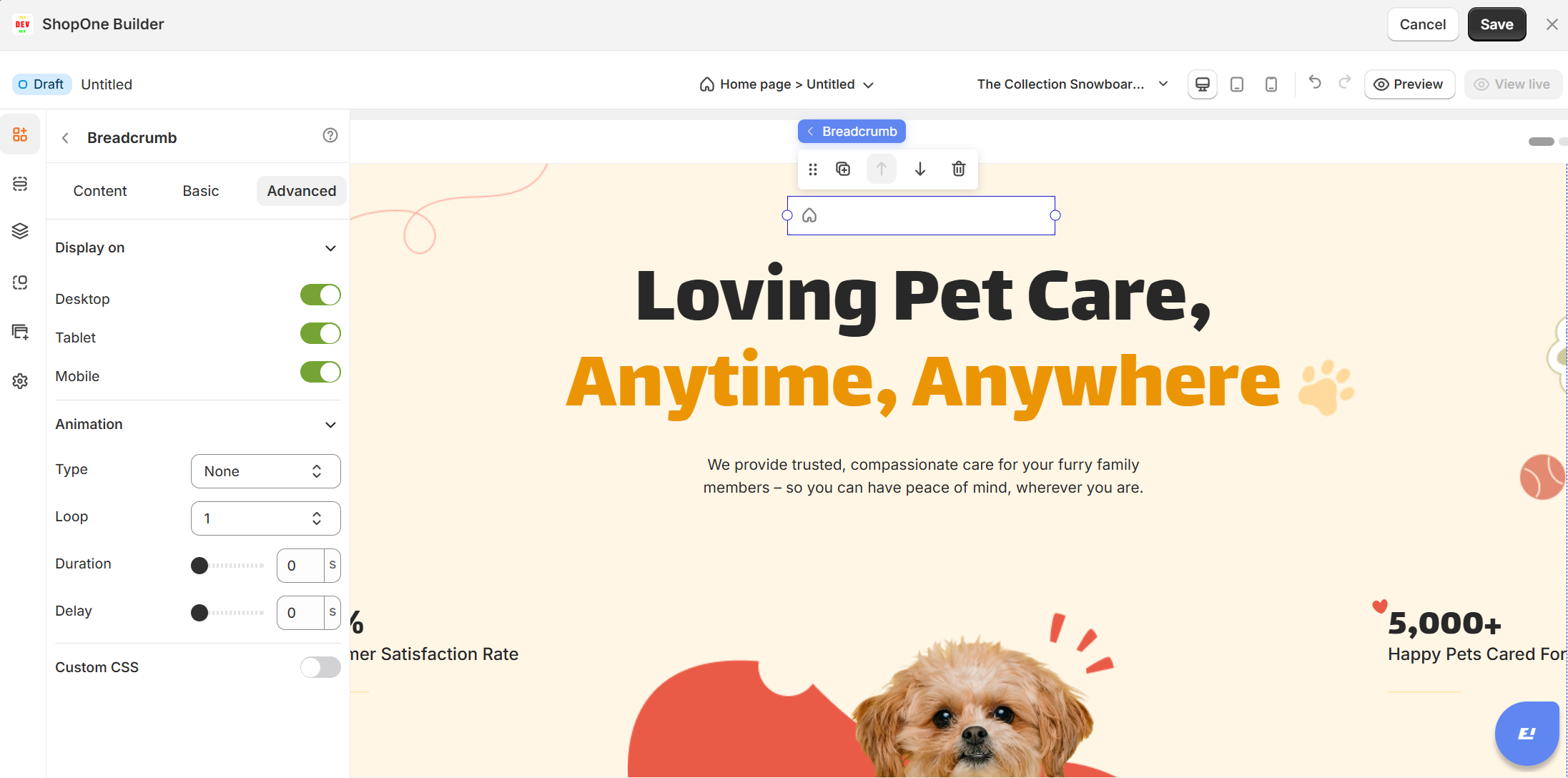
III. Breadcrumb Element - Advanced Settings
1. Display On
- Desktop – show/hide text on desktop devices.
- Mobile – show/hide text on mobile devices.
This helps you optimize the layout for different screens (responsive design).
2. Animation
- Type: Choose an animation style (e.g., fade, slide, bounce).
- Loop: Set how many times the animation repeats.
- Duration: Adjust how long the animation lasts (in seconds).
- Delay: Add a delay before the animation starts.
3. Custom CSS
- Turn this on to apply your own CSS code for advanced styling.
- This is especially useful for developers or advanced users who want unique effects beyond the built-in options.
Thanks for reading! If you have any questions, please contact us via email: support@shopone.io
Was this article helpful?
That’s Great!
Thank you for your feedback
Sorry! We couldn't be helpful
Thank you for your feedback
Feedback sent
We appreciate your effort and will try to fix the article