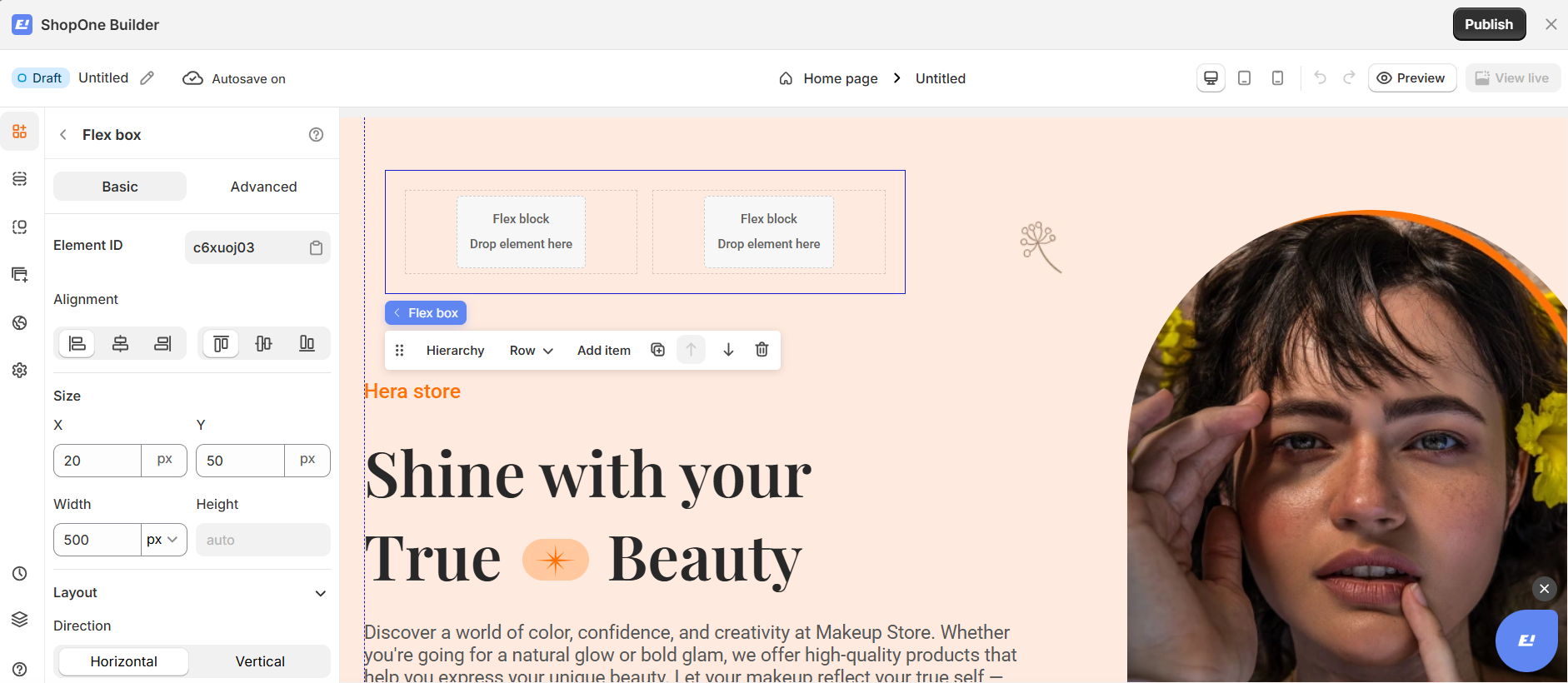
Flex Box Element - Basic Settings
1. Element ID
Each Flex Box has a unique Element ID, used to identify it inside the page builder. You can copy this ID to use for custom styling or advanced settings if needed.
2. Alignment
Control how elements are aligned inside the Flex Box:
Align items to the start
Center items
Align items to the end
Distribute items evenly
This helps you quickly position content exactly where you want it.
3. Size (X & Y)
Set the position of the Flex Box on the page:
X: Horizontal position
Y: Vertical position
Values are measured in pixels (px), giving you precise control over placement.
4. Width & Height
Width: Define the fixed width of the Flex Box (px or responsive units)
Height: Set a custom height or leave it as auto to fit the content inside
5. Direction
Choose how elements are arranged inside the Flex Box:
Horizontal – elements are placed side by side
Vertical – elements are stacked from top to bottom
This is useful for creating rows, columns, menus, or content sections.
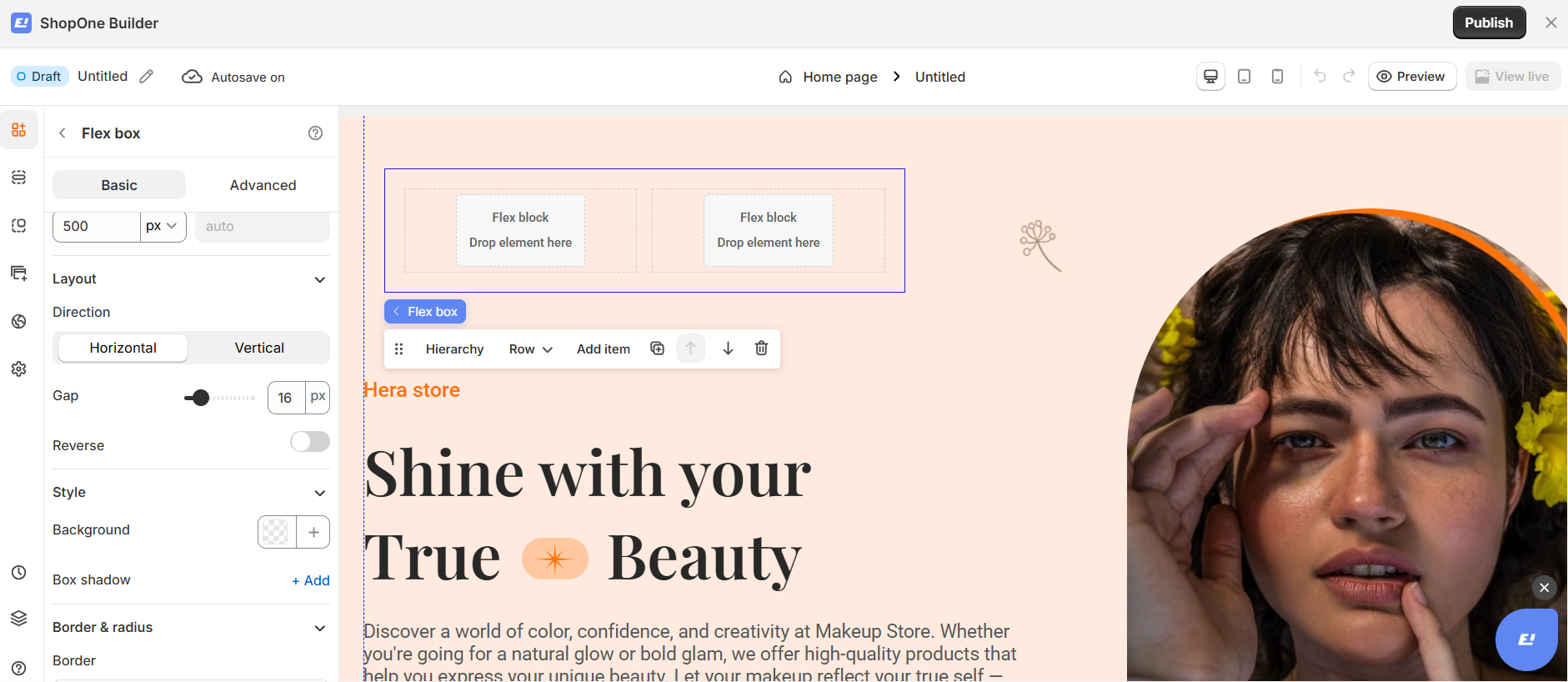
6. Gap
Adjust the spacing between elements inside the Flex Box.
Increasing the gap makes the layout more breathable and easier to read.
7. Reverse
Enable Reverse to flip the order of elements:
Horizontal → right to left
Vertical → bottom to top
Perfect for quickly changing layout order without rebuilding content.
Tip: Flex Box is ideal for building hero sections, product highlights, feature lists, and button groups — all without writing any code.
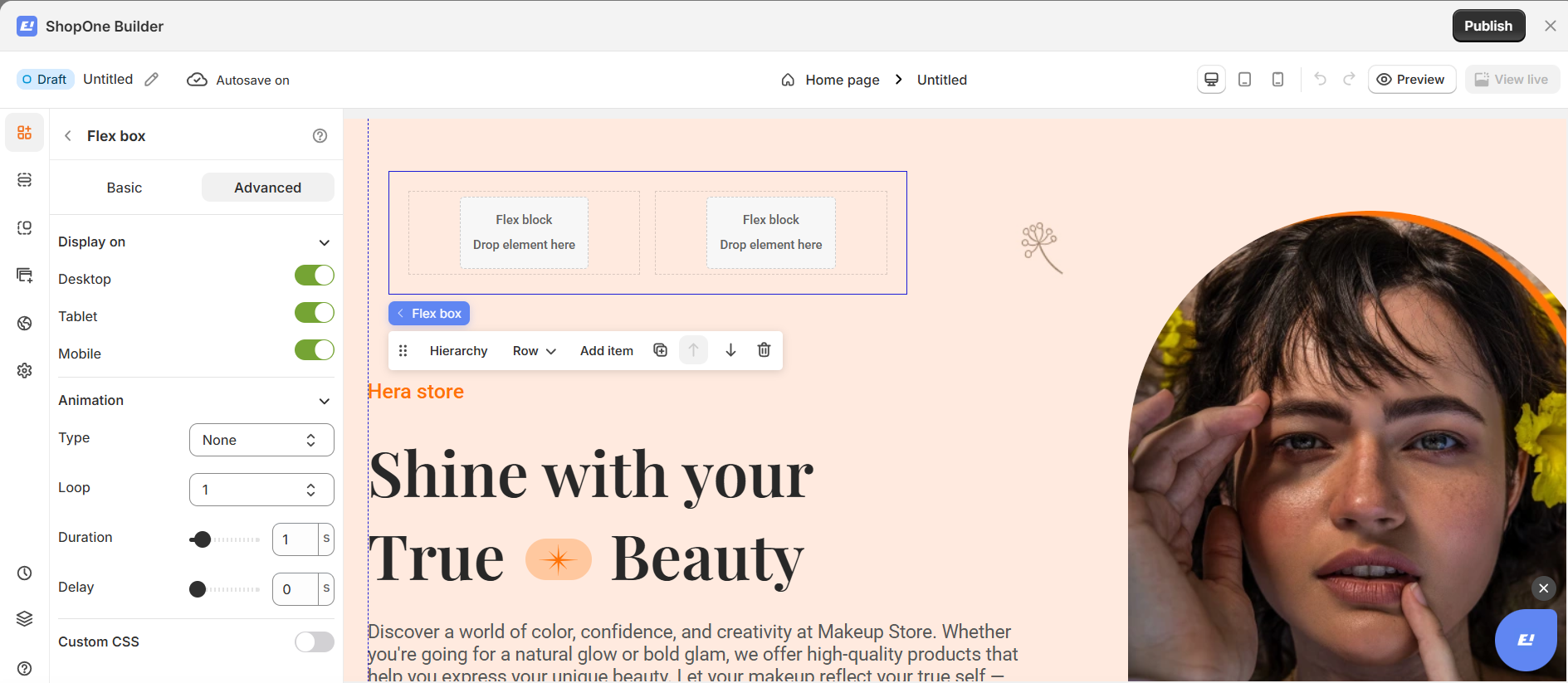
II. Flex Box Element – Advanced Settings
The Advanced tab allows you to control interactions, device visibility, animations, and custom styling for your text element.
1. Display on
Control where the text will be visible:
- Desktop – show/hide text on desktop devices.
- Mobile – show/hide text on mobile devices.
This helps you optimize the layout for different screens (responsive design).
2. Animation
Bring your text to life with animation effects.
- Type: Choose an animation style (e.g., fade, slide, bounce).
- Loop: Set how many times the animation repeats.
- Duration: Adjust how long the animation lasts (in seconds).
- Delay: Add a delay before the animation starts.
3. Custom CSS
- Turn this on to apply your own CSS code for advanced styling.
- This is especially useful for developers or advanced users who want unique effects beyond the built-in options.
=> The Advanced tab gives users more control, interactivity, and professional effects, making the text stand out and adapt perfectly to any device.
Thanks for reading! If you have any questions, please contact us via email: support@shopone.io
Was this article helpful?
That’s Great!
Thank you for your feedback
Sorry! We couldn't be helpful
Thank you for your feedback
Feedback sent
We appreciate your effort and will try to fix the article